

Overview
The Branding & Theme tab controls the visual identity of your event gallery website: theme colour, header design, an optional call-to-action button, your organisation name, logo, and favicon. Plan availability: Branding & Theme is editable on all plans — there’s no plan gate on this tab in the dashboard.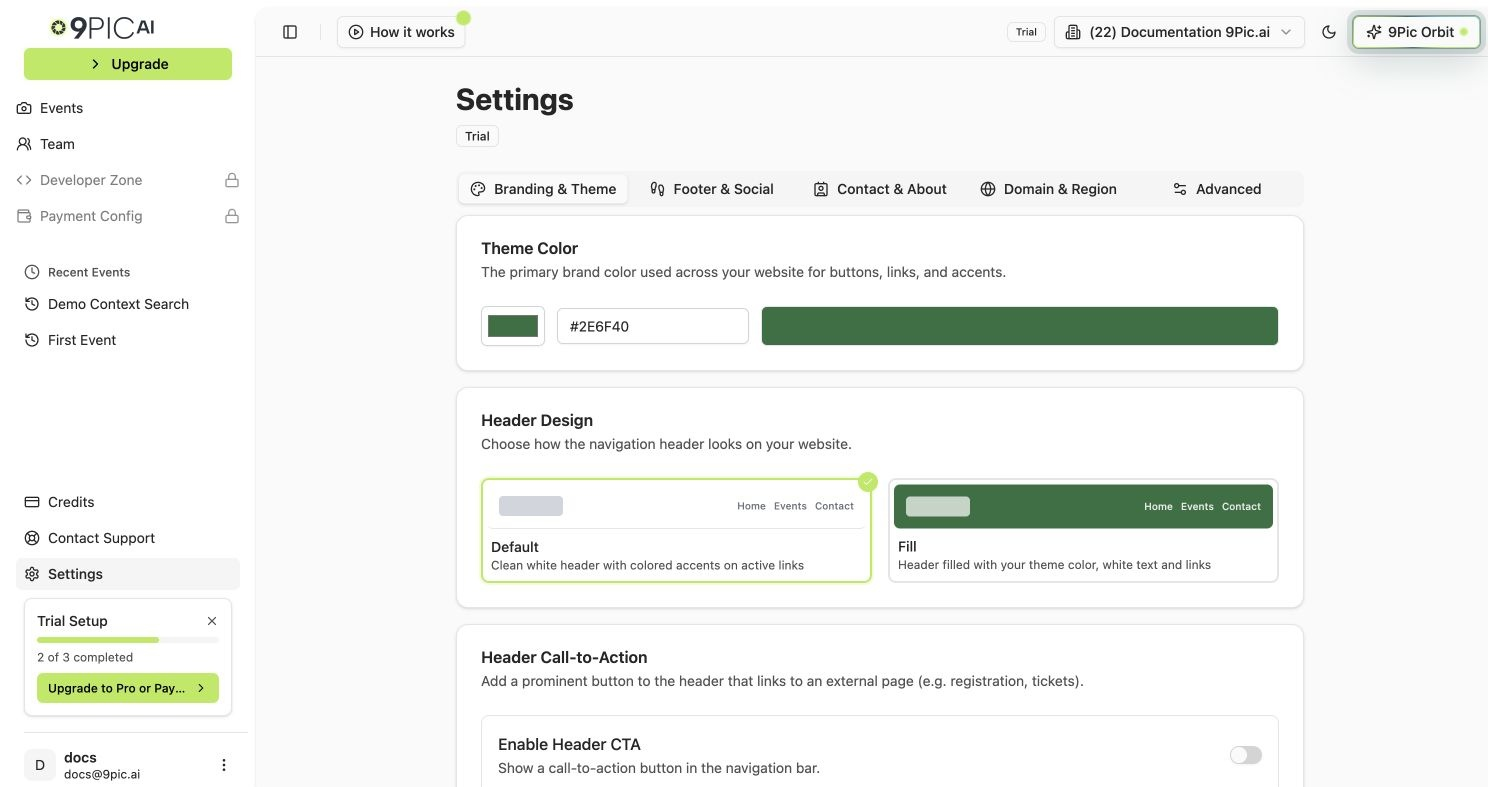
Branding & Theme top settings
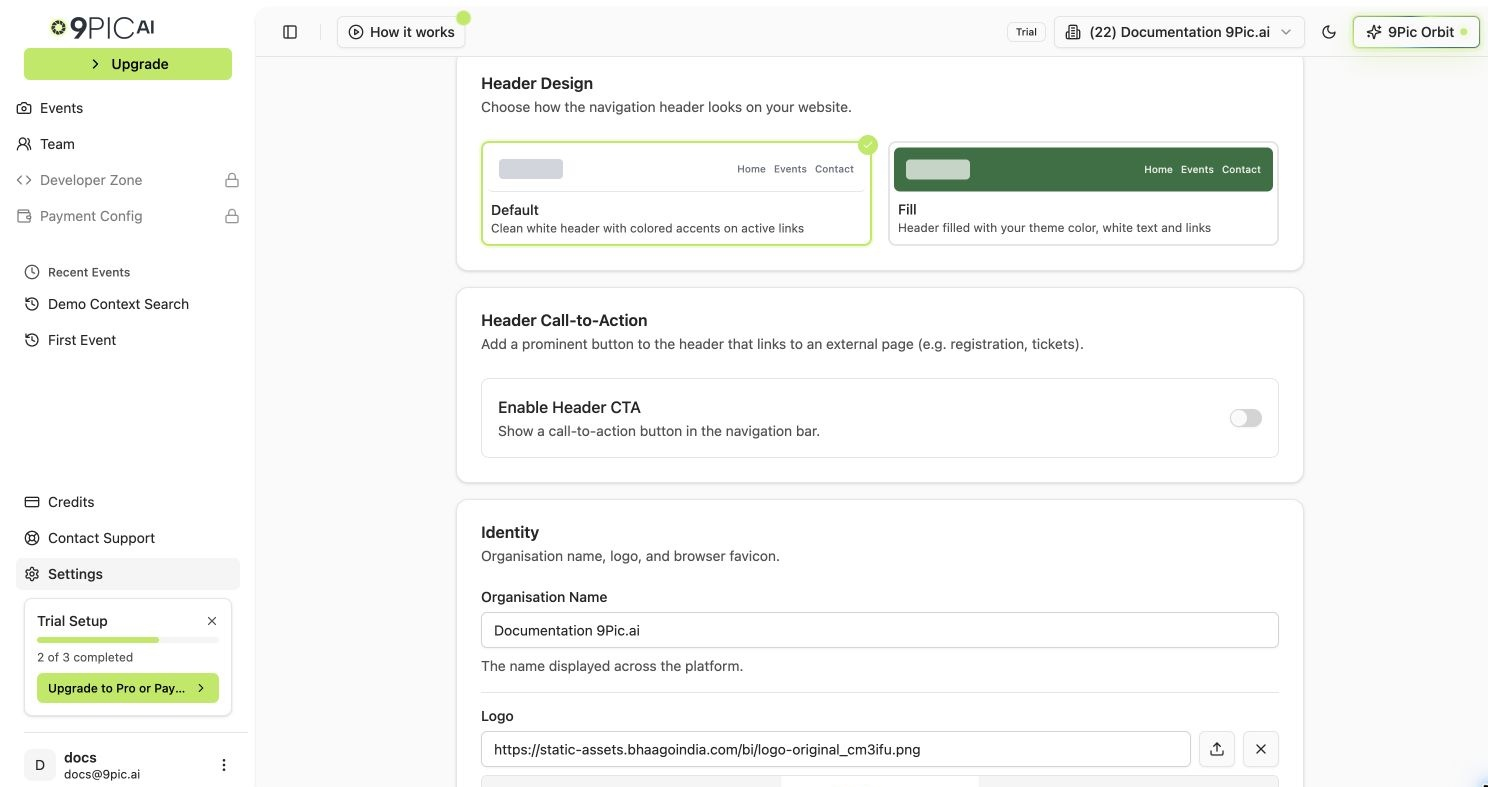
Branding & Theme identity settings
How to Open
1
Go to Settings
Click Settings in the sidebar.
2
Select Branding & Theme
Click the Branding & Theme tab. This tab is selected by default when you open Settings.
/settings?tab=branding.
Theme Colour
The theme colour is used for buttons, active link highlights, and accents across your gallery website. If you choose the Fill header design, it also fills the header background.1
Pick a colour
In the Theme Color card, click the colour swatch on the left to open a colour picker, or type a hex value into the text field (e.g.
#2E6F40).2
Check the preview
The bar on the right of the colour input updates in real time to show the selected colour.
3
Save
Click Save Branding Changes at the bottom of the page.
Header Design
Choose how the navigation header looks at the top of your gallery website. The tab shows a live preview of each option side by side.1
Select a style
Click either the Default or Fill card. A blue checkmark badge appears on the selected style.
2
Save
Click Save Branding Changes at the bottom of the page.
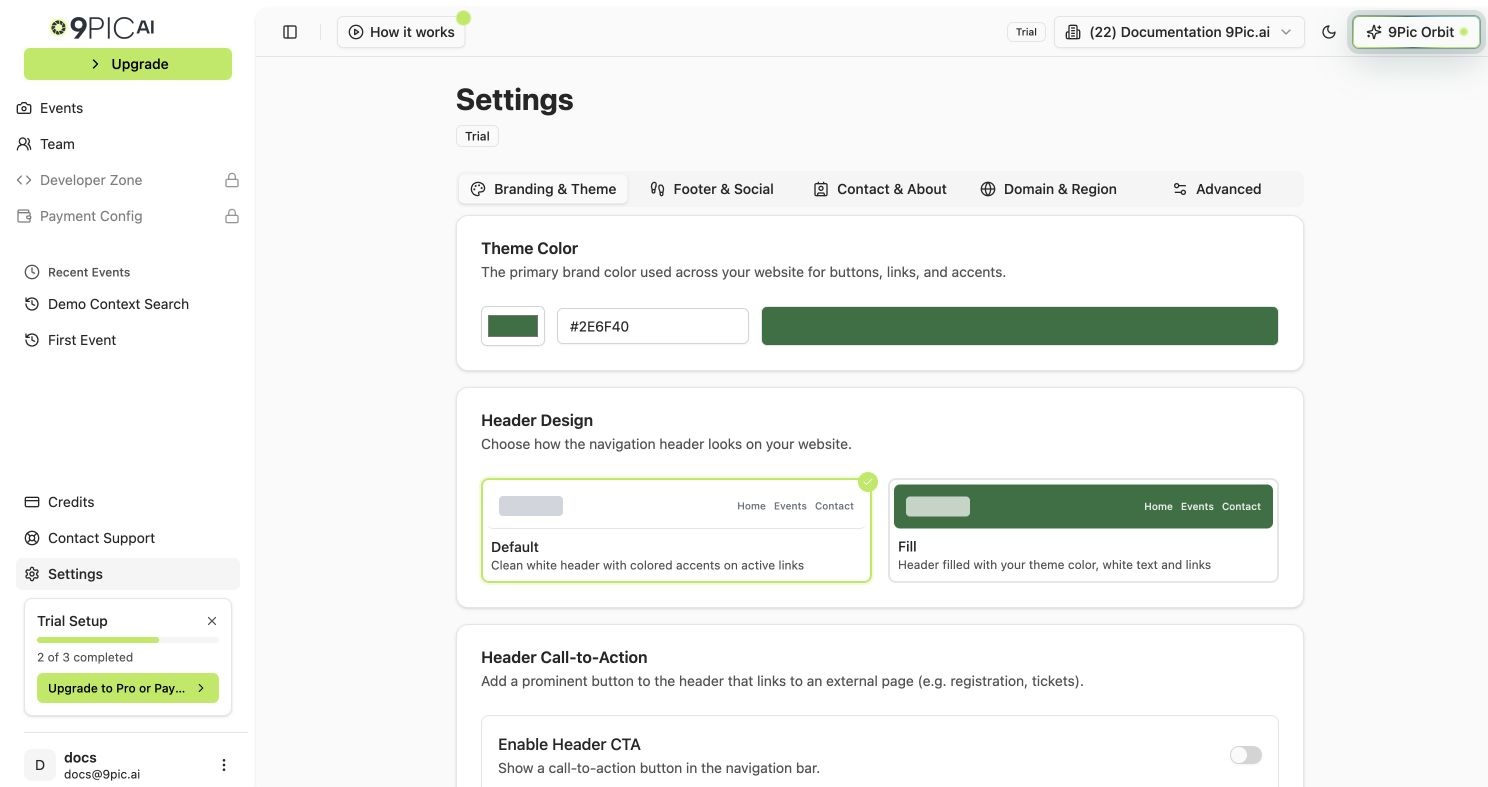
Header Design picker
Header Call-to-Action Button
Add one prominent button to the website header that links to any URL — useful for registration pages, ticketing, or your main website.1
Enable the CTA
In the Header Call-to-Action card, turn the Enable Header CTA switch on. The button text, link, and position fields appear below it.
2
Enter the button text
Type the button label in the Button Text field (e.g.
Register Now).3
Enter the link
Paste the full URL in the Button Link field (e.g.
https://example.com/register).4
Choose the position
Click Left or Right to place the button on the left or right side of the navigation links. A live preview shows the current setup.
5
Save
Click Save Branding Changes at the bottom of the page.
The button text, link, and position fields only appear after you turn the Enable Header CTA switch on. Turn it off to hide the CTA from your website without losing the saved values.
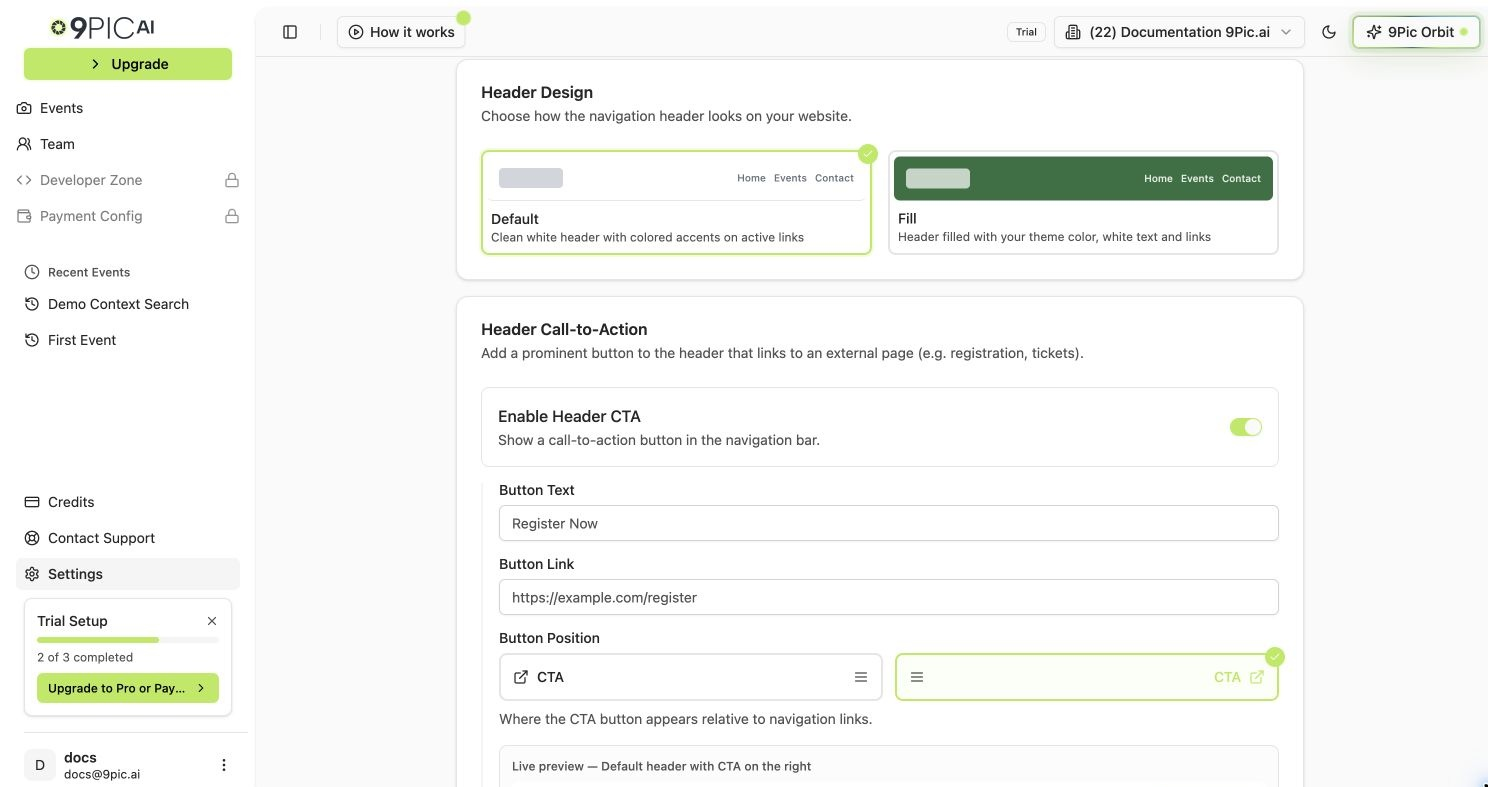
Header CTA editor
Identity
Organisation Name
The organisation name is displayed across the dashboard and on your gallery website.1
Update the name
In the Identity card, type your organisation’s name into the Organisation Name field.
2
Save
Click Save Branding Changes at the bottom of the page.
Logo
Your logo appears in the header of your gallery website.1
Upload or paste a URL
Click the Logo field to upload an image file, or paste a public image URL.
2
Save
Click Save Branding Changes at the bottom of the page.
Favicon
The favicon is the small icon that appears in browser tabs.1
Upload or paste a URL
Click the Favicon field to upload an image, or paste a public image URL.
2
Save
Click Save Branding Changes at the bottom of the page.
Common Questions
Where does the theme colour appear?
Where does the theme colour appear?
It is used for buttons, active link highlights, and accents across your gallery website. If you choose the Fill header design, it also fills the header background.
My logo looks blurry. What should I do?
My logo looks blurry. What should I do?
Upload a higher-resolution PNG with a transparent background. Make sure the file is under the 300KB limit.
My favicon is not updating in the browser.
My favicon is not updating in the browser.
Clear your browser cache or open the site in a private window. Browsers cache favicons for a long time.
Next Steps
Footer & Social
Add footer text and social media icons to every page.
Contact & About
Embed a contact form and write your About Us page.
Domain & Region
Set your country or connect a custom domain.