

Overview
Credits are used for photo processing operations in your organisation. The Credits area shows your available balance, recent usage, payment records, billing details, and subscription status.Credits belong to the selected organisation, not to a single event. If you manage more than one organisation, check that the correct organisation is selected in the sidebar before purchasing or reviewing credits.
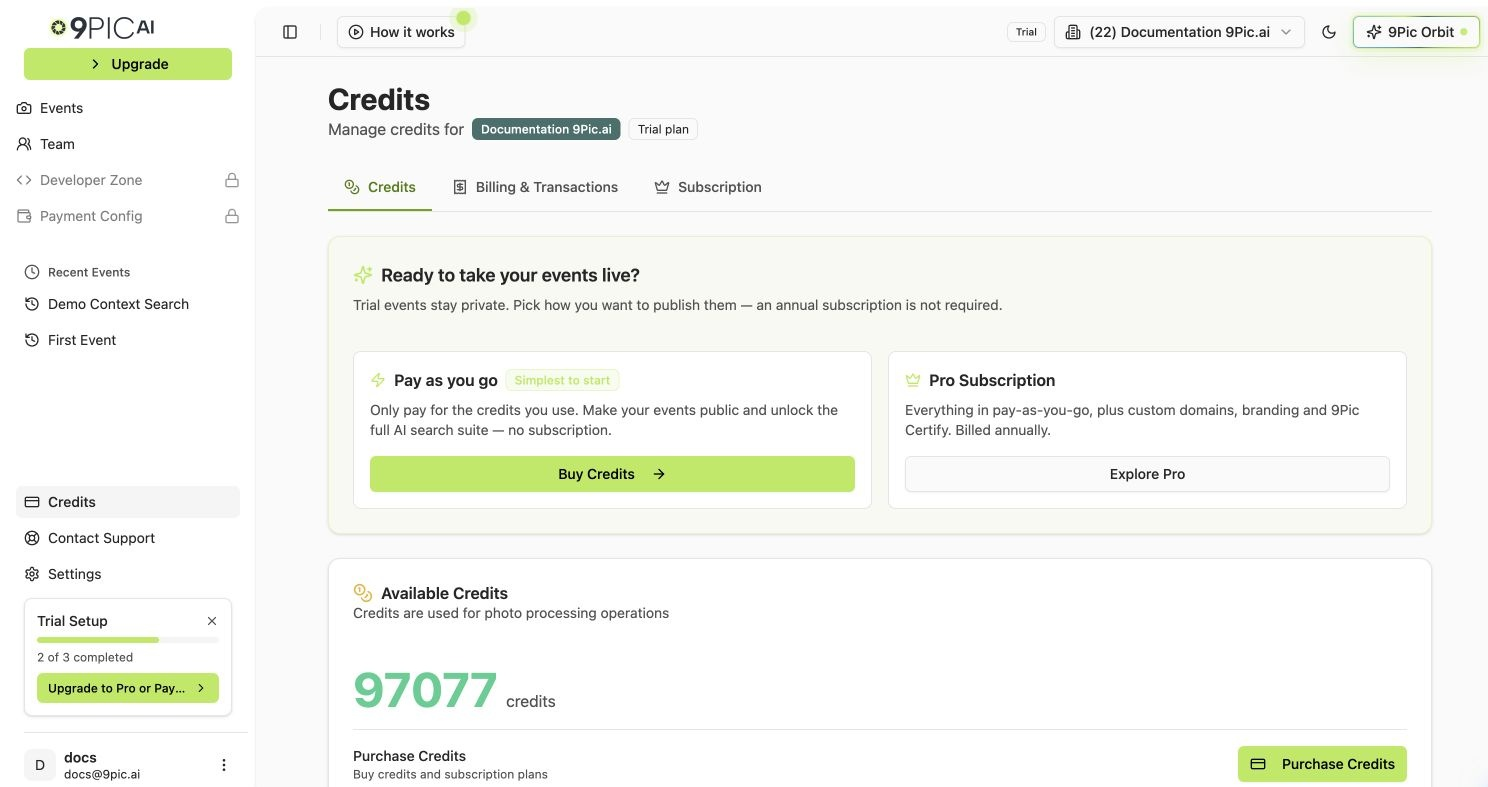
Credits dashboard
The Credits Area
The Credits area has three sub-tabs:
The Purchase Credits flow opens at
/credits/purchase and is described below.
You can click Credits in the sidebar to land on the Credits tab, or click Add Credit / Upgrade in the sidebar to go directly to the purchase flow.
Credits Tab
The Credits tab is the main overview page. From top to bottom you’ll see:- Available Credits — your current balance.
- Cost per Credit — only shown when pricing is configured for your organisation (the dashboard shows the value when
cost_per_creditis set and greater than zero). Click Show to reveal it and Hide to mask it again. - Purchase Credits — opens the purchase flow.
- Billing & Transactions — opens the Billing & Transactions tab.
- Monthly Usage Summary — credit usage for the current month and the previous three months. The numbers come from the backend monthly aggregation when available, with a client-side fallback that sums usage transactions per month.
- Credit Usage — usage transactions (negative deltas). Columns include the transaction type badge, the credit change, event name (linked to the event when present), event ID, user email (or System), and date.
- Purchase History — credit additions (positive deltas) such as purchases, free credits, grants, or refunds.
Transaction Types
The transaction type badge on each row is one of:
A small info icon next to the badge opens a Transaction Details popover with description, payment ID, gateway, order ID, plan, and amount when those fields are present on the transaction.
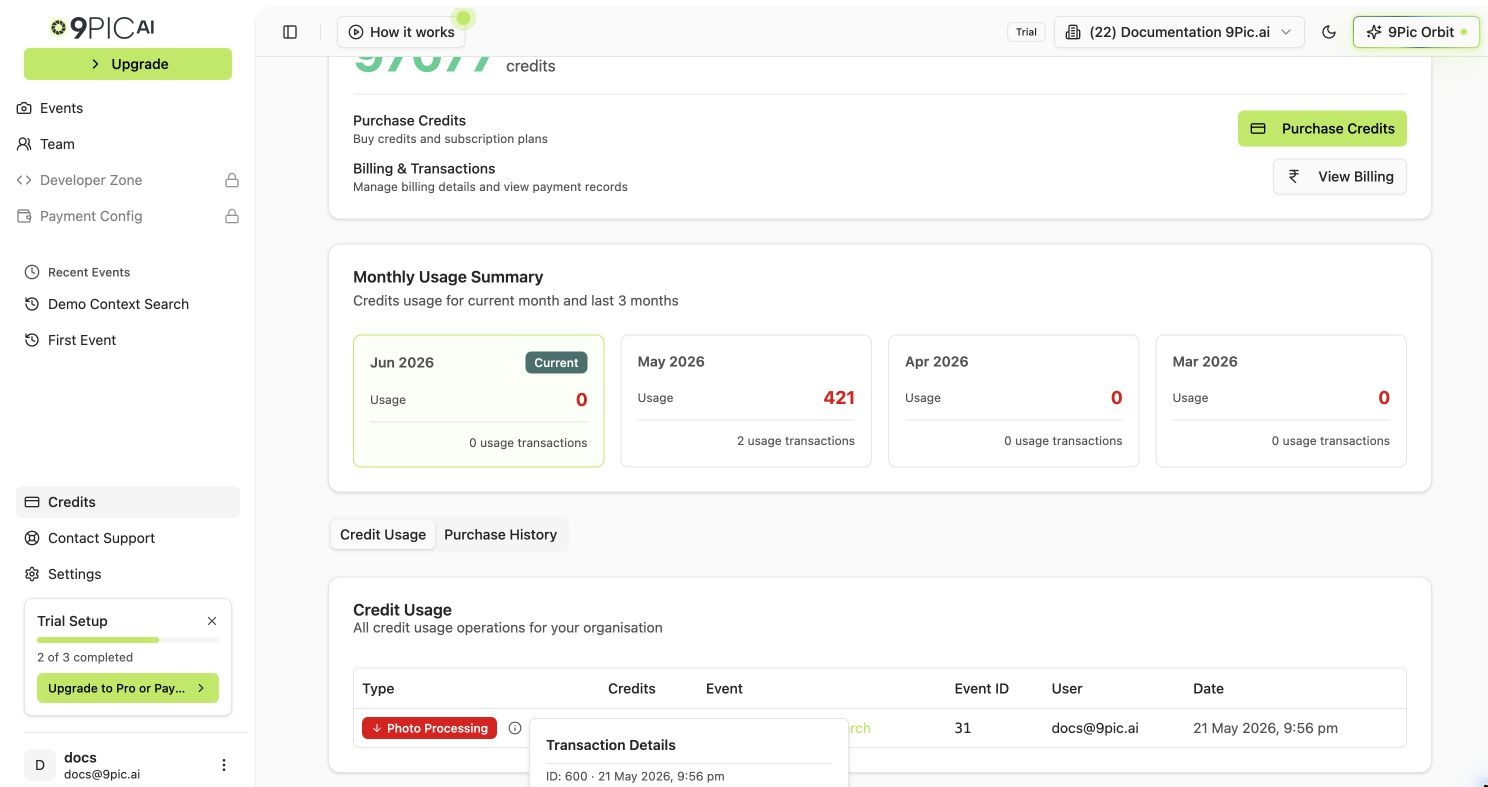
Credit Usage transaction details
Cross-link
Fair Usage Policy
How 9Pic applies usage limits to credits and photo processing. Read this before buying large credit packs.
Buy Credits or Upgrade
The purchase flow opens at/credits/purchase and is a four-step wizard: Plan → Credits → Review → Payment.
1
Click Purchase Credits
On the Credits tab, click Purchase Credits. The wizard opens.
2
Choose a plan
Pick one of the plan options below. The options shown depend on whether your organisation already has a subscription.
3
Choose credits or amount
For credit purchases, enter the number of credits. For pay-as-you-go credit purchases the minimum is 1,000 credits. Pro subscription purchases allow 0 additional credits if you only need the included plan credits.
4
Review the order
Check the plan, credit quantity, cost per credit, taxes, and total amount.
5
Accept the Refund Policy
Tick the Refund Policy checkbox. The link points at 9pic.ai/refund-policy. The payment button stays disabled until you accept.
6
Complete payment
Pay through Razorpay or PayGlocal depending on your currency and account setup. The dashboard shows the order summary again on the payment step.
Plan Options
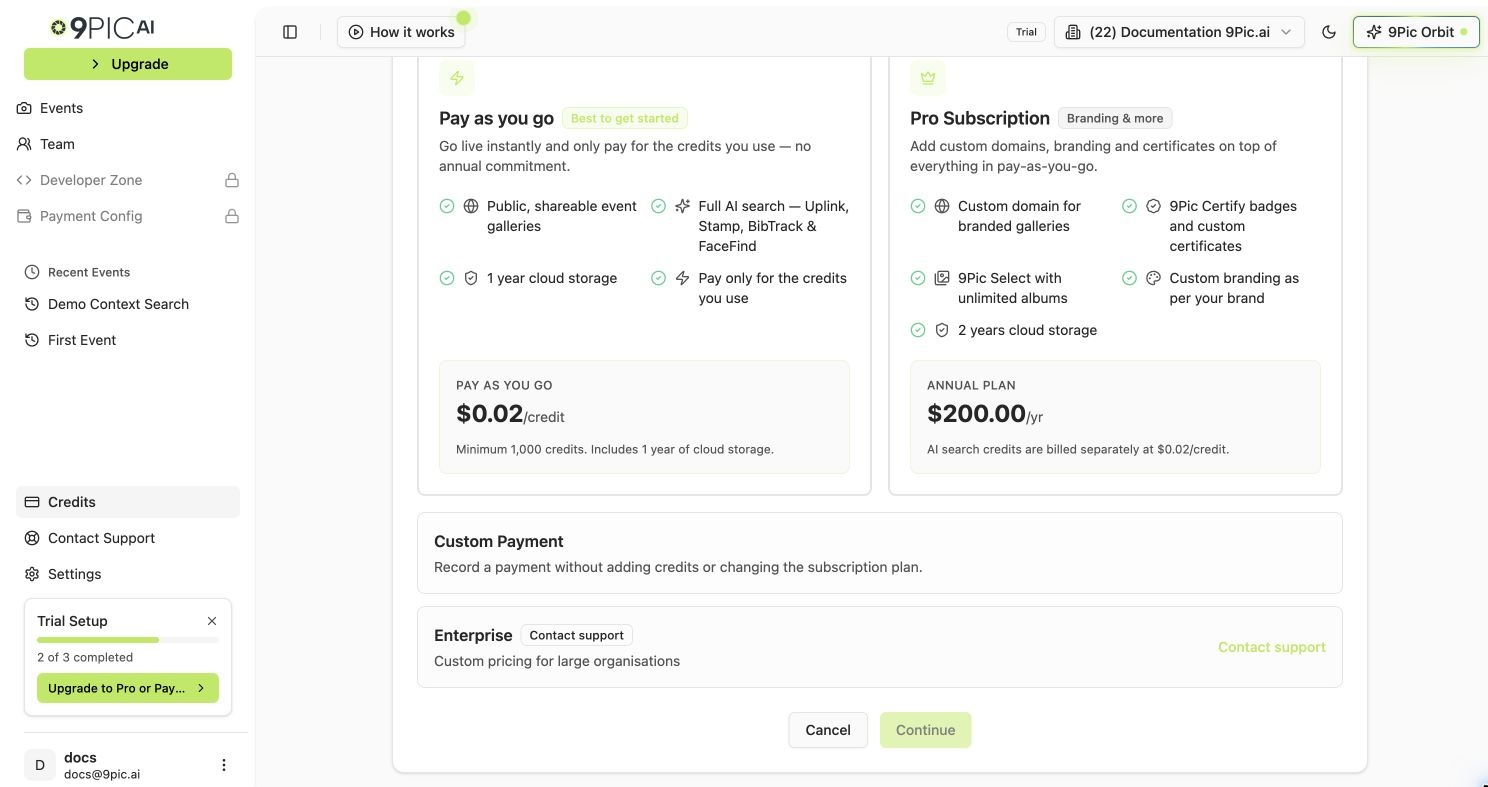
Purchase plan step
Billing & Transactions Tab
Open Credits → Billing & Transactions to manage invoice details and review payment history.Billing Details
1
Open Billing & Transactions
Click the Billing & Transactions tab.
2
Add or edit billing details
Click Add Billing Details or Edit on the existing card.
3
Enter business details
Enter the company or business name, billing email, address, phone, and tax details. Add a shipping address if it differs from the billing address.
4
Save and sync
Click Save & Sync. The dashboard asks for confirmation before saving.
Payment Transactions and Invoices
The Billing & Transactions page lists payment records with payment ID, status, gateway, amount, date, and actions.
Available actions depend on the payment row:
Invoice generation may take a short time after payment. If the invoice is still generating, wait a moment and check again.
Subscription Tab
Open Credits → Subscription to review your current plan and expiry date.Plan Labels
Expiry Date
The Subscription card shows the expiry date when one is set. The dashboard adds badges based on how close it is:- Expired — the expiry date has passed.
- Expires in N day(s) — there are 30 or fewer days until expiry.
- Otherwise, a plain “N days remaining” line.
Plan type and subscription dates are managed by the 9Pic team. Email support@9pic.ai for upgrades, renewals, or plan corrections.
Common Questions
What uses credits?
What uses credits?
Credits are spent on photo processing operations. The Credit Usage table shows each entry, with the related event linked when an event is available.
Why do I not see the cost per credit?
Why do I not see the cost per credit?
The Cost per Credit row only appears when pricing is configured for your organisation. If it is not visible, contact 9Pic support for pricing details.
Why is my invoice missing?
Why is my invoice missing?
Add billing details first, then use Generate Invoice or Retry Invoice on the payment row if the action is shown. If you only see Configure Billing, fill in the billing details before trying again.
What should I do if a payment stays Pending?
What should I do if a payment stays Pending?
Open Billing & Transactions and click Recheck on the payment row. If the status still does not update, contact 9Pic support with the payment ID.
Can I buy fewer than 1,000 credits?
Can I buy fewer than 1,000 credits?
Pay-as-you-go credit purchases require a minimum of 1,000 credits. Pro subscription purchases allow 0 additional credits if you only need the included plan credits.
Where do I see how many credits each event used?
Where do I see how many credits each event used?
The Credit Usage table on the Credits tab lists each usage entry with the event name and event ID when available. Click the event name to open the event.
Next Steps
Fair Usage Policy
Read the limits that apply to credits and photo processing.
Domain & Region
Set your country before saving billing details.
Contact Support
Get help with credits, billing, invoices, payments, or plan changes.