

Overview
Developer Zone is where Enterprise organisations create and manage API tokens for the 9Pic API. Each token lets an external service (your website, a partner app, an internal tool) read your organisation’s data through the API.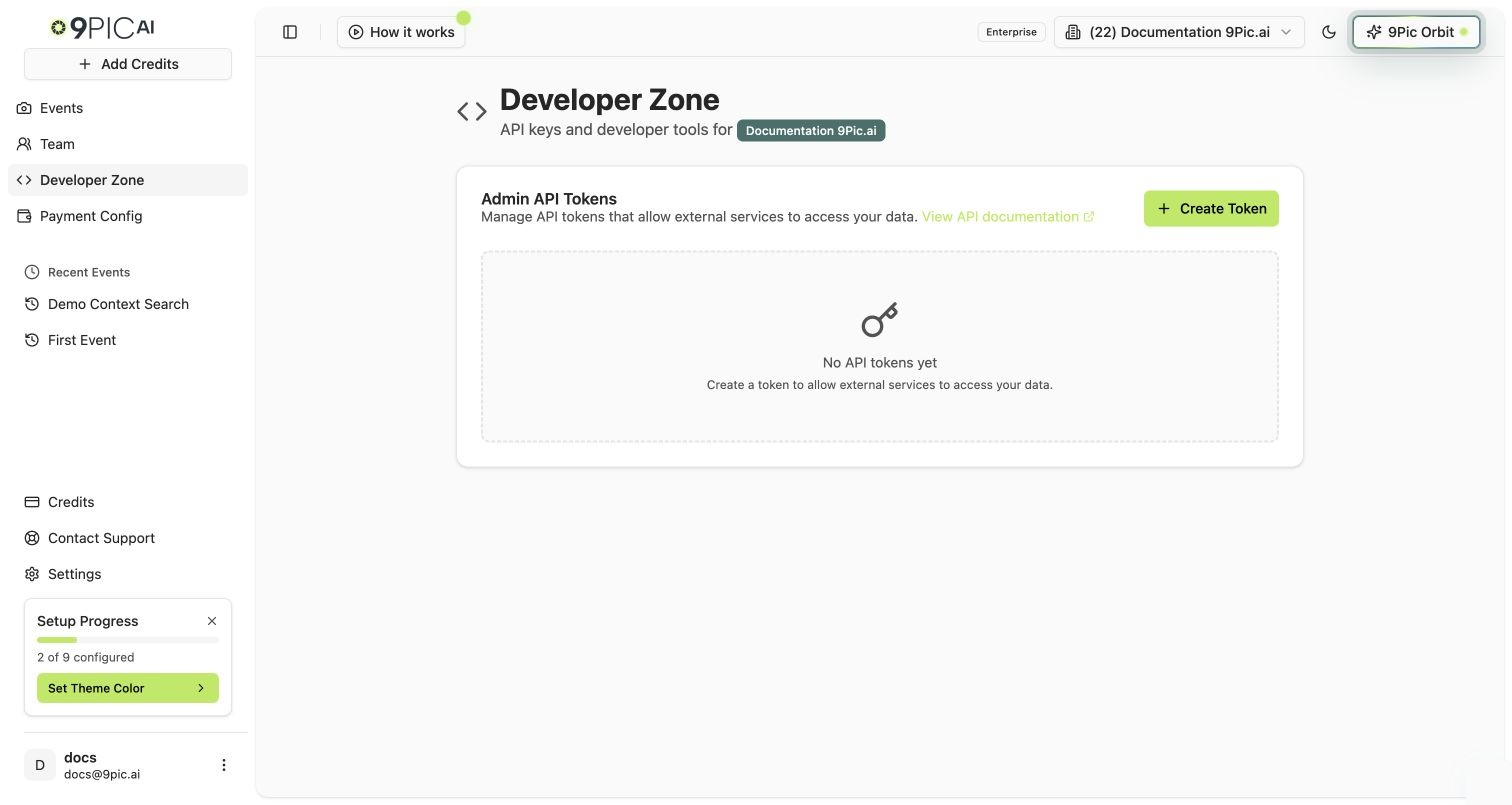
Developer Zone on an Enterprise organisation
Open Developer Zone
1
Open the dashboard
Log in to admin.9pic.ai.
2
Select your Enterprise organisation
Use the organisation selector in the sidebar. If your active organisation is not on Enterprise, Developer Zone shows an upgrade message instead.
3
Click Developer Zone
Click Developer Zone in the sidebar. The Admin API Tokens panel opens.
If no organisation is selected, the page asks you to choose one from the sidebar first.
Admin API Tokens
The Admin API Tokens panel lists every token your organisation has created. Each row shows:
The card header links to the API documentation in a new tab so developers can jump straight to authentication and endpoint details.
Each organisation can have up to 10 tokens at a time. When you reach the limit, the Create Token button is disabled and a message tells you to delete an existing token first.
Create a Token
1
Click Create Token
In the Admin API Tokens card, click Create Token in the top right.
2
Confirm creation
A confirmation dialog explains that the full token will be shown only once. Click Create Token to continue, or Cancel to go back.
3
Copy the token
A second dialog shows the full token in a read-only field. Click the copy icon next to it to copy the token to your clipboard. Store it somewhere safe.
4
Click Done
Click Done to close the dialog. The new token now appears in the table with its masked preview and an Active status.
Activate or Deactivate a Token
Use the Active/Inactive switch in the token row to pause or resume a token without deleting it.- Turn the switch off to deactivate the token. Any service using it loses access immediately.
- Turn the switch on to reactivate the token. The original token value continues to work.
Deactivating is reversible. If you only need to temporarily block a token (for example while you investigate a leak), deactivate it instead of deleting it.
Delete a Token
1
Find the token
Open Developer Zone and find the token row in the Admin API Tokens table.
2
Click the delete button
Click the red trash icon in the Actions column for that row.
3
Confirm deletion
Read the confirmation dialog. Click Delete to confirm, or Cancel to go back.
Use the Token with the API
Once you have a token, use it as a bearer credential when calling the 9Pic API. Endpoint details, request examples, and response shapes live in the API Reference tab of these docs.API Authentication
How to send your token with each API request.
API Reference
Endpoints, conventions, errors, and response models.
Agent Skills
Install coding-agent skills so Cursor or Claude Code follow the API docs.
Common Questions
Developer Zone looks greyed out with a lock. Why?
Developer Zone looks greyed out with a lock. Why?
On Trial, Pay As You Go, and Pro plans the Developer Zone sidebar item stays visible but faded, with a lock icon and an “Enterprise plan required” tooltip. Clicking it shows an Enterprise Plan Required message instead of opening the page. Contact 9Pic to upgrade.
How many tokens can I create?
How many tokens can I create?
Each Enterprise organisation can have up to 10 active or inactive tokens at a time. Delete an existing token if you need to create a new one beyond that limit.
I lost a token. Can I retrieve it?
I lost a token. Can I retrieve it?
No. The full token value is shown only once, right after creation. If you lose it, delete the token from the table and create a new one, then update any service that was using the old token.
What happens to API calls when I deactivate a token?
What happens to API calls when I deactivate a token?
Calls using a deactivated token fail with an authentication error. Reactivate the token to restore access — the original token value continues to work.
Who can create or delete tokens?
Who can create or delete tokens?
Anyone who can open Developer Zone for the selected Enterprise organisation. The Created By column records the email of the team member who created each token.
Next Steps
API Authentication
Use your new token to call the 9Pic API.
Credits
Review your Enterprise plan, credits, and subscription details.