

Overview
AI Image Analysis finds photos that were captured at the wrong orientation and lets you correct them with AI. Rotated images are detected automatically during the Publish step, and this tool is where you review and fix them. You reach it from 9Pic Photo → Tools → AI Image Analysis.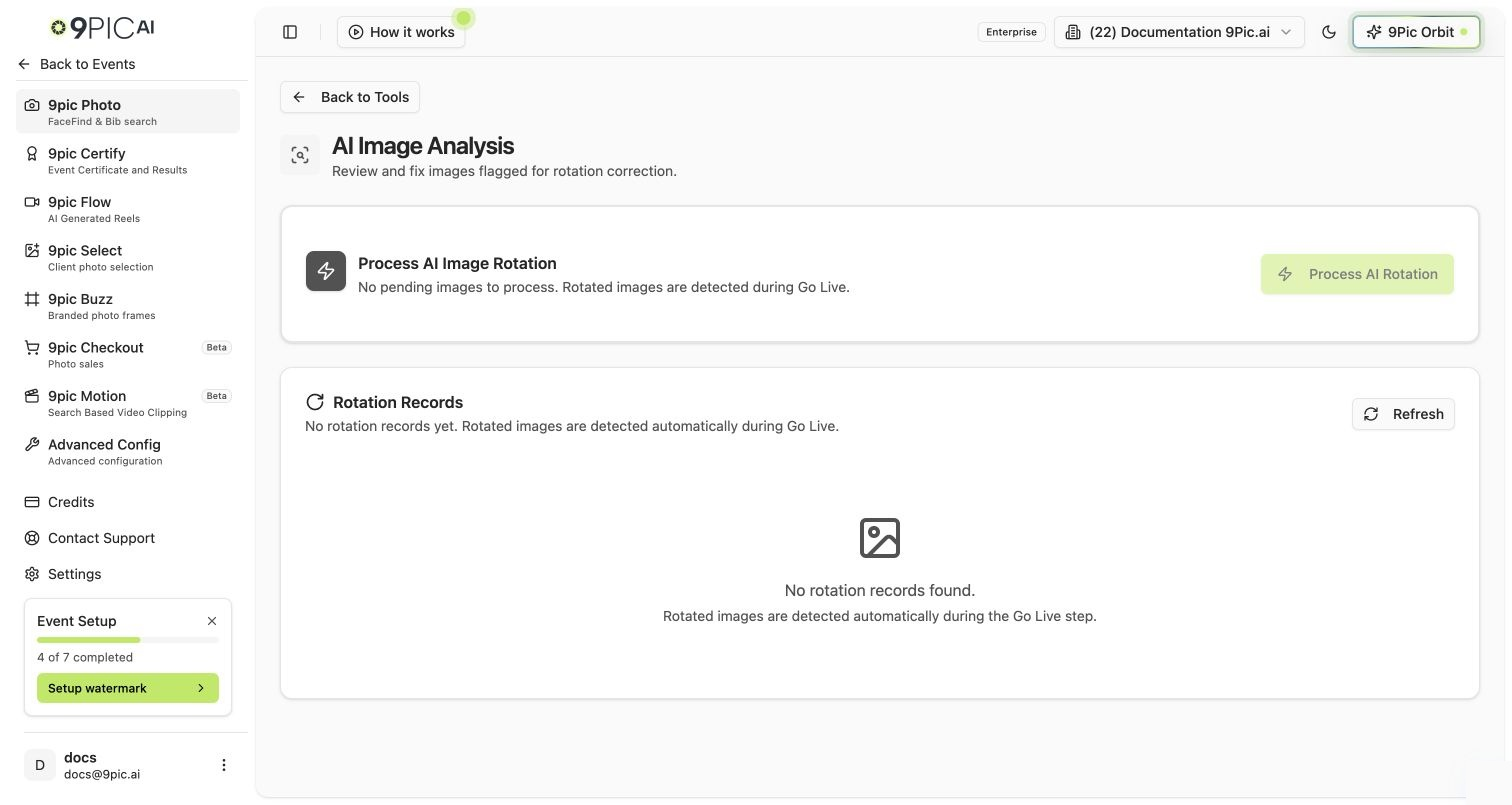
AI Image Analysis
How It Works
The page has three parts:- A Process AI Rotation hero card with the main action button.
- A Rotation Records grid grouped into Pending, Processing, and Skipped.
- A Processed Results card grouped into Completed and Failed, shown once any image has been processed.
1
Publish first
Rotated images are only detected after the Publish step has run (processed or failed). Until then there are no records to review.
2
Review the records
Browse the Pending images. You can Skip Selected images you don’t want corrected, and Restore to Pending anything you skipped earlier.
3
Process AI Rotation
Click Process AI Rotation, choose Process All Pending or a Custom Count, and confirm. Corrected images are rotated and re-uploaded to replace the originals.
4
Check results
Watch the Completed and Failed sections for the outcome. Retry failures if needed.
Credits & Gating
Skip and Publish Anyway
If the Publish step failed because of rotated images, you don’t have to fix them first. From the Photo Overview Publish card you can choose Skip AI Analysis to publish despite the flagged records, or Open AI Analysis to come here and correct them.Common Questions
Does rotation change the original photo?
Does rotation change the original photo?
It replaces the displayed image with a correctly oriented version and re-uploads it. The source file in your storage is unchanged.
Why are some images skipped?
Why are some images skipped?
Skipped images are set aside and excluded from processing. Select them and click Restore to Pending to bring them back.
No records found.
No records found.
Either no rotated images were detected, or the Publish step hasn’t run yet. Rotated images are detected during Publish.
Next Steps
Photo Overview
Publish the event and trigger rotation detection.
Manual Tagging
The other Tools entries — bib and context tagging.
Credits
Check your balance before running AI rotation.
Rotation issues
Troubleshoot photos that look sideways.