

Overview
The Branding tab controls how your event looks to participants. It has three cards: Watermark & Branding, Banner Configuration, and Custom Landing Page. Set branding up before you process photos, because watermarks are burned in during processing.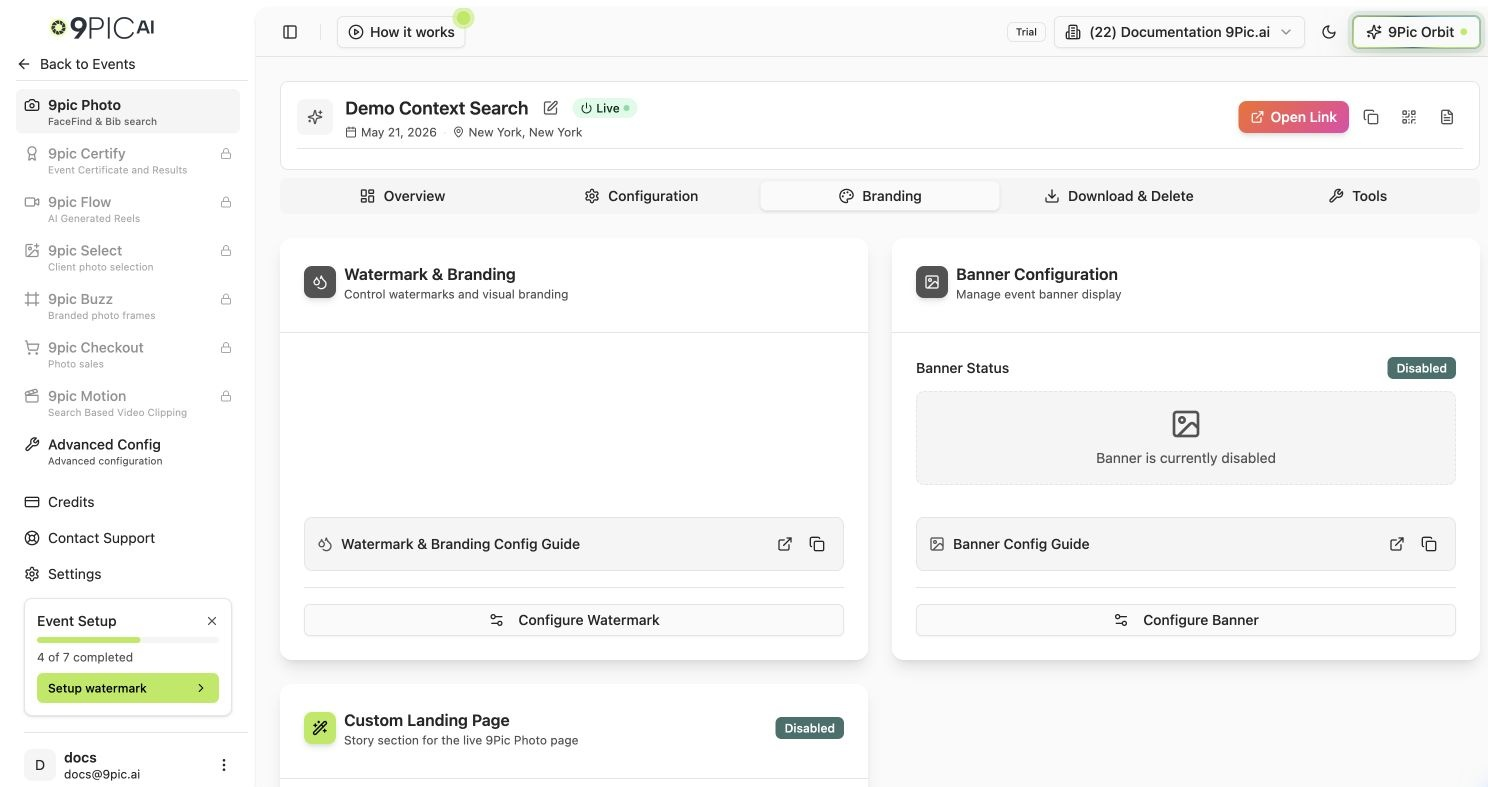
Photo Branding tab
Watermark & Branding
The watermark card summarises how many watermarks are configured and for which orientations (portrait, landscape, or both). Click Configure Watermark to open the watermark editor, where you can:- Upload separate art for portrait and landscape photos.
- Position, size, and set the transparency of the mark.
- Preview the result before processing.
Banner Configuration
Click Configure Banner to open the banner modal and upload a hero image for the public event page. The banner can be enabled or disabled per event without deleting the image, so you can reuse it later.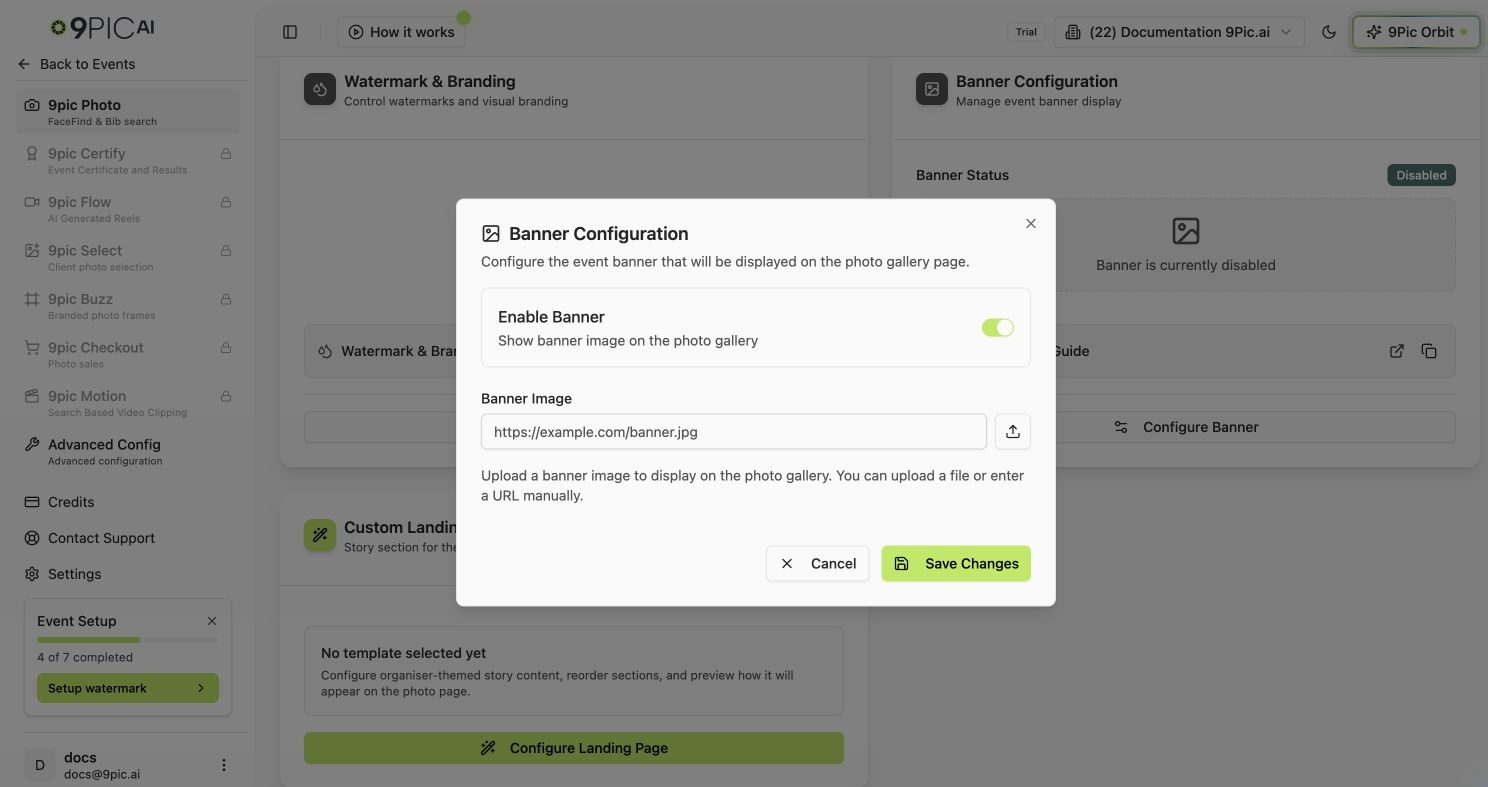
Banner configuration modal
Custom Landing Page
The Custom Landing Page card adds an organiser-themed story section to the live 9Pic Photo page. Its badge shows Enabled or Disabled, and the body shows the selected template (or “No template selected yet”). Click Configure Landing Page to choose a template, add story content, reorder sections, and preview how it appears to participants.Recommended Flow
1
Configure your watermark first
Set up portrait and landscape art so every processed photo carries the right branding.
2
Generate a preview
From Photo Overview, use Generate Preview in Step 1 to verify placement.
3
Process only after the preview looks right
Run Process Photos once you’re happy with the watermark preview.
Common Questions
Why don't I see my watermark on processed photos?
Why don't I see my watermark on processed photos?
Generate a preview from the Overview tab first, then process. Watermarks only appear on photos processed after the watermark was configured.
Do I need separate portrait and landscape watermarks?
Do I need separate portrait and landscape watermarks?
You can upload both. If you provide both, 9Pic applies the right one to each photo based on its orientation.
Next Steps
Photo Overview
Generate watermark previews and process photos.
Configuration
Search methods, display options, and downloads.