

Overview
The Advanced tab lets eligible organisations connect their own Google Tag Manager (GTM) container to the gallery website. Use this only if you want to manage analytics and tracking outside the built-in 9Pic analytics. Plan availability: The Advanced (Google Tag Manager) tab is editable on all plans — there’s no plan gate on this tab in the dashboard.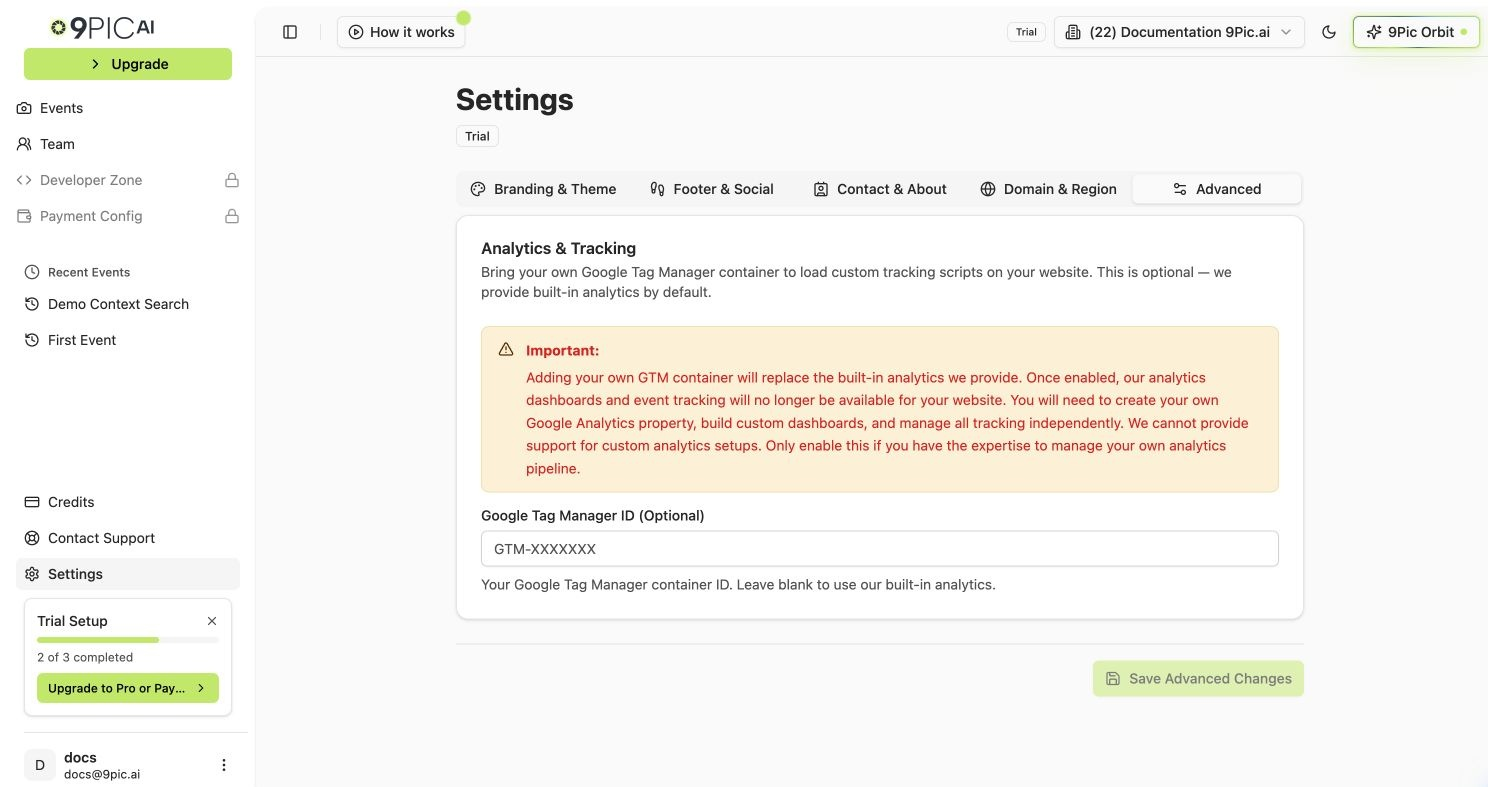
Advanced settings
How to Open
1
Go to Settings
Click Settings in the sidebar.
2
Select Advanced
Click the Advanced tab.
/settings?tab=advanced.
Analytics & Tracking
What Is Google Tag Manager?
Google Tag Manager (GTM) lets you add tracking codes — like Google Analytics — to your website without writing any code. You set up tags in GTM, then connect 9Pic to your container using your Container ID.Add Your GTM Container ID
1
Find your Container ID
Sign in to Google Tag Manager and note your Container ID. It looks like
GTM-XXXXXXX.2
Paste the ID
In the Analytics & Tracking card, paste the Container ID into the Google Tag Manager ID (Optional) field.
3
Save
Click Save Advanced Changes at the bottom of the page.
Leave the field blank to keep using the built-in analytics that 9Pic provides.
Remove Custom Tracking
To go back to the default 9Pic analytics, clear the Google Tag Manager ID field and click Save Advanced Changes. The next time the website loads, the built-in analytics resume.Common Questions
Where did the domain settings go?
Where did the domain settings go?
Domain and region settings are in the Domain & Region tab. Region is editable on all plans; connecting a custom domain or platform subdomain is Pro and Enterprise only.
What format should the GTM ID be in?
What format should the GTM ID be in?
GTM-XXXXXXX, where XXXXXXX is a mix of letters and numbers. You can find this at the top of your Google Tag Manager container view.Should I add a GTM ID if I only want the normal 9Pic analytics?
Should I add a GTM ID if I only want the normal 9Pic analytics?
No. Leave the field blank if you want to use the analytics that 9Pic provides by default.
How do I know if my tracking is working?
How do I know if my tracking is working?
After saving, open your gallery website and use Google Tag Manager’s Preview mode to verify that your container is loading correctly.
Can I revert if I change my mind?
Can I revert if I change my mind?
Yes. Clear the GTM ID field and save again. The built-in 9Pic analytics resume on the next page load.
Next Steps
Settings Overview
Back to all settings.
Domain & Region
Connect a custom domain so analytics events are scoped to your brand.