

Overview
The Event QR tab (inside the Advanced Config product) generates a styled QR code that takes people straight to your event. Print it on bibs, banners, or signage so participants can find their photos instantly.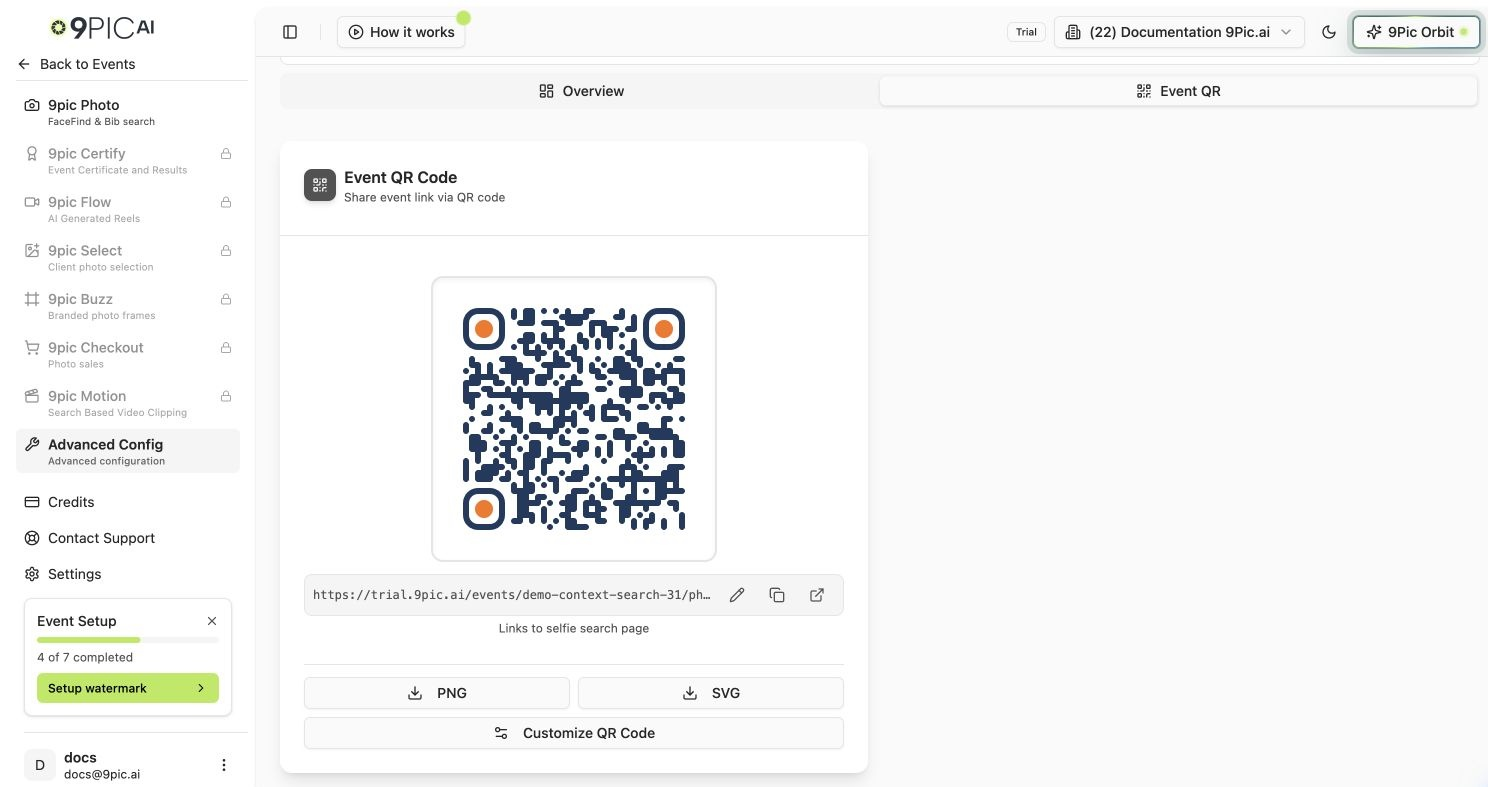
Event QR tab
What the QR Links To
The card shows the destination URL with three quick actions: Edit (set a custom link), Copy, and Open. If the event has a logo, it’s embedded in the centre of the QR automatically.
Download & Share
1
Check the link
Confirm the URL under the QR is correct (gallery, selfie search, or your custom link).
2
Download
Click PNG for print/social or SVG for a scalable vector you can resize without quality loss.
3
Customise (optional)
Click Customize QR Code to open the styling modal and adjust colours and dots to match your branding.
Common Questions
Can I point the QR somewhere else?
Can I point the QR somewhere else?
Yes. Click the Edit (pencil) icon next to the link and enter a custom URL, or Reset to go back to the default gallery/selfie link.
Why does my QR go to selfie search instead of the gallery?
Why does my QR go to selfie search instead of the gallery?
When Selfie Search is enabled for the event, the default QR links to the selfie search page so participants can find themselves faster. Turn it off in Photo Configuration or set a custom link.
The QR doesn't show my logo.
The QR doesn't show my logo.
The logo is pulled from your event branding. Add an event logo in Photo Branding and regenerate.
Next Steps
Advanced Config overview
Visibility, page password, CTA, and image cache.
Photo Branding
Add the event logo embedded in the QR code.