

Overview
Payment Configuration is where you set up the payment gateways your organisation uses, then map them to events. It powers 9Pic Checkout: you create a gateway here once, then assign it to individual events. Open it from Payment Config in the dashboard sidebar (or the Payment Config card on the dashboard home).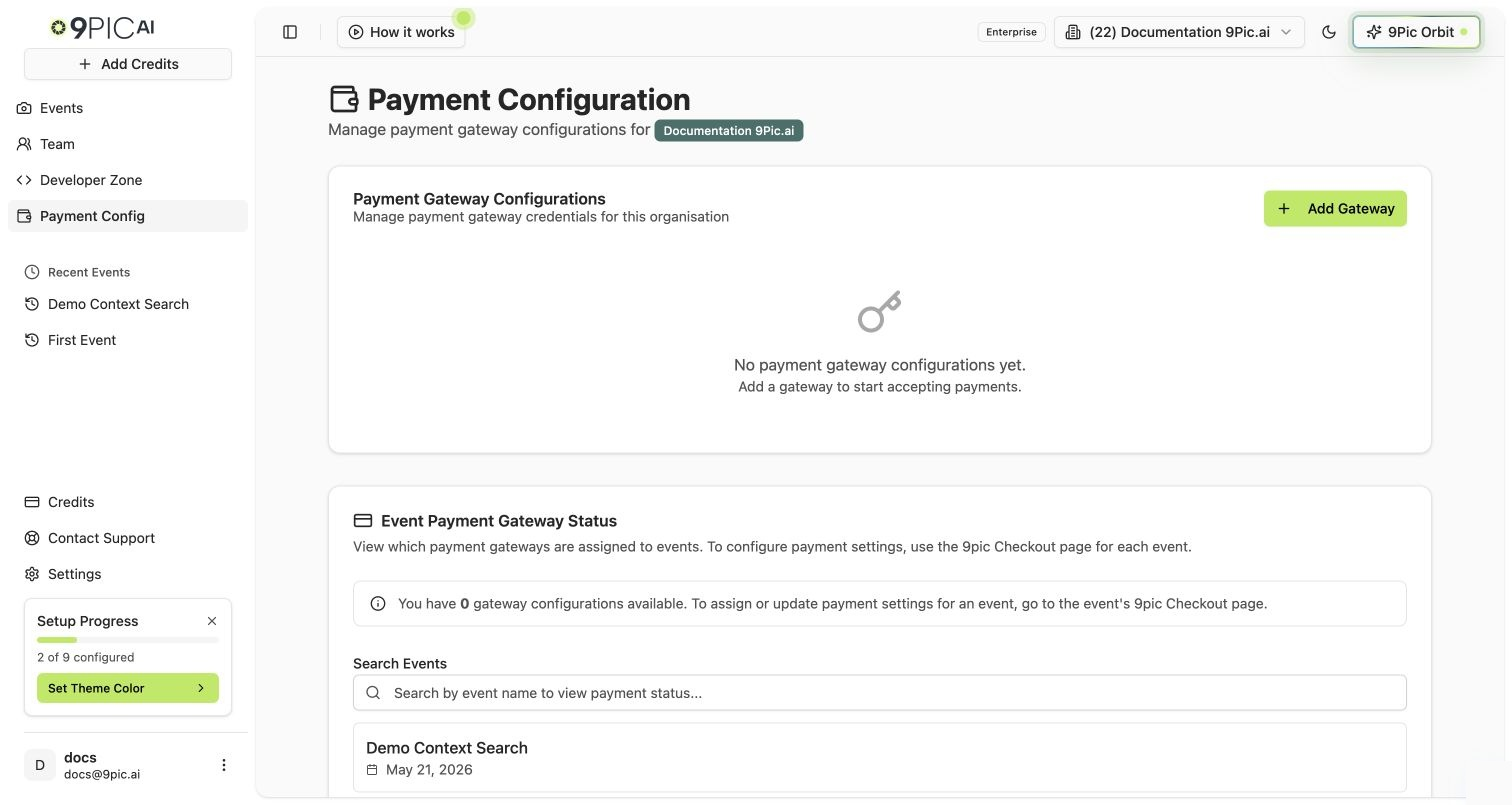
Payment Configuration
Gateway Configurations
The first section lists your gateway configurations and lets you add or edit them.1
Create a gateway config
Add a Stripe, Xendit, PayMongo, or AFS Gateway configuration with the credentials for that account.
2
Edit or update
Open any configuration to update its credentials or details.
We give clear, gateway-specific instructions during setup. Keep API keys and secrets safe — treat them like passwords and never share them outside your admin team.
Stripe Restricted Key
For Stripe, create a restricted key before you add the gateway in 9Pic. The key should grant only the Stripe permissions needed for Checkout, payment checks, and invoices.Stripe Key Setup
Follow the end-to-end Stripe restricted key setup, including screenshots and the permission checklist.
AFS Gateway
AFS Gateway supports 9Pic Checkout through Mastercard Hosted Checkout. Add the AFS Merchant ID and API password in Payment Configuration, then assign that configuration to an event. A Merchant ID beginning withTEST uses the simulator; use the separate live Merchant ID for real payments.
AFS Gateway Setup
Follow the AFS credential, test, live-payment, and event-assignment steps.
PayMongo
PayMongo supports 9Pic Checkout for PHP photo sales in the Philippines. Add the PayMongo secret key in Payment Configuration, then assign that configuration to an event. Use ask_test_ key for setup checks and a sk_live_ key for public checkout.
PayMongo Setup
Follow the PayMongo secret-key, test, live-payment, and event-assignment steps.
Xendit
Xendit supports 9Pic Checkout for IDR, PHP, MYR, THB, and VND photo sales. Add the Xendit secret key in Payment Configuration, then assign that configuration to an event. Xendit does not offer a Pass on fees option, and 9Pic does not automatically enforce which key mode (development or production) you use.Xendit Setup
Follow the Xendit secret-key, test, live-payment, and event-assignment steps.
Event Mapping
The second section maps events to a gateway configuration, so each event’s checkout routes payments to the right account. This is the organisation-level counterpart to the per-event gateway assignment you do on the Checkout Configuration tab.Who Can Access It
If you’re on Enterprise but see an “Access Denied” notice, your account isn’t a team admin — ask an admin on your Team to grant access.
Next Steps
9Pic Checkout
Sell photos, videos, and certificates per event.
Checkout Configuration
Assign one of these gateways to an event.