

Overview
The Configuration tab controls how participants find and use their photos on the public event page. Everything lives in one Feature Configuration card, grouped into Search Methods, Display Options, and Download & Language. A badge in the card header shows how many features are on, for example4 / 7 enabled.
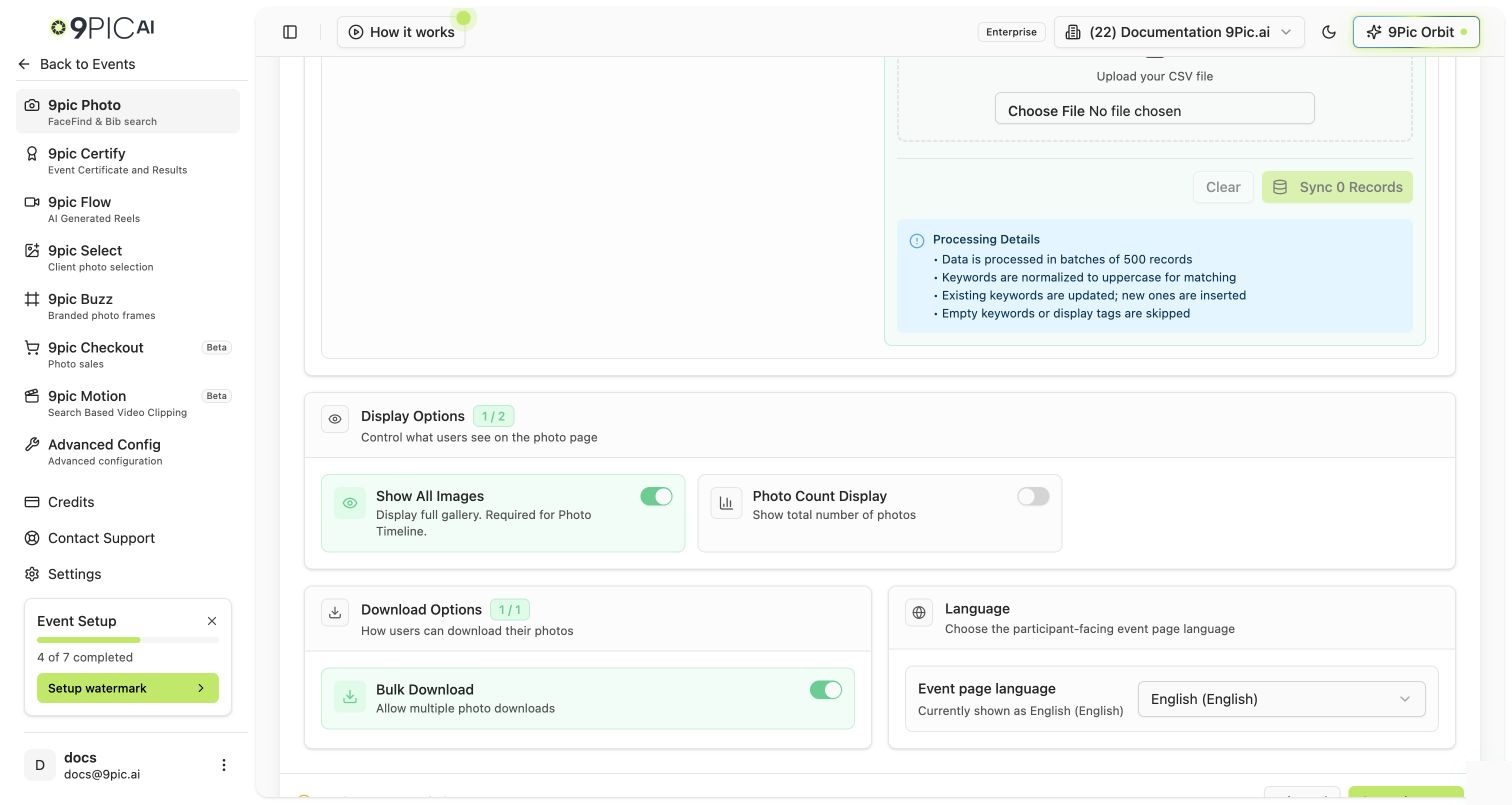
Feature Configuration
Search Methods
Bib Detection Settings
When Bib Search is on, open the bib detection settings to tune how numbers are recognised:- Digit count — accept bibs within a minimum/maximum digit range.
- Range-based — define numeric ranges for categories (for example,
1–500and1001–1500).
Name Search & the Bib-to-Name CSV
Name Search is an add-on under Bib Search. Once Name Search is enabled, a Bib ↔ Name CSV uploader appears. Upload a CSV that maps bib numbers to participant names so people can search by name as well as number.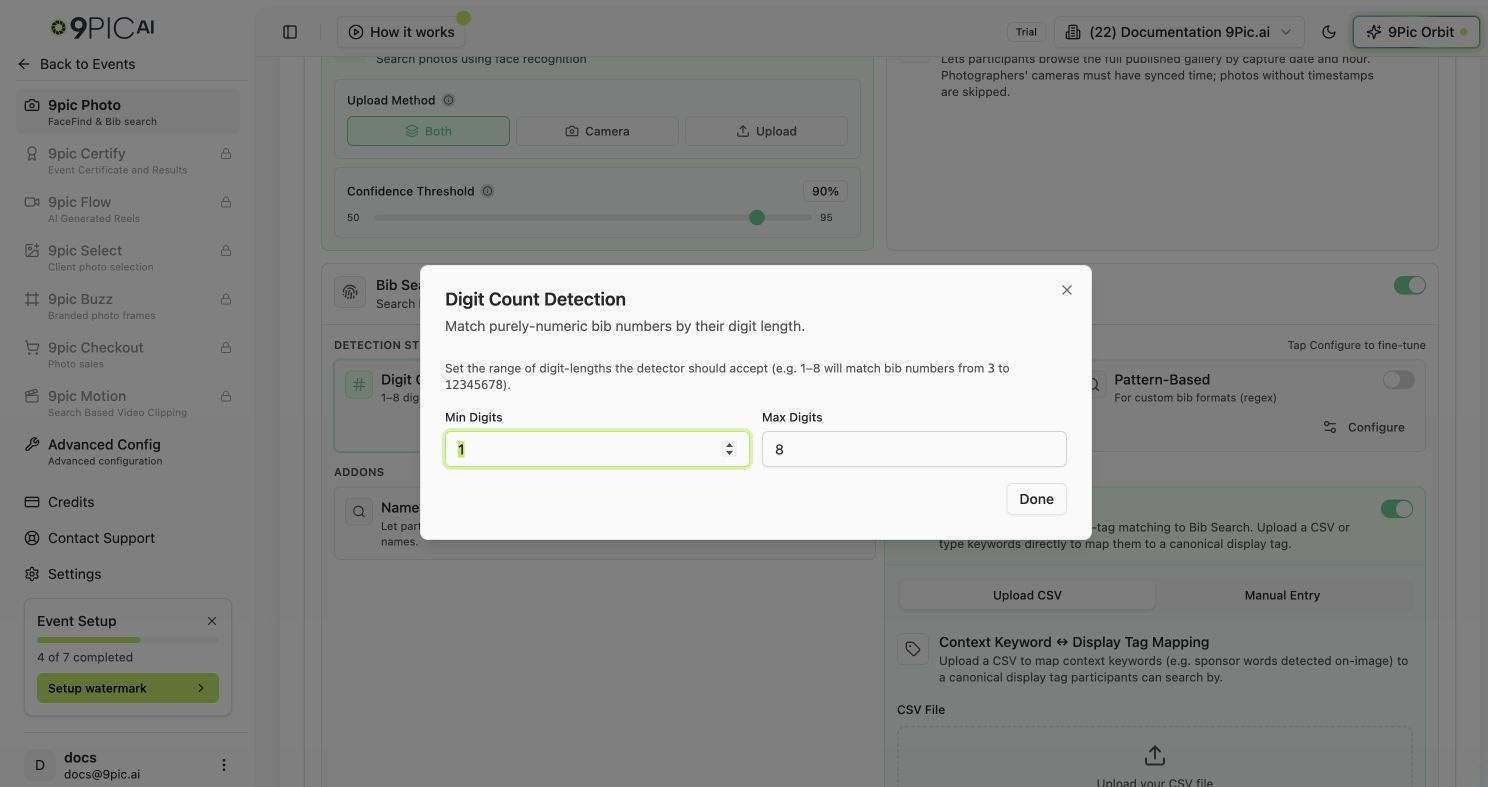
Bib detection settings
Display Options
Download & Language
Common Questions
Do I need to click Save after toggling a feature?
Do I need to click Save after toggling a feature?
Yes. Toggles are staged until you click Save in the footer. The dashboard warns you if you try to leave with unsaved changes.
Why is Bib Search not finding some bibs?
Why is Bib Search not finding some bibs?
Open the bib detection settings and widen the digit range or add explicit ranges for your event’s categories. The regex assistant can help with unusual formats.
Can I enable Name Search without Bib Search?
Can I enable Name Search without Bib Search?
No. Name Search is an add-on under Bib Search and relies on a bib-to-name CSV. Enable Bib Search first, then turn on Name Search and upload the CSV.
Where do I set bib search up for the first time?
Where do I set bib search up for the first time?
Bib Search is offered when the event type is Endurance Sports. See Create an event for choosing the event type.
Next Steps
Photo Overview
Sources, sync, processing, and publishing.
Manual Tagging
Fix bibs the pipeline missed and add context tags.