

Overview
The Overview tab is the control centre for 9Pic Photo. It is where you connect image sources, sync photos into 9Pic, run AI processing (face recognition, bib detection, optional watermarking), and publish the event so participants can search and download their photos. The tab has two regions: a status strip at the top, and the four-step processing pipeline below it.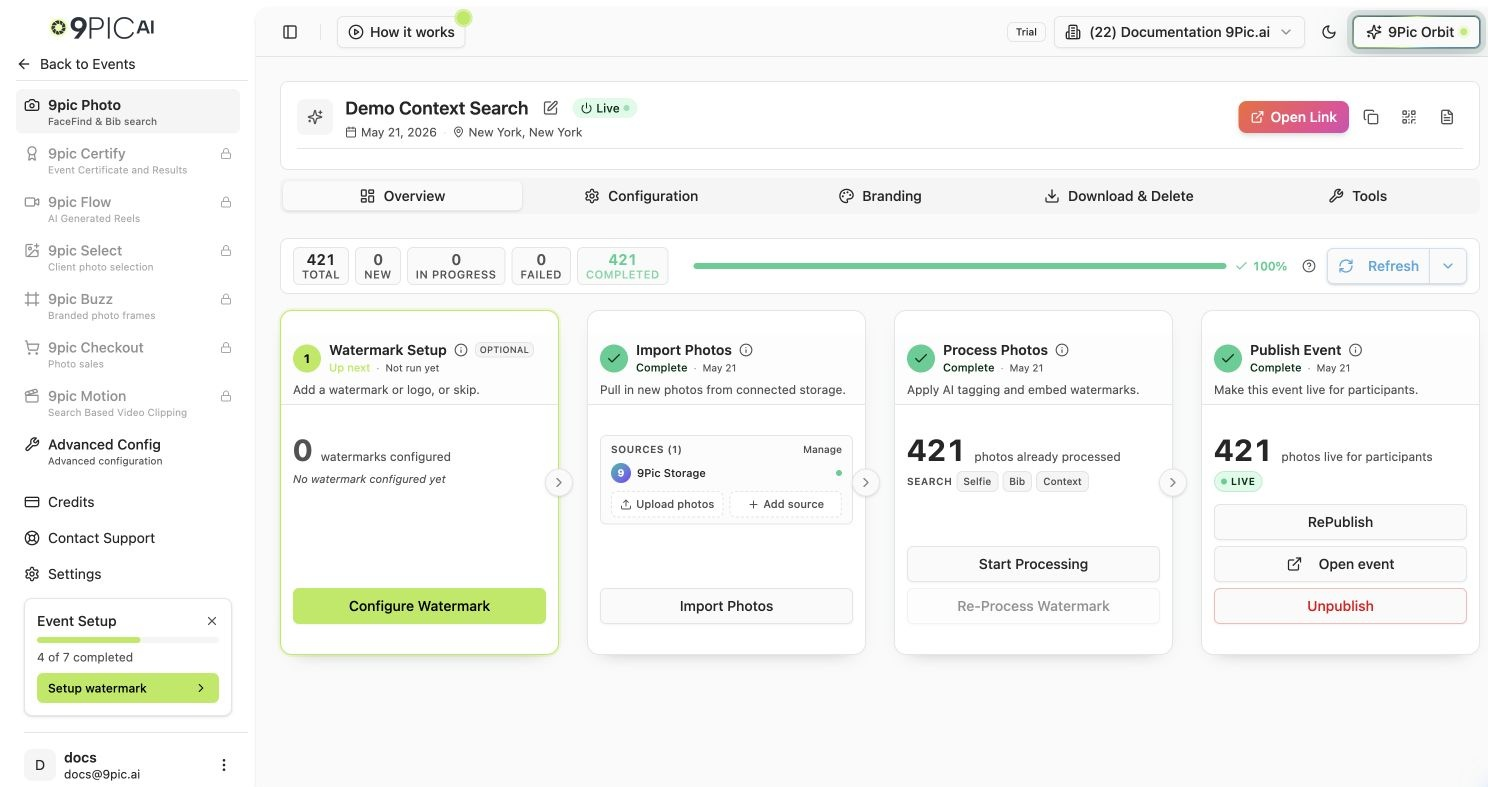
Photo Overview pipeline
The Status Strip
The strip across the top summarises where your photos are in the pipeline:
A Refresh button re-pulls the latest status on demand, and an auto-refresh toggle pauses or resumes the automatic polling while a step is running.
The Four-Step Pipeline
The pipeline runs top to bottom. Each step is a card that shows its status, a primary action, and a recommended-next highlight so you always know what to do next.1
Step 1 — Watermark Setup (optional)
Add a logo, sponsor mark, or copyright overlay that is burned onto every processed photo. Click Configure Watermark to upload portrait and landscape art, then Generate Preview to check placement before processing. Skip this step entirely if you don’t need branding. See Branding.
2
Step 2 — Sync Images
Connect your photo sources and pull images into 9Pic. The Sources manager lives inside this step. Run Sync Images to import new photos; it only pulls what’s new, so it’s safe to re-run.
3
Step 3 — Process Photos
Run AI processing on synced images — face recognition, bib detection, and watermarking (if configured). Processing consumes credits, so the event needs enough balance to finish.
4
Step 4 — Publish Event
Click Publish to make processed photos live on the public event page. Only processed photos appear; newly imported ones stay hidden until you process them. Use Unpublish to take the event offline again, or Open event to preview the participant page.
The pipeline highlights the recommended next step. You don’t have to follow it in strict order, but Publish is gated until Step 3 has processed at least some photos.
Managing Sources (Step 2)
Sources tell 9Pic where your event photos live. After connecting a source, run Sync Images to import new photos.1
Open the Sources manager
In Step 2 — Sync Images, open Manage Sources.
2
Add a source
Click Add Source, pick a Source Type, and paste the Source URL for the folder you want to import.
3
Confirm the source is Live
After saving, make sure the source shows Live. If it doesn’t, reopen it and fix the URL or permissions.
4
Sync
Run Sync Images to pull photos in.
External providers (Google Drive, S3, and similar) may require you to connect credentials first. Use Upload Credentials / Upload Photos in the Overview tab to connect a provider or upload images directly from your computer or the desktop uploader.
If Publish Fails on Rotated Images
When Step 4 fails because the AI flagged rotated photos, the Publish card shows two extra buttons:- Open AI Analysis — jump to the rotation review tool to fix orientations. See AI Image Analysis.
- Skip AI Analysis — publish anyway, leaving the flagged images as-is.
Common Questions
Can I run Sync more than once?
Can I run Sync more than once?
Yes. Sync only imports new images, so it’s safe to re-run after you add more photos to a source.
Does processing change my originals?
Does processing change my originals?
No. Processing creates searchable, optionally watermarked copies. Your original files stay in your source.
Why is Publish disabled?
Why is Publish disabled?
Publish needs at least some processed photos. Finish Step 3 (Process Photos) first. If processing is paused, check your credit balance.
How do I take an event offline?
How do I take an event offline?
Click Unpublish on the Publish card. The event moves back to draft and participants can no longer access photos until you publish again.
Next Steps
Configuration
Search methods, display options, downloads, and bib detection.
Branding
Watermarks, event banner, and the custom landing page.
Download & Delete
Download originals and permanently remove photos.
AI Image Analysis
Review and fix rotated photos flagged during publish.