

Overview
The Tools tab is a launcher. It shows a grid of tool cards, and clicking one opens that tool on its own full page. There are three tools:
This page covers the two tagging tools.
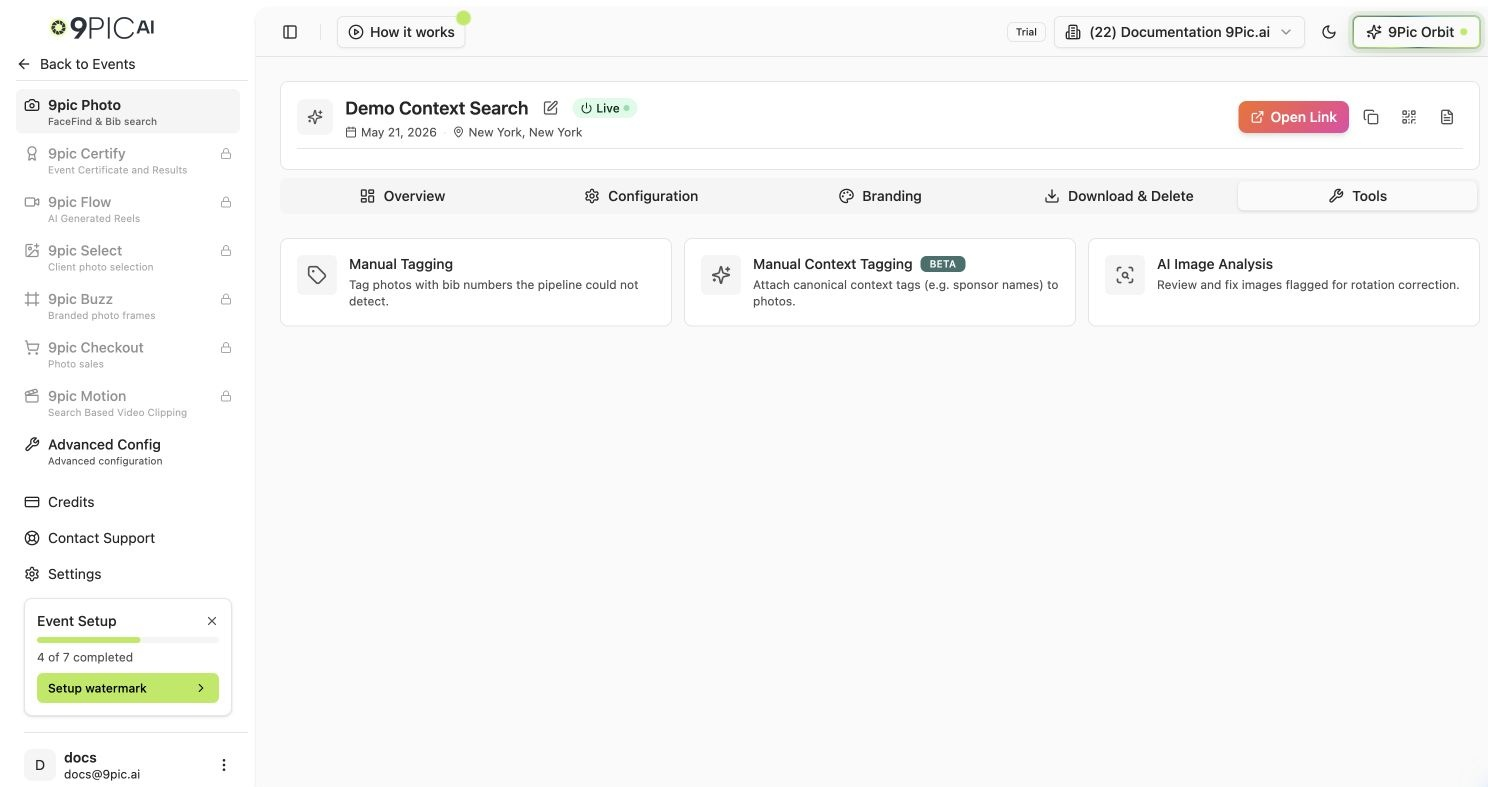
Photo Tools launcher
Manual Tagging (Bib Numbers)
Use Manual Tagging to fix photos where the AI couldn’t read the bib number — blurred shots, partially hidden bibs, or unusual angles. This keeps bib search complete for your participants.1
Open the tool
Go to 9Pic Photo → Tools and click Manual Tagging.
2
Find the photo
Search or browse to the image you need to correct.
3
Add or fix the bib number
Open the photo and enter the correct bib number(s), then save. The photo becomes searchable under those bibs.
Manual Context Tagging (Beta)
Context tags are canonical labels — sponsor names, zones, or other categories — attached to photos so participants can find them by context, not just by face or bib. The tool is lookup-based: you search for an image, select it, and edit its context tags in a dialog.1
Open the tool
Go to 9Pic Photo → Tools and click Manual Context Tagging.
2
Look up an image
Use the lookup panel to search and select the photo you want to tag.
3
Edit context tags
In the tag editor dialog, add or adjust the canonical tags for that image, then save.
Common Questions
The tool only lets me look up one image at a time.
The tool only lets me look up one image at a time.
Both tagging tools are lookup-first by design: find the specific photo, then edit its tags. For large bib corrections, fix detection ranges in Configuration before reprocessing.
Next Steps
AI Image Analysis
The third Tools entry — review and fix rotated photos.
Configuration
Tune bib detection so the pipeline misses fewer bibs.