

Overview
9Pic uses Clerk for sign-in. One account can belong to more than one organisation, so after signing in you may need to switch organisations to land in the right workspace.Each team member should have their own account. Avoid sharing passwords between people on the team — it makes audit logs and team management harder later on.
How to Sign In
1
Open the dashboard
Go to admin.9pic.ai. If you are not signed in, you will be sent to the login page automatically.
2
Sign in with Clerk
Enter your email and password in the Clerk sign-in card. If your organisation uses social login (Google, Microsoft, etc.) those buttons appear above the email field.
3
Verify if prompted
Clerk may ask for a one-time email code or your second factor (authenticator app). Complete it to continue.
4
Land on the dashboard home
After sign-in you arrive on the dashboard home with Quick Access cards: Create New Event, Event List, Docs, and (for new accounts) Setup Guide.
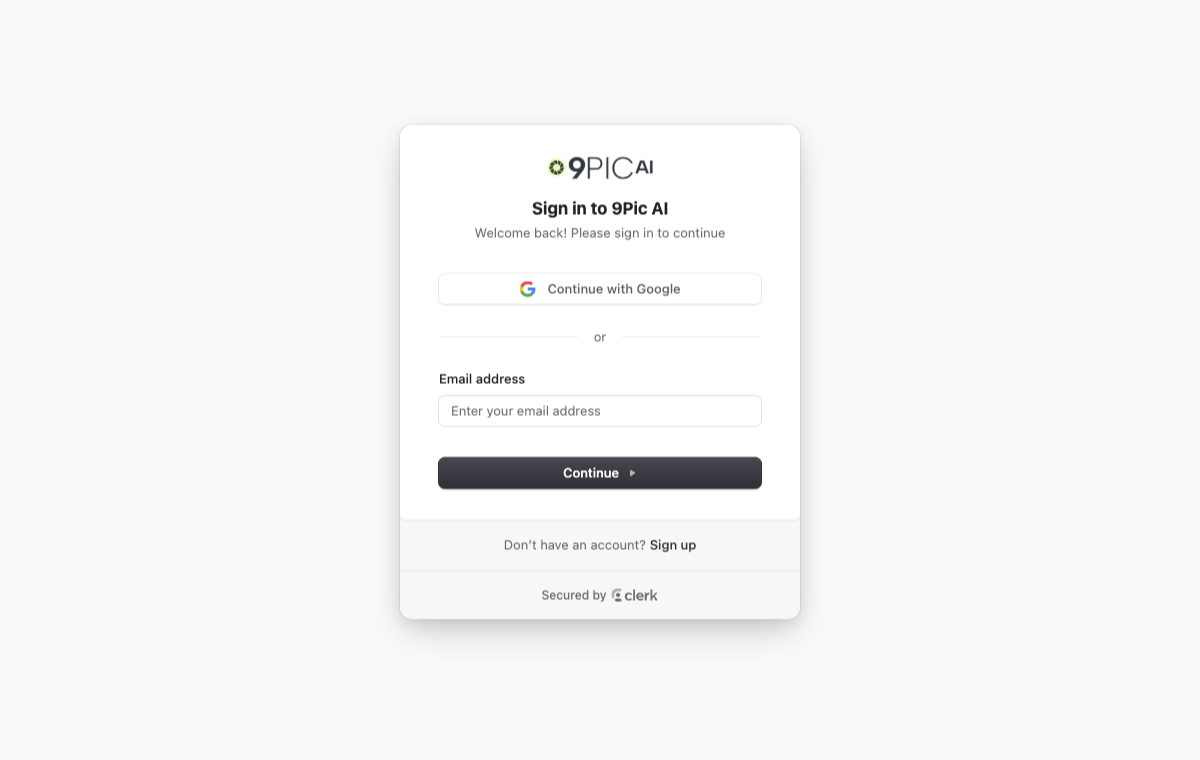
9Pic sign-in page
Switch Organisation (If You Belong to More Than One)
If your account is attached to multiple organisations, the dashboard auto-selects the last one you used. To switch:1
Open the organisation switcher
Click the organisation name in the top bar. A searchable list of every organisation you can access opens.
2
Search or pick
Type part of the organisation name or its numeric ID, then click the row you want.
3
The dashboard reloads in that workspace
The sidebar, events list, credits, and settings now reflect the selected organisation. Your choice is remembered between sessions.
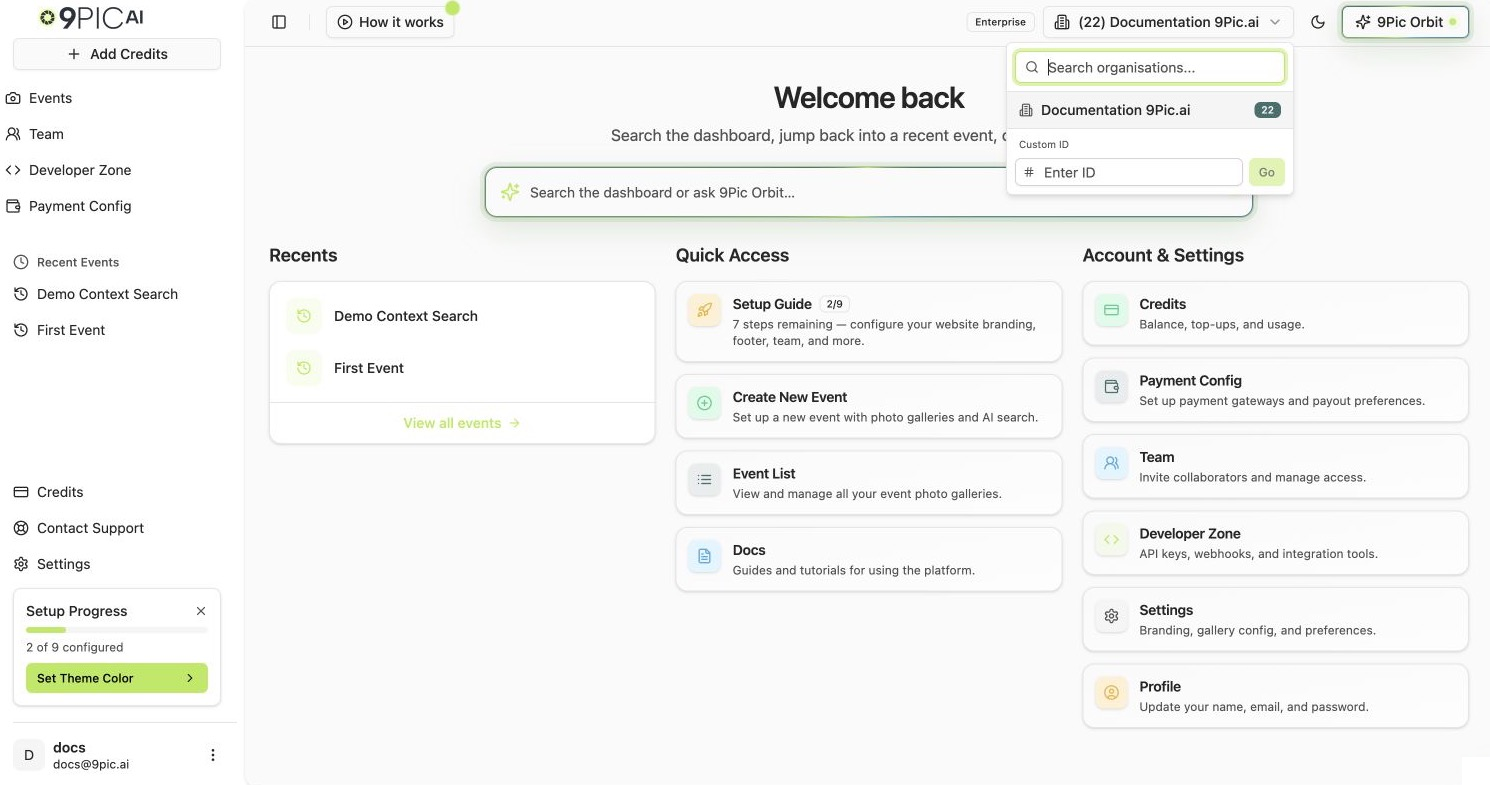
Organisation switcher
What “Signed In Correctly” Looks Like
You are in the right place when you see all four of these:
If any of those is missing or shows a different organisation, open the switcher and pick the correct one.
Sign-In Problems
I forgot my password.
I forgot my password.
On the Clerk sign-in card, click Forgot password? and follow the email-based reset flow. Clerk sends a reset link to the email address on your account.
My email is not recognised.
My email is not recognised.
You may not be invited to any organisation yet. Ask an admin on your team to add you from Team in the dashboard sidebar.
I signed in but I see a different organisation than expected.
I signed in but I see a different organisation than expected.
Use the organisation switcher in the top bar. The dashboard remembers your last choice per browser, so if you switched accounts elsewhere the stored preference may be wrong.
I get sent back to the login page after signing in.
I get sent back to the login page after signing in.
This usually means your session expired or third-party cookies are blocked. Sign in again, and if the issue persists, enable cookies for
admin.9pic.ai and Clerk.Next Steps
Dashboard tour
Learn the sidebar, Quick Access cards, Recent Events, and the Setup Wizard widget.
Create your first event
The 90-second happy path from sign-in to a live event link.
Still stuck? Email support@9pic.ai with the email address on your account and the organisation name you are trying to reach.