

Overview
AFS Gateway uses Mastercard Hosted Checkout to collect payments for 9Pic Checkout. Add one AFS configuration for your organisation, then assign it to the event that will sell packages. You need two values from your AFS merchant setup: a Merchant ID and an API password. The Merchant ID identifies the account; the API password is private and should be handled like a password. TODO screenshot (Codex Chrome required): Capture the Add Payment Gateway dialog with AFS Gateway selected, using redacted placeholder credentials.Before You Start
Get Your AFS Credentials
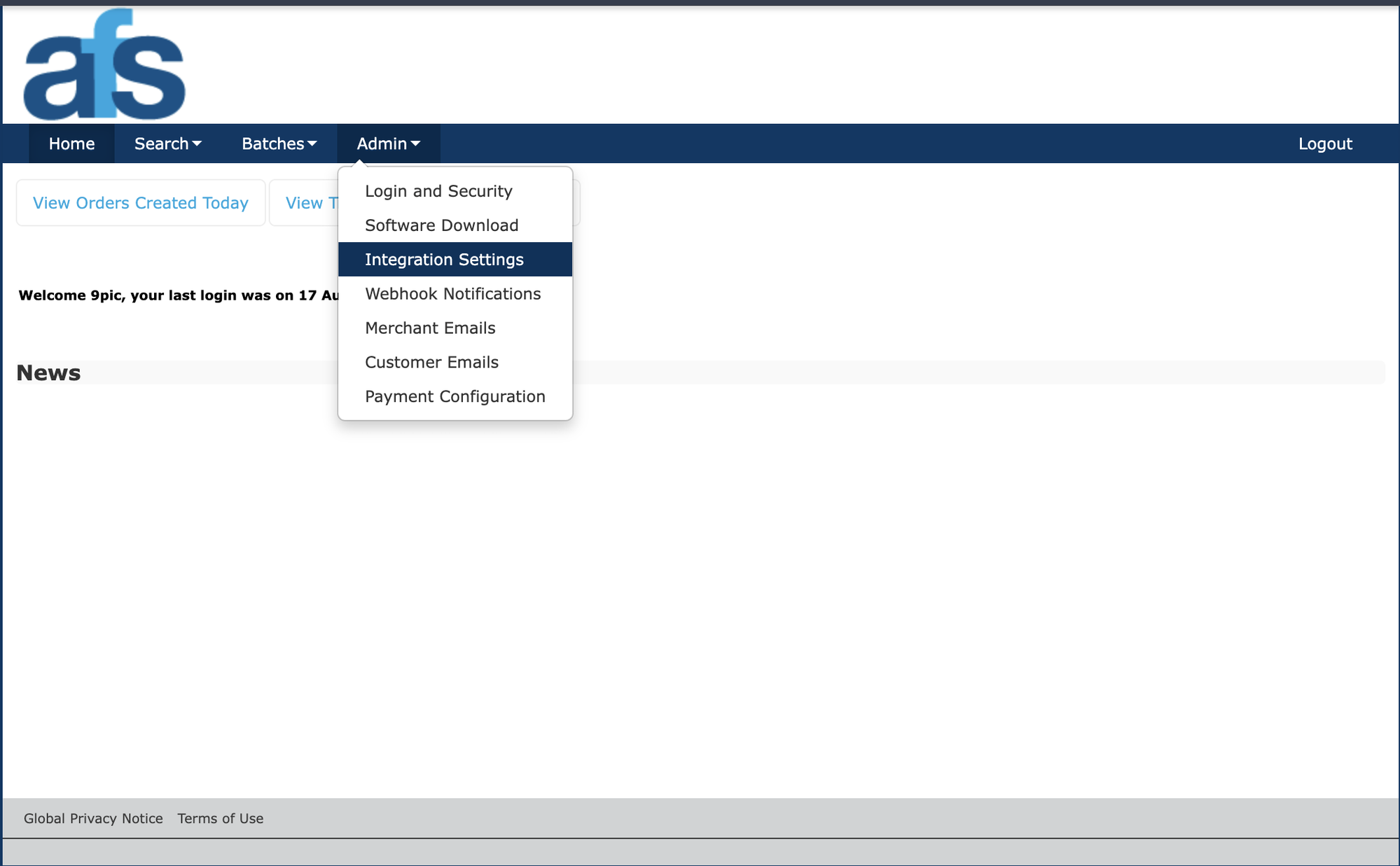
AFS Admin menu with Integration Settings highlighted
1
Open your AFS merchant setup
Sign in to the AFS merchant administration area for the account you plan to use. Open Admin -> Integration Settings and find the Integration Authentication section.
2
Get the API password
Copy Password 1 from the Integration Authentication section. Paste this value into the AFS API Password field in 9Pic. Do not copy it into a buyer-facing website or app.
3
Decide whether you are testing or going live
Use the simulator credentials while testing. A Merchant ID that begins with
TEST is recognised as a test configuration. Use the separate live Merchant ID only when the event is ready to accept real payments.4
Store the API password safely
Keep the password in your organisation’s approved password manager until you add it to 9Pic. AFS credentials should never be added to a buyer-facing website or app.
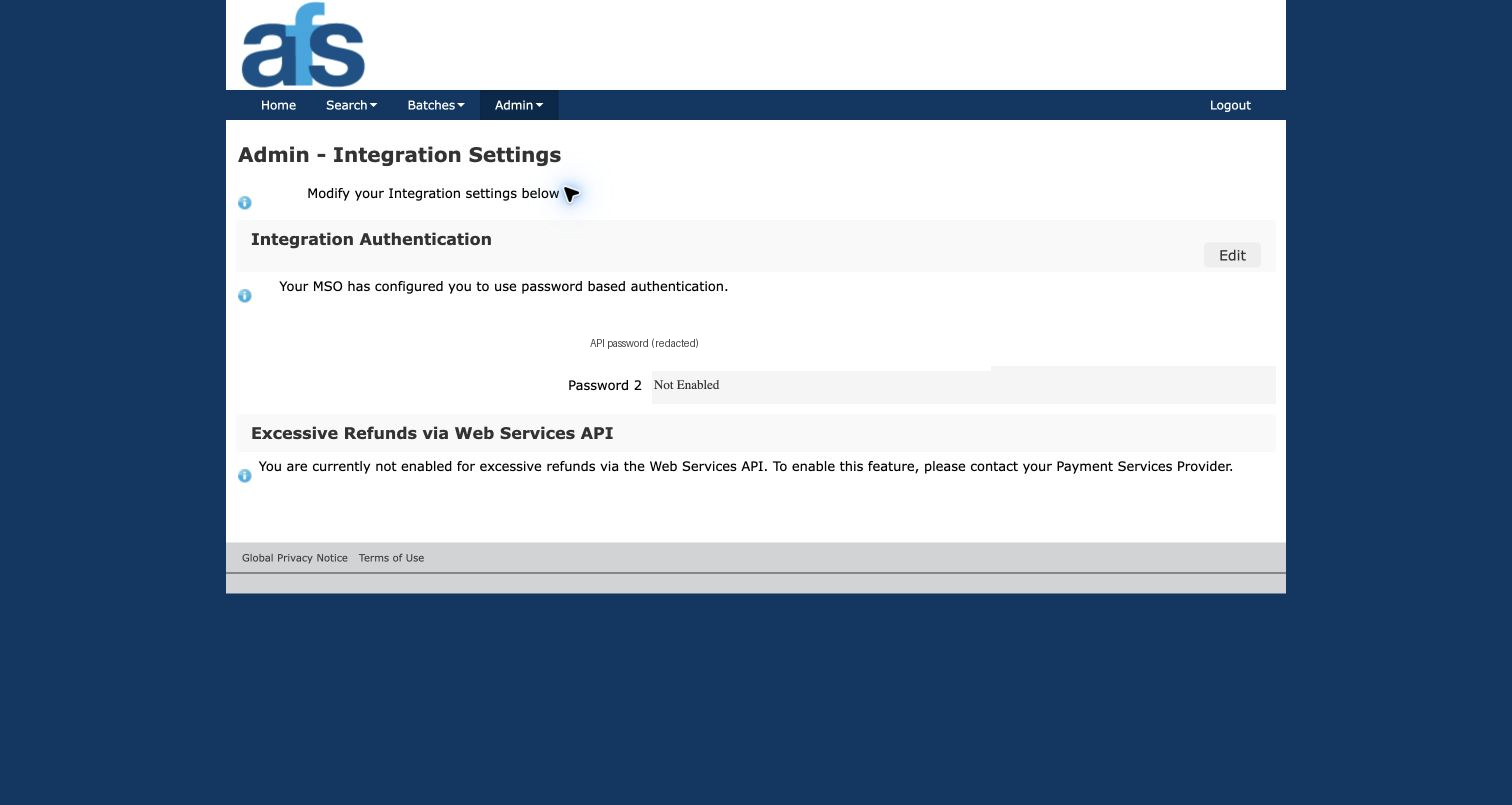
AFS Integration Settings with the API password redacted
Need help locating the credentials in AFS? Use the AFS integration guide or contact the AFS team that provisioned your merchant account.
Add AFS Gateway to 9Pic
1
Open Payment Config
In the dashboard sidebar, select Payment Config.
2
Start a new gateway
In Payment Gateway Configurations, click Add Gateway, then select AFS Gateway.
3
Name the configuration
Enter an optional Label that makes the configuration easy to recognise, such as
AFS Test or AFS Live Bahrain.4
Enter the Merchant ID
Paste the AFS Merchant ID into Merchant ID. This field is required. Use the ID that matches the environment you chose: a
TEST ID for simulator checks or your live ID for real payments.5
Enter the API password
Paste the AFS API password into AFS API Password. This required value is stored as a protected credential for your organisation.
6
Create the gateway
Click Create Gateway. The new AFS Gateway configuration appears in the organisation’s gateway list.
Assign AFS to an Event
1
Open the event Checkout configuration
Open the event, then open its Checkout configuration.
2
Assign the AFS configuration
In the Payment gateway card, select Assign (or Edit if a gateway is already assigned), choose the AFS Gateway configuration, and save.
3
Set package prices in a supported currency
Create or update Checkout packages in BHD, USD, AED, SAR, or QAR. Other currencies cannot be used with AFS.
4
Publish and test
Publish the packages and run a complete buyer journey using the simulator before you switch the event to a live AFS configuration.
Verify the Setup
Troubleshooting
9Pic says the Merchant ID or API password is missing.
9Pic says the Merchant ID or API password is missing.
Edit the AFS Gateway configuration and confirm that both required fields have values. The Merchant ID and AFS API Password are separate fields.
My test configuration does not work for a public event.
My test configuration does not work for a public event.
A Merchant ID beginning with
TEST is only for the simulator and cannot be used for public checkout. Add or update the configuration with the live Merchant ID supplied by AFS.I cannot select my AFS configuration for an event.
I cannot select my AFS configuration for an event.
Confirm that the configuration was created for the same organisation as the event, then save the selection from the event’s Payment gateway card.
Next Steps
Payment Config
Manage the payment gateways saved for your organisation.
Checkout Setup
Assign a gateway, publish packages, and enable Checkout for an event.