Overview

Once you sign in, you land on the dashboard home. This page exists to point you at the next useful action — usually creating an event, finishing setup, or jumping to an event you opened recently. Spend two minutes here before you start clicking around.
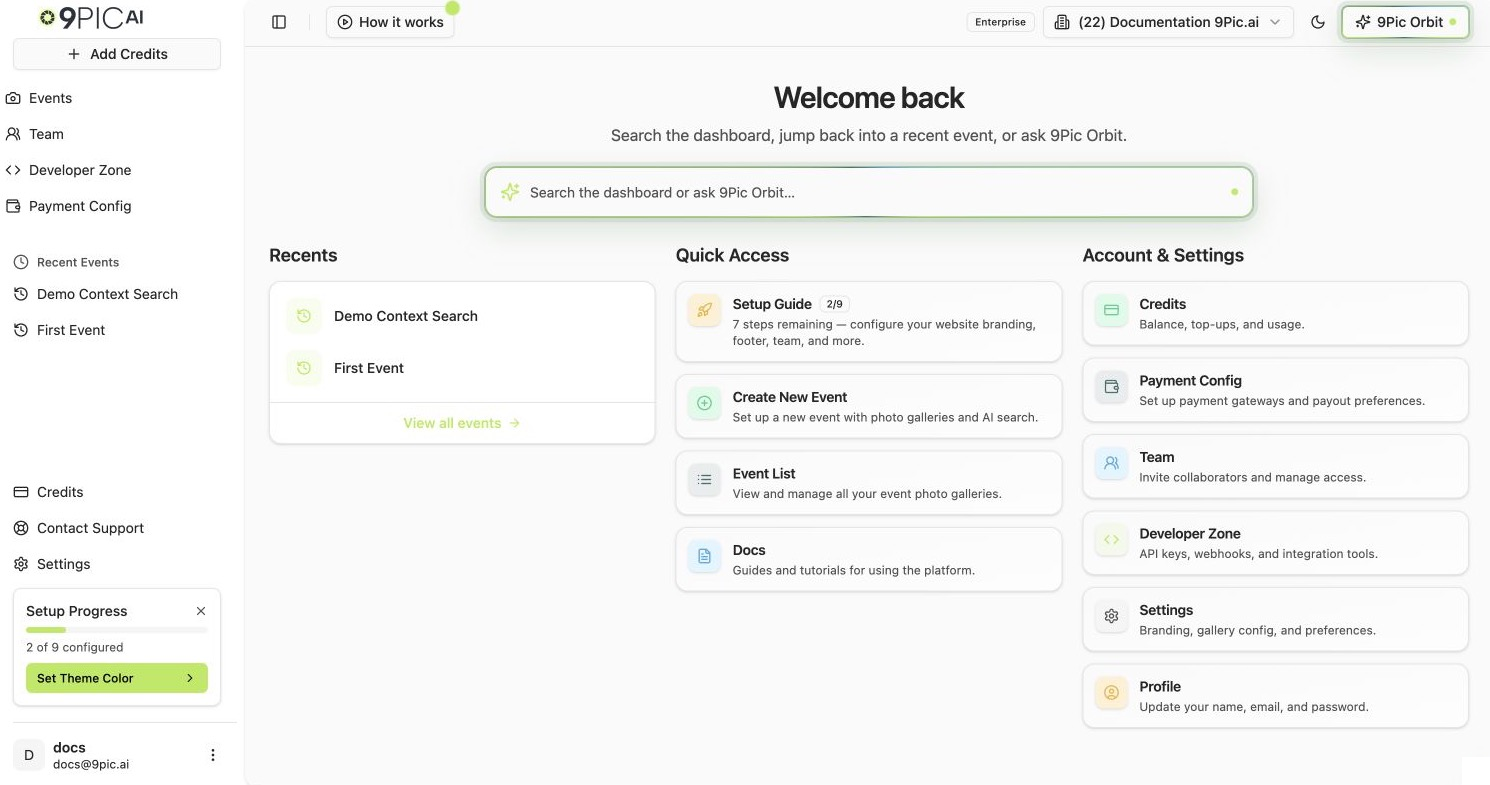
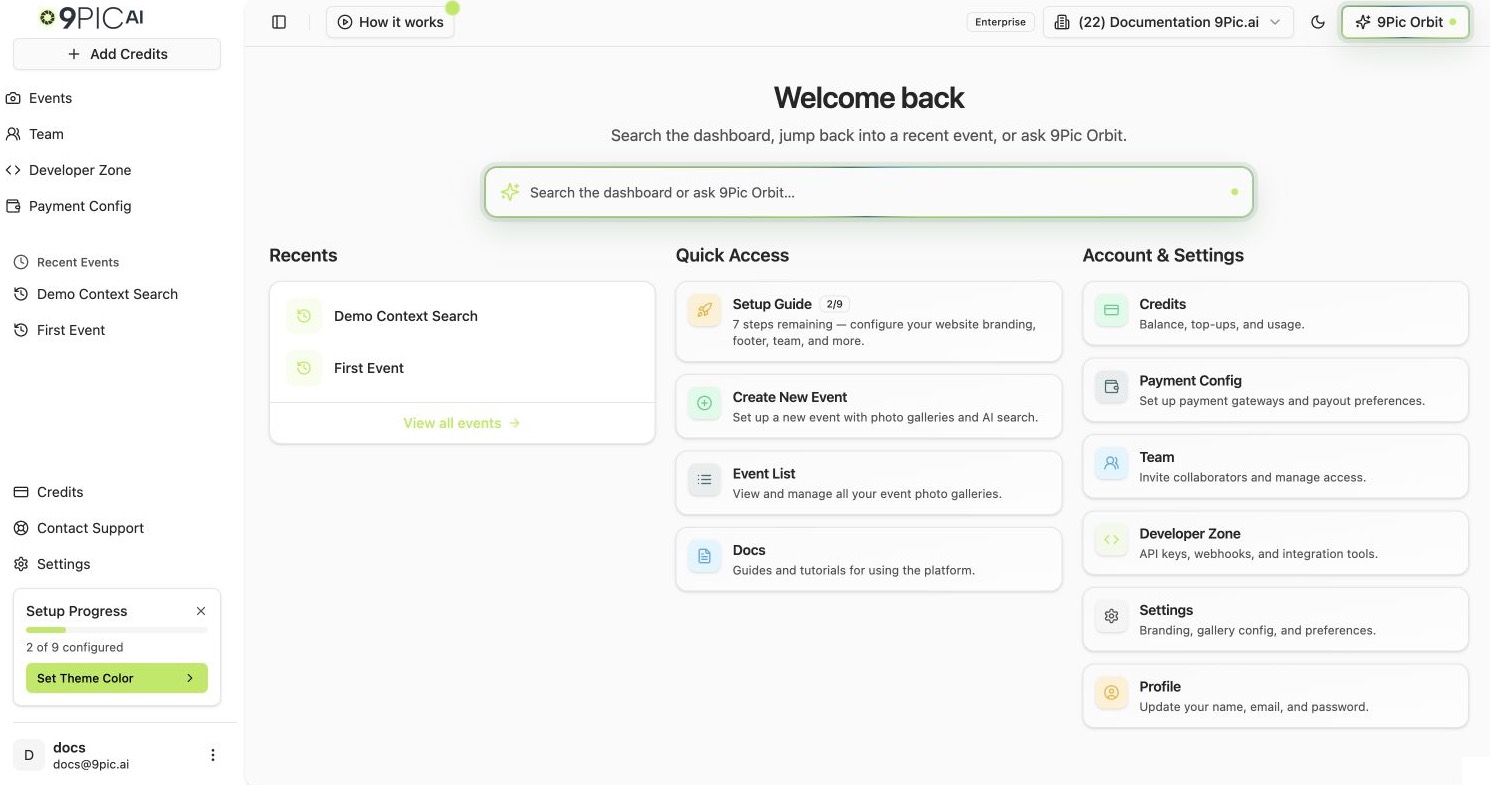
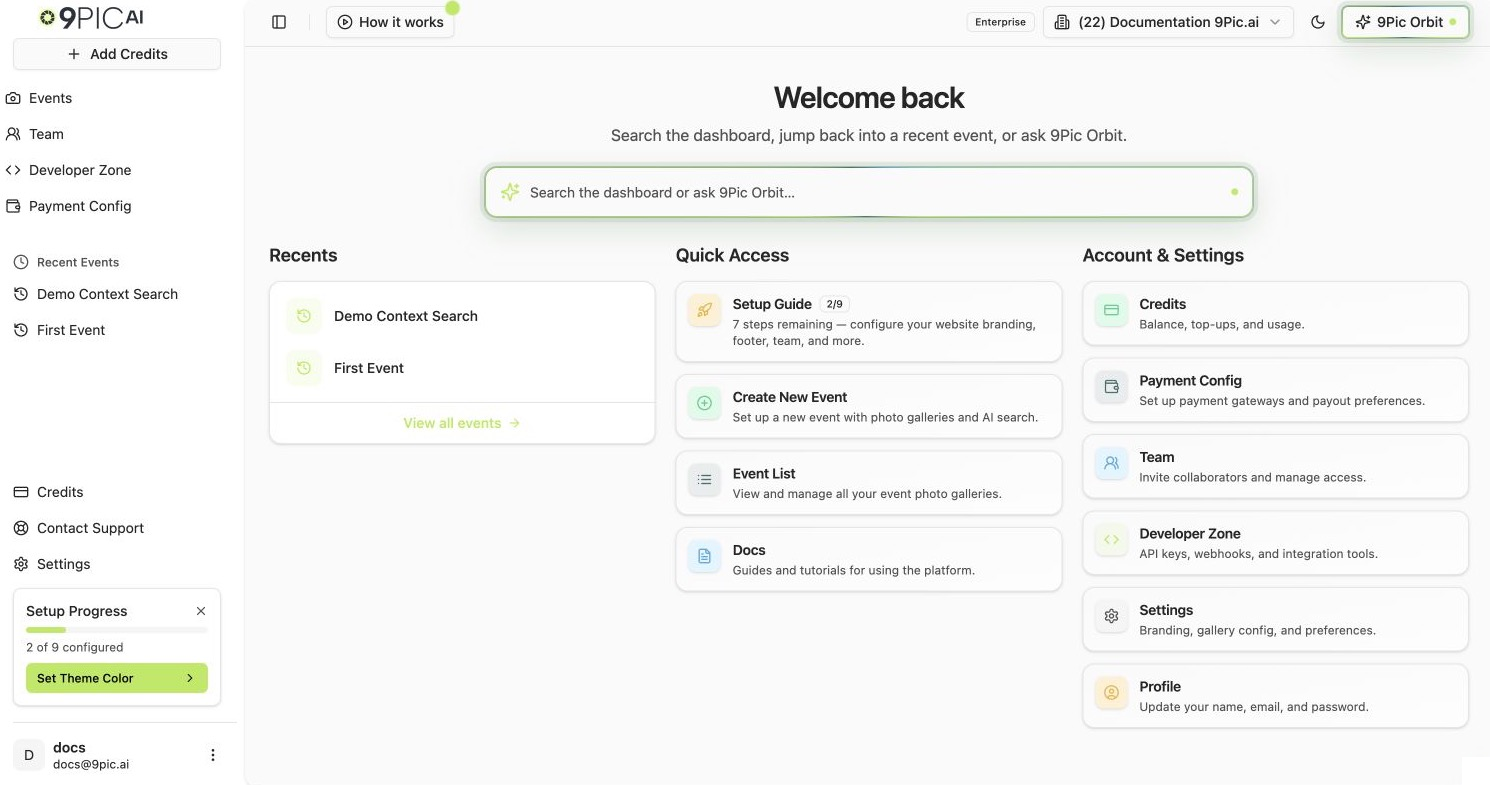
Dashboard home showing the expanded sidebar, Recents, Quick Access cards, Account and Settings section, Enterprise badge, and Setup Progress widget

The Three Areas You Will Use Most

AreaWhere it isWhat it does
Sidebar (left)Fixed on the left, collapsiblePrimary navigation: Events, Team, Credits, Settings, plus Recent Events and the Setup Wizard widget
Top barTop of every pageOrganisation switcher, plan status, Upgrade / Add Credits button
Main areaCentre of the pageQuick Access cards, Account & Settings cards, and the body of whichever page you open

The Sidebar

The sidebar has three different modes depending on where you are:
  • Main mode (default): primary navigation for the dashboard.
  • Event mode: when you are inside an event, the sidebar swaps to that event’s product navigation (Photo, Certify, Flow, and so on). See Event details.
  • Staff mode (staff users only): swaps to staff-only utilities.
In main mode, the sidebar shows:
ItemWhat it opens
EventsYour list of events, with search, pagination, and a Create button
Race Chronicles (staff only)Race story builder
TeamInvite collaborators, manage roles
Developer ZoneAPI keys and webhooks (Enterprise plan)
Payment ConfigPayment gateway and payout setup (Enterprise plan)
CreditsCredit balance, purchase history, transactions
Contact SupportHelp and feedback form
SettingsBranding, footer, contact, domain, advanced
Developer Zone and Payment Config are visible to every plan but only open for Enterprise organisations. On other plans, clicking them shows an upgrade prompt.
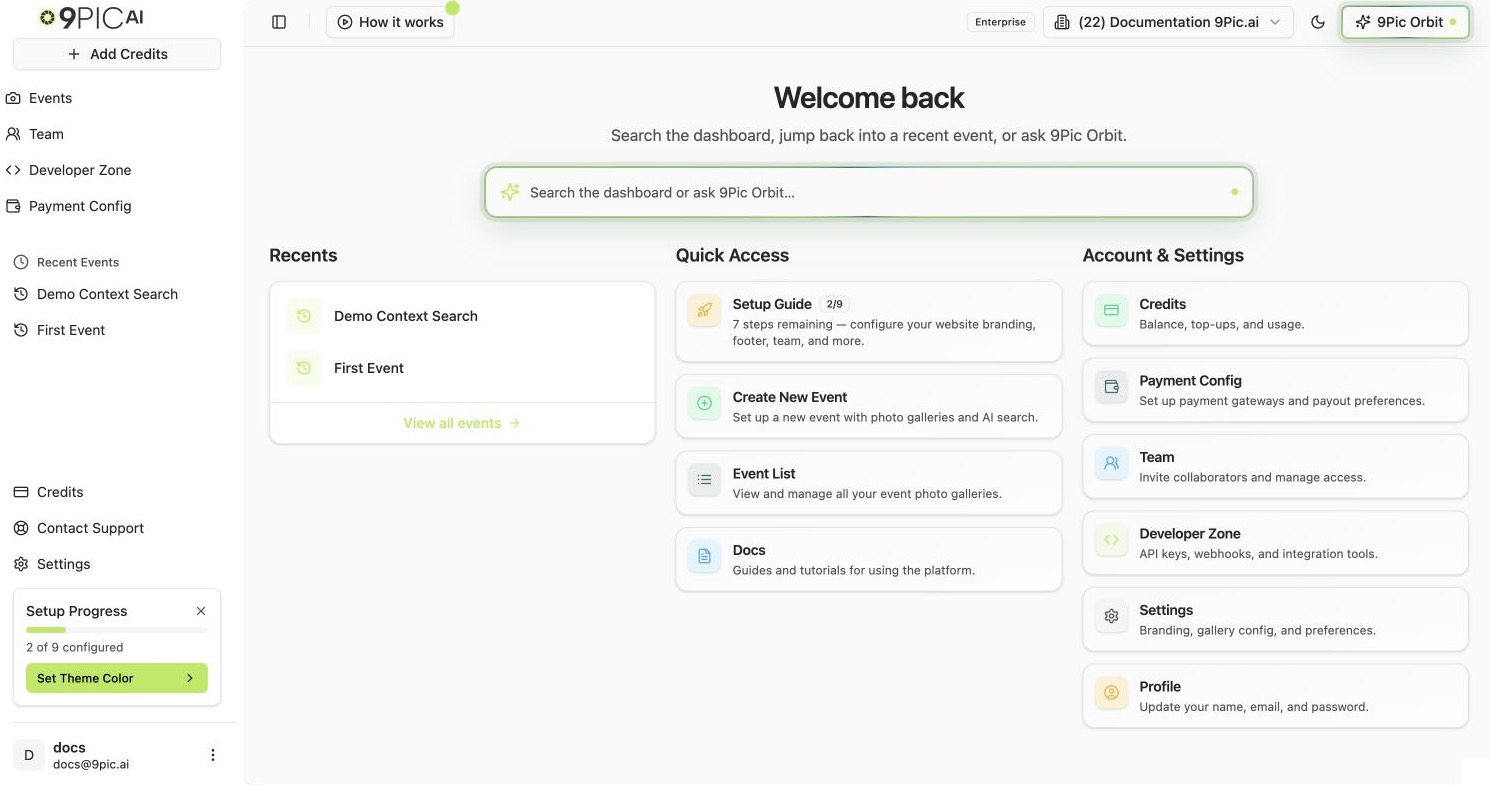
Expanded dashboard sidebar with Events, Team, Developer Zone, Payment Config, Recent Events, and the Setup Progress widget visible near the bottom

Recent Events

Below the primary nav, the sidebar lists events you opened recently. Clicking a Recent Event takes you straight back to its details page. The list is per-browser and updates as you open more events.

Setup Wizard Progress Widget

If your organisation has not finished setup yet, a Setup Progress card appears at the bottom of the sidebar (above your name and avatar). It shows:
  • A progress bar with X of Y configured (or completed on trial).
  • The next step to complete, as a single clickable button. Clicking it takes you to the exact settings tab or page you need.
  • A small X to dismiss the widget once your setup looks good — it disappears for everyone in your organisation.
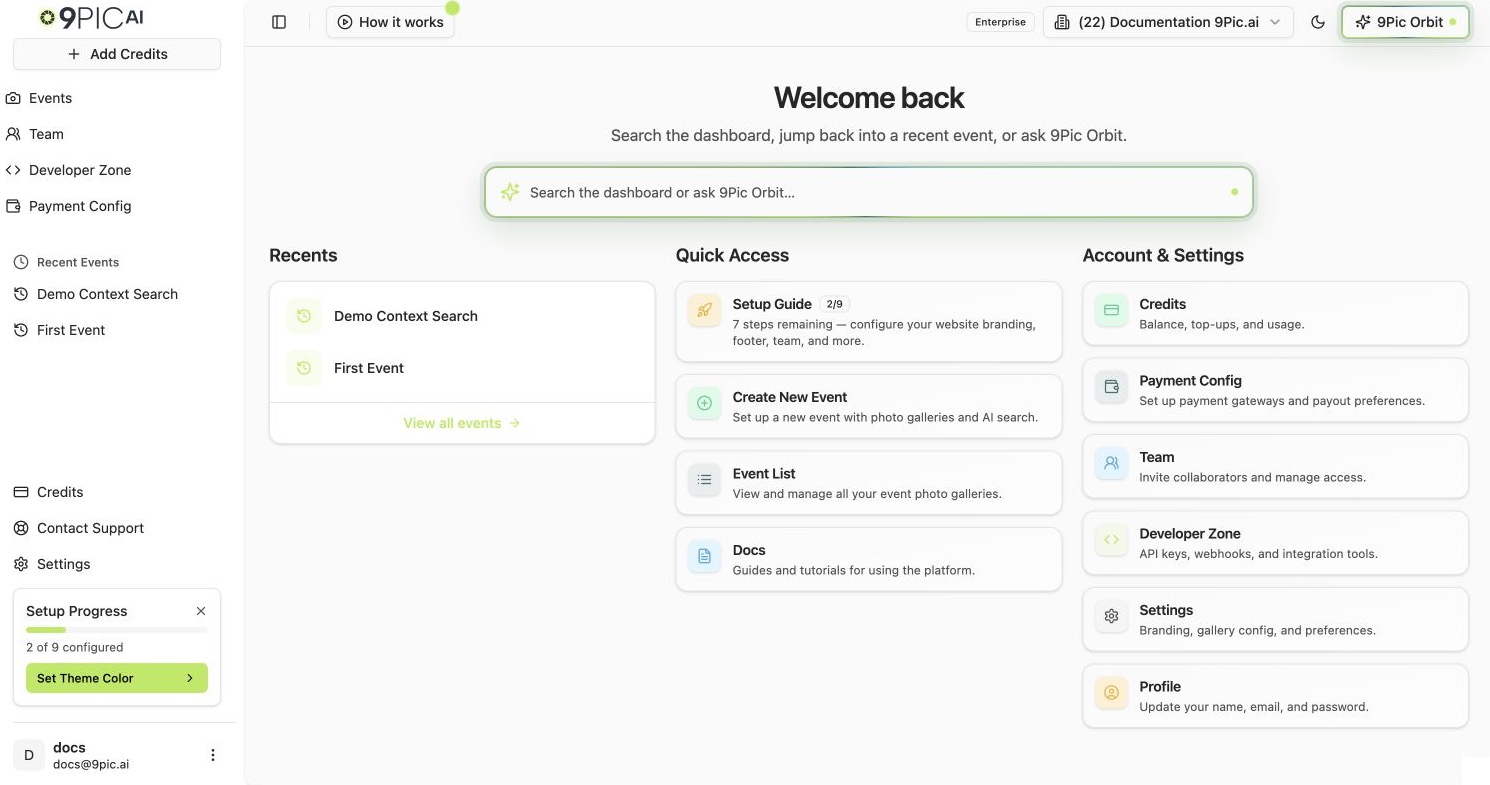
Trial accounts see this widget keyed to Trial Setup (create first event, choose a plan, invite a teammate). Paid accounts see Setup Progress keyed to branding, footer, contact, and domain.
Setup Progress widget showing 2 of 9 configured and a Set Theme Color next-step button

The Top Bar

The top bar is always visible at the top of every page. It contains:
  • Logo — clicking it returns you to dashboard home.
  • Organisation switcher — shows your current organisation as (123) My Organisation Name. Click it to search and switch organisations. See Sign in.
  • Plan status — a small badge that reflects your plan (Trial, Pay As You Go, Pro, Enterprise) and any expiry warnings.
  • Add Credits / Upgrade — a button that takes you straight to credit purchase. On Trial and Pay As You Go plans it reads Upgrade; on other plans it reads Add Credits.
Top bar controls showing the Enterprise plan badge, Documentation 9Pic.ai organisation switcher, dark mode toggle, and 9Pic Orbit button

The Home Page (Quick Access & Account & Settings)

The home page is just two grids of cards.

Quick Access

CardWhat it does
Setup Guide (only if setup is unfinished)Opens the full setup wizard with all steps in one place
Create New EventOpens the new event form
Event ListOpens your events list
DocsOpens docs.9pic.ai in a new tab

Account & Settings

CardWhat it does
CreditsCredit balance and purchase history
Payment ConfigPayment gateways and payouts (Enterprise only — others see an upgrade prompt)
TeamInvite people and manage roles
Developer ZoneAPI keys and webhooks (Enterprise only)
SettingsOrganisation branding, gallery config, preferences
ProfileOpens the Clerk profile dialog to update your name, email, or password
Trial accounts see a banner above Quick Access with Watch how it works — a short walkthrough video. It auto-plays the first time you land here and won’t reappear once dismissed.
Account and Settings card grid showing Credits, Payment Config, Team, Developer Zone, Settings, and Profile shortcuts

Common Questions

Yes. Click the small X in its top-right corner and confirm. It hides for everyone in your organisation. You can still reach individual settings from the Settings page anytime.
You’re signed in as a 9Pic staff member. Regular organiser accounts do not see this section. If you see it by accident, contact support — your account may have the wrong role.
You’re inside an event. The sidebar enters event mode and shows the nine products (Photo, Certify, Flow, and so on). Click Back to Events at the top to return to the main sidebar.

Next Steps

Create your first event

Move on to the 90-second happy path that takes you from a fresh dashboard to processed photos.

Events list

Deep reference for the events table, search, and pagination.