

Overview
This page is the shortest possible path from dashboard home to “my first event has photos”. If you only have a minute, follow the steps below in order. Deeper references for every option live in the Events section and the product reference sections later.Expect about ten to twenty minutes total: the form itself takes under a minute, but syncing and processing photos depends on how many images you have.
Before You Start
You need three things:- An organiser account on 9Pic — see Sign in if you haven’t signed in yet.
- An event name, date, and city or venue.
- At least one source of photos: a folder of images you can upload, a 9pic Uplink, or a cloud folder link (Google Drive, S3, and similar). You can also add sources after the event is created.
The 90-Second Happy Path
1
Click Create New Event
From dashboard home, click the Create New Event card in Quick Access. (You can also click Events in the sidebar and then the Create button in the top-right.)
2
Fill in the basics
Enter an Event Name (you can use something like First Event), pick an Event Date and start time, and select your Event Location from the suggestions.
3
Pick an Event Type
Choose Endurance Sports, Social Events, Conference, or General. Picking Endurance Sports unlocks bib number search.
4
Accept the default Photo Memories Configuration
For your first event, leave Selfie Search, Show All Images, Bulk Download, and Show Photo Count on (the defaults). You can change everything later from the event’s Configuration tab.
5
Click Create Event
The button is at the bottom of the form. You land back on the Events list with your new event highlighted.
6
Open Details
Click the row for your new event (or the Configure button on the right) to open event details. You land on the 9pic Photo product, Overview tab.
7
Add a source
From Overview, open Manage Sources. Either keep the default 9Pic Storage and upload images, or add a cloud folder link. Save.
8
Sync, then process
Run Sync Images to pull photos from your sources, then Start Processing. Processing usually takes a few minutes per few thousand photos.
9
Go Live and share
Once processing finishes, click Go Live. Use Open Link or Copy Link in the header to test the participant experience and share it.
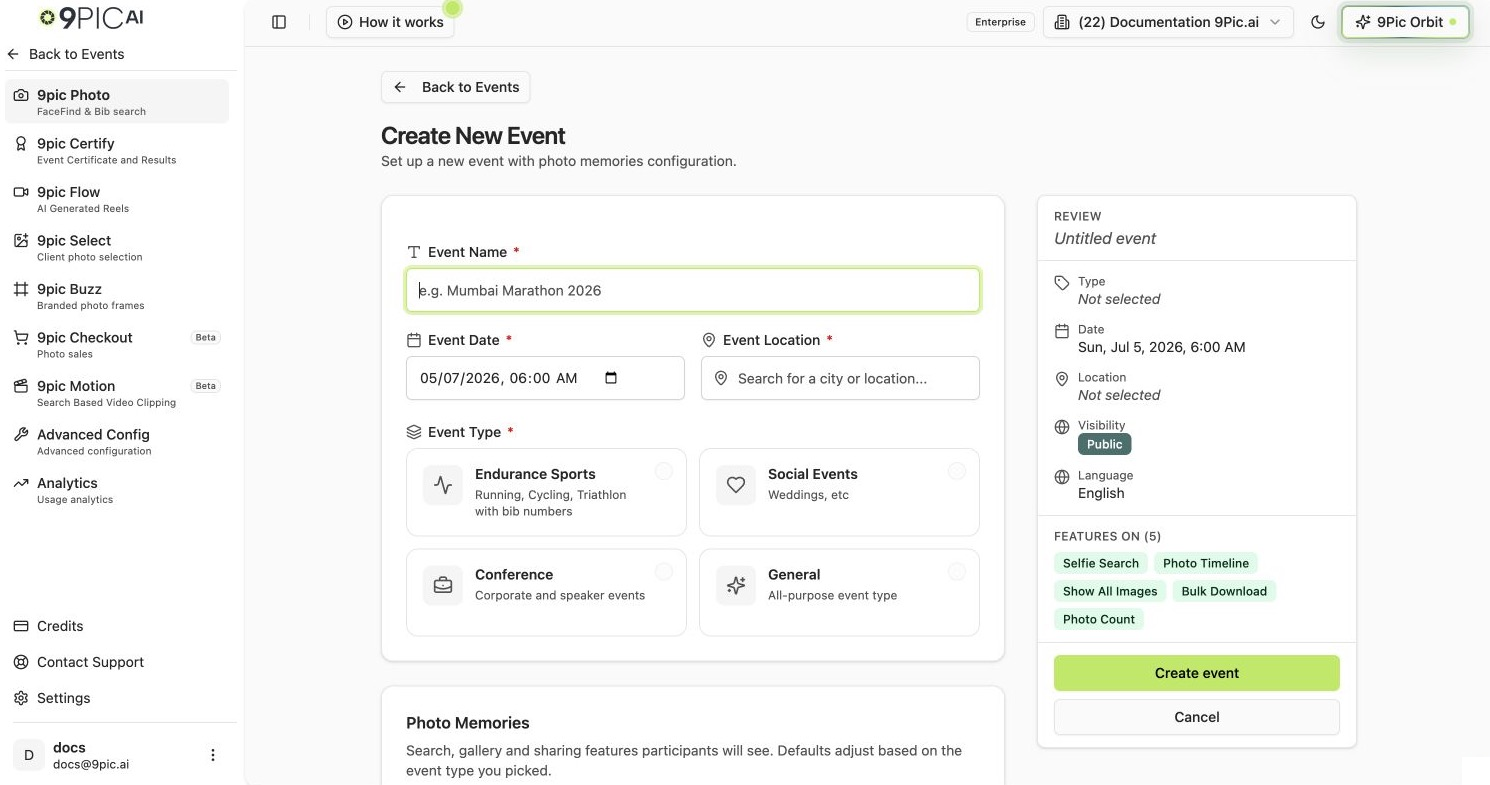
Create New Event basics
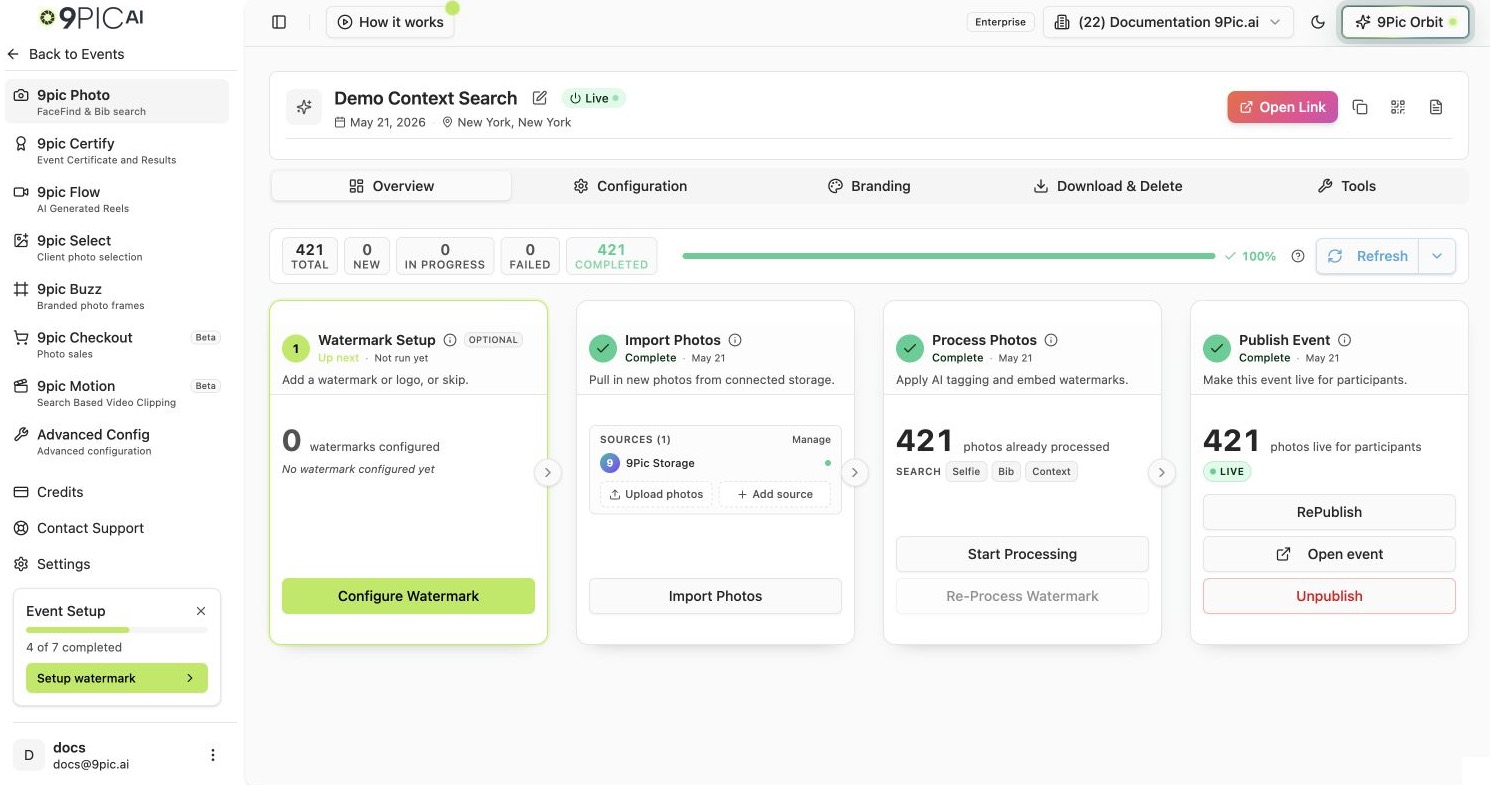
Photo Overview after opening an event
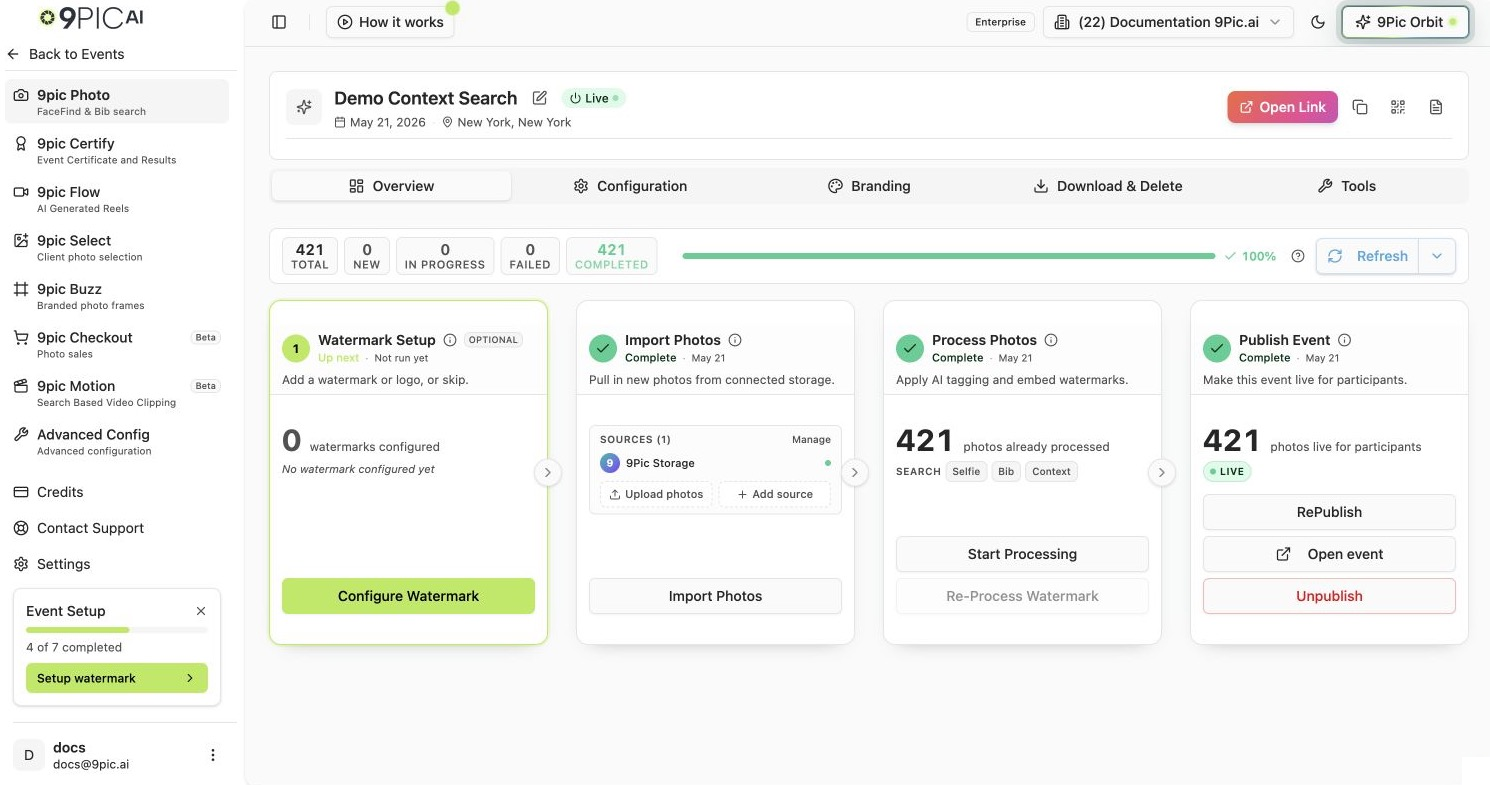
Event header actions
What You Just Did
Choose Smart Defaults for Later
Once your first event works end-to-end, revisit these options for the next one:- Bib Number Search — for races. Upload a name-to-bib CSV later to also enable name search.
- Selfie Search — face-recognition photo search. Defaults to on.
- Show All Images — lets participants see the full gallery, not only their matches.
- Bulk Download — lets participants download multiple photos at once.
- Store Original Memories (Enterprise only) — keep original files for watermark-free downloads. May incur extra storage charges.
If Something Goes Wrong
My event shows zero photos after sync.
My event shows zero photos after sync.
Open Manage Sources and confirm the source is Live and reachable. For cloud folders, double-check the share link is accessible.
Processing fails or stays stuck.
Processing fails or stays stuck.
Check your credit balance from the sidebar — processing pauses when an organisation runs out of credits. Top up from Credits, then re-run Start Processing.
I can't click Go Live.
I can't click Go Live.
Go Live becomes available only after processing has produced searchable photos. Wait for the processing status to reach complete (or partial) before clicking.
Next Steps
Events list
Search, filter, and manage every event from one screen.
Create an event (full reference)
Field-by-field reference for every option in the new event form.
Event details
How the product navigation and tabs work inside an event.
9Pic Photo overview
Deeper coverage of sources, sync, processing, and watermarking once your first event is live.
Stuck for more than fifteen minutes? Email support@9pic.ai with your organisation name and event ID and we will jump in.