

Overview
The Photo Configuration tab uses an inline Feature Configuration panel. You can toggle participant search methods, display options, and download settings without leaving the page. Changes are saved automatically.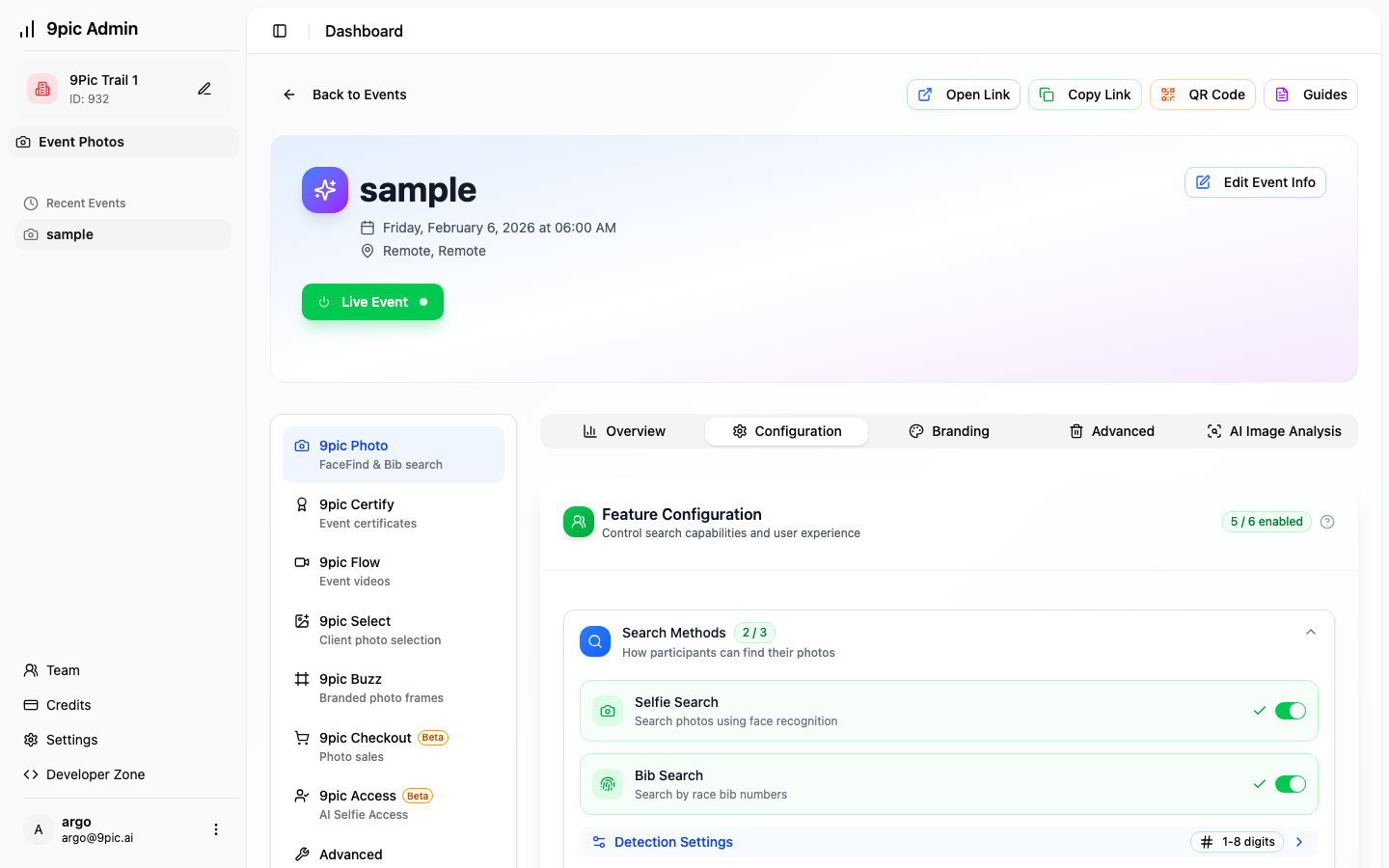
Feature Categories
Search Methods
- Selfie Search: face-based search for participants.
- Bib Search: search by race bib numbers.
- Name Search: search by participant names (works best with Bib Search + name mapping).
Display Options
- Show All Images: show the full gallery even without a search.
- Photo Count Display: show total photo count to participants.
Download Options
- Bulk Download: allow multiple photo downloads at once.
Configure Bib Detection (Advanced)
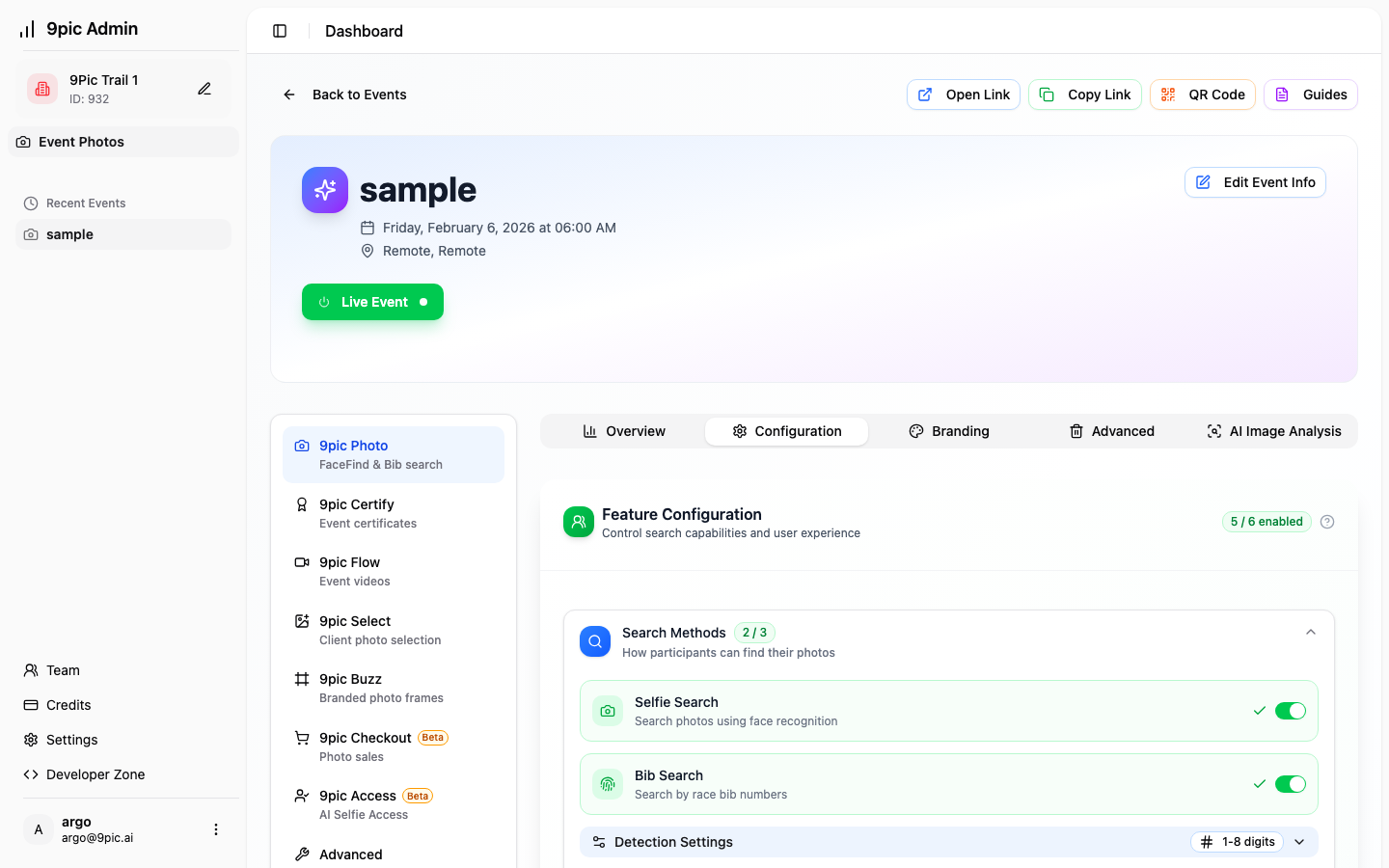
When Bib Search is enabled, you can open Detection Settings to fine-tune how bibs are recognized:- Digit Count: accept bibs within a min/max digit range.
- Range-Based: define numeric ranges for different categories (e.g., 1–500, 1001–1500).
Bib + Name Mapping (CSV)
When Bib Search and Name Search are both enabled, a Bib Name Mapping uploader appears. Upload a CSV mapping bib numbers to participant names for better search accuracy.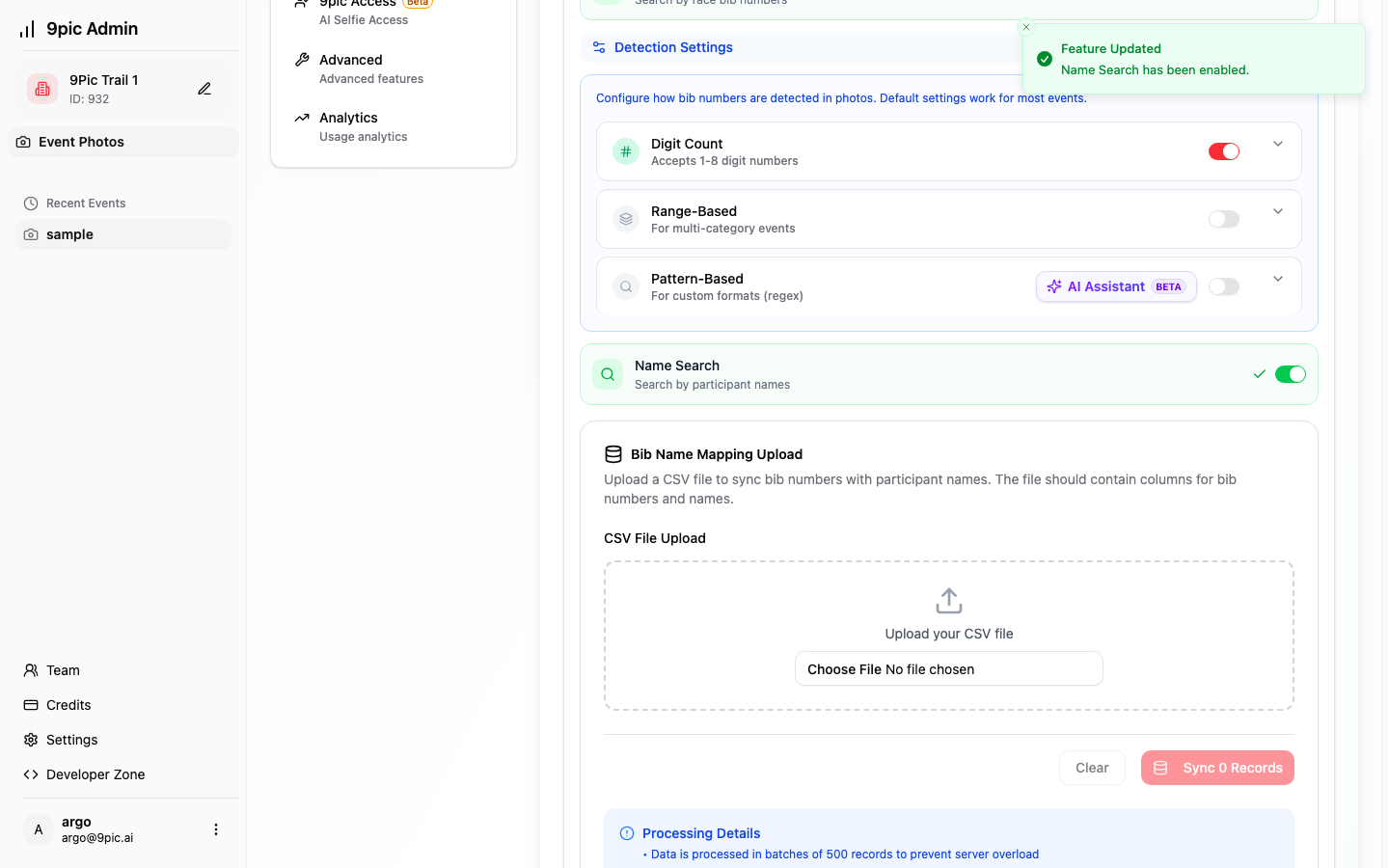
Common Questions
Do I need to click Save after toggling a feature?
Do I need to click Save after toggling a feature?
No. Toggles save automatically, and you’ll see a confirmation toast when updates succeed.
Why is Bib Search not finding some bibs?
Why is Bib Search not finding some bibs?
Open Detection Settings and adjust the digit range or add explicit ranges for your event categories.
Can I enable Name Search without Bib Search?
Can I enable Name Search without Bib Search?
Name Search works best with Bib Search + a Bib Name Mapping CSV. Enable both for reliable results.