Branding is the most visible Pro upgrade. Your gallery, event pages, and shareable links all inherit the brand color, logo, favicon, and header you set here. Spending 15 minutes on this once means every event for the rest of the year looks like your event, not a generic 9Pic page.For exhaustive field-level reference, see the dashboard guide: Branding & Theme. This page is the Pro operator’s checklist.
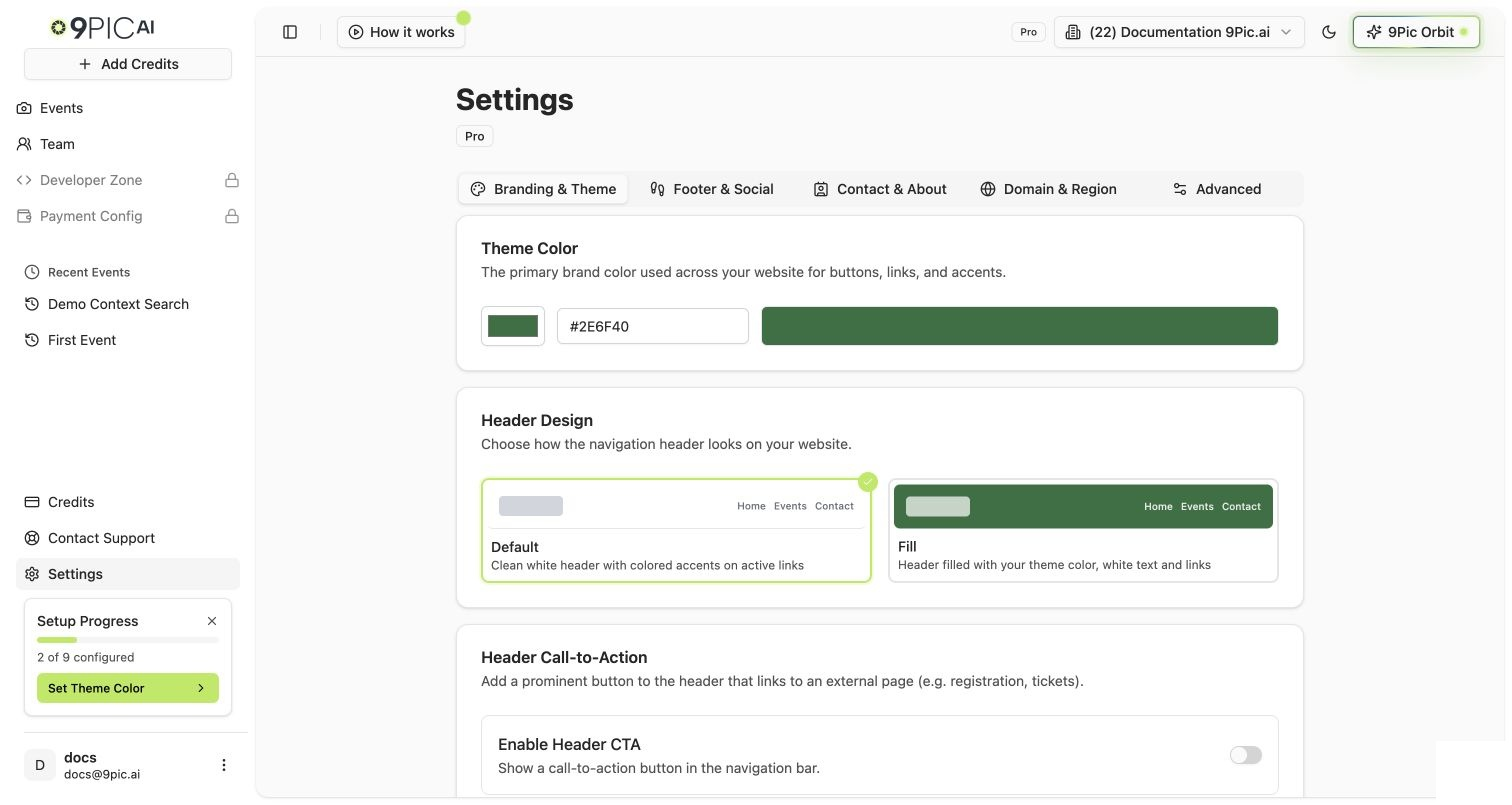
Click Settings in the sidebar. The Branding & Theme tab is selected by default.
Branding & Theme settings
2
Set your theme color
In the Theme Color card, click the swatch on the left to open the color picker, or paste a hex code in the text field. The preview bar updates in real time.
3
Choose a header style
In the Header Design card, pick:
Default — white header with colored accents on active links. Looks clean across most brand palettes.
Fill — header background is filled with your theme color, white text. Use this if your brand color is dark enough to read white text on top.
4
Upload logo and favicon
In the Identity card:
Set Organisation Name — used across the platform and gallery website.
Click the Logo field to upload a transparent PNG (≤ 300 KB). For best results use roughly 240×60 px.
Click the Favicon field to upload a 32×32 PNG or ICO (≤ 100 KB).
Browsers cache favicons aggressively. After saving, hard-refresh (Cmd/Ctrl + Shift + R) to see the new icon in your browser tab.
5
Enable the Header CTA (optional)
In the Header Call-to-Action card, toggle Enable Header CTA on if you want a prominent button in the gallery header. Useful for registration, “Book Now”, or your main marketing site.
Button Text — short and action-led (“Register Now”, “Get Tickets”, “Learn More”).
Button Link — full URL (https://example.com/register).
Position — Left or Right side of the header.
A live preview updates as you fill in fields. Only one CTA is supported per organisation — pick the most important action.
6
Save Branding Changes
Click Save Branding Changes at the bottom of the page.
Switching to another tab (Footer, Contact, Domain, Advanced) without saving shows an Unsaved changes dialog. Choose Stay on this tab and click Save to keep your edits.
Buttons, active link highlights, and accent UI on your gallery website. If you choose the Fill header design, it also fills the header background.
Can I add more than one CTA button?
No. The dashboard supports a single header CTA per organisation. Pick the most important action.
My logo is blurry on participant pages.
Re-upload at higher resolution (e.g. 480×120 instead of 240×60). Use a transparent PNG, not a JPG.
Do branding changes apply retroactively to past events?
Yes. Branding is global, so existing event pages immediately pick up the updated theme color, logo, header, and favicon. There is no per-event branding override on Pro.
Can different events use different brand colors?
No. Branding is per organisation, not per event. If you genuinely need event-level brand isolation, run each brand as a separate organisation (each on its own Pro plan), or talk to us about Enterprise.