Pro is not a flat all-you-can-eat plan. Your $200/year subscription unlocks the Pro feature set, but photo processing is billed per credit at $0.02/credit. Knowing how to budget credits — and how to top up before you run out, not during a sync — is the single most important operator skill on Pro.
$200 USD / ₹10,000 INR per year (verify current price in Credits → Purchase Credits).
Included credits with Pro
0 by default. Pro is subscription-only — credits are purchased separately.
Cost per credit
$0.02 USD / ₹1.5 INR per processed photo.
Minimum credit purchase
1,000 credits per top-up.
What 1 credit pays for
1 processed photo (upload, AI search indexing, watermark applied via 9Pic Stamp).
Re-syncing the same photo
Free. Only new photos consume credits.
Originals
Optional Store Original Memories consumes more credits. Off by default.
GST (INR only)
All INR credit purchases add 18% GST. Non-INR purchases have zero GST.
Pricing and the included credits policy are the source-of-truth in backend/payments/CREDIT_PURCHASE.md. If you see a contradiction anywhere, that document wins. Existing organisers whose pro.included_credits was explicitly set to non-zero in the past keep their stored value — only the default changed to 0.
Because you’re already a Pro subscriber, the Purchase Credits page only shows two purchase options:
Option
When to use it
Add Credits
Routine top-ups during the year. Minimum 1,000 credits per purchase.
Custom Payment
Recording a payment that does not add credits (e.g. a one-off service fee, a custom invoice). Asks for an amount and a remark, no credits added.
The Pro Subscription option that trial users see is intentionally hidden once you’re on Pro — the dashboard returns 400 if you try to buy Pro again. Renewal happens at expiry; see Renewal.
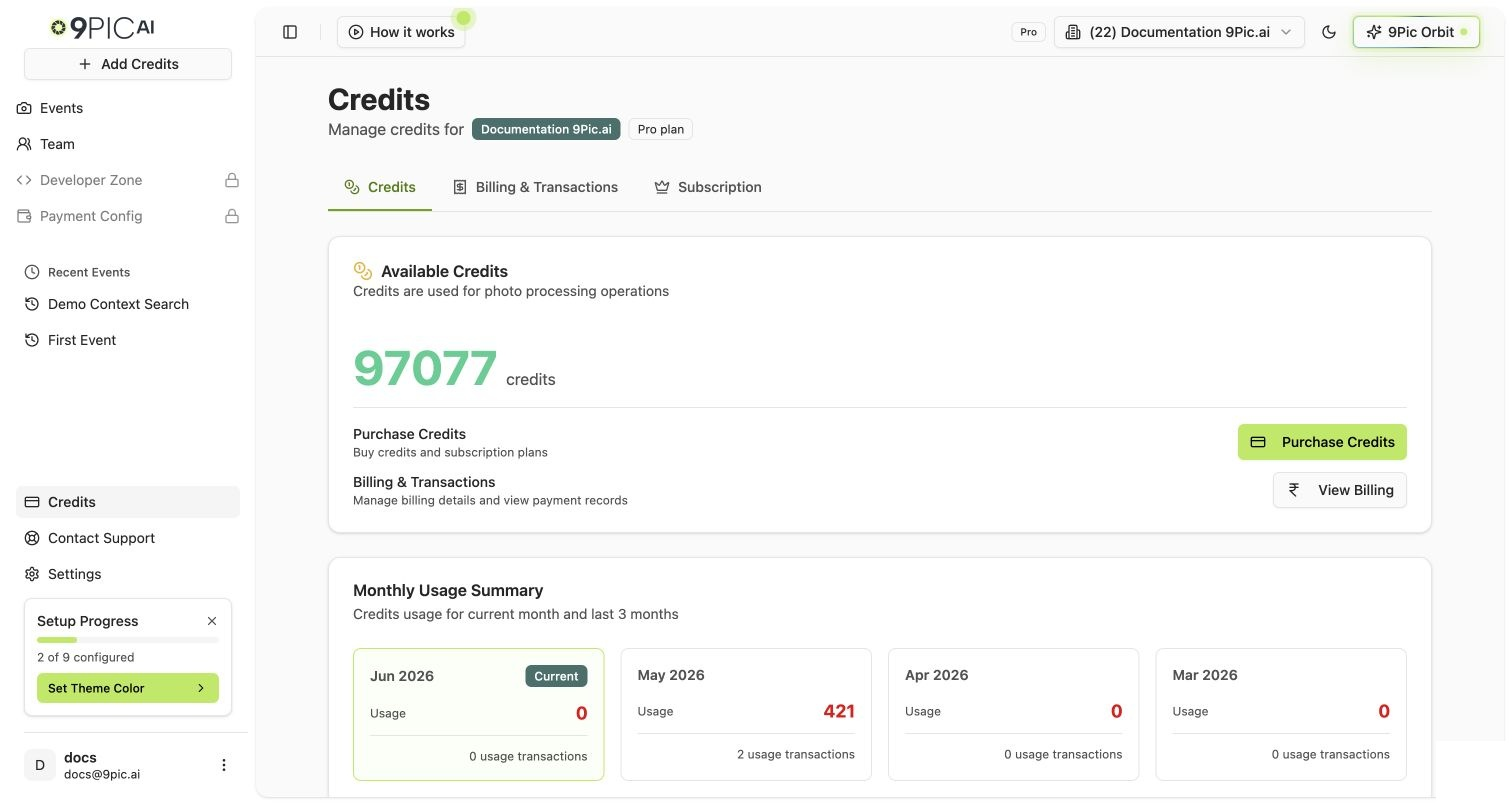
Click Credits in the sidebar. The Credits dashboard shows your current balance and recent transactions.
Pro Credits dashboard
2
Click Purchase Credits
Click Purchase Credits (or Add Credits if you’re already on the purchase wizard).
3
Pick Add Credits
On the Plan step, select Add Credits. (The Pro Subscription card is hidden because you’re already subscribed.) Click Next.
4
Enter the credit quantity
Minimum 1,000 credits. The dashboard updates the order summary live as you change the number.
If you’re running a 5,000-photo event and your balance is at 1,200, top up before starting Sync. Processing pauses partway through is preventable.
5
Review the order
The Order Summary step shows credits, cost per credit, and (if INR) an 18% GST line with the GSTIN and business name. Confirm the totals.
6
Pay
Tick the Refund Policy acknowledgement, then click Pay with Razorpay (INR) or Pay with PayGlocal (other currencies). Complete the gateway flow.On success, your balance updates immediately. On a stuck/uncertain status, the dashboard sends you to Transactions with a Recheck button — see Transactions.
The Custom Payment option records a payment without adding credits. It exists for cases where you owe us a one-off amount that isn’t a credit top-up — e.g. a service fee, an out-of-policy item, a manual reconciliation.
Field
Required
Notes
Amount
Yes
In your account currency.
Remark
Yes
Free-text reason for the payment. Stored for audit. Max 500 chars.
GST (INR only)
Auto
18% added on top, with GSTIN line on the invoice.
Custom Payment does not add credits. If you accidentally pick Custom Payment when you meant Add Credits, your account balance will not change. Use Custom Payment only for explicit payment-record-only flows.
Why don't I see the Pro Subscription option anymore?
Once your account is plan_type = pro, the Pro Subscription option is intentionally hidden — the backend rejects re-purchasing Pro while a Pro plan is active. To renew, see Renewal.
Is the \$200/year fee billed automatically each year?
No. Pro renewal is manual — you re-purchase Pro after your existing subscription expires. The dashboard surfaces “Expires in N days” warnings on Credits → Subscription Details when expiry is within 30 days. See Renewal.
What happens to leftover credits at renewal?
Credits are not tied to the subscription cycle — your available_credits balance carries through renewal. They don’t expire when your Pro term ends.
Can I get a refund for unused credits?
Refund eligibility is governed by 9Pic’s Refund Policy, which you accept at every purchase. For specific situations, email support@9pic.ai — we’ll help case by case.
Why is the minimum 1,000 credits?
Per-purchase processing overhead (gateway fees, GST handling, accounting) makes very small purchases unproductive. 1,000 credits ($20) is the minimum the dashboard accepts; lower is rejected by the API.
My payment is stuck on Pending. What now?
Open Credits → Transactions and click Recheck on the pending row. The dashboard re-queries the gateway and finalises or marks failed accordingly. See Transactions.