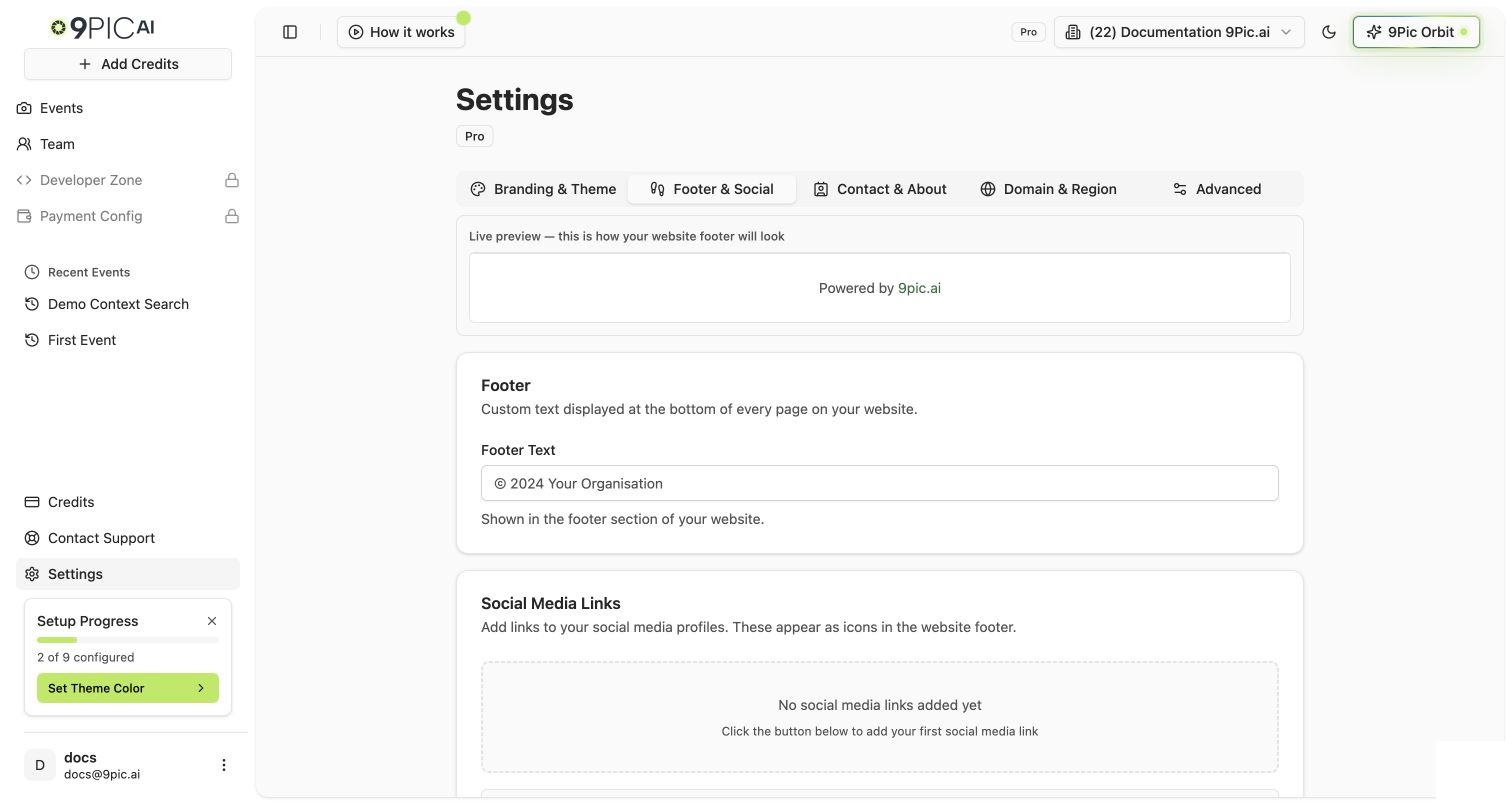
Two settings tabs, one operator goal: make sure participants can recognise your brand at the bottom of every page (Footer) and reach you when something matters (Contact). On Pro you get both. The point of doing them together is they share the same fifteen-minute setup window.
In the About Us field, write a short paragraph about your organisation. This appears on the gallery’s About page and helps participants understand who’s running the event.Keep it operator-honest: who you are, what events you organise, how long you’ve been doing it.
3
Embed your contact form
9Pic embeds an iframe of an external form so you can use whichever form builder your team already uses (Tally, Google Forms, HubSpot, JotForm, Typeform, etc.).
In your form builder, find the Embed → iframe option and copy the iframe src URL.
Paste it into the Contact Form Iframe Source field.
(Optional) If your form builder also requires an embed script (e.g. Tally), paste it into the Script Source field.
If you don’t already use a form builder, Tally has a free tier that works well for event contact forms. Get the embed URL from Tally’s Share → Embed → iframe URL.
4
Save Contact Changes
Click Save Contact Changes at the bottom of the page.
Linking to a dormant Twitter/X profile hurts more than it helps.
About Us
2–3 short sentences
Long About Us copy is rarely read on mobile.
Contact form
Use your existing CRM-integrated form
Avoid double inbox. If you already triage via HubSpot or Tally → email, embed that form directly.
The contact form is embedded as an iframe. Every submission goes to your form builder, not to 9Pic. Make sure your form builder has a working email notification or webhook before you launch the gallery.
Can I add a custom social platform that's not in the dropdown?
The dropdown covers the most common platforms. If you need one we don’t list, email support@9pic.ai with the platform name and link format.
Can I make the contact form go to a 9Pic-managed inbox?
No. The contact form is intentionally an iframe of your form, so submissions land in your form builder. 9Pic does not store or relay form submissions on Pro.
Why does my embedded form look cut off?
Most form builders provide a recommended iframe height. If yours is taller than the default, ask the form builder for the recommended height/width and replace the iframe URL with one that includes those parameters.
Do social links open in a new tab?
Yes. All social links on your gallery website open in a new browser tab so participants don’t lose their place in the gallery.