The single best way to evaluate 9Pic is to run a real event through it. Even a tiny test event with 20 photos shows you the full flow: upload, AI processing, search, and a working event link you can test yourself. This page is the trial-tuned version of that flow.
Trial events live on the shared trial.9pic.ai domain, which is rate-limited for anti-abuse. The event link you’ll generate at the end of this guide is for you and your internal team only — do not share it with real participants or customers. See What’s Included for the full domain rule.
From the dashboard sidebar, open Trial Setup and click Create event on the first step.Or, from dashboard home, click the Create New Event card in Quick Access.
2
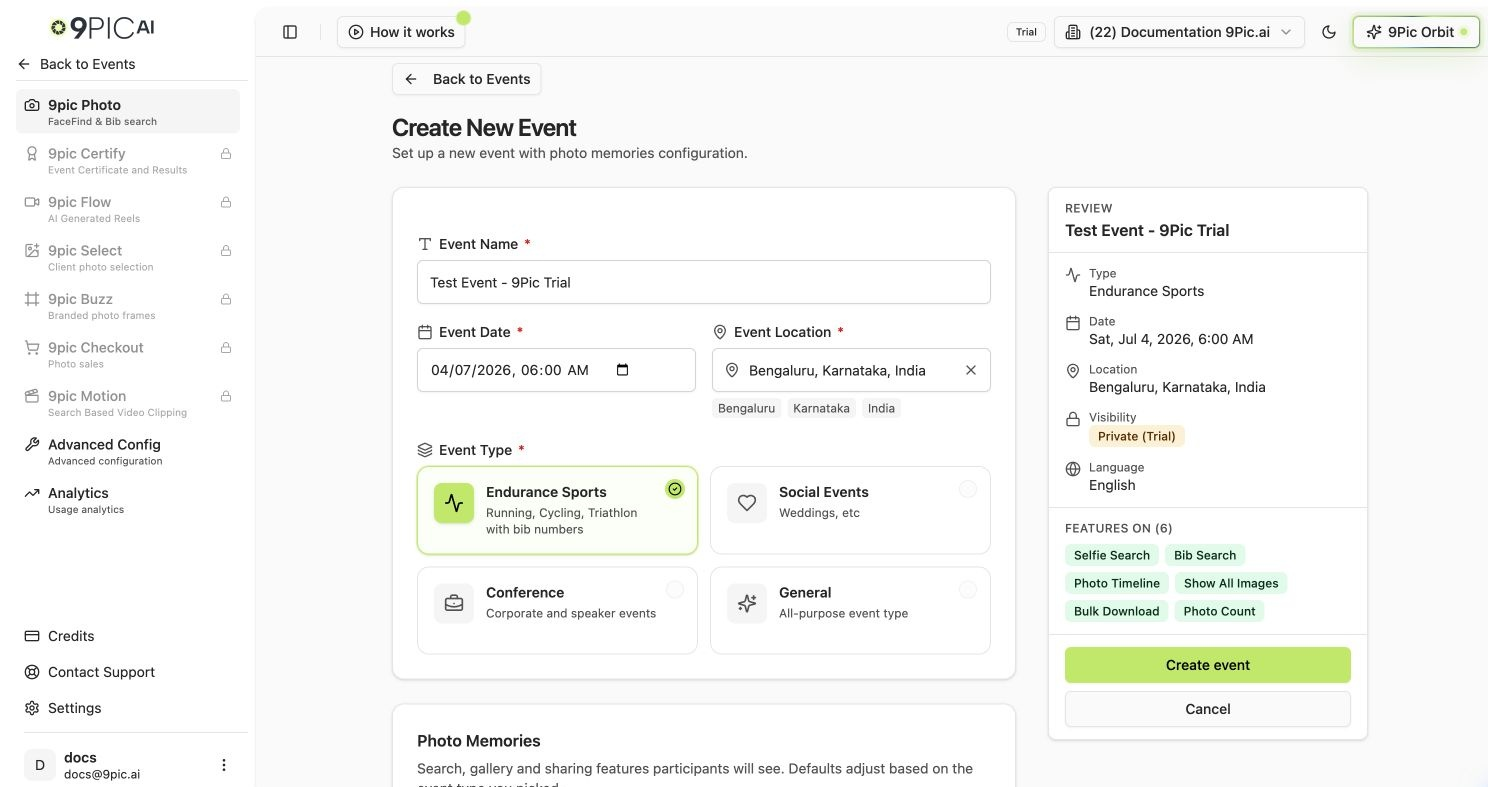
Fill in the event details
Enter:
Event Name — for example, Test Event - 9Pic Trial.
Event Date — today or your real event date.
Event Type — choose the closest match. Running events unlock BIB-related options.
Create New Event form
On the trial, Platform Visibility is locked to Private. Your event will work end-to-end, but it lives on the shared trial.9pic.ai domain and won’t appear on any public listing. After you upgrade, your domain moves to app.9pic.ai — but your existing trial events still stay private until you explicitly flip them.
3
Choose Photo Memories options
Pick the photo features you want to test:
Selfie Search — turn on if you want to try 9Pic FaceFind.
Show All Images — turn on if participants should see the full gallery.
Bulk Download — turn on if participants should download multiple photos at once.
Store Original Memories — leave off while you’re on the trial. Originals consume more credits.
Click Create Event when done.
4
Open Details for your event
In the Events list, find your new event and click Details. This opens the event workspace where you’ll add sources and run processing.
5
Add or confirm image sources
On the event’s overview, scroll to Image Sources and click Manage Sources.
Keep 9Pic Storage if you want to upload via 9Pic Uplink.
Add a Google Drive or Dropbox folder link if your photos already live there.
For a fast trial test, use 9Pic Uplink and drop 20-50 photos straight from your computer or phone.
6
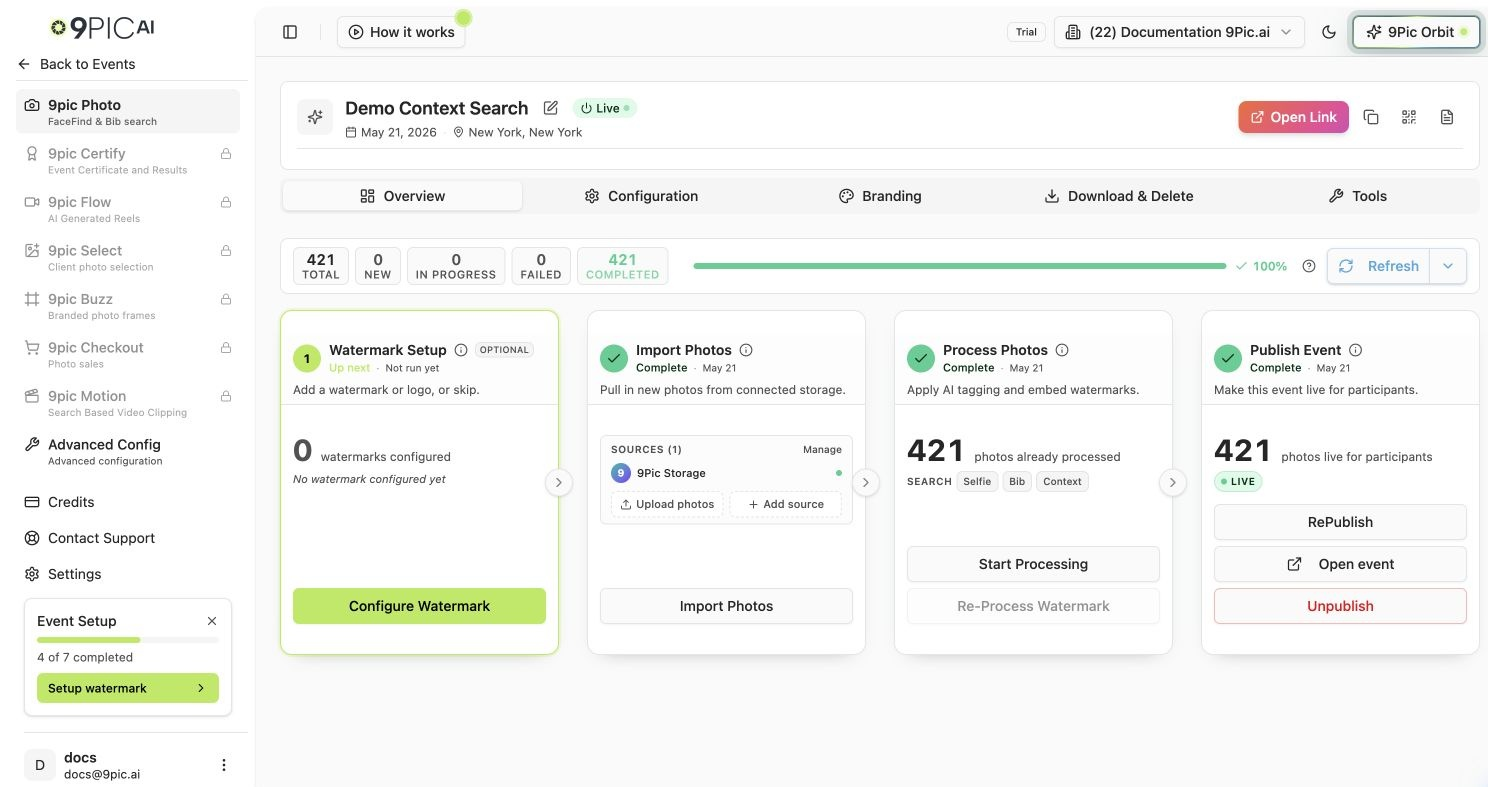
Run the pipeline in order
From the event’s overview, run the Processing Pipeline in this order:
Generate Previews — (optional) fast, low-resolution previews to check rotation and framing.
Sync Images — pulls photos from all your sources into 9Pic.
Start Processing — runs AI search indexing (FaceFind, BibTrack) and any watermark you configured.
Go Live — publishes the event so the share link works.
Processing Pipeline
Each photo processed consumes 1 credit. Watch the credits counter in the sidebar so you know when you’re getting close to the trial’s 200-credit limit.
7
Test the participant experience yourself
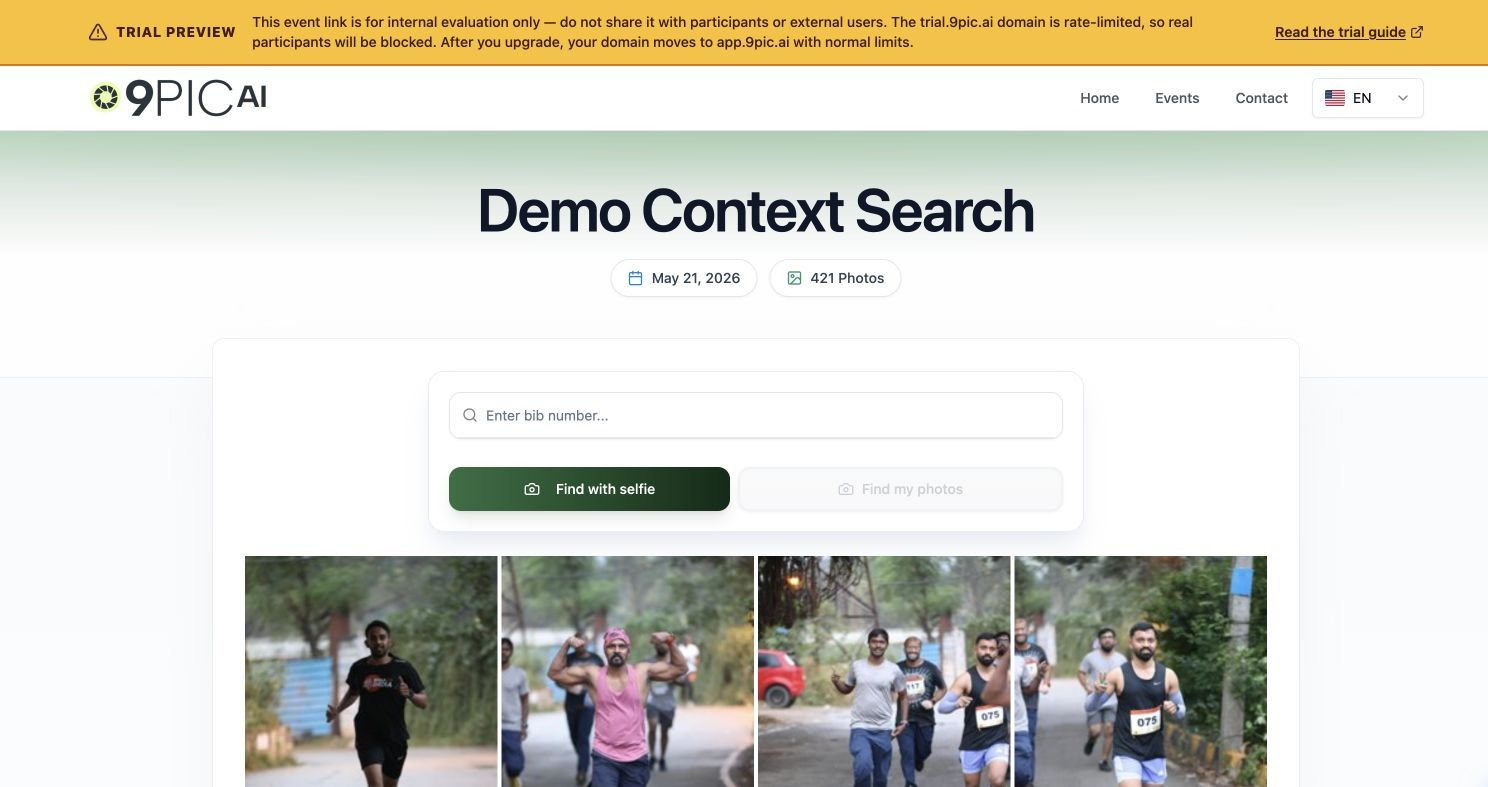
Once the event is Live, use Open Link in the event header to load the participant view in your browser. Try:
Searching with a selfie (FaceFind).
Searching by BIB number if it’s a running event (BibTrack).
Downloading a single photo or using Bulk Download.
If you need a second pair of eyes, use Copy Link and send it to a teammate inside your organisation only — never to real participants or customers.
The trial domain (trial.9pic.ai) is rate-limited for anti-abuse. Sharing the link with real participants will get them blocked. Keep this link inside your team until you upgrade.
Can I run a real, live event for participants on the trial?
No. The trial event link works for testing, but it lives on the shared, rate-limited trial.9pic.ai domain — real-participant traffic will be blocked by anti-abuse. For an event that real participants will use, upgrade to Pay As You Go or Pro first so your organisation moves to app.9pic.ai. See What’s Included for the full rule.
What happens to my event if I don't upgrade?
Your event data stays on the trial. You can come back later, add credits with Pay As You Go, and the event picks up where it left off — your domain moves to app.9pic.ai at that point.
If I upgrade later, will my existing trial event become public automatically?
No. Your domain moves from trial.9pic.ai to app.9pic.ai, but the existing event stays Private until you explicitly change its visibility yourself.
How long does processing take?
For a 100-photo test event, end-to-end (sync + process + go live) usually finishes in under 10 minutes. Larger events scale roughly linearly.
Can I delete my test event after the trial?
Yes. Open the event’s Details page and use the delete option in event settings. This frees up the event slot but does not refund spent credits.