Photo search is the feature most organisers come to 9Pic for. Before you upgrade, you should be confident that:
9Pic FaceFind correctly returns a participant’s photos when they upload a selfie.
9Pic BibTrack correctly returns a runner’s photos when they enter a BIB number (running events only).
This page walks you through both, end-to-end, on your trial event.
Search runs on the shared trial.9pic.ai domain, which is rate-limited for anti-abuse. Run a handful of searches yourself (5-10 is plenty to judge quality) — don’t crowdsource the test by sending the link to a list of real participants. Anti-abuse will block them. After you upgrade, your domain moves to app.9pic.ai and the limits drop to normal production levels.
The event has at least 20-50 photos processed. Search quality is harder to judge with fewer photos.
For BibTrack: the event was created with Event Type = Running and the photos contain visible BIB numbers.
For FaceFind: the photos contain clear, mostly front-facing faces.
You have a selfie of someone you know is in the photos, and a BIB number you can verify (running events only).
If your photos do not have clear faces or BIB numbers, the test is not meaningful. Don’t grade FaceFind or BibTrack on a gallery they were never going to work on.
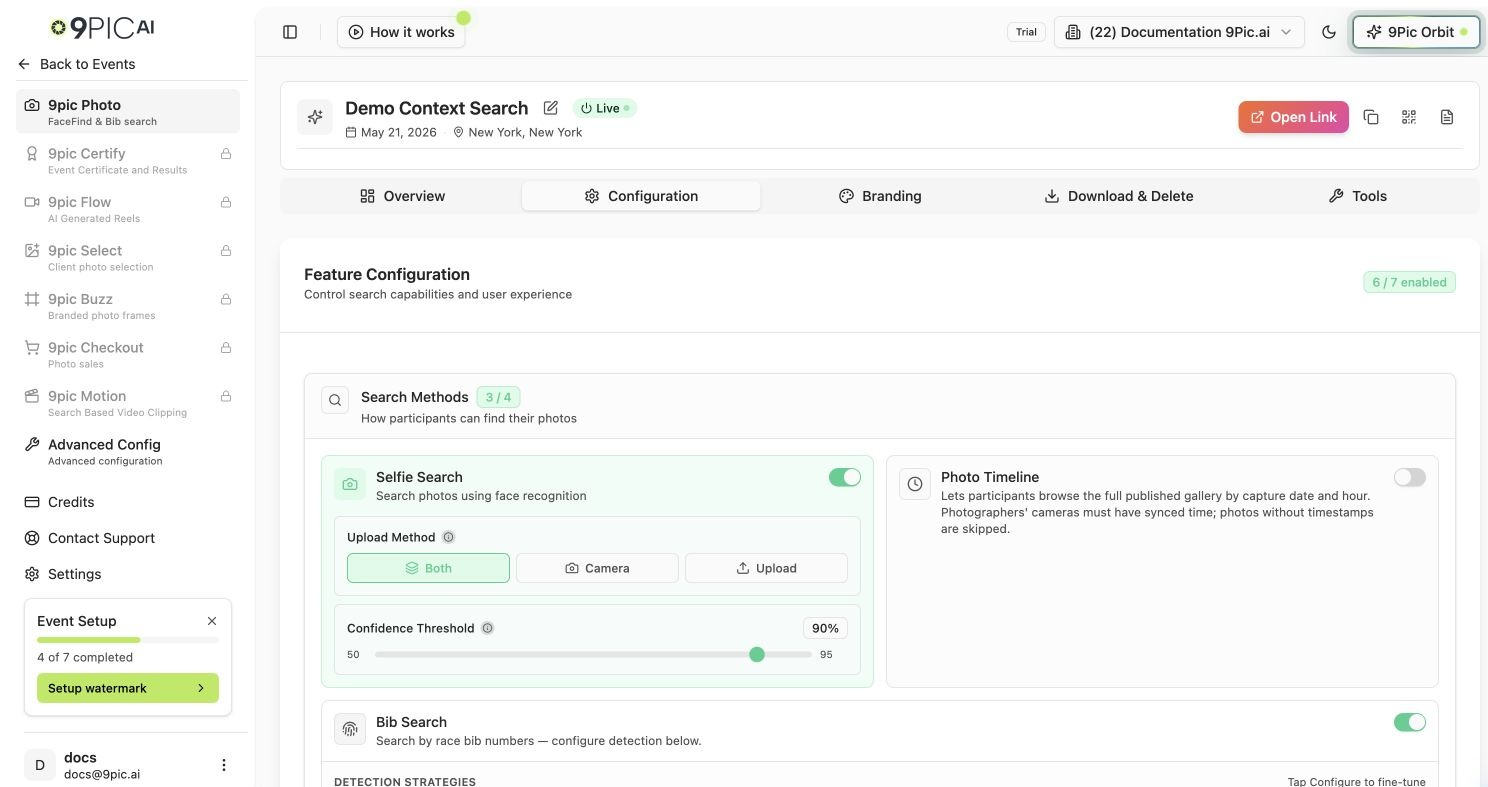
From your event’s Details page, open the configuration tab and confirm Selfie Search is enabled.If it wasn’t enabled when you created the event, turn it on now and re-run Start Processing so 9Pic can build the face index.
Selfie Search enabled
2
Open the participant view
From the event header, click Open Link. Or use Copy Link and open the URL on your phone (selfie search is easier to test on a phone with a fresh selfie).
3
Run a selfie search
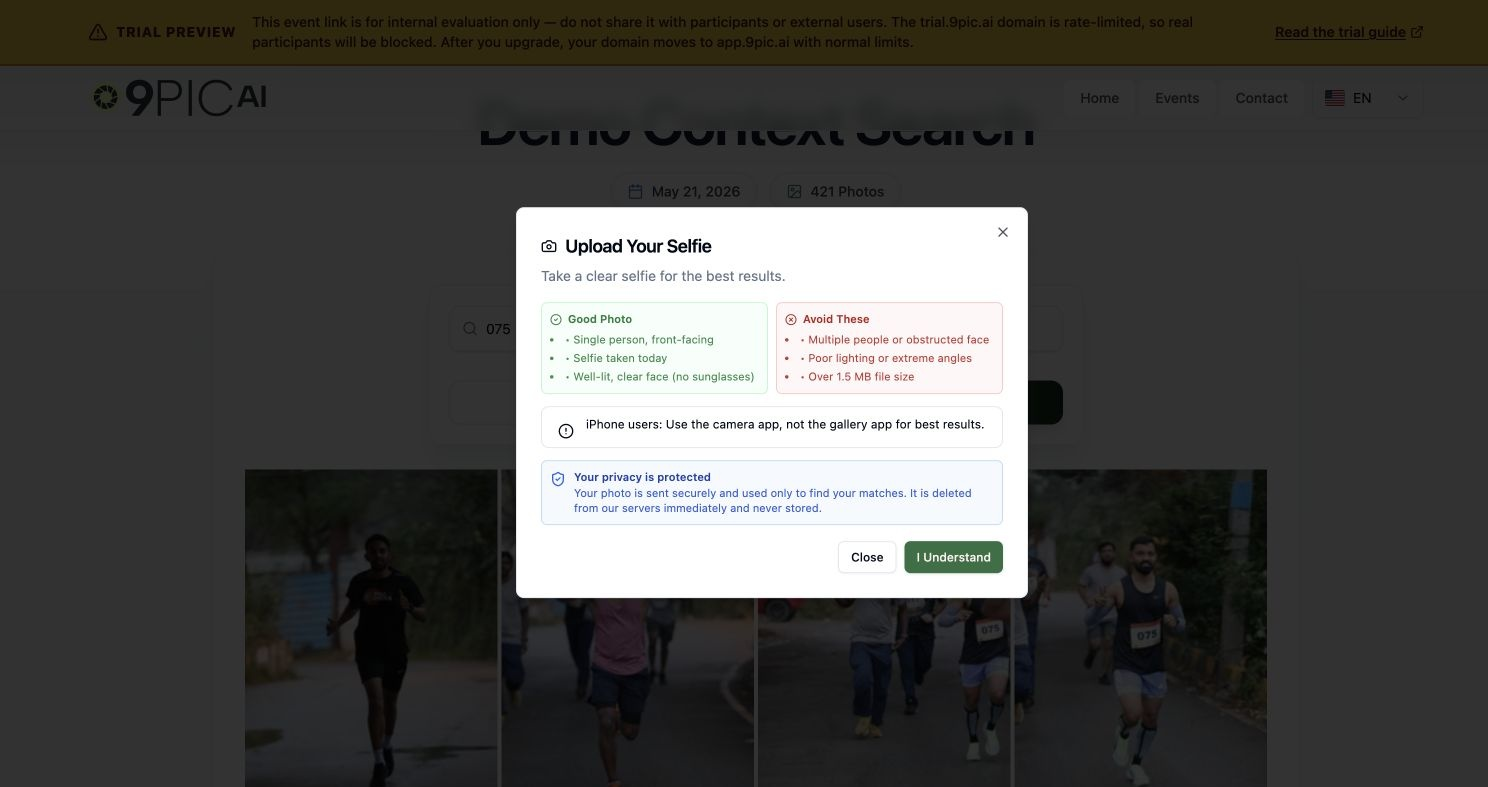
On the participant page, choose Selfie Search (or the equivalent search-by-photo option). Upload a clear, front-facing photo of someone you know is in the gallery.
Selfie upload dialog
4
Score the results
Look at what comes back. Good results look like:
The first 3-10 results are clearly the same person.
There may be a few low-confidence near-misses further down.
The person’s photos that are visibly clear in the gallery are returned.
Failure modes to recognise:
No results: face index hasn’t been built. Re-check Selfie Search is on and re-run Start Processing.
Wrong person at the top: usually means the test photo isn’t front-facing enough, or the gallery has very few faces. Try a clearer selfie.
All matches missing: confirm the gallery photos actually show the test person’s face.
5
Try a second person
Repeat with a different participant’s selfie. Search quality should be consistent across people, not just lucky for one face.
Test BibTrack (BIB Number Search) — Running Events Only
1
Confirm Event Type is Running
Open the event’s Details page. The event must have been created with Event Type = Running (or another running-related type) for BIB search to be available.If the event type is wrong, the cleanest fix is to create a fresh test event with the right type. BIB indexing is set up at creation time.
2
Open the participant view
From the event header, click Open Link.
3
Run a BIB search
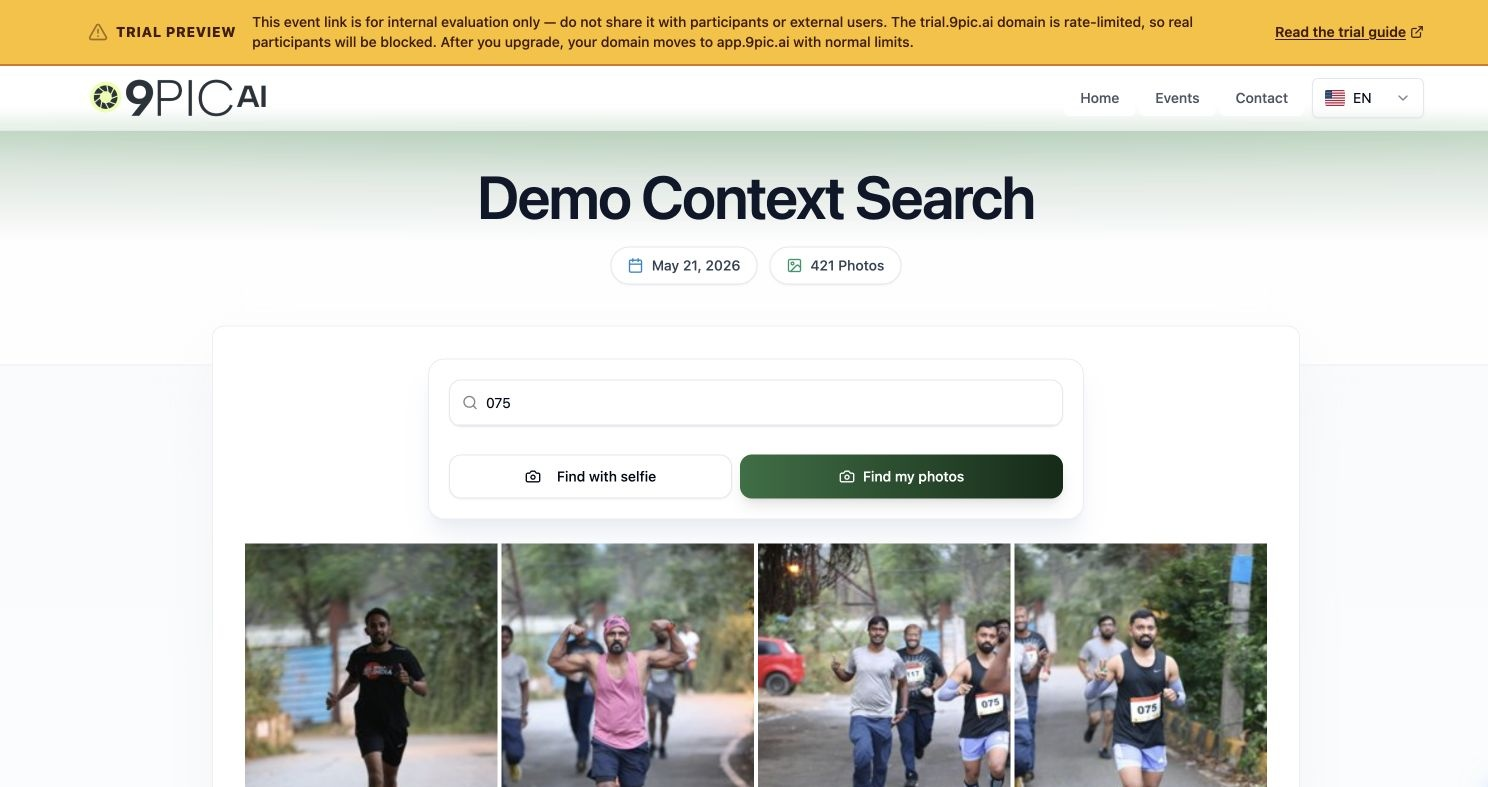
On the participant page, choose BIB Search and enter a BIB number you can verify — ideally one whose photos you’ve already eyeballed in the gallery.
BIB search input
4
Score the results
Good results look like:
The matched runner’s photos are in the top results.
The BIB number is clearly visible in those photos.
Photos where the BIB is occluded or blurry may be missing — that’s expected.
Failure modes to recognise:
No results: usually the BIB was never visible enough in the photos. Pick a runner whose BIB you can clearly see.
Wrong runner returned: often a digit confusion (e.g. 8 vs 3). Try a BIB with very distinct digits.
Search not available on the page: confirm the event was created with the running type. Re-create as a test if needed.
Search is probabilistic. A useful question for your decision is not “is search perfect?” but “is search better than what my participants would do manually?”
Signal
What it means
Top-3 contains the right person
Strong. This is what most participants experience.
Top-10 contains all the obvious photos
Good. Participants will scroll a little.
Some near-misses with similar-looking people
Normal. Selfie quality usually fixes this.
Top result is a stranger every time
Investigate. Re-check the photos and re-run processing.
I turned on Selfie Search after creating the event. Why is search empty?
The face index is built during Start Processing. After turning Selfie Search on, run Start Processing again so 9Pic can index the existing photos.
Search returns the wrong photos. Is something broken?
Usually it’s input quality, not the model. Try a clearer, front-facing selfie. For BIB search, pick a BIB you can clearly read in the photos. If problems persist, see Search not working.
Does running search consume credits?
No. Search is free for participants. Credits are consumed when 9Pic processes photos (during Start Processing), not when participants search.
Can I test FaceFind on a non-running event?
Yes. FaceFind works on any event type. Only BIB search is gated to running event types.
My event is small (under 20 photos). Is the test useful?
The flow works the same, but your “score” isn’t meaningful. Add more photos before judging search quality.
Why am I getting blocked or 'too many requests' errors?
Search on trial.9pic.ai is rate-limited for anti-abuse. If you’re hitting limits during legitimate testing, slow down to a handful of searches at a time. If you’ve shared the link with real participants, anti-abuse is doing exactly what it should — stop sharing externally and continue evaluation internally only.