

Overview
Pay As You Go is for organisers who run a handful of events a year and don’t want an annual subscription. There’s no annual fee and no plan expiry. You buy credits when you need them, and each processed photo uses 1 credit.
INR payments add 18% GST. You see the full total in the order summary before you pay.
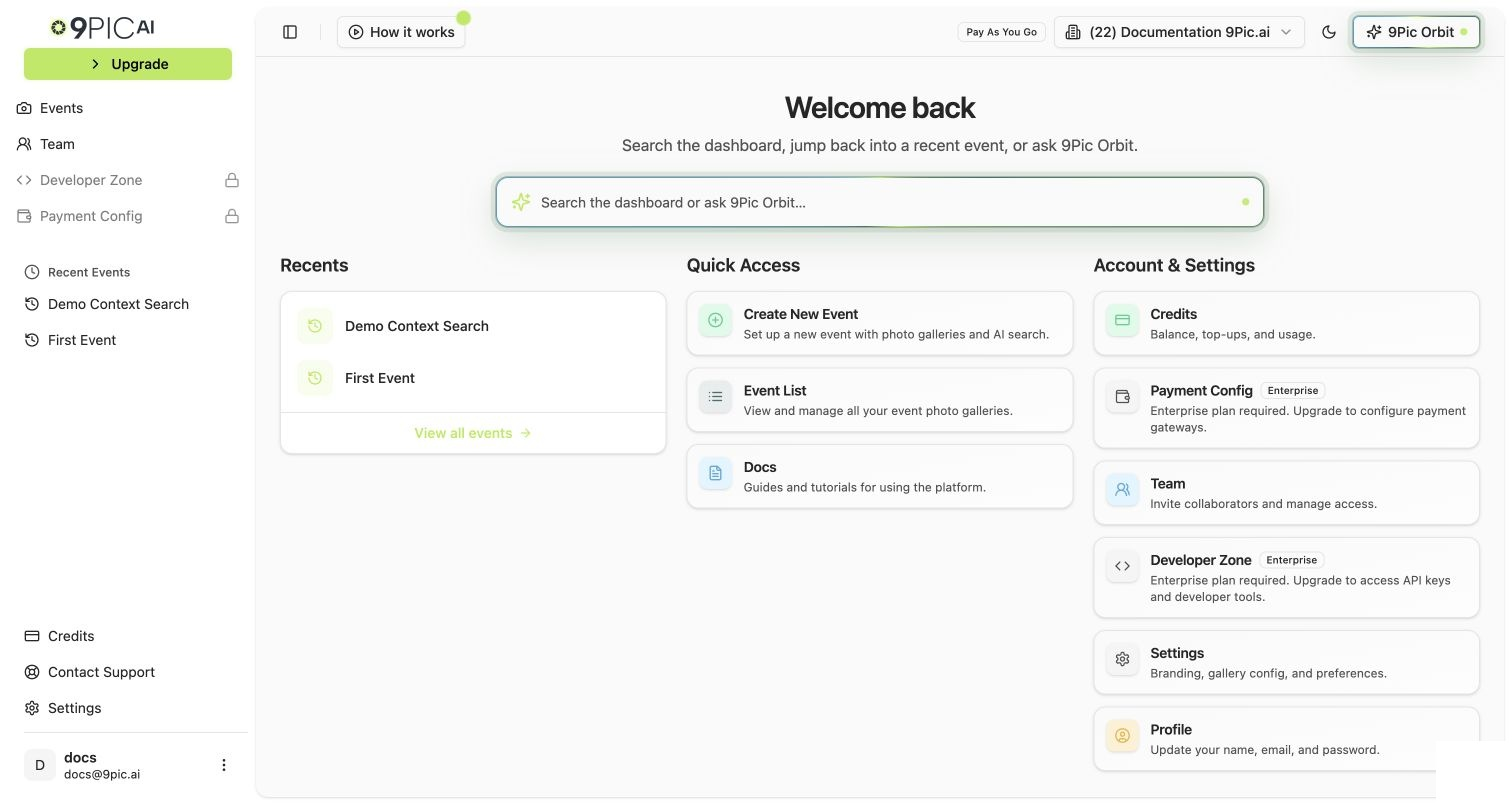
Pay As You Go dashboard home
What’s Included
Pay As You Go is built around the Photos product. Locked tools appear muted in the dashboard, and selecting one tells you which plan includes it.None of these limits stop you running professional public events on
app.9pic.ai. They matter once you want your own domain, the creative tools, or to sell photos.What Changes When You Move Onto It
You reach Pay As You Go from the trial in one of two ways: Go live for free on the Overview tab (a free switch request that our team confirms by email), or buying credits, which switches you automatically once the payment is confirmed.- Your account goes live. Your domain moves from
trial.9pic.aitoapp.9pic.ai, and new events can be Public. Events you made on the trial stay Private until you change each one. - Your credits stay. Unused trial credits stay in your balance, together with any credits you bought.
- Tools you tried on the trial switch off. Certify, Buzz, test-mode photo sales, original photo storage and API keys stop working. Their settings are saved, and their pages say the setup is saved but not active. They work again on a plan that includes them.
- The Upgrade button stays. Trial and Pay As You Go accounts see a highlighted Upgrade button in the sidebar. It opens Credits & Billing → Plan to compare plans. Nothing is charged until you pick a plan and pay.
Your Checklist
1
Check your balance
Open Credits & Billing. The Available credits card shows how many photos you can process. Credits Overview
2
Learn what uses credits
Two minutes here keeps you from spending credits on the wrong settings. Photo Processing Costs, Avoid Foot-Guns
3
Top up before the event
Buy at least enough for your expected photo count before photos start syncing. Buy Credits
4
Run the event and make it public
5
Keep invoices for your records
6
Revisit the plan when your volume grows
Common Questions
Is Pay As You Go a subscription? Does it expire?
Is Pay As You Go a subscription? Does it expire?
No to both. There’s no annual fee and no renewal date. Only your credit balance goes up and down, and credits don’t expire while your account is active.
What happens if I don't have enough credits?
What happens if I don't have enough credits?
When you start processing, the dashboard says how many credits you have and how many the job needs, with an Add Credits button. Photos already processed stay in the gallery. Buy credits, then start processing again. Nothing is lost. See Buy Credits.
Is there a per-event credit cap?
Is there a per-event credit cap?
No. Credits are one balance for the whole organisation. One event can use as much of it as you like.
Can I sell photos on Pay As You Go?
Can I sell photos on Pay As You Go?
No. Events can be public, and anyone with the link can search and view photos. Selling photos through 9Pic Checkout needs Business, which you can buy yourself from Credits & Billing → Plan.
Why don't I see Certify, Flow, Select, Buzz or Motion?
Why don't I see Certify, Flow, Select, Buzz or Motion?
They’re Pro tools. They appear muted in the event navigation, and selecting one says they’re available on Pro. If you set one up on the trial, its settings are saved.
Do my credits carry over if I upgrade to Pro?
Do my credits carry over if I upgrade to Pro?
Yes. Your balance stays on every plan. On Pro, credits you buy cost the Pro rate.
Next Steps
Buy Credits
Top up before your next event.
Photo Processing Costs
What 1 credit pays for.
Compare Plans
When Pro starts paying for itself.
Pro
What you’d get with the annual Pro plan.