

Overview
The Events list is your home base once you have at least one event. It opens whenever you click Events in the sidebar or Event List from the dashboard home. It shows every event for the currently selected organisation, with pagination, click-to-open rows, and a Create event button in the top-right.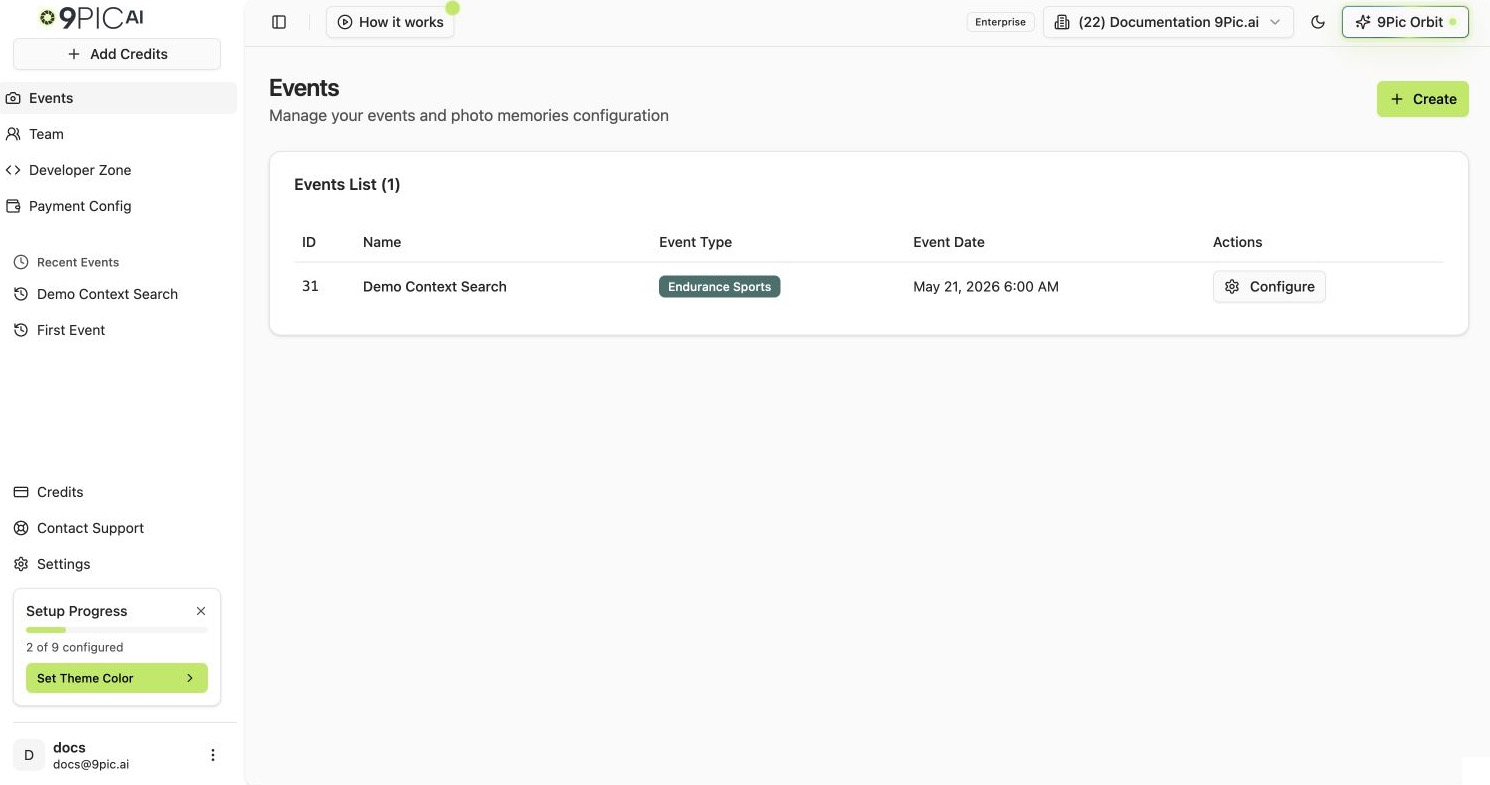
Events list with one event
How to Open the Events List
1
Open the Events page
Click Events in the dashboard sidebar (camera icon). You can also click the Event List card from dashboard home.
2
Confirm the organisation
The list is scoped to the organisation in the top bar. Switch organisations if you do not see the events you expect.
List Controls
The toolbar contains Search events on the left and Active / Archived on the right. The event count appears below the table; pagination appears there when results span multiple pages.Search Events
Type an event name in Search events above the table. Results update after a short pause and include matches across all pages in the selected Active or Archived tab. You can enter part of a name, words in a different order, or a common misspelling. Changing the search returns to page one. Switching tabs keeps your search; select Clear event search to restore the full list for that tab. If no events match, try a different name. If loading fails, select Try again or clear the search. Searching does not change or publish an event.What Each Column Means
Archive or Unarchive an Event
Open the event’s three-dot menu and choose Archive event or Unarchive event to reach Event Config → Advanced → Archive directly. Save or discard pending settings first, then click the red Archive event button and confirm. The event moves to Archived and its public page turns off; photos and data are kept. Archived events show Unarchive event in that same configuration space while other settings remain locked. Confirm to return the event to Active with status Not Assigned. Its public page stays off until you go live again. These actions apply separately from saving settings. If an action fails, retry or cancel the confirmation.Pagination
The list loads 30 events per page, sorted by event date, newest first when no search is entered. When you have more than 30 events:- Previous / Next buttons appear at the bottom-right.
- A counter on the bottom-left reads
1–30 of 87 events. - The page number sits between the two buttons (
Page 1 of 3).
Create a New Event From This Screen
The primary entry point for creating an event sits in the top-right of the Events list:1
Click Create event
The Create event button (with a
+ icon) opens the new event form.2
Fill the form
See Create an event for the full field-by-field reference.
3
Continue in the event
After creating, the new event’s details page opens so you can add sources straight away. The event also appears in the Events list.
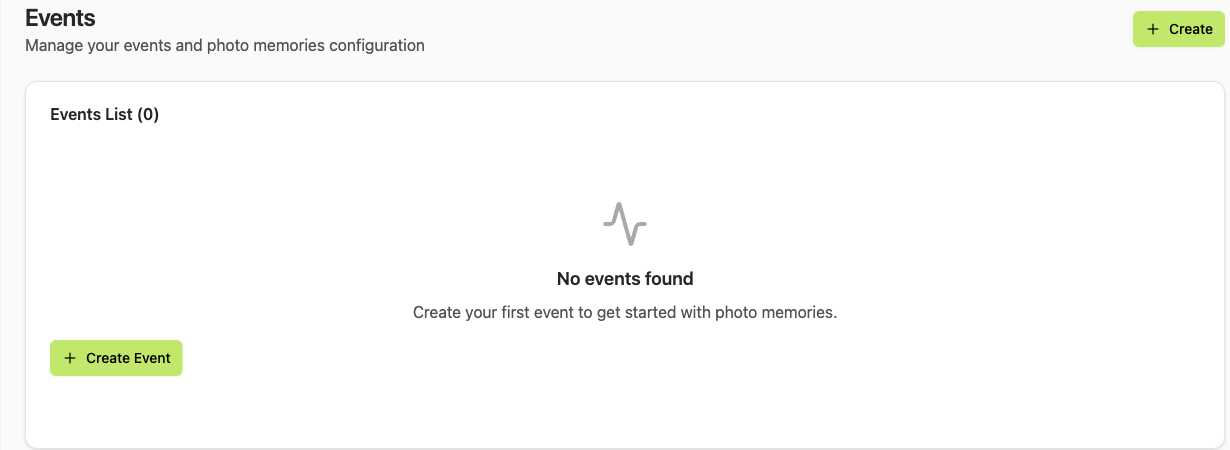
Empty Events list
Open an Event for Editing
Click the name or row of an active event to open the event details page. You land on the 9pic Photo product, Overview tab — see Event details for the full layout.Common Questions
Why don't I see an event I just created?
Why don't I see an event I just created?
The list is scoped to the selected organisation. If you created the event under a different organisation, switch organisations from the top bar.
How do I search for an event by name?
How do I search for an event by name?
Use Search events above the table to filter the selected tab by name. It searches across all pages. Clear the field to restore the full list.
Can I sort the table?
Can I sort the table?
Sort options are not exposed in the UI yet. Events appear newest first by event date; search results rank closer name matches first.
What does the ID column give me?
What does the ID column give me?
The numeric event ID. You’ll need it when contacting support, when calling the API, and as a stable reference if the event name changes.
Next Steps
Create an event
Full field-by-field reference for the new event form.
Event details
The nine-product navigation and the tab pattern inside each event.