

Add PayMongo credentials to 9Pic Checkout and prepare a PHP event for test or live payments.
9Pic Checkout is a Business plan feature. Only team admins can add or change a PayMongo configuration.
Overview
PayMongo collects payments for 9Pic Checkout in the Philippines. Add one PayMongo configuration for your organisation, then assign it to the event that will sell packages in PHP.You need a secret key from the PayMongo Dashboard. Use a test key while you check the buyer journey, and a live key only when the event is ready to accept real payments.
Before You Start
Requirement
Why it matters
PayMongo merchant access
You need permission to view Developers -> API keys in the PayMongo Dashboard.
Correct mode
Use a sk_test_… key for setup checks. Use a separate sk_live_… key for public checkout.
A team admin account
Only team admins can open and manage Payment Configuration.
A Business or Enterprise organisation
Payment Configuration and 9Pic Checkout are available on the Business plan, and on Enterprise.
PHP packages
Events that use PayMongo can only sell packages priced in PHP.
Do not share the secret key in email, chat, task tickets, screenshots, frontend code, or a public repository. If you think it has been exposed, create a new key in PayMongo and update the configuration in 9Pic.
Get Your PayMongo Secret Key
1
Open API keys in PayMongo
Sign in to the PayMongo Dashboard and open Developers -> API keys.
2
Copy the secret key for the mode you need
Copy the secret key for test mode or live mode. Test keys start with sk_test_. Live keys start with sk_live_.
3
Store the key safely
Keep the key in your organisation’s approved password manager until you add it to 9Pic. Do not paste it into a buyer-facing website or app.
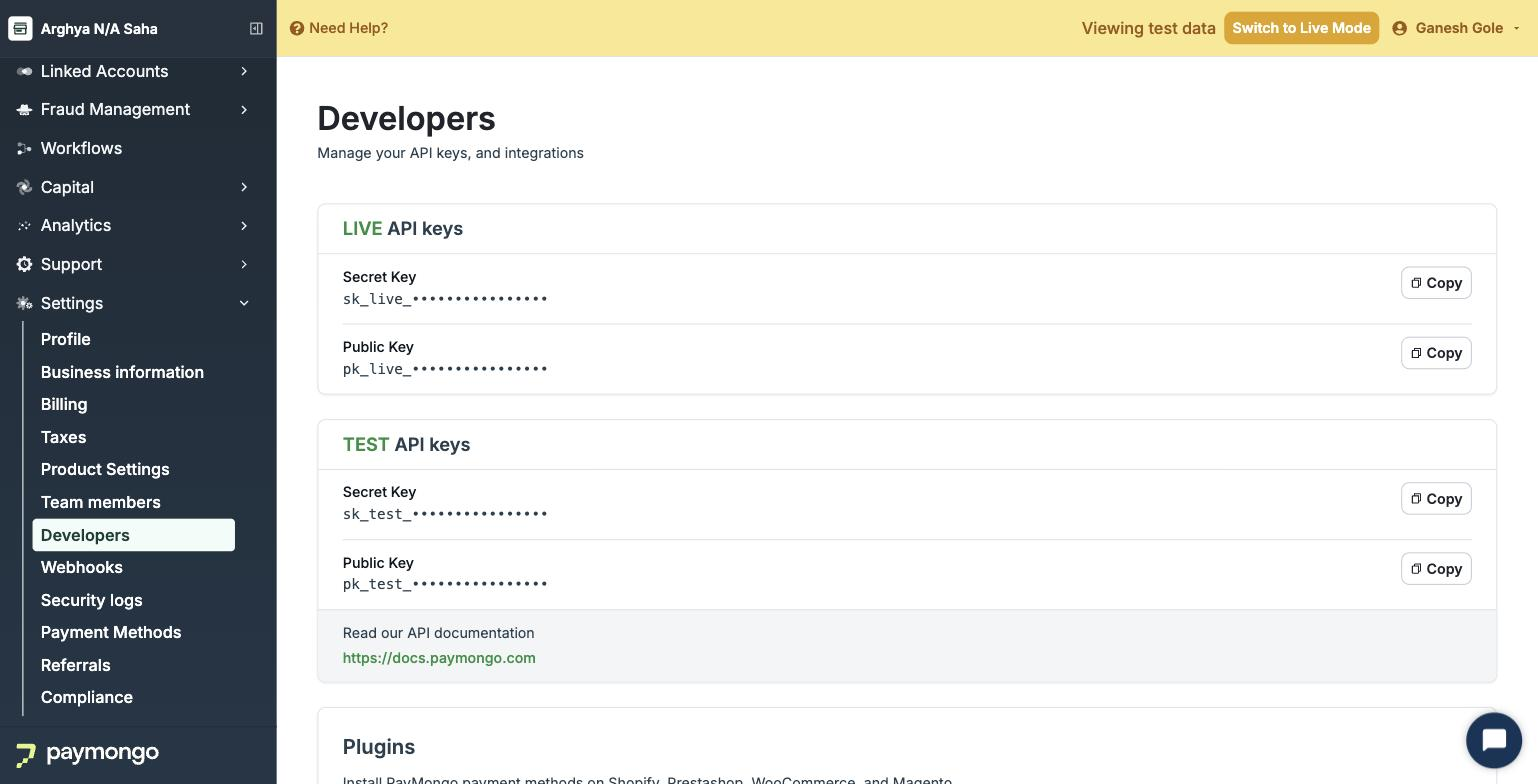
Need help finding the keys in PayMongo? Use the PayMongo API keys guide or contact the PayMongo team that provisioned your merchant account.
Add PayMongo to 9Pic
1
Open Payment Config
In the dashboard sidebar, select Payment Config.
2
Start a new gateway
In Payment Gateway Configurations, click Add Gateway, then select PayMongo.
3
Name the configuration
Enter an optional Label that makes the configuration easy to recognise, such as PayMongo Test or PayMongo Live Philippines.
4
Enter an optional Account ID
Account ID is optional for PayMongo. Use it only if your team wants a reminder of which PayMongo account the key belongs to.
5
Enter the secret key
Paste the key into PayMongo Secret Key. This required value is stored as a protected credential for your organisation.
6
Create the gateway
Click Create Gateway. The new PayMongo configuration appears in the organisation’s gateway list. 9Pic then checks the key with PayMongo, without creating anything, and shows the result under Secrets, such as Key accepted. See Key Check for what each result means.
Assign PayMongo to an Event
1
Open the event Checkout configuration
Open the event, then open its Checkout configuration.
2
Assign the PayMongo configuration
In the Payment gateway card, select Assign (or Edit if a gateway is already assigned), choose the PayMongo configuration, and save.
3
Decide whether buyers pay provider fees
When PayMongo is selected, the Pass on fees switch is available. Leave it off to keep the listed package price as the charged amount. Turn it on if buyers should pay the payment-provider fee on the PayMongo page. Package prices stay the same; the total shown on the payment page may increase depending on the payment method.
4
Set package prices in PHP
Create or update Checkout packages in PHP. Other currencies cannot be used with PayMongo. Each package must be at least PHP 1.00.
5
Publish and test
Publish the packages and run a complete buyer journey with a sk_test_ configuration before you switch the event to a live key.
Replacing the assigned gateway while Checkout is live pauses Checkout first. Confirm the new configuration and package currency before you publish it again.
Verify the Setup
Check
What to confirm
Correct mode
Test events use a sk_test_ key; public checkout uses a sk_live_ key.
Payment page opens
A buyer can continue from 9Pic to the PayMongo hosted payment page.
Payment completes
A successful test payment returns to 9Pic and marks the order paid.
Currency is PHP
Package prices and the PayMongo payment page both show PHP.
Buyer methods appear
Card, GCash, Maya, GrabPay, and QR Ph appear as enabled on your PayMongo account.
Cancellation works
Cancelling returns the buyer to 9Pic without marking the order paid.
Troubleshooting
9Pic says the PayMongo secret key is not configured.
Edit the PayMongo configuration in Payment Config and confirm that PayMongo Secret Key has a value. Then assign that configuration on the event’s Payment gateway card.
My test key does not work for a public event.
A sk_test_ key is only for setup checks and cannot complete public checkout. Add or update the configuration with a sk_live_ key from PayMongo live mode.
I cannot select PHP, or another currency is blocked.
Events assigned to PayMongo can only sell PHP packages. Choose PHP, or assign a gateway that supports the currency you need.
The buyer does not see GCash, Maya, GrabPay, or QR Ph.
9Pic requests those methods when they are available on your PayMongo account. Enable the method in PayMongo, then retry a test purchase.
The payment page total is higher than the package price.
Check whether Pass on fees is on for the event. When that switch is on, buyers pay the payment-provider fee and the PayMongo page total can be higher than the listed package price.
Next Steps
Payment Config
Manage the payment gateways saved for your organisation.
Checkout Setup
Assign a gateway, publish packages, and enable Checkout for an event.
{"docsConfig":{"theme":"mint","$schema":"https://mintlify.com/docs.json","name":"9Pic AI Documentation","colors":{"primary":"#155DFC","light":"#3080FF","dark":"#0B4AD2"},"logo":{"light":"https://mintcdn.com/9picai/S5EcjfSqjwpORHEo/logo/light.png?fit=max\u0026auto=format\u0026n=S5EcjfSqjwpORHEo\u0026q=85\u0026s=a14647e1552cad86363bd3dfe32ec208","dark":"https://mintcdn.com/9picai/S5EcjfSqjwpORHEo/logo/dark.png?fit=max\u0026auto=format\u0026n=S5EcjfSqjwpORHEo\u0026q=85\u0026s=025984d2e88c0cccd1a0567ad7488357"},"favicon":"https://mintcdn.com/9picai/S5EcjfSqjwpORHEo/favicon.svg?fit=max\u0026auto=format\u0026n=S5EcjfSqjwpORHEo\u0026q=85\u0026s=65125317ce120b5f2cb637eaa6cde837","navbar":{"links":[{"href":"mailto:support@9pic.ai","label":"Support"}]},"footer":{"socials":{"x":"https://x.com/9picai","linkedin":"https://linkedin.com/company/9pic-ai"}},"integrations":{"clarity":{"projectId":"vahau6obj9"}},"contextual":{"options":["copy","view","chatgpt","claude"],"display":"header"},"styling":{"latex":false},"navigation":{"global":{},"pages":[]}},"deployment":{"deploymentMetadataValue":{"subdomain":"9picai","hasAudioNarration":false,"actualSubdomain":"9picai","customDomains":["docs.9pic.ai"],"gitSource":{"type":"github","owner":"theargofactory","repo":"bhaago_india","deployBranch":"master","contentDirectory":"9pic-docs","isPrivate":true,"mountPath":"","label":""},"entitlements":{},"buildId":"6afd4d39edadaaf94a621dad","clientVersion":"0.0.4177","searchFilterCounts":[{"language":"default","tag":"API Reference","count":37},{"language":"default","tag":"Products","count":37},{"language":"default","tag":"Account \u0026 Billing","count":31},{"language":"default","tag":"Get Started","count":23},{"language":"default","tag":"Troubleshooting","count":14},{"language":"default","tag":"Events","count":12},{"language":"default","tag":"AI \u0026 Automation","count":11},{"language":"default","tag":"Events \u0026 Photos","count":11},{"language":"default","tag":"Plans","count":8},{"language":"default","tag":"AI Assistants","count":8}]},"assistantConfig":{"enableAskAiButton":false,"enableStarterQuestions":false,"enableAskAiSearchBar":true},"basePath":"","hasChatPermissions":false,"hasWebMcpPermissions":false,"toggles":[{"name":"kill-isr","enabled":true,"variant":{"name":"disabled","enabled":false,"feature_enabled":true},"impressionData":false},{"name":"custom-rbac-roles","enabled":true,"variant":{"name":"disabled","enabled":false,"feature_enabled":true},"impressionData":false},{"name":"agent-mintlify-slack","enabled":true,"variant":{"name":"disabled","enabled":false,"feature_enabled":true},"impressionData":false},{"name":"agent-integrations-settings","enabled":true,"variant":{"name":"disabled","enabled":false,"feature_enabled":true},"impressionData":false},{"name":"rbac-expansion","enabled":true,"variant":{"name":"disabled","enabled":false,"feature_enabled":true},"impressionData":false},{"name":"automations-pr-grouping","enabled":true,"variant":{"name":"disabled","enabled":false,"feature_enabled":true},"impressionData":false},{"name":"custom-prefix","enabled":true,"variant":{"name":"disabled","enabled":false,"feature_enabled":true},"impressionData":false},{"name":"analytics-v7","enabled":true,"variant":{"name":"disabled","enabled":false,"feature_enabled":true},"impressionData":false},{"name":"user-flows-analytics","enabled":true,"variant":{"name":"disabled","enabled":false,"feature_enabled":true},"impressionData":false},{"name":"no-publish-flow","enabled":true,"variant":{"name":"disabled","enabled":false,"feature_enabled":true},"impressionData":false},{"name":"workos-onboarding","enabled":true,"variant":{"name":"disabled","enabled":false,"feature_enabled":true},"impressionData":false},{"name":"snapshot-serving-live","enabled":true,"variant":{"name":"disabled","enabled":false,"feature_enabled":true},"impressionData":false},{"name":"stripTemperatureMiddleware","enabled":true,"variant":{"name":"disabled","enabled":false,"feature_enabled":true},"impressionData":false},{"name":"support-platform-pylon-zendesk","enabled":true,"variant":{"name":"disabled","enabled":false,"feature_enabled":true},"impressionData":false},{"name":"snapshot-serving","enabled":true,"variant":{"name":"disabled","enabled":false,"feature_enabled":true},"impressionData":false},{"name":"instant-rollback","enabled":true,"variant":{"name":"disabled","enabled":false,"feature_enabled":true},"impressionData":false},{"name":"granular-notifications-server","enabled":true,"variant":{"name":"disabled","enabled":false,"feature_enabled":true},"impressionData":false},{"name":"granular-notifications","enabled":true,"variant":{"name":"disabled","enabled":false,"feature_enabled":true},"impressionData":false},{"name":"automations-fable","enabled":true,"variant":{"name":"disabled","enabled":false,"feature_enabled":true},"impressionData":false},{"name":"fixed-ai-action-pricing","enabled":true,"variant":{"name":"disabled","enabled":false,"feature_enabled":true},"impressionData":false},{"name":"automation-resolve-merge-conflict","enabled":true,"variant":{"name":"disabled","enabled":false,"feature_enabled":true},"impressionData":false},{"name":"scoped-publishing","enabled":true,"variant":{"name":"disabled","enabled":false,"feature_enabled":true},"impressionData":false},{"name":"mintql","enabled":true,"variant":{"name":"disabled","enabled":false,"feature_enabled":true},"impressionData":false},{"name":"page-level-analytics","enabled":true,"variant":{"name":"disabled","enabled":false,"feature_enabled":true},"impressionData":false},{"name":"editor-version-history-v2","enabled":true,"variant":{"name":"disabled","enabled":false,"feature_enabled":true},"impressionData":false},{"name":"billing-page-v2","enabled":true,"variant":{"name":"disabled","enabled":false,"feature_enabled":true},"impressionData":false},{"name":"full-page-search","enabled":true,"variant":{"name":"disabled","enabled":false,"feature_enabled":true},"impressionData":false},{"name":"workspace-projects","enabled":true,"variant":{"name":"disabled","enabled":false,"feature_enabled":true},"impressionData":false},{"name":"assistant-v5","enabled":true,"variant":{"name":"disabled","enabled":false,"feature_enabled":true},"impressionData":false},{"name":"fork-pr-previews","enabled":true,"variant":{"name":"disabled","enabled":false,"feature_enabled":true},"impressionData":false},{"name":"revalidation-jwt","enabled":true,"variant":{"name":"disabled","enabled":false,"feature_enabled":true},"impressionData":false},{"name":"workos-sso-scim","enabled":true,"variant":{"name":"disabled","enabled":false,"feature_enabled":true},"impressionData":false},{"name":"hobby-abuse-scan","enabled":true,"variant":{"name":"disabled","enabled":false,"feature_enabled":true},"impressionData":false},{"name":"dashboard-inbox","enabled":true,"variant":{"name":"disabled","enabled":false,"feature_enabled":true},"impressionData":false},{"name":"workos-signup","enabled":true,"variant":{"name":"disabled","enabled":false,"feature_enabled":true},"impressionData":false},{"name":"turbopuffer-dual-write","enabled":true,"variant":{"name":"disabled","enabled":false,"feature_enabled":true},"impressionData":false},{"name":"workos-enabled","enabled":true,"variant":{"name":"disabled","enabled":false,"feature_enabled":true},"impressionData":false},{"name":"approve-review-flow","enabled":true,"variant":{"name":"disabled","enabled":false,"feature_enabled":true},"impressionData":false},{"name":"editor-metadata","enabled":true,"variant":{"name":"disabled","enabled":false,"feature_enabled":true},"impressionData":false},{"name":"sso-setup-deadline-banner","enabled":true,"variant":{"name":"disabled","enabled":false,"feature_enabled":true},"impressionData":false},{"name":"turbopuffer-serve","enabled":true,"variant":{"name":"disabled","enabled":false,"feature_enabled":true},"impressionData":false},{"name":"live-agents","enabled":true,"variant":{"name":"disabled","enabled":false,"feature_enabled":true},"impressionData":false},{"name":"starter-pricing","enabled":true,"variant":{"name":"control","enabled":true,"payload":{"type":"string","value":"control"},"feature_enabled":true},"impressionData":false},{"name":"llms-txt-v2","enabled":true,"variant":{"name":"disabled","enabled":false,"feature_enabled":true},"impressionData":false},{"name":"wildcard-email-auth","enabled":true,"variant":{"name":"disabled","enabled":false,"feature_enabled":true},"impressionData":false}],"googleFontsInlined":false},"customCss":[],"page":{"pagePath":"account/payment-gateways/paymongo","slug":"/account/payment-gateways/paymongo","pageMetadata":{"title":"PayMongo Setup","description":"Add PayMongo credentials to 9Pic Checkout and prepare a PHP event for test or live payments.","icon":"credit-card","href":"/account/payment-gateways/paymongo"},"description":{"compiledSource":"\"use strict\";\nconst {jsx: _jsx} = arguments[0];\nconst {useMDXComponents: _provideComponents} = arguments[0];\nfunction _createMdxContent(props) {\n const _components = {\n p: \"p\",\n ..._provideComponents(),\n ...props.components\n };\n return _jsx(_components.p, {\n children: \"Add PayMongo credentials to 9Pic Checkout and prepare a PHP event for test or live payments.\"\n });\n}\nfunction MDXContent(props = {}) {\n const {wrapper: MDXLayout} = {\n ..._provideComponents(),\n ...props.components\n };\n return MDXLayout ? _jsx(MDXLayout, {\n ...props,\n children: _jsx(_createMdxContent, {\n ...props\n })\n }) : _createMdxContent(props);\n}\nreturn {\n default: MDXContent\n};\n","frontmatter":{},"scope":{}},"pageType":"default","mdx":{"mdxSource":{"compiledSource":"\"use strict\";const{Fragment:_Fragment,jsx:_jsx,jsxs:_jsxs}=arguments[0];const{useMDXComponents:_provideComponents}=arguments[0];function _createMdxContent(props){const _components={a:`a`,code:`code`,img:`img`,p:`p`,strong:`strong`,tbody:`tbody`,td:`td`,th:`th`,thead:`thead`,tr:`tr`,..._provideComponents(),...props.components},{Accordion,AccordionGroup,Card,CardGroup,Heading,Info,Step,Steps,Table,Warning}=_components;if(!Accordion)_missingMdxReference(`Accordion`,true);if(!AccordionGroup)_missingMdxReference(`AccordionGroup`,true);if(!Card)_missingMdxReference(`Card`,true);if(!CardGroup)_missingMdxReference(`CardGroup`,true);if(!Heading)_missingMdxReference(`Heading`,true);if(!Info)_missingMdxReference(`Info`,true);if(!Step)_missingMdxReference(`Step`,true);if(!Steps)_missingMdxReference(`Steps`,true);if(!Table)_missingMdxReference(`Table`,true);if(!Warning)_missingMdxReference(`Warning`,true);return _jsxs(_Fragment,{children:[_jsx(Warning,{children:_jsxs(_components.p,{children:[`9Pic Checkout is a `,_jsx(_components.strong,{children:`Business plan`}),` feature. Only team admins can add or change a PayMongo configuration.`]})}),`\n`,_jsx(Heading,{level:`2`,id:`overview`,children:`Overview`}),`\n`,_jsxs(_components.p,{children:[`PayMongo collects payments for 9Pic Checkout in the Philippines. Add one PayMongo configuration for your organisation, then assign it to the event that will sell packages in `,_jsx(_components.strong,{children:`PHP`}),`.`]}),`\n`,_jsxs(_components.p,{children:[`You need a `,_jsx(_components.strong,{children:`secret key`}),` from the PayMongo Dashboard. Use a test key while you check the buyer journey, and a live key only when the event is ready to accept real payments.`]}),`\n`,_jsx(Heading,{level:`2`,id:`before-you-start`,children:`Before You Start`}),`\n`,_jsxs(Table,{children:[_jsx(_components.thead,{children:_jsxs(_components.tr,{children:[_jsx(_components.th,{children:`Requirement`}),_jsx(_components.th,{children:`Why it matters`})]})}),_jsxs(_components.tbody,{children:[_jsxs(_components.tr,{children:[_jsx(_components.td,{children:_jsx(_components.strong,{children:`PayMongo merchant access`})}),_jsxs(_components.td,{children:[`You need permission to view `,_jsx(_components.strong,{children:`Developers -> API keys`}),` in the PayMongo Dashboard.`]})]}),_jsxs(_components.tr,{children:[_jsx(_components.td,{children:_jsx(_components.strong,{children:`Correct mode`})}),_jsxs(_components.td,{children:[`Use a `,_jsx(_components.code,{children:`sk_test_…`}),` key for setup checks. Use a separate `,_jsx(_components.code,{children:`sk_live_…`}),` key for public checkout.`]})]}),_jsxs(_components.tr,{children:[_jsx(_components.td,{children:_jsx(_components.strong,{children:`A team admin account`})}),_jsx(_components.td,{children:`Only team admins can open and manage Payment Configuration.`})]}),_jsxs(_components.tr,{children:[_jsx(_components.td,{children:_jsx(_components.strong,{children:`A Business or Enterprise organisation`})}),_jsx(_components.td,{children:`Payment Configuration and 9Pic Checkout are available on the Business plan, and on Enterprise.`})]}),_jsxs(_components.tr,{children:[_jsx(_components.td,{children:_jsx(_components.strong,{children:`PHP packages`})}),_jsx(_components.td,{children:`Events that use PayMongo can only sell packages priced in PHP.`})]})]})]}),`\n`,_jsx(Warning,{children:_jsx(_components.p,{children:`Do not share the secret key in email, chat, task tickets, screenshots, frontend code, or a public repository. If you think it has been exposed, create a new key in PayMongo and update the configuration in 9Pic.`})}),`\n`,_jsx(Heading,{level:`2`,id:`get-your-paymongo-secret-key`,children:`Get Your PayMongo Secret Key`}),`\n`,_jsxs(Steps,{children:[_jsx(Step,{title:`Open API keys in PayMongo`,children:_jsxs(_components.p,{children:[`Sign in to the PayMongo Dashboard and open `,_jsx(_components.strong,{children:`Developers -> API keys`}),`.`]})}),_jsx(Step,{title:`Copy the secret key for the mode you need`,children:_jsxs(_components.p,{children:[`Copy the `,_jsx(_components.strong,{children:`secret key`}),` for test mode or live mode. Test keys start with `,_jsx(_components.code,{children:`sk_test_`}),`. Live keys start with `,_jsx(_components.code,{children:`sk_live_`}),`.`]})}),_jsx(Step,{title:`Store the key safely`,children:_jsx(_components.p,{children:`Keep the key in your organisation’s approved password manager until you add it to 9Pic. Do not paste it into a buyer-facing website or app.`})})]}),`\n`,_jsx(_components.p,{children:_jsx(_components.img,{src:`https://assets.9pic.ai/docs/dashboard-guide/payment-config/paymongo-api-keys.webp`,alt:`PayMongo Dashboard Developers page showing masked Live and Test API Secret Key and Public Key fields`})}),`\n`,_jsx(Info,{children:_jsxs(_components.p,{children:[`Need help finding the keys in PayMongo? Use the `,_jsx(_components.a,{href:`https://docs.paymongo.com/docs/api-keys`,children:`PayMongo API keys guide`}),` or contact the PayMongo team that provisioned your merchant account.`]})}),`\n`,_jsx(Heading,{level:`2`,id:`add-paymongo-to-9pic`,children:`Add PayMongo to 9Pic`}),`\n`,_jsxs(Steps,{children:[_jsx(Step,{title:`Open Payment Config`,children:_jsxs(_components.p,{children:[`In the dashboard sidebar, select `,_jsx(_components.strong,{children:`Payment Config`}),`.`]})}),_jsx(Step,{title:`Start a new gateway`,children:_jsxs(_components.p,{children:[`In `,_jsx(_components.strong,{children:`Payment Gateway Configurations`}),`, click `,_jsx(_components.strong,{children:`Add Gateway`}),`, then select `,_jsx(_components.strong,{children:`PayMongo`}),`.`]})}),_jsx(Step,{title:`Name the configuration`,children:_jsxs(_components.p,{children:[`Enter an optional `,_jsx(_components.strong,{children:`Label`}),` that makes the configuration easy to recognise, such as `,_jsx(_components.code,{children:`PayMongo Test`}),` or `,_jsx(_components.code,{children:`PayMongo Live Philippines`}),`.`]})}),_jsx(Step,{title:`Enter an optional Account ID`,children:_jsxs(_components.p,{children:[_jsx(_components.strong,{children:`Account ID`}),` is optional for PayMongo. Use it only if your team wants a reminder of which PayMongo account the key belongs to.`]})}),_jsx(Step,{title:`Enter the secret key`,children:_jsxs(_components.p,{children:[`Paste the key into `,_jsx(_components.strong,{children:`PayMongo Secret Key`}),`. This required value is stored as a protected credential for your organisation.`]})}),_jsx(Step,{title:`Create the gateway`,children:_jsxs(_components.p,{children:[`Click `,_jsx(_components.strong,{children:`Create Gateway`}),`. The new PayMongo configuration appears in the organisation’s gateway list. 9Pic then checks the key with PayMongo, without creating anything, and shows the result under `,_jsx(_components.strong,{children:`Secrets`}),`, such as `,_jsx(_components.strong,{children:`Key accepted`}),`. See `,_jsx(_components.a,{href:`/account/payment-gateways#key-check`,children:`Key Check`}),` for what each result means.`]})})]}),`\n`,_jsx(Heading,{level:`2`,id:`assign-paymongo-to-an-event`,children:`Assign PayMongo to an Event`}),`\n`,_jsxs(Steps,{children:[_jsx(Step,{title:`Open the event Checkout configuration`,children:_jsxs(_components.p,{children:[`Open the event, then open its `,_jsx(_components.strong,{children:`Checkout`}),` configuration.`]})}),_jsx(Step,{title:`Assign the PayMongo configuration`,children:_jsxs(_components.p,{children:[`In the `,_jsx(_components.strong,{children:`Payment gateway`}),` card, select `,_jsx(_components.strong,{children:`Assign`}),` (or `,_jsx(_components.strong,{children:`Edit`}),` if a gateway is already assigned), choose the PayMongo configuration, and save.`]})}),_jsx(Step,{title:`Decide whether buyers pay provider fees`,children:_jsxs(_components.p,{children:[`When PayMongo is selected, the `,_jsx(_components.strong,{children:`Pass on fees`}),` switch is available. Leave it off to keep the listed package price as the charged amount. Turn it on if buyers should pay the payment-provider fee on the PayMongo page. Package prices stay the same; the total shown on the payment page may increase depending on the payment method.`]})}),_jsx(Step,{title:`Set package prices in PHP`,children:_jsxs(_components.p,{children:[`Create or update Checkout packages in `,_jsx(_components.strong,{children:`PHP`}),`. Other currencies cannot be used with PayMongo. Each package must be at least PHP 1.00.`]})}),_jsx(Step,{title:`Publish and test`,children:_jsxs(_components.p,{children:[`Publish the packages and run a complete buyer journey with a `,_jsx(_components.code,{children:`sk_test_`}),` configuration before you switch the event to a live key.`]})})]}),`\n`,_jsx(Warning,{children:_jsx(_components.p,{children:`Replacing the assigned gateway while Checkout is live pauses Checkout first. Confirm the new configuration and package currency before you publish it again.`})}),`\n`,_jsx(Heading,{level:`2`,id:`verify-the-setup`,children:`Verify the Setup`}),`\n`,_jsxs(Table,{children:[_jsx(_components.thead,{children:_jsxs(_components.tr,{children:[_jsx(_components.th,{children:`Check`}),_jsx(_components.th,{children:`What to confirm`})]})}),_jsxs(_components.tbody,{children:[_jsxs(_components.tr,{children:[_jsx(_components.td,{children:_jsx(_components.strong,{children:`Correct mode`})}),_jsxs(_components.td,{children:[`Test events use a `,_jsx(_components.code,{children:`sk_test_`}),` key; public checkout uses a `,_jsx(_components.code,{children:`sk_live_`}),` key.`]})]}),_jsxs(_components.tr,{children:[_jsx(_components.td,{children:_jsx(_components.strong,{children:`Payment page opens`})}),_jsx(_components.td,{children:`A buyer can continue from 9Pic to the PayMongo hosted payment page.`})]}),_jsxs(_components.tr,{children:[_jsx(_components.td,{children:_jsx(_components.strong,{children:`Payment completes`})}),_jsx(_components.td,{children:`A successful test payment returns to 9Pic and marks the order paid.`})]}),_jsxs(_components.tr,{children:[_jsx(_components.td,{children:_jsx(_components.strong,{children:`Currency is PHP`})}),_jsx(_components.td,{children:`Package prices and the PayMongo payment page both show PHP.`})]}),_jsxs(_components.tr,{children:[_jsx(_components.td,{children:_jsx(_components.strong,{children:`Buyer methods appear`})}),_jsx(_components.td,{children:`Card, GCash, Maya, GrabPay, and QR Ph appear as enabled on your PayMongo account.`})]}),_jsxs(_components.tr,{children:[_jsx(_components.td,{children:_jsx(_components.strong,{children:`Cancellation works`})}),_jsx(_components.td,{children:`Cancelling returns the buyer to 9Pic without marking the order paid.`})]})]})]}),`\n`,_jsx(Heading,{level:`2`,id:`troubleshooting`,children:`Troubleshooting`}),`\n`,_jsxs(AccordionGroup,{children:[_jsx(Accordion,{title:`9Pic says the PayMongo secret key is not configured.`,id:`9pic-says-the-paymongo-secret-key-is-not-configured`,children:_jsxs(_components.p,{children:[`Edit the PayMongo configuration in `,_jsx(_components.strong,{children:`Payment Config`}),` and confirm that `,_jsx(_components.strong,{children:`PayMongo Secret Key`}),` has a value. Then assign that configuration on the event’s `,_jsx(_components.strong,{children:`Payment gateway`}),` card.`]})}),_jsx(Accordion,{title:`My test key does not work for a public event.`,id:`my-test-key-does-not-work-for-a-public-event`,children:_jsxs(_components.p,{children:[`A `,_jsx(_components.code,{children:`sk_test_`}),` key is only for setup checks and cannot complete public checkout. Add or update the configuration with a `,_jsx(_components.code,{children:`sk_live_`}),` key from PayMongo live mode.`]})}),_jsx(Accordion,{title:`I cannot select PHP, or another currency is blocked.`,id:`i-cannot-select-php-or-another-currency-is-blocked`,children:_jsx(_components.p,{children:`Events assigned to PayMongo can only sell PHP packages. Choose PHP, or assign a gateway that supports the currency you need.`})}),_jsx(Accordion,{title:`The buyer does not see GCash, Maya, GrabPay, or QR Ph.`,id:`the-buyer-does-not-see-gcash-maya-grabpay-or-qr-ph`,children:_jsx(_components.p,{children:`9Pic requests those methods when they are available on your PayMongo account. Enable the method in PayMongo, then retry a test purchase.`})}),_jsx(Accordion,{title:`The payment page total is higher than the package price.`,id:`the-payment-page-total-is-higher-than-the-package-price`,children:_jsxs(_components.p,{children:[`Check whether `,_jsx(_components.strong,{children:`Pass on fees`}),` is on for the event. When that switch is on, buyers pay the payment-provider fee and the PayMongo page total can be higher than the listed package price.`]})})]}),`\n`,_jsx(Heading,{level:`2`,id:`next-steps`,children:`Next Steps`}),`\n`,_jsxs(CardGroup,{cols:2,children:[_jsx(Card,{title:`Payment Config`,icon:`wallet`,href:`/account/payment-gateways`,children:_jsx(_components.p,{children:`Manage the payment gateways saved for your organisation.`})}),_jsx(Card,{title:`Checkout Setup`,icon:`gear`,href:`/products/checkout/configuration`,children:_jsx(_components.p,{children:`Assign a gateway, publish packages, and enable Checkout for an event.`})})]})]})}function MDXContent(props={}){const{wrapper:MDXLayout}={..._provideComponents(),...props.components};return MDXLayout?_jsx(MDXLayout,{...props,children:_jsx(_createMdxContent,{...props})}):_createMdxContent(props)}return{default:MDXContent};function _missingMdxReference(id,component){throw new Error(`Expected `+(component?`component`:`object`)+\" `\"+id+\"` to be defined: you likely forgot to import, pass, or provide it.\")}","frontmatter":{},"scope":{"config":{},"pageMetadata":{"title":"PayMongo Setup","description":"Add PayMongo credentials to 9Pic Checkout and prepare a PHP event for test or live payments.","icon":"credit-card","href":"/account/payment-gateways/paymongo"}}},"mdxSourceWithNoJs":null},"mdxExtracts":{"tableOfContents":[{"title":"Overview","slug":"overview","depth":2,"children":[]},{"title":"Before You Start","slug":"before-you-start","depth":2,"children":[]},{"title":"Get Your PayMongo Secret Key","slug":"get-your-paymongo-secret-key","depth":2,"children":[]},{"title":"Add PayMongo to 9Pic","slug":"add-paymongo-to-9pic","depth":2,"children":[]},{"title":"Assign PayMongo to an Event","slug":"assign-paymongo-to-an-event","depth":2,"children":[]},{"title":"Verify the Setup","slug":"verify-the-setup","depth":2,"children":[]},{"title":"Troubleshooting","slug":"troubleshooting","depth":2,"children":[]},{"title":"Next Steps","slug":"next-steps","depth":2,"children":[]}],"codeExamples":{}},"jsLinks":[],"subdomain":"9picai","siteName":"9Pic AI Documentation","title":"PayMongo Setup - 9Pic AI Documentation","navMaps":{"firstHrefInVersion":{},"firstHrefInLanguage":{}},"lastModified":"2026-11-17T19:15:49.302Z","originalFileLocation":"account/payment-gateways/paymongo.mdx"},"headHtml":"\u003cscript data-mint-head>(function(){var d=document.documentElement,p=null;if(!p){try{p=localStorage.getItem(\"isDarkMode\")}catch(e){}if(p==='true')p='dark';else if(p==='false')p='light';if(p!=='light'\u0026\u0026p!=='dark'\u0026\u0026p!=='system')p=\"system\"}var r=p==='system'?(matchMedia(\"(prefers-color-scheme: dark)\").matches?'dark':'light'):p;d.classList.remove(r==='dark'?'light':'dark');d.classList.add(r);d.setAttribute(\"data-theme-preference\",p)})();\u003c/script>\u003cmeta data-mint-head name=\"description\" content=\"Add PayMongo credentials to 9Pic Checkout and prepare a PHP event for test or live payments.\">\u003cmeta data-mint-head name=\"application-name\" content=\"9Pic AI Documentation\">\u003cmeta data-mint-head name=\"generator\" content=\"Mintlify\">\u003clink data-mint-head rel=\"icon\" type=\"image/png\" sizes=\"192x192\" href=\"/mintlify-assets/_mintlify/favicons/9picai/9qO0Knt0dMOPX3DE/_generated/favicon/android-chrome-192x192.png\" media=\"(prefers-color-scheme: light)\">\u003clink data-mint-head rel=\"apple-touch-icon\" type=\"image/png\" sizes=\"180x180\" href=\"/mintlify-assets/_mintlify/favicons/9picai/9qO0Knt0dMOPX3DE/_generated/favicon/apple-touch-icon.png\">\u003clink data-mint-head rel=\"icon\" type=\"image/png\" sizes=\"16x16\" href=\"/mintlify-assets/_mintlify/favicons/9picai/9qO0Knt0dMOPX3DE/_generated/favicon/favicon-16x16.png\" media=\"(prefers-color-scheme: light)\">\u003clink data-mint-head rel=\"icon\" type=\"image/png\" sizes=\"32x32\" href=\"/mintlify-assets/_mintlify/favicons/9picai/9qO0Knt0dMOPX3DE/_generated/favicon/favicon-32x32.png\" media=\"(prefers-color-scheme: light)\">\u003clink data-mint-head rel=\"shortcut icon\" type=\"image/x-icon\" href=\"/mintlify-assets/_mintlify/favicons/9picai/9qO0Knt0dMOPX3DE/_generated/favicon/favicon.ico\" media=\"(prefers-color-scheme: light)\">\u003clink data-mint-head rel=\"icon\" type=\"image/png\" sizes=\"192x192\" href=\"/mintlify-assets/_mintlify/favicons/9picai/9qO0Knt0dMOPX3DE/_generated/favicon-dark/android-chrome-192x192.png\" media=\"(prefers-color-scheme: dark)\">\u003clink data-mint-head rel=\"icon\" type=\"image/png\" sizes=\"16x16\" href=\"/mintlify-assets/_mintlify/favicons/9picai/9qO0Knt0dMOPX3DE/_generated/favicon-dark/favicon-16x16.png\" media=\"(prefers-color-scheme: dark)\">\u003clink data-mint-head rel=\"icon\" type=\"image/png\" sizes=\"32x32\" href=\"/mintlify-assets/_mintlify/favicons/9picai/9qO0Knt0dMOPX3DE/_generated/favicon-dark/favicon-32x32.png\" media=\"(prefers-color-scheme: dark)\">\u003clink data-mint-head rel=\"shortcut icon\" type=\"image/x-icon\" href=\"/mintlify-assets/_mintlify/favicons/9picai/9qO0Knt0dMOPX3DE/_generated/favicon-dark/favicon.ico\" media=\"(prefers-color-scheme: dark)\">\u003cmeta data-mint-head property=\"og:title\" content=\"PayMongo Setup - 9Pic AI Documentation\">\u003cmeta data-mint-head property=\"og:description\" content=\"Add PayMongo credentials to 9Pic Checkout and prepare a PHP event for test or live payments.\">\u003cmeta data-mint-head property=\"og:site_name\" content=\"9Pic AI Documentation\">\u003cmeta data-mint-head property=\"og:url\" content=\"https://docs.9pic.ai/account/payment-gateways/paymongo\">\u003cmeta data-mint-head property=\"og:type\" content=\"website\">\u003cmeta data-mint-head property=\"og:image\" content=\"https://9picai.mintlify.site/_mintlify/api/og/v2?division=Payment+Gateways\u0026amp;title=PayMongo+Setup\u0026amp;description=Add+PayMongo+credentials+to+9Pic+Checkout+and+prepare+a+PHP+event+for+test+or+live+payments.\u0026amp;theme=b5a7382b9996fec4070d7961\u0026amp;signature=ab6895e9de4d2a0a39595a485109e48236b1b41bdcfec8fcf877c46137b8d6ab\">\u003cmeta data-mint-head property=\"og:image:width\" content=\"1200\">\u003cmeta data-mint-head property=\"og:image:height\" content=\"630\">\u003cmeta data-mint-head name=\"twitter:card\" content=\"summary_large_image\">\u003cmeta data-mint-head name=\"twitter:title\" content=\"PayMongo Setup - 9Pic AI Documentation\">\u003cmeta data-mint-head name=\"twitter:description\" content=\"Add PayMongo credentials to 9Pic Checkout and prepare a PHP event for test or live payments.\">\u003cmeta data-mint-head name=\"twitter:image\" content=\"https://9picai.mintlify.site/_mintlify/api/og/v2?division=Payment+Gateways\u0026amp;title=PayMongo+Setup\u0026amp;description=Add+PayMongo+credentials+to+9Pic+Checkout+and+prepare+a+PHP+event+for+test+or+live+payments.\u0026amp;theme=b5a7382b9996fec4070d7961\u0026amp;signature=ab6895e9de4d2a0a39595a485109e48236b1b41bdcfec8fcf877c46137b8d6ab\">\u003cmeta data-mint-head name=\"twitter:image:width\" content=\"1200\">\u003cmeta data-mint-head name=\"twitter:image:height\" content=\"630\">\u003cmeta data-mint-head name=\"msapplication-config\" content=\"/mintlify-assets/_mintlify/favicons/9picai/9qO0Knt0dMOPX3DE/_generated/favicon/browserconfig.xml\">\u003cmeta data-mint-head name=\"apple-mobile-web-app-title\" content=\"9Pic AI Documentation\">\u003cmeta data-mint-head name=\"msapplication-TileColor\" content=\"#155DFC\">\u003clink data-mint-head rel=\"canonical\" href=\"https://docs.9pic.ai/account/payment-gateways/paymongo\">\u003clink data-mint-head rel=\"alternate\" type=\"application/xml\" href=\"/sitemap.xml\">\u003clink data-mint-head rel=\"alternate\" type=\"text/markdown\" href=\"/account/payment-gateways/paymongo.md\">\u003cscript data-mint-head type=\"application/ld+json\">{\"@context\":\"https://schema.org\",\"@graph\":[{\"@type\":\"Organization\",\"@id\":\"https://docs.9pic.ai/#organization\",\"name\":\"9Pic AI Documentation\",\"url\":\"https://docs.9pic.ai\",\"logo\":{\"@type\":\"ImageObject\",\"url\":\"https://mintcdn.com/9picai/S5EcjfSqjwpORHEo/logo/light.png?fit=max\u0026auto=format\u0026n=S5EcjfSqjwpORHEo\u0026q=85\u0026s=a14647e1552cad86363bd3dfe32ec208\"}},{\"@type\":\"WebSite\",\"@id\":\"https://docs.9pic.ai#website\",\"name\":\"9Pic AI Documentation\",\"url\":\"https://docs.9pic.ai\",\"publisher\":{\"@id\":\"https://docs.9pic.ai/#organization\"}},{\"@type\":\"WebPage\",\"@id\":\"https://docs.9pic.ai/account/payment-gateways/paymongo#webpage\",\"url\":\"https://docs.9pic.ai/account/payment-gateways/paymongo\",\"name\":\"PayMongo Setup\",\"description\":\"Add PayMongo credentials to 9Pic Checkout and prepare a PHP event for test or live payments.\",\"dateModified\":\"2026-11-17T19:15:49.302Z\",\"isPartOf\":{\"@id\":\"https://docs.9pic.ai#website\"},\"breadcrumb\":{\"@id\":\"https://docs.9pic.ai/account/payment-gateways/paymongo#breadcrumb\"}},{\"@type\":\"BreadcrumbList\",\"@id\":\"https://docs.9pic.ai/account/payment-gateways/paymongo#breadcrumb\",\"itemListElement\":[{\"@type\":\"ListItem\",\"position\":1,\"name\":\"Payment Gateways\",\"item\":\"https://docs.9pic.ai/account/payment-gateways\"},{\"@type\":\"ListItem\",\"position\":2,\"name\":\"PayMongo Setup\",\"item\":\"https://docs.9pic.ai/account/payment-gateways/paymongo\"}]},{\"@type\":[\"Article\",\"TechArticle\"],\"@id\":\"https://docs.9pic.ai/account/payment-gateways/paymongo#article\",\"headline\":\"PayMongo Setup\",\"name\":\"PayMongo Setup\",\"description\":\"Add PayMongo credentials to 9Pic Checkout and prepare a PHP event for test or live payments.\",\"url\":\"https://docs.9pic.ai/account/payment-gateways/paymongo\",\"mainEntityOfPage\":{\"@id\":\"https://docs.9pic.ai/account/payment-gateways/paymongo#webpage\"},\"dateModified\":\"2026-11-17T19:15:49.302Z\",\"publisher\":{\"@id\":\"https://docs.9pic.ai/#organization\"},\"isPartOf\":{\"@id\":\"https://docs.9pic.ai#website\"}}]}\u003c/script>\u003cscript data-mint-head type=\"application/ld+json\">{\"@context\":\"https://schema.org\",\"@type\":\"WebSite\",\"name\":\"9Pic AI Documentation\",\"publisher\":{\"@type\":\"Organization\",\"name\":\"9Pic AI Documentation\"},\"provider\":{\"@type\":\"Organization\",\"name\":\"Mintlify\",\"url\":\"https://mintlify.com\"}}\u003c/script>","agentPointerHref":"/account/payment-gateways/paymongo.md","siteName":"9Pic AI Documentation","nav":{"global":{},"tabs":[{"tab":"Get Started","pages":[{"title":"Get Started","href":"/get-started"}]},{"tab":"Products","pages":[{"title":"Products","href":"/products/events/list"}]},{"tab":"Account \u0026 Billing","groups":[{"group":"Plans","pages":[{"title":"Compare Plans","icon":"scale-balanced","href":"/account/plans/compare"},{"title":"Trial","icon":"rocket","href":"/account/plans/trial"},{"title":"Pay As You Go","icon":"coins","href":"/account/plans/pay-as-you-go"},{"title":"Pro","icon":"crown","href":"/account/plans/pro"},{"title":"Business","icon":"briefcase","href":"/account/plans/business"},{"title":"Change Your Plan","icon":"arrow-up-right-from-square","href":"/account/plans/upgrade"},{"title":"Renewal","icon":"arrows-rotate","href":"/account/plans/renewal"},{"title":"Fair Usage Policy","icon":"scale-balanced","href":"/account/plans/fair-usage"}]},{"group":"Credits","pages":[{"title":"Credits \u0026 Billing","icon":"coins","href":"/account/credits/overview"},{"title":"Photo Processing Costs","icon":"gauge","href":"/account/credits/costs"},{"title":"Buy More Credits","icon":"cart-shopping","href":"/account/credits/buy"},{"title":"Invoices \u0026 Transactions","icon":"file-invoice","href":"/account/credits/invoices"},{"title":"Avoid Wasting Credits","icon":"triangle-exclamation","href":"/account/credits/avoid-waste"}]},{"group":"Your Site","pages":[{"title":"Settings Overview","icon":"gear","href":"/account/site/index"},{"title":"Run the Setup Wizard","icon":"wand-magic-sparkles","href":"/account/site/setup-wizard"},{"title":"Branding \u0026 Theme","icon":"palette","href":"/account/site/branding"},{"title":"Domain \u0026 Region","icon":"globe","href":"/account/site/domain"},{"title":"Footer \u0026 Social","icon":"share-nodes","href":"/account/site/footer"},{"title":"Contact Us Page","icon":"address-card","href":"/account/site/contact"},{"title":"Advanced Settings","icon":"sliders","href":"/account/site/advanced"}]},{"group":"Team \u0026 Account","pages":[{"title":"Account","icon":"user","href":"/account/profile"},{"title":"Team","icon":"users","href":"/account/team"}]},{"group":"Payment Gateways","pages":[{"title":"Payment Configuration","icon":"wallet","href":"/account/payment-gateways/index"},{"title":"Stripe Key Setup","icon":"key","href":"/account/payment-gateways/stripe-restricted-key"},{"title":"Stripe Invoice Setup","icon":"file-invoice-dollar","href":"/account/payment-gateways/stripe-invoices"},{"title":"AFS Gateway Setup","icon":"credit-card","href":"/account/payment-gateways/afs-gateway"},{"title":"BENEFIT Setup","description":"Add BENEFIT credentials to 9Pic Checkout so buyers in Bahrain can pay with BENEFIT debit cards.","icon":"credit-card","href":"/account/payment-gateways/benefit-gateway"},{"title":"PayMongo Setup","icon":"credit-card","href":"/account/payment-gateways/paymongo"},{"title":"Xendit Setup","description":"Add Xendit credentials to 9Pic Checkout and prepare an event for test or live payments.","icon":"credit-card","href":"/account/payment-gateways/xendit"}]},{"group":"Get Help","pages":[{"title":"Contact Support","icon":"life-ring","href":"/account/support"},{"title":"Talk to Us","icon":"comments","href":"/account/talk-to-us"}]}]},{"tab":"Troubleshooting","pages":[{"title":"Troubleshooting","href":"/troubleshooting"}]},{"tab":"AI \u0026 Automation","pages":[{"title":"AI \u0026 Automation","href":"/integrations/ai-assistants"}]},{"tab":"API Reference","pages":[{"title":"API Reference","href":"/api-reference"}]}]},"basePath":"","title":"PayMongo Setup - 9Pic AI Documentation","deploymentId":"dpl_HhUetB7eHHDAmK9T1Teip38TgFx9","buildId":"dpl_HhUetB7eHHDAmK9T1Teip38TgFx9","dynamics":["a74be98ba7"],"chunks":["zoom-image-lightbox-DQG3o8Eu.js","lightbox-handle-r17bVUz3.js"]}