Running an event on Pay As You Go is operationally identical to running one on Pro — same gallery, same sync, same AI search. The difference is the meter is on. This page walks through the same end-to-end flow as the Dashboard Guide, but with the credit cost called out at every step so you know what’s about to come out of your balance.For deep-dive reference on any single step, link out to the corresponding Dashboard Guide page.
You’re on the Pay As You Go plan (your sidebar shows the Pay As You Go badge).
You have an idea of how many photos this event will produce. Multiply by ~1.1 to estimate credit cost (1 credit per processed photo with AI on, plus a small buffer).
Your available credits balance covers your estimate. Open Credits in the sidebar to confirm.
You’re an admin of the organisation. Operators can run events but cannot top up credits.
Plan your top-up before the event, not during. Processing pauses the moment you hit zero credits. Top up to ~1.5× your event estimate so a busy day doesn’t stall mid-sync.
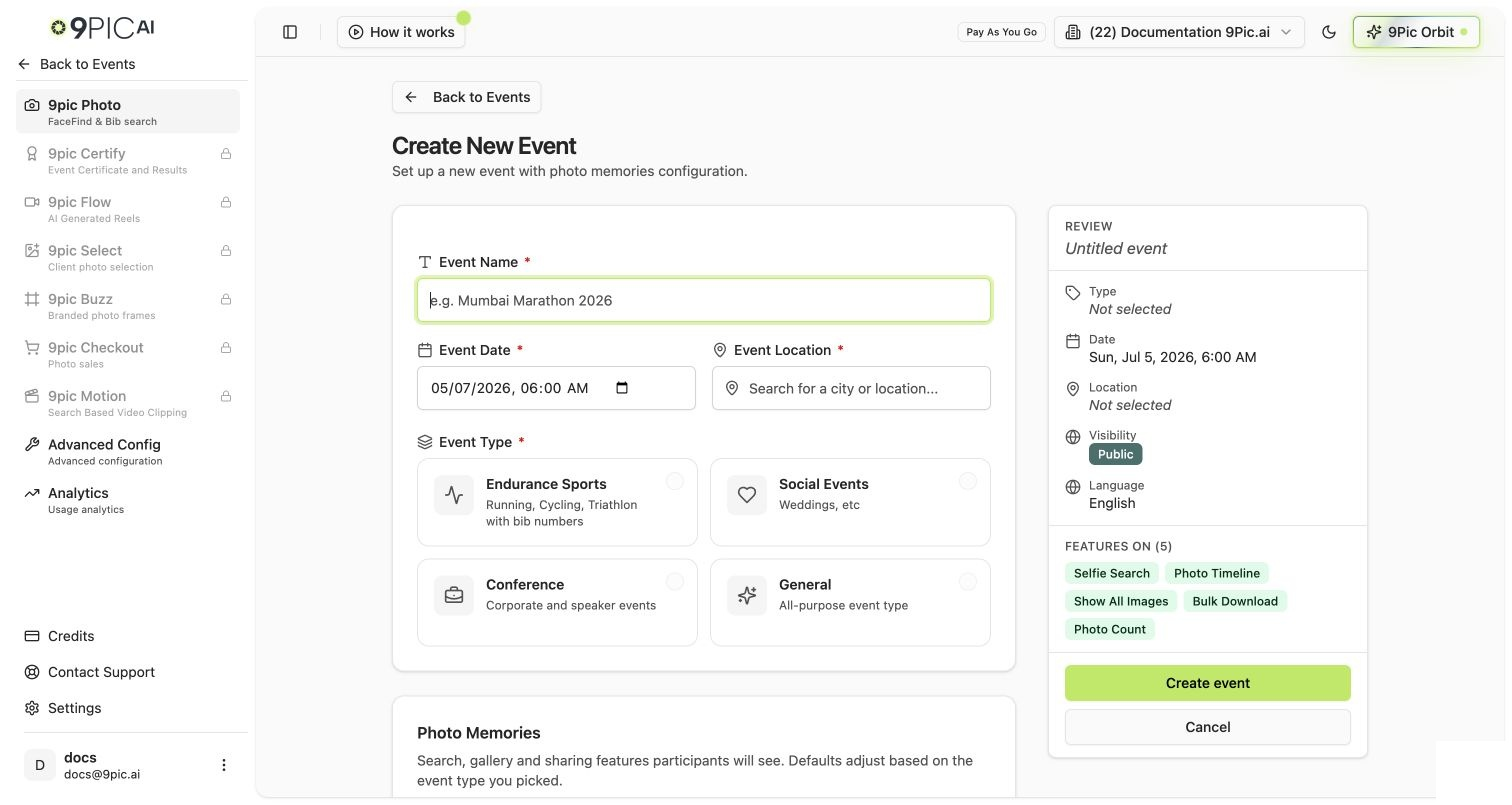
Sidebar → Events → Create Event.On Pay As You Go you can set Platform Visibility to Public (trial accounts couldn’t). Public events are accessible at app.9pic.ai/<event-slug> to anyone with the link.Credit cost: 0. Creating an event is free.
Create Event on Pay As You Go
2
Decide on AI search settings (this drives your bill)
On the event details page, open the Configuration tab and check:
Enable Selfie Search (powered by 9Pic FaceFind)
Enable BIB Search (powered by 9Pic BibTrack)
These two toggles are the single biggest credit-cost lever. If both are off, processing this event’s photos consumes 0 credits. If either is on, processing consumes 1 credit per photo.Most public-facing events keep at least one on (otherwise the search experience is degraded). Internal-only galleries can leave both off and process for free.
Store Original Memories is a separate setting on Create New Event. Leaving it on stores full-resolution originals and adds to your usage. Leave it off unless your event explicitly needs originals (sales, archival).
3
Upload photos with 9Pic Uplink (or drag & drop)
Use 9Pic Uplink (desktop uploader) for large batches, or drag & drop directly into the event gallery for small batches.Credit cost: 0 for the upload itself. Photos sit in Pending state and don’t consume credits until you process them.See Camera Configuration Guide for camera settings that produce the best AI search results.
4
Process the photos (this is where credits move)
Click Sync Images → Process Photos. The dashboard shows you:
The number of pending photos waiting.
Your available credits balance.
Whether the batch fits in your balance.
If the batch needs more credits than you have, the Process button is disabled and the dialog shows: “You have N credits available, but need M credits for this processing job.” Top up first, then come back.
Use the Custom Batch option to test first. Process 100 photos with your settings before processing thousands. Verify the watermark, the search results, and the gallery look right. Then run the rest.
Credit cost: 1 credit per processed photo (when AI is enabled). 0 credits when AI is fully off.
5
Brand the gallery (the basics)
Open the Branding tab on the event:
Cover image — a gallery banner.
Watermark — your logo or text overlay applied to processed photos.
Event name & description — public-facing copy.
Credit cost: 0 for changing branding settings. But: if you change the watermark after photos are already processed and you want the new watermark applied, see Step 7 (Re-process Watermark) — that does consume credits.See Branding for the full reference.
6
Go live and share the public link
On the event overview, click Go Live. The dashboard runs the go-live checks (watermark configured, at least one processed batch, etc.) and flips the event to public.Share the public link app.9pic.ai/<event-slug> with attendees. They can browse, search by face (FaceFind), or search by BIB (BibTrack) depending on the toggles you set in Step 2.Credit cost: 0 for going live. Search-side queries don’t consume your credits — your bill is set at processing time.See Go-Live Failed troubleshooting if go-live fails.
7
(Optional) Re-process watermark only if you really need to
If you go live and then realise the watermark is wrong, you can re-apply the new watermark to all already-processed photos.From the event details, open Reprocess Watermark. The dashboard tells you exactly how many credits this will cost: 10% of your processed photo count. Re-watermarking 5,000 processed photos uses 500 credits.BIB tags, selfie-search index, and all other data are preserved — only the watermark overlay changes.
Re-process watermark is the most common surprise PAYG bill. Get the watermark right before you sync 5,000 photos. Test on a Custom Batch of 100 first.
Can I run an event with AI search disabled to save credits?
Yes. If both Enable Selfie Search and Enable BIB Search are off, processing those photos uses 0 credits. The trade-off is your attendees won’t have face search or BIB search — they’ll have to scroll the gallery manually. For internal-only galleries, this is fine.
My credits ran out mid-event. What now?
Already-processed photos stay live and searchable. New photos queue and wait in Pending state. Top up at Credits → Purchase Credits (minimum 1,000 credits), then click Sync Images again on the affected event. Processing resumes automatically.
What does Sync Images do?
Sync Images pulls newly uploaded photos into the dashboard and stages them for processing. It doesn’t consume credits — the actual processing step (which applies AI search and watermarking) is what uses credits.
How long does processing 5,000 photos take?
Processing is asynchronous. For a typical event, expect under 30 minutes for several thousand photos. The event details page shows a live progress bar. You can close the tab — processing continues server-side.
Can my team upload while I'm processing?
Yes. Uploads queue independently of processing. Operators can keep adding photos via 9Pic Uplink while the previous batch is being processed.