Topping up on Pay As You Go takes about 90 seconds when you know the steps. This page walks through the exact dashboard flow so the first top-up isn’t a guessing game and the tenth one is muscle memory.
You’re an admin of the organisation. Operators can’t make payments.
You have a credit / debit card or your team’s payment method ready.
You know how many credits you want to buy. Minimum is 1,000 credits per purchase. See Photo Processing Costs for sizing.
Top up to cover your next event plus a 10% buffer, not your whole year. Credits don’t expire, but big top-ups also don’t earn discounts — there’s no upside to over-buying.
There are two ways to open the purchase flow — they go to the same place.
1
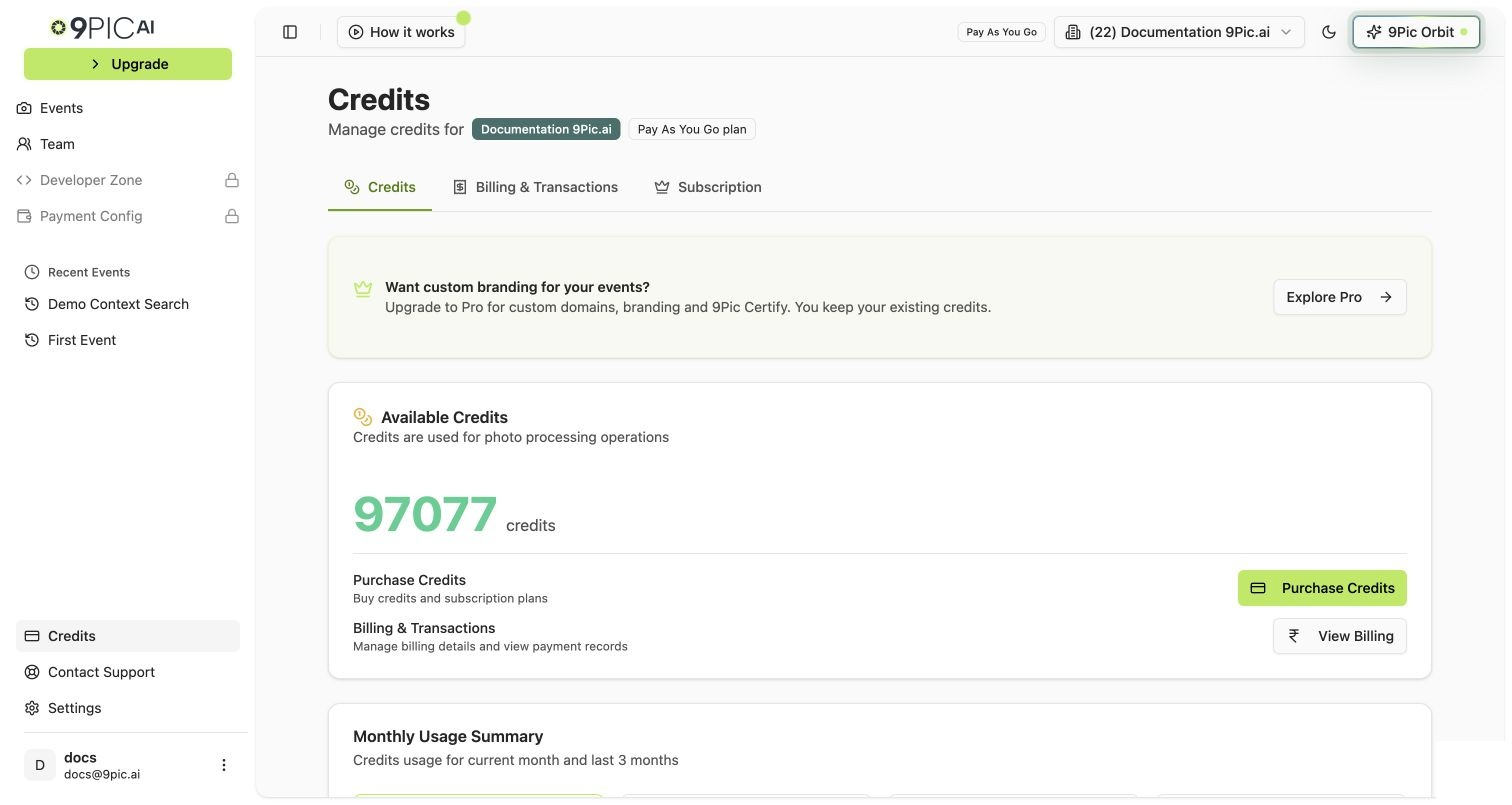
From Credits → Purchase Credits
Sidebar → Credits → Purchase Credits button on the Available Credits card.
Purchase Credits entry point
2
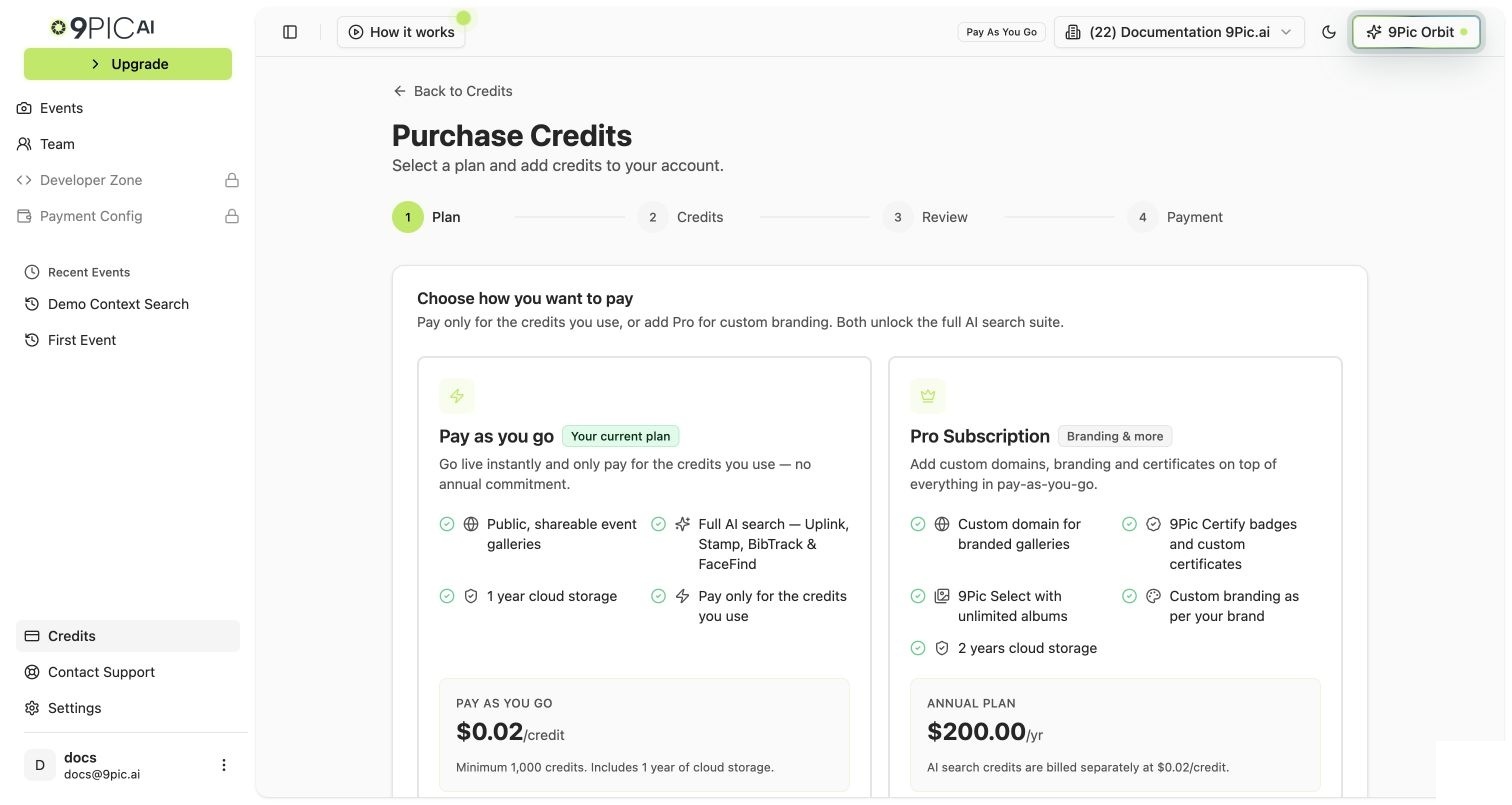
From the sidebar Upgrade button
The sidebar Upgrade button also lands on the Purchase Credits flow. (It’s labelled “Upgrade” because the same flow can also be used to move to Pro — see Upgrade to Pro.)
The Purchase Credits flow is a four-step wizard: Plan → Credits → Review → Payment.
The button label depends on your billing currency and region — for example Pay with Razorpay or Pay with PayGlocal. Click it to launch the secure gateway window.
2
Complete checkout in the gateway window
Enter card details in the payment gateway. 9Pic does not see or store your card information — the gateway handles it directly.
3
Wait for verification
After payment, 9Pic verifies the transaction. This usually takes a few seconds. The dashboard shows a spinner.
4
See the success page
On success, the dashboard shows the credits added and your updated balance. Your organisation’s credits balance reflects the top-up immediately.
If you need an invoice, open Credits → Billing & Transactions after the purchase. See Invoices & Transactions.
Try a different card or contact your bank. The order is not retried automatically.
You closed the window before paying
The order is marked Abandoned. Just start the flow again — no charge.
Charged but credits didn’t update
Rare but recoverable. Open Credits → Billing & Transactions, find the row, and click Recheck. The dashboard re-queries the gateway and finalises the transaction. If still stuck, take a screenshot of the gateway confirmation and email support@9pic.ai.
Gateway error mid-flow
Close the gateway window, refresh the dashboard, and start the flow again. Any partial order will be marked Abandoned.
Per-purchase processing overhead (gateway fees, accounting) makes very small purchases unproductive. 1,000 credits is the minimum the dashboard accepts — anything lower is rejected by the API.
Are bigger top-ups discounted?
No. Per-credit cost is constant. Buy what your next event needs, plus a small buffer. There’s no incentive to stockpile.
Do credits expire?
No. Pay As You Go credits sit in your balance indefinitely.
Can I get a refund for unused credits?
Refund eligibility is governed by 9Pic’s Refund Policy, which you accept at every purchase. For specific situations, email support@9pic.ai.
The dashboard shows my payment as Pending. What now?
Open Credits → Billing & Transactions, find the pending row, and click Recheck. The dashboard re-queries the payment gateway and finalises (or marks failed) accordingly. If it stays Pending after Recheck, email support with your gateway confirmation screenshot.
Why does the same flow show a Pro Subscription option?
The Purchase Credits flow is shared between Pay As You Go top-ups and the Pro upgrade — same wizard, different first-step pick. Pay as you go stays on Pay As You Go. Pro Subscription moves the account to Pro. See Upgrade to Pro.