

Why This Matters
The Credits page is your operational dashboard on Pay As You Go. Five minutes here once a month tells you how much you spent, where it went, and whether your top-up cadence still makes sense. This page walks through every section.Open the Credits Page
From the sidebar, click Credits. The page has three sub-tabs: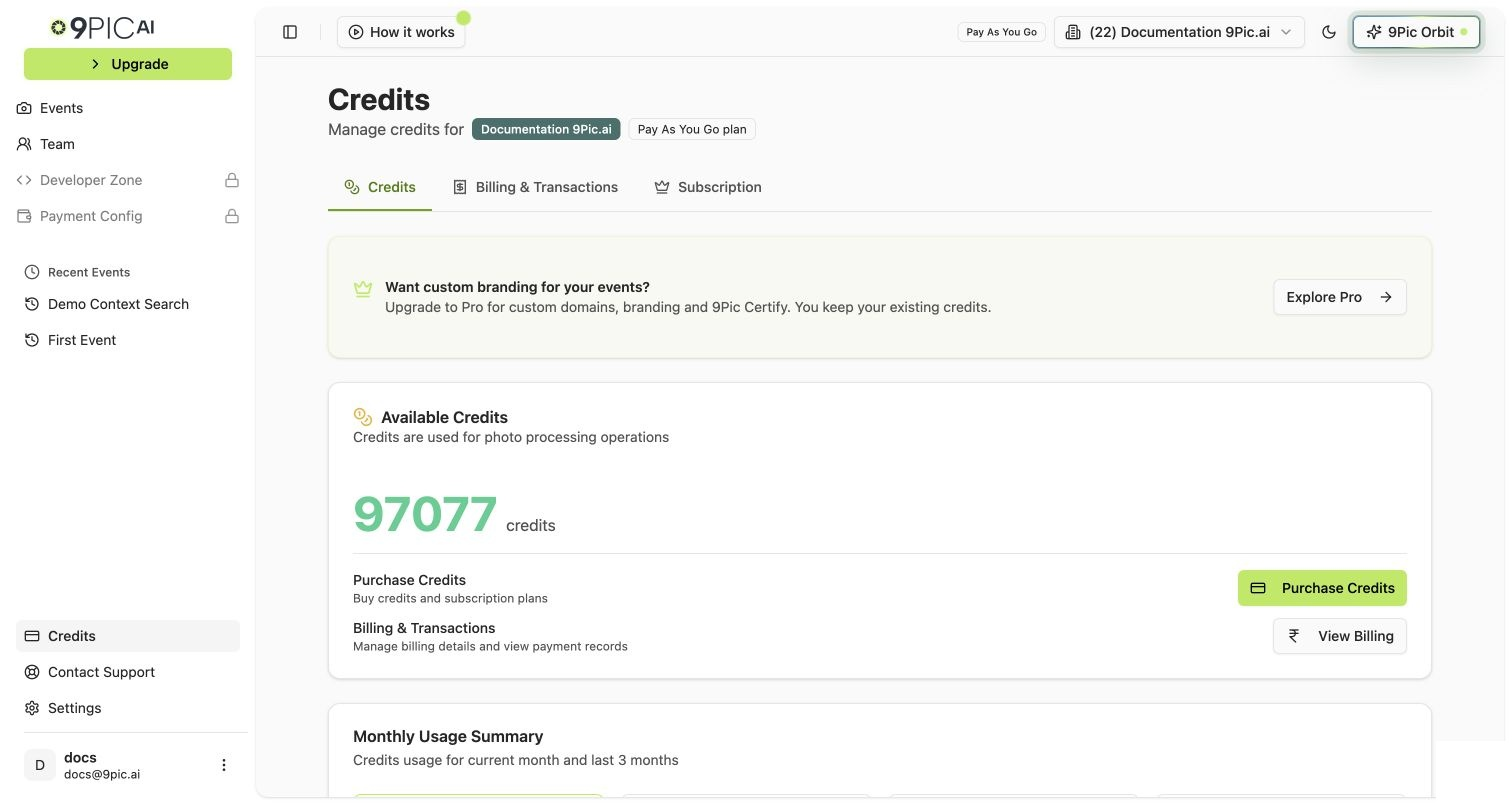
Pay As You Go Credits page
Section 1 — Available Credits
The big number at the top is your Available Credits balance. That’s the number of photos you can process with AI search enabled before processing pauses.Show / Hide cost per credit
Click Show next to Cost per Credit to reveal what each credit costs in your account currency. The dashboard reads this from your account configuration. If it ever changes, the dashboard reflects the new number before your next invoice.Purchase Credits and View Billing buttons
Two action buttons sit below the balance:- Purchase Credits → opens the top-up flow. See Buy More Credits.
- View Billing → jumps to Credits → Billing & Transactions. See Invoices & Transactions.
Section 2 — Monthly Usage Summary
Below the balance card, the Monthly Usage Summary shows four cards: the current month and the previous three months.
The card highlighted with the Current badge is the running total — it grows through the month.
What the trend tells you
Section 3 — Credit Usage Tab
Below the monthly summary, the Credit Usage tab lists every individual usage transaction (every photo-processing run that consumed credits).
Use this tab to answer “where did my credits go?” The big spend month from the summary cards always traces back to one or two events here.
Section 4 — Purchase History Tab
The Purchase History tab lists every credit addition: paid top-ups, free credits, refunds, admin grants.
The pop-out info icon on each row shows payment metadata: gateway, payment ID, order ID. Use this when reconciling a top-up against your bank statement or asking support to look up a transaction.
Section 5 — Subscription Tab
Click the Subscription sub-tab to see:- Your Current Plan badge — should read Pay As You Go.
- The plan description — “Flexible usage-based pricing with no commitment.”
- Subscription Expiry — Pay As You Go has no expiry, so this section reads “No expiry date set. Your plan does not have a fixed expiry.” Don’t worry about it.
Section 6 — Billing & Transactions Tab
The Billing & Transactions tab is for downloading invoices and rechecking stuck payments. It has its own page in this guide — see Invoices & Transactions.A Suggested Monthly Routine
If you want a habit that takes 5 minutes:1
On the first of the month, open Credits
Look at the previous month’s card in Monthly Usage Summary. That’s your spend.
2
Compare to event count
Mentally check: does the spend match how many events you ran? If it’s higher than expected, scan the Credit Usage tab for outliers.
3
Plan the next top-up
If next month has a known big event, top up now (minimum 1,000 credits). See the recommended sizes in Photo Processing Costs.
4
Once a quarter, sanity-check the Pro math
Open When to Upgrade and run the comparison.
Common Questions
Why does my balance look like a single number across all events?
Why does my balance look like a single number across all events?
Credits are an organisation-level balance, not per-event. Every event in the organisation draws from the same pool. The Credit Usage tab attributes each spend back to a specific event so you can see where it went.
What's the difference between Usage and Purchase tabs?
What's the difference between Usage and Purchase tabs?
Usage = credits spent (negative). Purchase History = credits added (positive). Both are filtered views of the same underlying transaction list.
Can my operators see the Credits page?
Can my operators see the Credits page?
They can see the balance and usage history, but only admins can buy credits. The Purchase Credits button is hidden for non-admins.
The Monthly Usage Summary shows the current month as low — is something wrong?
The Monthly Usage Summary shows the current month as low — is something wrong?
No. The current month is in-progress and grows through the month. Compare it only to the same point in previous months, or wait until month-end for an apples-to-apples comparison.
My free credits from the trial show up here — are those still usable?
My free credits from the trial show up here — are those still usable?
Yes. Free credits granted during the trial combine with paid credits into a single Available Credits balance. The dashboard spends them in order; you don’t have to choose.
Next Steps
Buy More Credits
The top-up walkthrough.
Invoices & Transactions
Download invoices and recheck stuck payments.
Avoid Credit Foot-Guns
The mistakes that quietly burn the most credits.
Credits Reference
Full Dashboard Guide reference for the Credits dashboard.