

Overview
9Pic FaceFind (selfie search) and 9Pic BibTrack (bib number search) let participants find their own photos in seconds instead of scrolling the whole gallery. A participant takes or uploads a selfie, or types their bib number, and gets back the photos they appear in. They’re part of 9Pic Photo. This page covers when to use each and how to get good results. The settings themselves, such as selfie match confidence and bib detection rules, are on Photo configuration.Which Plans Include It
FaceFind and BibTrack are included on every plan: Trial, Pay As You Go, Pro, Business and Enterprise. Search works the same on every plan. What changes is the cost of processing and where the gallery lives:- Credits: processing a photo with Selfie Search or Bib Number Search on uses 1 credit, whether one or both are on. With both off, processing uses no credits, but participants can only browse. See Photo processing costs.
- Trial: the gallery is on the shared
trial.9pic.aidomain, so test search with your own team only. See Test photo search.
Turn Search On
Both searches are switches on each event, set when you create it on the Photo Memories card and changeable later on the event’s Configuration tab: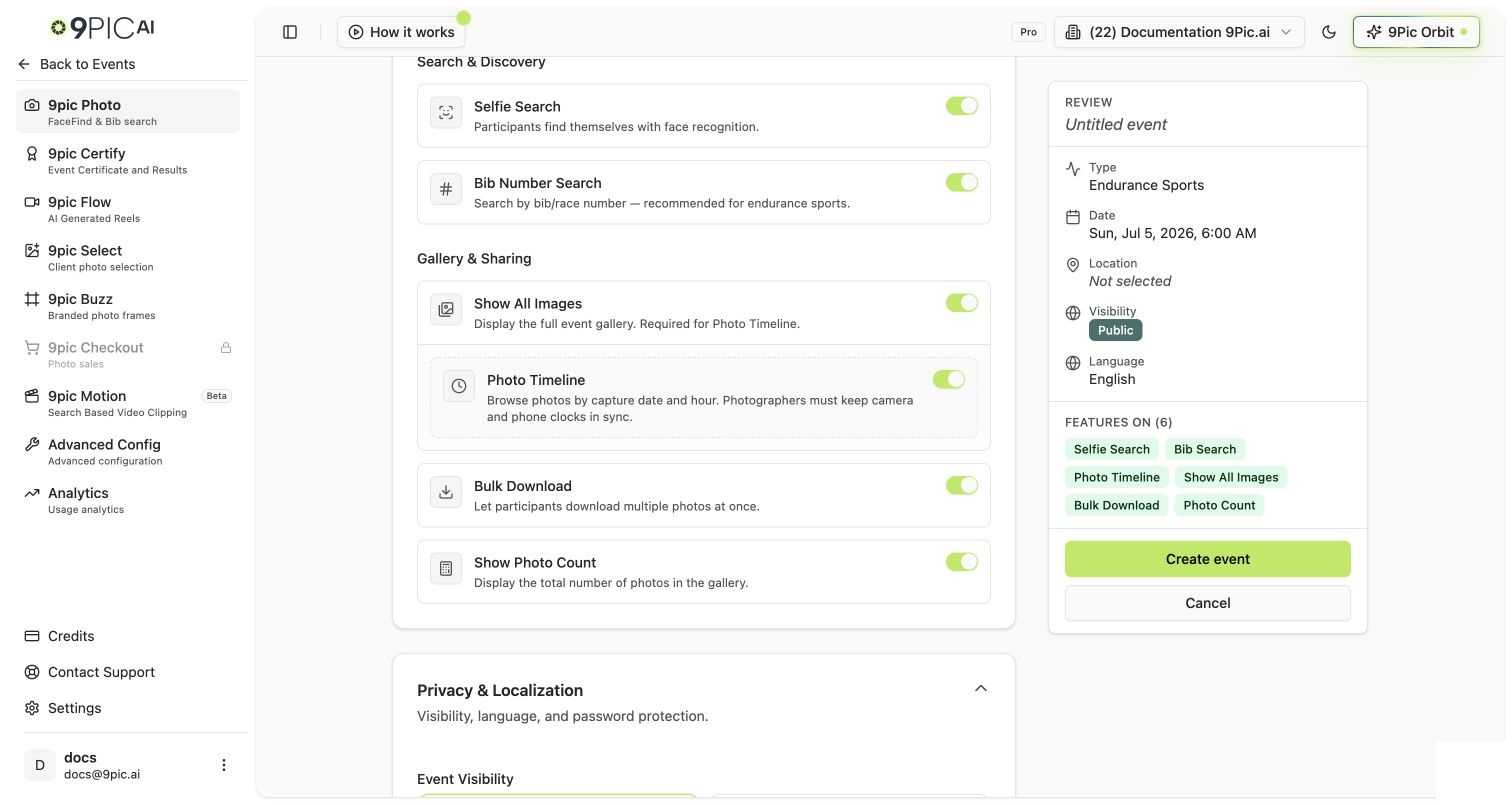
Photo Memories search toggles
Recommended Settings by Event Type
Get Good Results
1
Test a small batch first
Add 30–50 sample photos to the event’s source, choose Import Photos, then Start Processing with a small batch. Once it finishes, publish and use Open Link in the event header to search as a participant would: a teammate’s selfie, and a bib number you can see in one of the photos.
2
Fix what you find
If a bib format isn’t found, adjust the bib detection rules on Photo configuration before processing more. If selfie matches are too loose or too strict, adjust Match confidence there.
3
Process the rest
Add the remaining photos, choose Import Photos again, then Start Processing. Only new photos are processed and charged.
When Search Results Look Wrong
Tips for Photographers
- Brief your photographers. Ask for shots wide enough to include the bib or face clearly, but close enough that faces aren’t tiny.
- One folder per photographer. Separate sources make it easier to spot-check quality per photographer.
- Top up before the event. Processing won’t start if a batch needs more credits than you have. See Buy credits.
Common Questions
Is search quality different on different plans?
Is search quality different on different plans?
No. FaceFind and BibTrack work the same on every plan. Plans differ in features such as products, custom domains and Checkout, not in search.
Does a photo cost more if both FaceFind and BibTrack are on?
Does a photo cost more if both FaceFind and BibTrack are on?
No. A processed photo uses 1 credit whether one or both searches are on.
Can a participant search by both selfie and bib number?
Can a participant search by both selfie and bib number?
Yes. They’re separate search options, and the event page shows both when both are on.
Can participants find video clips the same way?
Can participants find video clips the same way?
Yes, with 9Pic Motion on Pro and above. A selfie photo search also offers Find videos with selfie.
Next Steps
Photo configuration
Selfie options, bib detection rules, Name Search and Context Search.
Test photo search
Check search on your gallery step by step.
Troubleshooting search
Debugging steps when search misbehaves.
9Pic Motion
Selfie and bib search for event videos.