

Overview
The Tools tab is a launcher. It shows a grid of tool cards, and clicking one opens that tool on its own full page. There are three tools:
This page covers the two tagging tools.
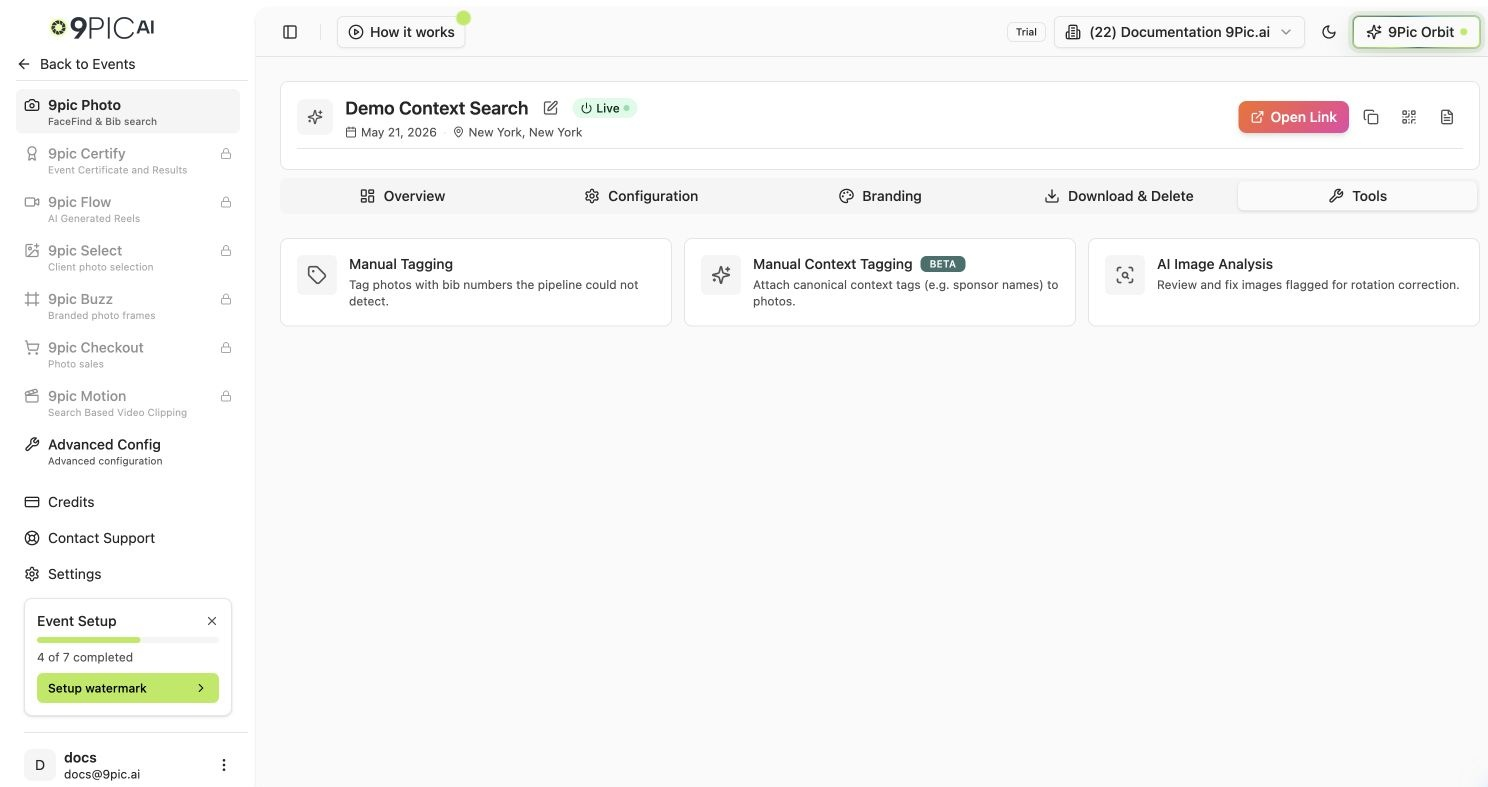
Photo Tools launcher
Manual Tagging (Bib Numbers)
Use Manual Tagging for any bib correction on a photo:- Add a missing bib when the bib was blurred, hidden or at an unusual angle.
- Remove a wrong bib or tag when a photo shows up under a bib it shouldn’t, for example a misread number or a bib from the background.
Find the photo
The toolbar at the top gives you three ways to find photos. Only one applies at a time, and the active one shows as a chip you can clear with ×.
Photos are shown 50 per page. Use Previous and Next above or below the gallery to move between pages; changing the search starts again at page 1.
Your search, capture time, page and open photo are kept in the page address, so refreshing the page or sharing the link brings back the same view.
Remove a wrong bib or tag
1
Open the photo
Find the photo with the toolbar and click it. The photo opens with boxes around each bib that was read (Hide boxes turns them off). To check a small or blurry bib, use the zoom buttons above the photo or double-click it, then drag to move around.
2
Switch the wrong bib off
Under Found in this photo, each detected bib is listed with how it was read and how confident the match is. Turn off the In search switch next to the wrong bib. It is marked Removed and its box turns dashed. Turn the switch back on to undo.
3
Remove a tag you added
Tags added by hand are listed under Tags you added. Click the × on a tag to remove it.
4
Save and republish
Click Save, or Save & next to save and move to the next photo. Then republish the event so participant search stops showing the photo under that bib.
Add a missing bib
1
Open the photo
Search by capture time or open Untagged to find photos with no bib, then click the photo.
2
Add the bib
Under Tags you added, type the bib number and press Enter (or click Add). You can add up to 50 tags per photo.
3
Save and republish
Click Save or Save & next, then republish the event. The photo becomes searchable under the new bib.
Changes are not visible to participants until you republish the event. If you leave a photo with unsaved changes, 9Pic asks before discarding them.
Manual Context Tagging (Beta)
Context tags are canonical labels — sponsor names, zones, or other categories — attached to photos so participants can find them by context, not just by face or bib. The tool is lookup-based: you search for an image, select it, and edit its context tags in a dialog.1
Open the tool
Go to 9Pic Photo → Tools and click Manual Context Tagging.
2
Look up an image
Use the lookup panel to search and select the photo you want to tag.
3
Edit context tags
In the tag editor dialog, add or adjust the canonical tags for that image, then save.
Common Questions
A participant's search shows someone else's photo. How do I fix it?
A participant's search shows someone else's photo. How do I fix it?
Search for the participant’s bib in Manual Tagging, open the wrong photo, switch that bib off under Found in this photo (or remove it from Tags you added), save, and republish the event.
Can I correct many photos quickly?
Can I correct many photos quickly?
Open the first photo in your results and use Save & next to move through them one by one. For corrections across a whole event, fix bib detection in Configuration before reprocessing.
Next Steps
AI Image Analysis
The third Tools entry — review and fix rotated photos.
Configuration
Tune bib detection so the pipeline misses fewer bibs.