

Overview
Once you sign in, you land on the dashboard home. This page exists to point you at the next useful action — usually creating an event, finishing setup, or jumping to an event you opened recently. Spend two minutes here before you start clicking around.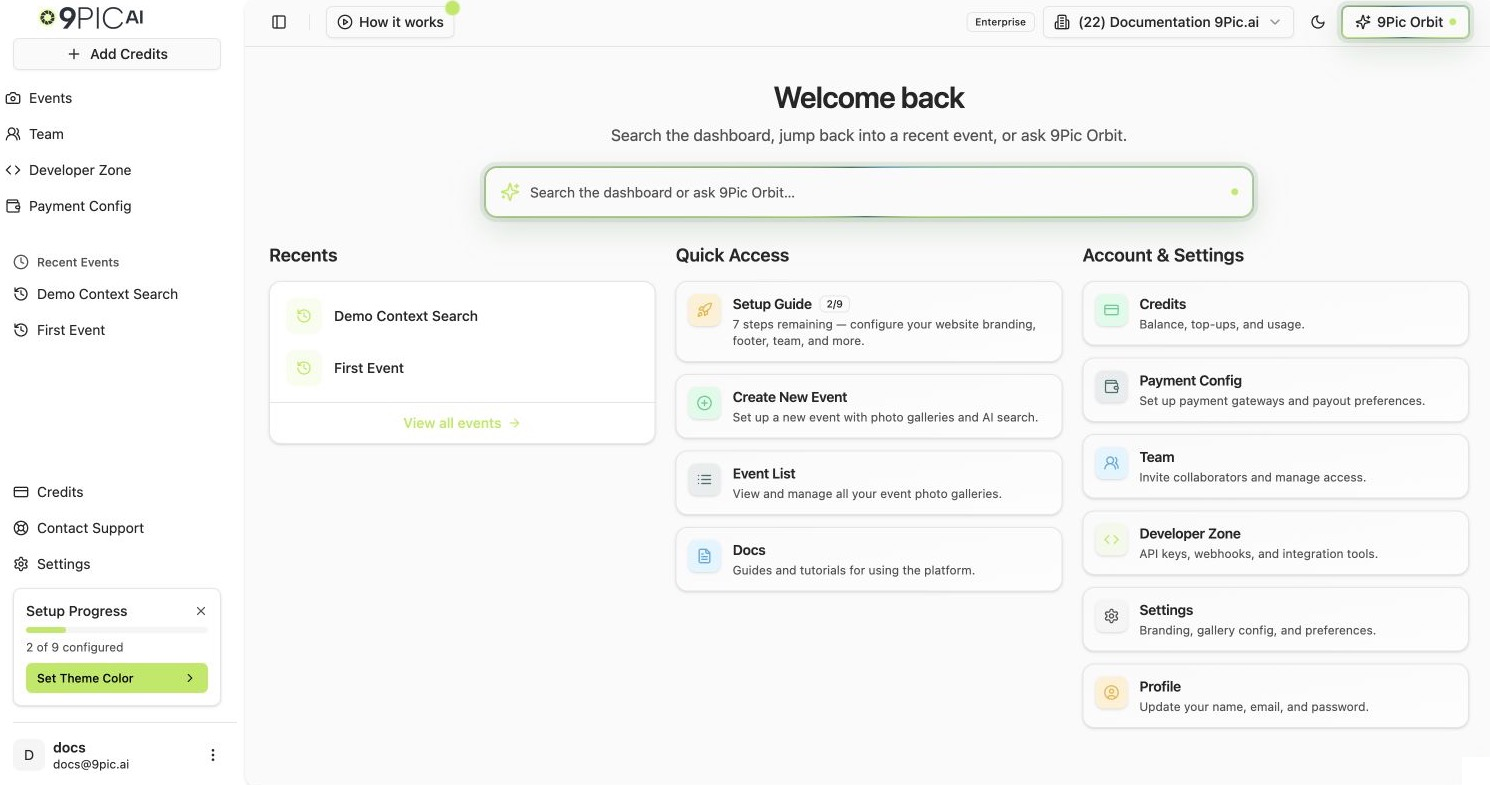
Dashboard home overview
The Three Areas You Will Use Most
The Sidebar
The sidebar has two modes depending on where you are:- Main mode (default): primary navigation for the dashboard.
- Event mode: when you are inside an event, the sidebar swaps to that event’s product navigation (Photo, Certify, Flow, and so on). See Event details.
Developer Zone and Payment Config are visible to every plan. Developer Zone opens on Business, Enterprise and Trial. Payment Config opens on Business and Enterprise, and on Trial in test mode for trying photo sales. On Pay As You Go and Pro, clicking them explains that they’re available on the Business plan.
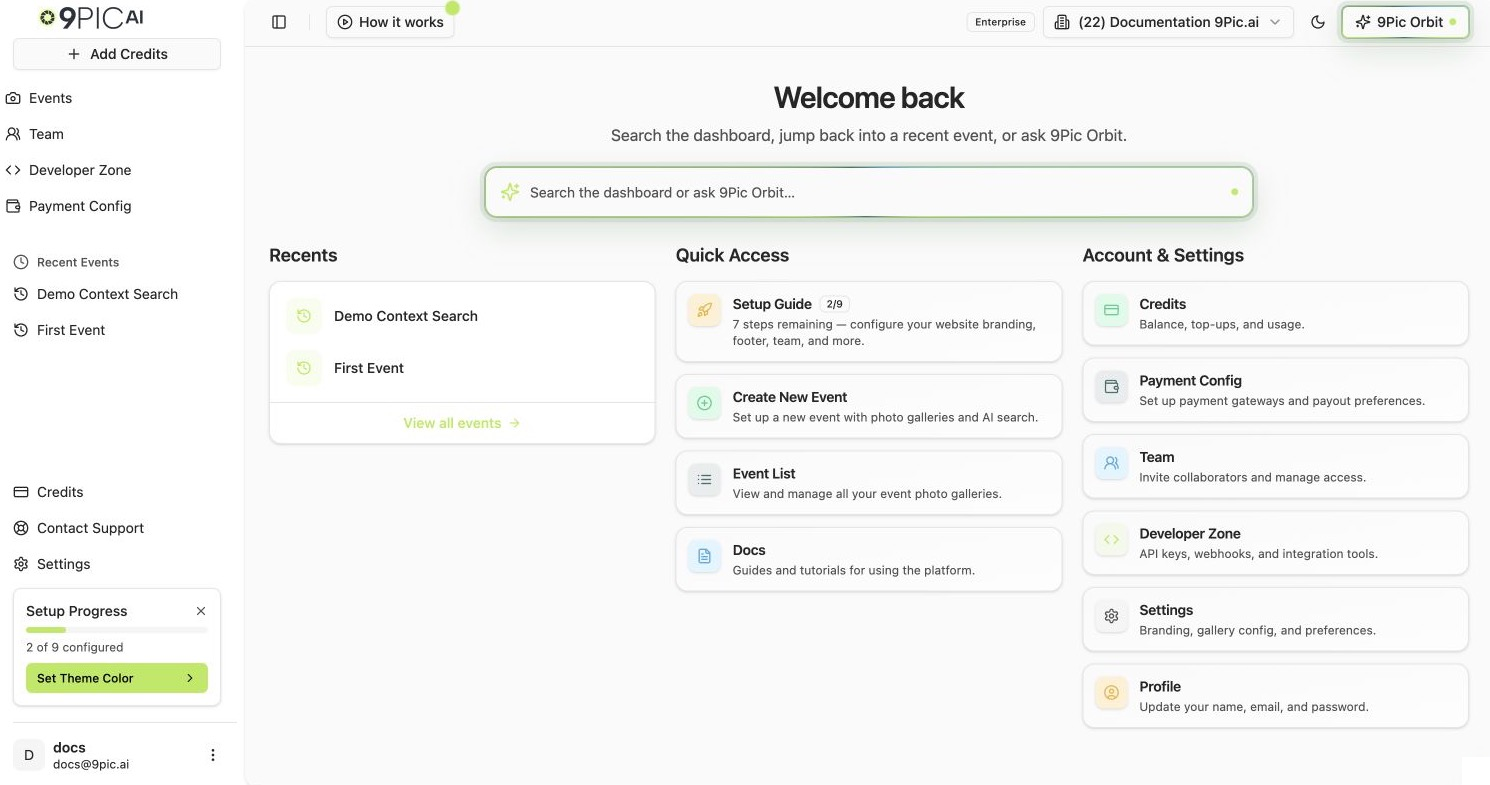
Main sidebar
Recent Events
Under Events, the sidebar groups your three most recently opened events. Each shortcut shows the event name and ID, with Most recent on the first entry. Clicking one takes you straight back to its details page. Home Recents and both search boxes share this per-browser list, which updates automatically as you open events. Use Events or View all events on Home to browse the full list.Setup Wizard Progress Widget
If your organisation has not finished setup yet, a Setup Progress card appears at the bottom of the sidebar (above your name and avatar). It shows:- A progress bar with
X of Y configured(orcompletedon trial). - The next step to complete, as a single clickable button. Clicking it takes you to the exact settings tab or page you need.
- A small X to dismiss the widget once your setup looks good — it disappears for everyone in your organisation.
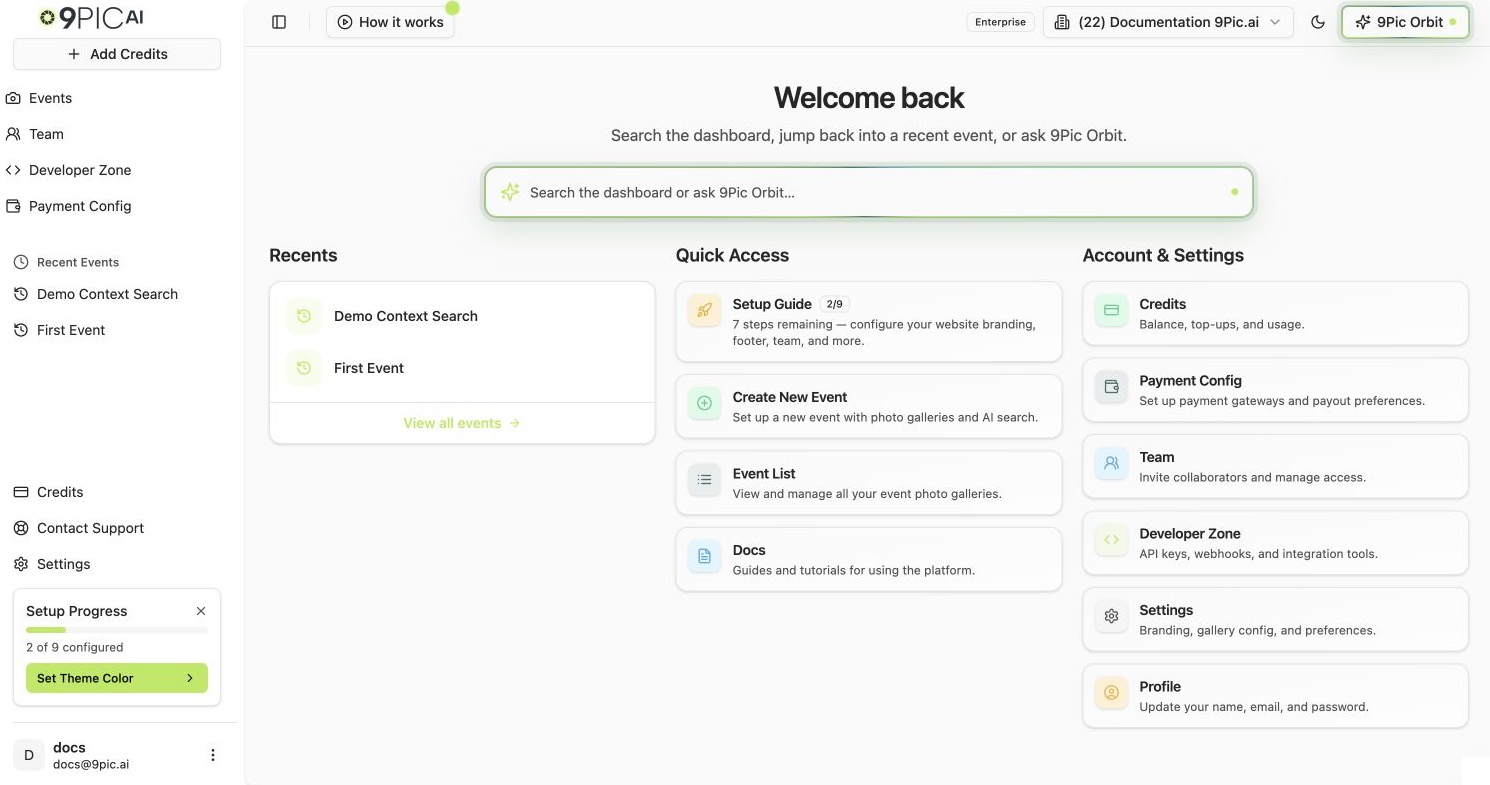
Setup Progress widget
The Top Bar
The top bar is always visible at the top of every page. It contains:- Breadcrumbs — show the current page and its parents. Select a parent to return to its list or tab. Inside an event, the trail begins with Events, then the event name and product tab. Long names shorten with an ellipsis; hover to see the full name. On narrower headers, Show parent pages opens the collapsed parent links.
- Ask AI or find a page — centered in the navbar. Ask AI is the first option when you open it, and opens 9Pic Orbit directly. It is the quickest way to get guidance without waiting for an email reply; Orbit uses your current page to guide you step by step. You can also find dashboard pages and, inside an event, actions for that event. Open it with Cmd+K on Mac or Ctrl+K elsewhere. On narrow headers it moves to a second row. The Home box also offers Ask AI first. Type an event name in either search box to see matches grouped under Events, with dates and archived labels. Search finds parts of names, words in any order, and common misspellings across the selected organisation, beyond your recent events. Select an event to open its workspace. If more than eight events match, keep typing to narrow the results.
- Video guides — the play icon opens tutorial videos. Hover or focus it to see the label.
- Dark mode — switch between light and dark appearances.
- 9Pic Orbit — open the assistant on supported pages. On narrow headers it appears as a sparkle icon; its hover label still says Open 9Pic Orbit.
Learn with tutorial videos
Open Video guides to browse Getting started, Photo galleries and Certificates. All section headings and their video counts are visible together. Use Search videos to filter the list by title, section or a supported task. Searching leaves the current recording playing; choosing a different video stops it. If nothing matches, clear the search or try a different phrase. On a computer, the video list sits on the left and the player is on the right. On a phone, the player appears above the list. Each guide has a custom cover showing its title and learning outline. Select Play video to watch it. Read About this guide and What you’ll learn below the selected video title, which now sits beneath the player. On wide screens, these appear beside the recording language on the right; they wrap or stack on narrower screens. Short details display directly. Long descriptions and learning lists scroll within their own areas. Only overflowing sections show Scroll for more and Expand. Select Expand to read that section in a larger scrollable modal, then close it to return to the video. The learning heading shows the total number of points. The outline is a topic summary, rather than timed video chapters. Each newly selected video starts in English. Use Video language below the player, to the right of the guide details, to choose one of that video’s available translations. Videos with one recording show English. Choosing a different video or language stops playback and shows the cover until you select Play video. Covers and explanatory text remain in English. Changing the video language does not change your dashboard or gallery language. Select Ask AI below the guide details to close the video and open 9Pic Orbit with one question about the selected topic. Orbit explains its purpose, prerequisites, setup steps, saving or publishing, and common problems, in the selected video language. Continue with your own questions in chat. Orbit provides guidance; you still make and save changes yourself. If Orbit is answering another question, wait for it to finish before asking about the tutorial. Read guide opens documentation for the selected topic in a new tab. If the embedded video does not play, select Watch on YouTube to open the same recording in a new tab. Select Close or press Escape to return to the dashboard. The top-bar library remembers its last topic and language until the dashboard is reloaded. Opening the modal adds the selected guide and language to the page address. Selecting a different topic or language updates the address and resets the playback position. During playback, the address saves the current position about every 10 seconds, and also when paused or finished. Refresh or share the address to return to the same recording and its Resume at cover; select Play to continue. The saved position may be up to about 10 seconds behind. If position saving is unavailable, a notice appears and you can keep watching. Closing removes only the guide, language and playback position from the address, preserving the current dashboard page and its other choices. You can also find a guide in navbar or Home search by asking for the task. Try How to create a new event to see both running and general (non-running) event guides, or How to design a certificate. Each topic appears once, in English by default. Choose another available language inside the guide, or include it in your question, such as How to create a new event in Hindi. A guide without that translation uses English. Create event still prioritizes the creation screen. Selecting a guide opens its exact topic and recording language. Guide links usevideoGuide and videoLanguage, for example
/event-memories?videoGuide=trial-account-running-event&videoLanguage=hi.
Select the centered play button to watch. Unavailable translations fall back to English;
an unknown guide does not open the modal. Closing clears the guide parameters.
Orbit may recommend a relevant Watch guide card alongside its explanation.
Watching a guide does not require the plan needed to use the demonstrated feature.
The logo and organisation switcher are in the sidebar; the switcher shows your plan name above the organisation name. On Trial, a Trial chip in the top bar explains what you can try and links to Compare plans. Expiry warnings appear above the navbar when applicable. Breadcrumbs always start with a Home icon that returns to the Home page, followed by the feature and current page. The Home icon stays visible on narrow headers. Breadcrumbs navigate without saving; use the current page’s Save action to keep changes.
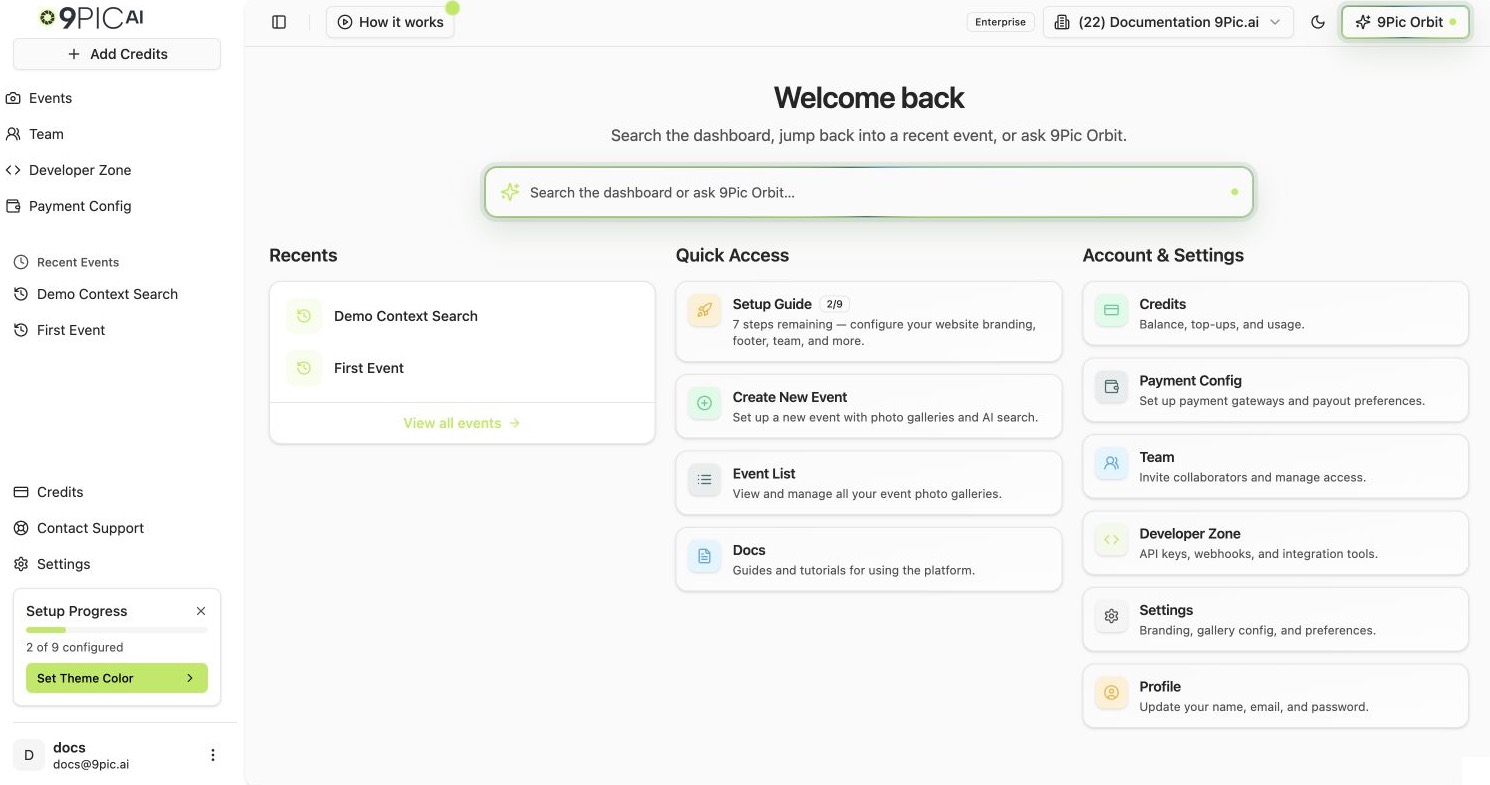
Enterprise account top bar
The Home Page (Quick Access & Account & Settings)
The home page is just two grids of cards.Quick Access
Account & Settings
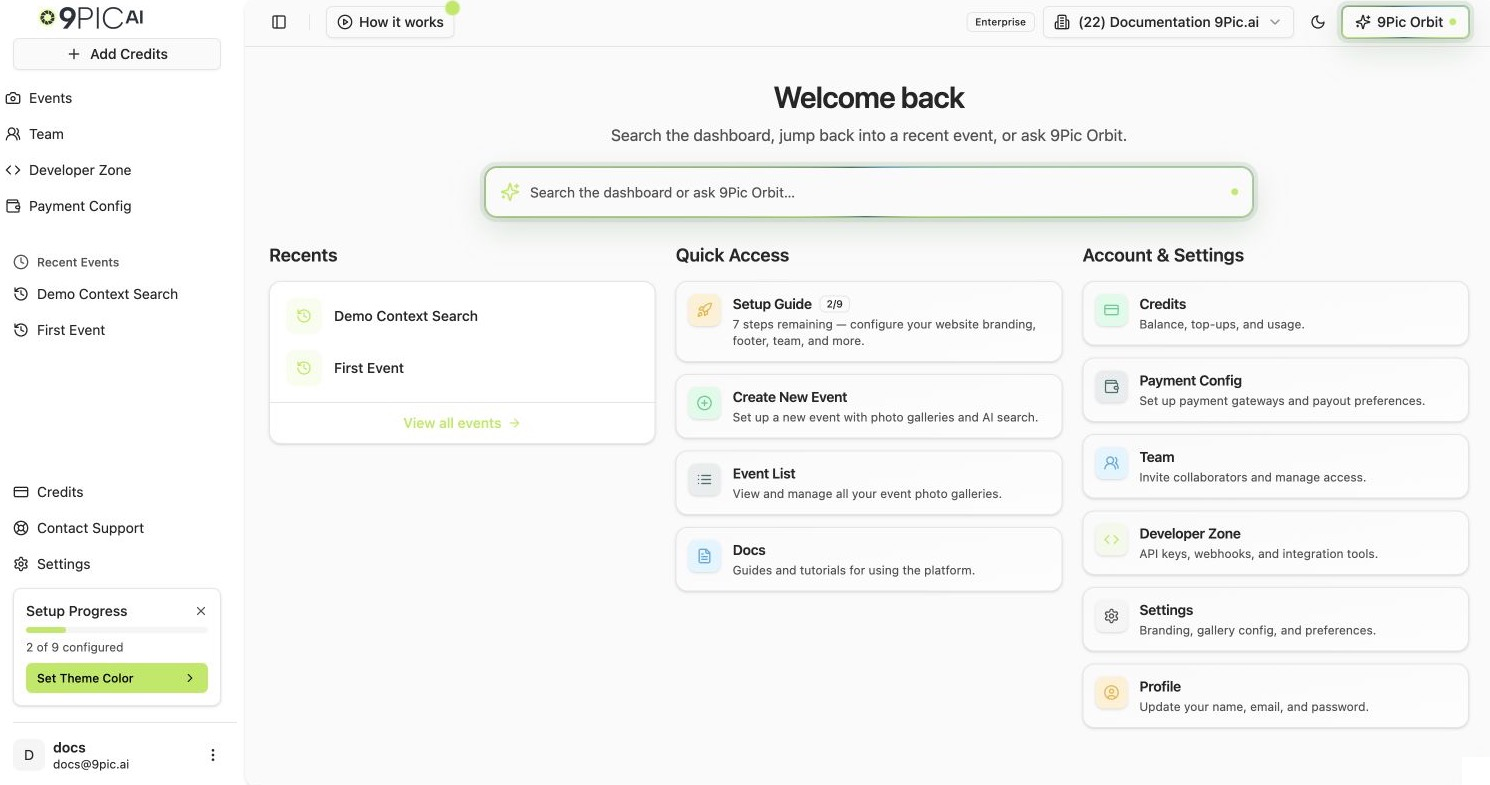
Account & Settings shortcuts
Common Questions
Can I hide the Setup Wizard widget?
Can I hide the Setup Wizard widget?
Yes. Click the small X in its top-right corner and confirm. It hides for everyone in your organisation. You can still reach individual settings from the Settings page anytime.
Next Steps
Create your first event
Move on to the 90-second happy path that takes you from a fresh dashboard to processed photos.
Events list
Deep reference for the events table, search, and pagination.