> ## Documentation Index
> Fetch the complete documentation index at: https://docs.9pic.ai/llms.txt
> Use this file to discover all available pages before exploring further.
# Upgrade Your Plan
> Move from the trial to Pay As You Go, Pro, or Enterprise
## Why This Matters
Once you've decided on a plan, the upgrade flow itself takes a few minutes. This page walks you through what to expect so there are no surprises at the payment step.
## Before You Begin
* You finished evaluating your trial — see [Compare Plans](/trial-guide/compare-plans) if you haven't picked yet.
* You know which plan you want: **Pay As You Go**, **Pro**, or **Enterprise**.
* You have a credit / debit card ready (or your team's payment method).
* You're an **admin** of the organisation — only admins can purchase.
Your trial event data, team members, and settings all carry over. Upgrading does not reset anything.
## Open the Upgrade Flow
On the trial, the dashboard sidebar shows a highlighted **Upgrade** button. Click it.
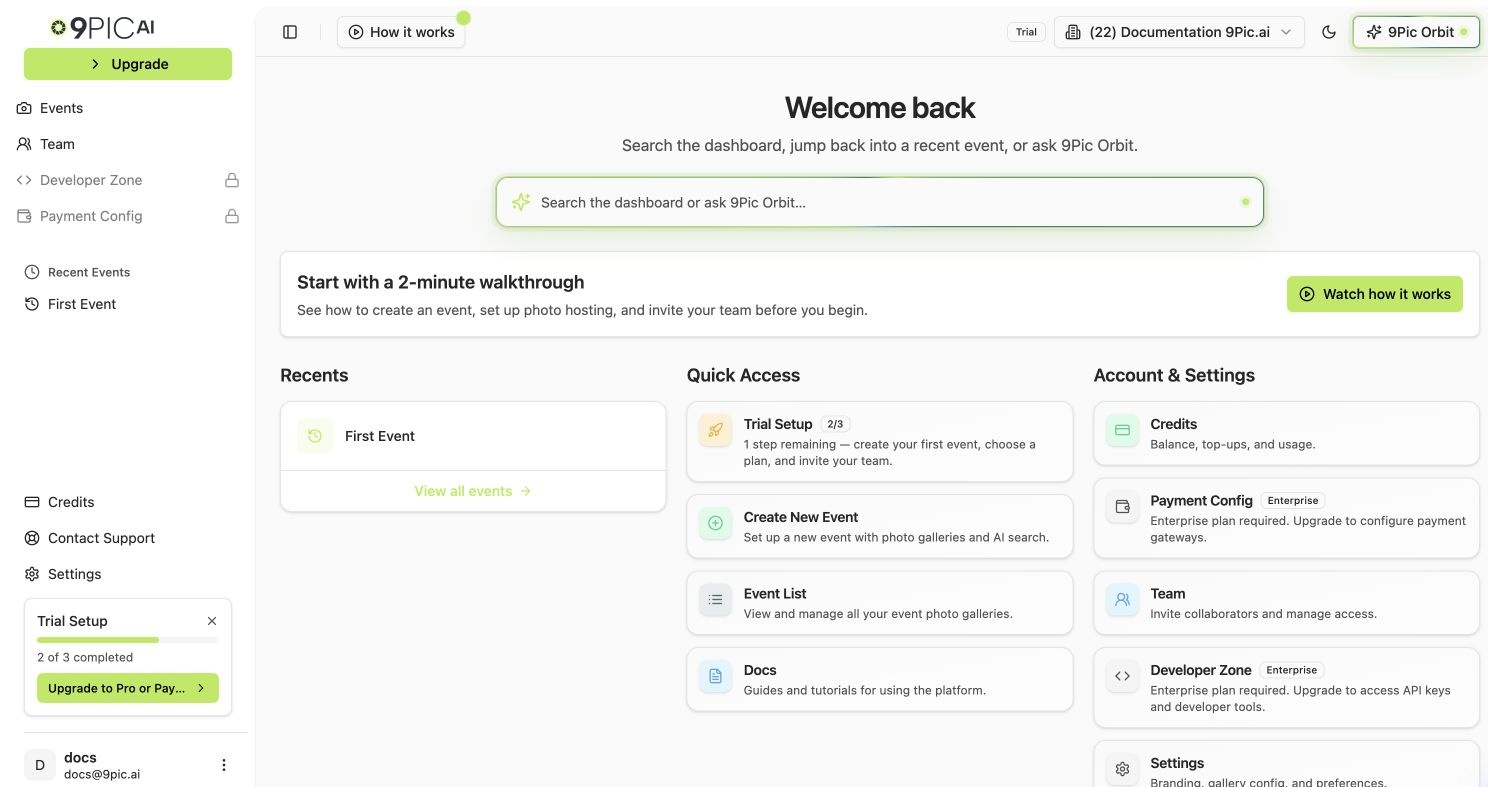 Alternatively, click **Credits** in the sidebar, then **Purchase** (or **Add Credit**) at the top.
This opens the **Purchase Credits** flow, which has four steps: **Plan → Credits → Review → Payment**.
## Step 1 — Choose Your Plan
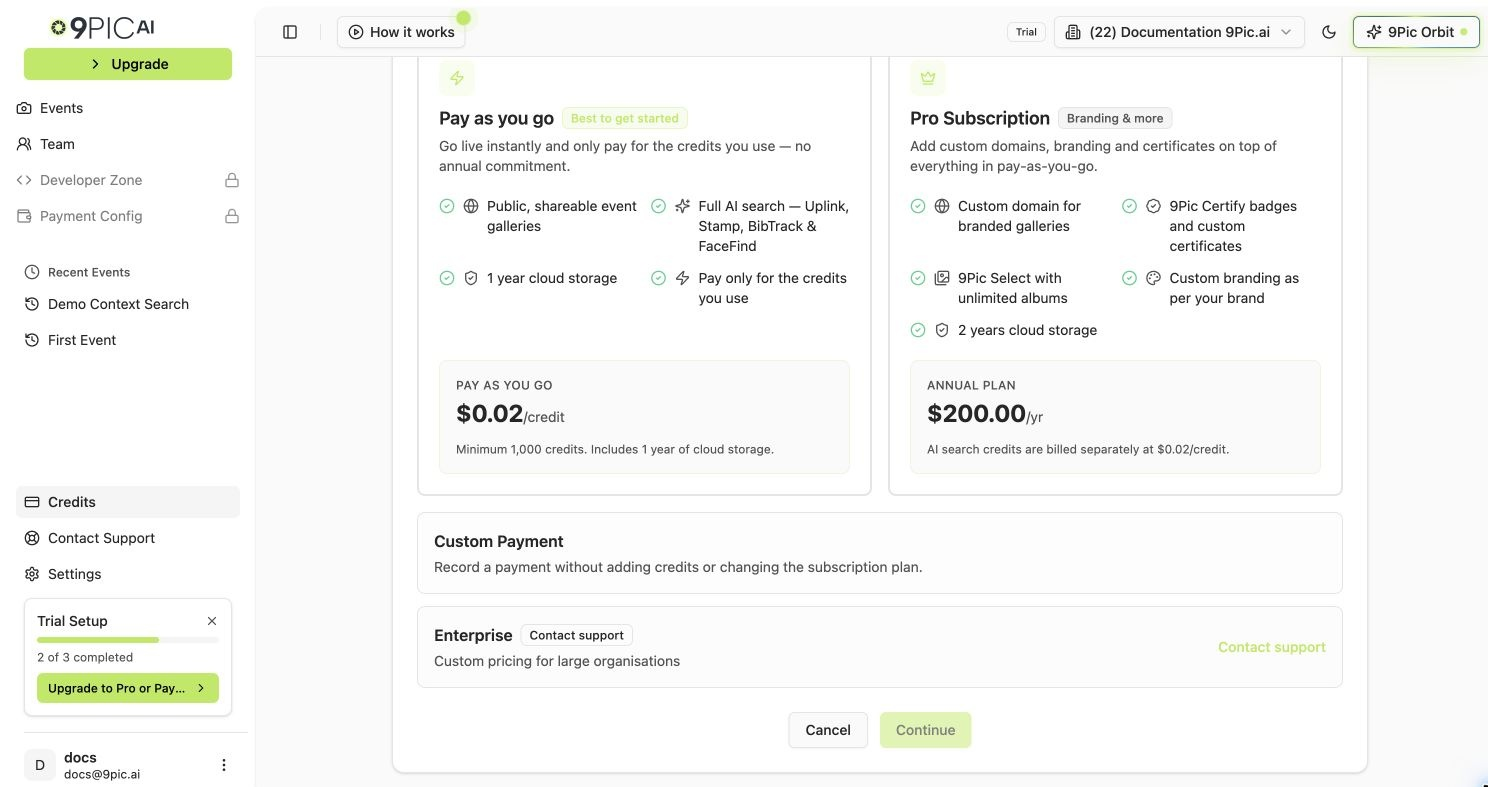
You'll see plan options based on your current state:
Pick **Pay As You Go** if you want flexible, usage-based billing without a yearly commitment.
Continue to the credits step to choose how many credits to buy upfront.
Pick **Pro Subscription** for the annual plan with custom domain and creative tools.
Pro is **\$200 / year**. Continue to the credits step to add a starter credit pack.
Enterprise is not self-serve from this page. Click the **Enterprise** card and you'll be sent to [9pic.ai/contact](https://9pic.ai/contact/) to talk to our team.
See [Talk to Us](/trial-guide/talk-to-us) for what to expect.
Alternatively, click **Credits** in the sidebar, then **Purchase** (or **Add Credit**) at the top.
This opens the **Purchase Credits** flow, which has four steps: **Plan → Credits → Review → Payment**.
## Step 1 — Choose Your Plan
You'll see plan options based on your current state:
Pick **Pay As You Go** if you want flexible, usage-based billing without a yearly commitment.
Continue to the credits step to choose how many credits to buy upfront.
Pick **Pro Subscription** for the annual plan with custom domain and creative tools.
Pro is **\$200 / year**. Continue to the credits step to add a starter credit pack.
Enterprise is not self-serve from this page. Click the **Enterprise** card and you'll be sent to [9pic.ai/contact](https://9pic.ai/contact/) to talk to our team.
See [Talk to Us](/trial-guide/talk-to-us) for what to expect.
 ## Step 2 — Choose Credits
Pick how many credits to add. Use the table to pick a starting bundle that fits your event volume.
| Event size you expect | Suggested starter credits |
| --------------------- | ----------------------------------------------------------------------- |
| 500-1,000 photos | 1,000 credits |
| 1,000-3,000 photos | 3,000 credits |
| 3,000-10,000 photos | 10,000 credits |
| 10,000+ photos | Use Pay As You Go and top up as needed, or talk to us about Enterprise. |
You can always come back and buy more credits later. Don't over-buy on your first upgrade — buy enough for your **next event**, not your whole year.
## Step 3 — Review
Review the order summary:
* The **plan** you picked.
* The **credit bundle**.
* **Currency** — USD or INR depending on your organisation's region.
* **Taxes** — if applicable, GST is shown for INR purchases.
* **Total** to be charged.
Before continuing to payment, you must check the **Refund Policy** acceptance box. This is required for every payment.
The refund policy acceptance applies only to this purchase. You will see it on every subsequent purchase too.
## Step 4 — Payment
Click the payment button to launch the gateway checkout.
Enter card details in the payment gateway window. 9Pic does not see or store your card information.
After payment, 9Pic verifies the transaction and updates your plan. This usually takes a few seconds.
You'll see a success page showing the credits added and your new plan. Your organisation's plan badge in the sidebar updates immediately.
If you need an invoice, open **Credits → Billing & Transactions** after the purchase. See the [Credits Guide](/dashboard-guide/credits) for invoice download details.
## What Changes Right After You Upgrade
| Change | When it takes effect |
| ------------------------------------------------------------------------------------ | ---------------------------------------------------------------------------------------------- |
| Plan badge in sidebar | Immediately. |
| **Domain moves from `trial.9pic.ai` to `app.9pic.ai`** | Immediately. From this point your event link works for real participant traffic. |
| Anti-abuse rate limits drop to normal production levels | Immediately, alongside the domain change. |
| **Platform Visibility** unlocks (events can be made public). | Immediately. |
| Pro creative tools (Certify, Flow, Select, Buzz, Motion) appear in event navigation. | Immediately, on Pro and Enterprise. |
| Credits balance increases. | Immediately. |
| Custom domain setup option (e.g. `photos.yourevent.com`) | Immediately, on Pro and Enterprise. See [Settings - Domain](/dashboard-guide/settings/domain). |
| Trial banner disappears from dashboard home. | Immediately. |
Your **existing trial events stay Private** after the upgrade. The domain moves automatically, but each event's **Platform Visibility** must be flipped from Private to Public manually, on the events you actually want to publish.
## If Payment Fails
* **Card declined**: try a different card or contact your bank. The order is **not** charged again automatically.
* **Window closed before payment**: the order is marked **Abandoned**. Just start the flow again.
* **Charged but plan didn't update**: this is rare but recoverable. Take a screenshot of your gateway confirmation, then email [support@9pic.ai](mailto:support@9pic.ai). We'll reconcile manually.
## Common Questions
No. Any unused trial credits stay in your balance and combine with the credits you just purchased.
No. Existing events stay **Private** until you change their **Platform Visibility** setting yourself. The domain does change automatically — from `trial.9pic.ai` to `app.9pic.ai` — but visibility is a per-event decision you control.
Old links pointing at `trial.9pic.ai` redirect to your new `app.9pic.ai` location. To be safe, copy the fresh link from the event header after the upgrade and use that going forward — especially when you're finally sharing it with real participants.
Yes. Plan upgrades take effect immediately. New features become available for all events in the organisation, including the one you're already running.
Refunds are governed by the refund policy you accept at checkout. For special cases, email [support@9pic.ai](mailto:support@9pic.ai).
Existing teammates don't receive a special notification, but they'll see the new plan badge and creative tools when they next open the dashboard.
## Next Steps
Full reference for balance, usage, and invoices.
Set up your custom domain (Pro and Enterprise).
Beyond the trial, the full reference for running events.
Issues with the upgrade flow or your invoice.
## Step 2 — Choose Credits
Pick how many credits to add. Use the table to pick a starting bundle that fits your event volume.
| Event size you expect | Suggested starter credits |
| --------------------- | ----------------------------------------------------------------------- |
| 500-1,000 photos | 1,000 credits |
| 1,000-3,000 photos | 3,000 credits |
| 3,000-10,000 photos | 10,000 credits |
| 10,000+ photos | Use Pay As You Go and top up as needed, or talk to us about Enterprise. |
You can always come back and buy more credits later. Don't over-buy on your first upgrade — buy enough for your **next event**, not your whole year.
## Step 3 — Review
Review the order summary:
* The **plan** you picked.
* The **credit bundle**.
* **Currency** — USD or INR depending on your organisation's region.
* **Taxes** — if applicable, GST is shown for INR purchases.
* **Total** to be charged.
Before continuing to payment, you must check the **Refund Policy** acceptance box. This is required for every payment.
The refund policy acceptance applies only to this purchase. You will see it on every subsequent purchase too.
## Step 4 — Payment
Click the payment button to launch the gateway checkout.
Enter card details in the payment gateway window. 9Pic does not see or store your card information.
After payment, 9Pic verifies the transaction and updates your plan. This usually takes a few seconds.
You'll see a success page showing the credits added and your new plan. Your organisation's plan badge in the sidebar updates immediately.
If you need an invoice, open **Credits → Billing & Transactions** after the purchase. See the [Credits Guide](/dashboard-guide/credits) for invoice download details.
## What Changes Right After You Upgrade
| Change | When it takes effect |
| ------------------------------------------------------------------------------------ | ---------------------------------------------------------------------------------------------- |
| Plan badge in sidebar | Immediately. |
| **Domain moves from `trial.9pic.ai` to `app.9pic.ai`** | Immediately. From this point your event link works for real participant traffic. |
| Anti-abuse rate limits drop to normal production levels | Immediately, alongside the domain change. |
| **Platform Visibility** unlocks (events can be made public). | Immediately. |
| Pro creative tools (Certify, Flow, Select, Buzz, Motion) appear in event navigation. | Immediately, on Pro and Enterprise. |
| Credits balance increases. | Immediately. |
| Custom domain setup option (e.g. `photos.yourevent.com`) | Immediately, on Pro and Enterprise. See [Settings - Domain](/dashboard-guide/settings/domain). |
| Trial banner disappears from dashboard home. | Immediately. |
Your **existing trial events stay Private** after the upgrade. The domain moves automatically, but each event's **Platform Visibility** must be flipped from Private to Public manually, on the events you actually want to publish.
## If Payment Fails
* **Card declined**: try a different card or contact your bank. The order is **not** charged again automatically.
* **Window closed before payment**: the order is marked **Abandoned**. Just start the flow again.
* **Charged but plan didn't update**: this is rare but recoverable. Take a screenshot of your gateway confirmation, then email [support@9pic.ai](mailto:support@9pic.ai). We'll reconcile manually.
## Common Questions
No. Any unused trial credits stay in your balance and combine with the credits you just purchased.
No. Existing events stay **Private** until you change their **Platform Visibility** setting yourself. The domain does change automatically — from `trial.9pic.ai` to `app.9pic.ai` — but visibility is a per-event decision you control.
Old links pointing at `trial.9pic.ai` redirect to your new `app.9pic.ai` location. To be safe, copy the fresh link from the event header after the upgrade and use that going forward — especially when you're finally sharing it with real participants.
Yes. Plan upgrades take effect immediately. New features become available for all events in the organisation, including the one you're already running.
Refunds are governed by the refund policy you accept at checkout. For special cases, email [support@9pic.ai](mailto:support@9pic.ai).
Existing teammates don't receive a special notification, but they'll see the new plan badge and creative tools when they next open the dashboard.
## Next Steps
Full reference for balance, usage, and invoices.
Set up your custom domain (Pro and Enterprise).
Beyond the trial, the full reference for running events.
Issues with the upgrade flow or your invoice.