> ## Documentation Index
> Fetch the complete documentation index at: https://docs.9pic.ai/llms.txt
> Use this file to discover all available pages before exploring further.
# Share with Your Team
> Invite a teammate to evaluate the trial with you
## Why This Matters
Most 9Pic decisions are made by 2-3 people: the event organiser, a photographer, and someone on operations or marketing. If those people don't see the trial together, evaluation stalls. This page is the fastest way to get them looking at the same event.
There are two ways to share the trial **inside your team**:
1. **Send the trial event link** to a teammate so they can try the participant experience.
2. **Invite a teammate to the dashboard** so they can configure events, run processing, and see results.
Both methods are for **internal evaluation only**. Trial events live on the shared `trial.9pic.ai` domain, which is rate-limited for anti-abuse. **Do not** send the trial event link to real participants, customers, or any external audience — they will be blocked. Wait until you upgrade and your domain moves to `app.9pic.ai` before sharing with end users. See [What's Included](/trial-guide/whats-included) for the full rule.
## Before You Begin
* You're an **admin** of the organisation. Only admins see the **Invite Team Member** button.
* You have a working test event from [Run Your First Event](/trial-guide/first-event) — even better if it's already **Live**.
* You know the email address of the teammate you want to invite.
## Send the Trial Event Link (Internal Team Only)
This is the fastest way to get a non-technical teammate to try the participant experience without giving them a dashboard login.
The trial event link points to `trial.9pic.ai`, the shared trial domain. It is **rate-limited** for anti-abuse, and real-participant traffic gets blocked. **Only** send the link to people inside your organisation — your operations lead, your photographer, a colleague helping you evaluate. **Never** send it to real participants or customers.
From the **Events list**, click **Details** on your trial event.
Check the event header. If the status is not **Live**, run **Go Live** from the processing pipeline first.
In the event header, click **Copy Link** to copy the trial event URL, or **Open Link** to load the participant view in a new tab. The URL will be on `trial.9pic.ai`.
Paste the link in your team's internal chat (Slack, WhatsApp work group, internal email). Ask them — and **only** them — to try:
* **Selfie search** with their own photo.
* **BIB search** if it's a running event.
* **Bulk download** if you turned that on.
Tell them up front this is a trial test link and not to forward it.
On the trial, your event is locked to **Private** and lives on `trial.9pic.ai`. The link works for anyone who has it (it isn't password-protected by default), but the domain is intentionally rate-limited. This is why it's safe for internal testing and unsafe for real-participant traffic.
Once you upgrade, your organisation moves to `app.9pic.ai` and the rate limits drop to normal production levels. **That** is when you give the link to participants.
## Invite a Teammate to the Dashboard
Use this when your evaluator needs to actually click around the dashboard, run processing, or test settings.
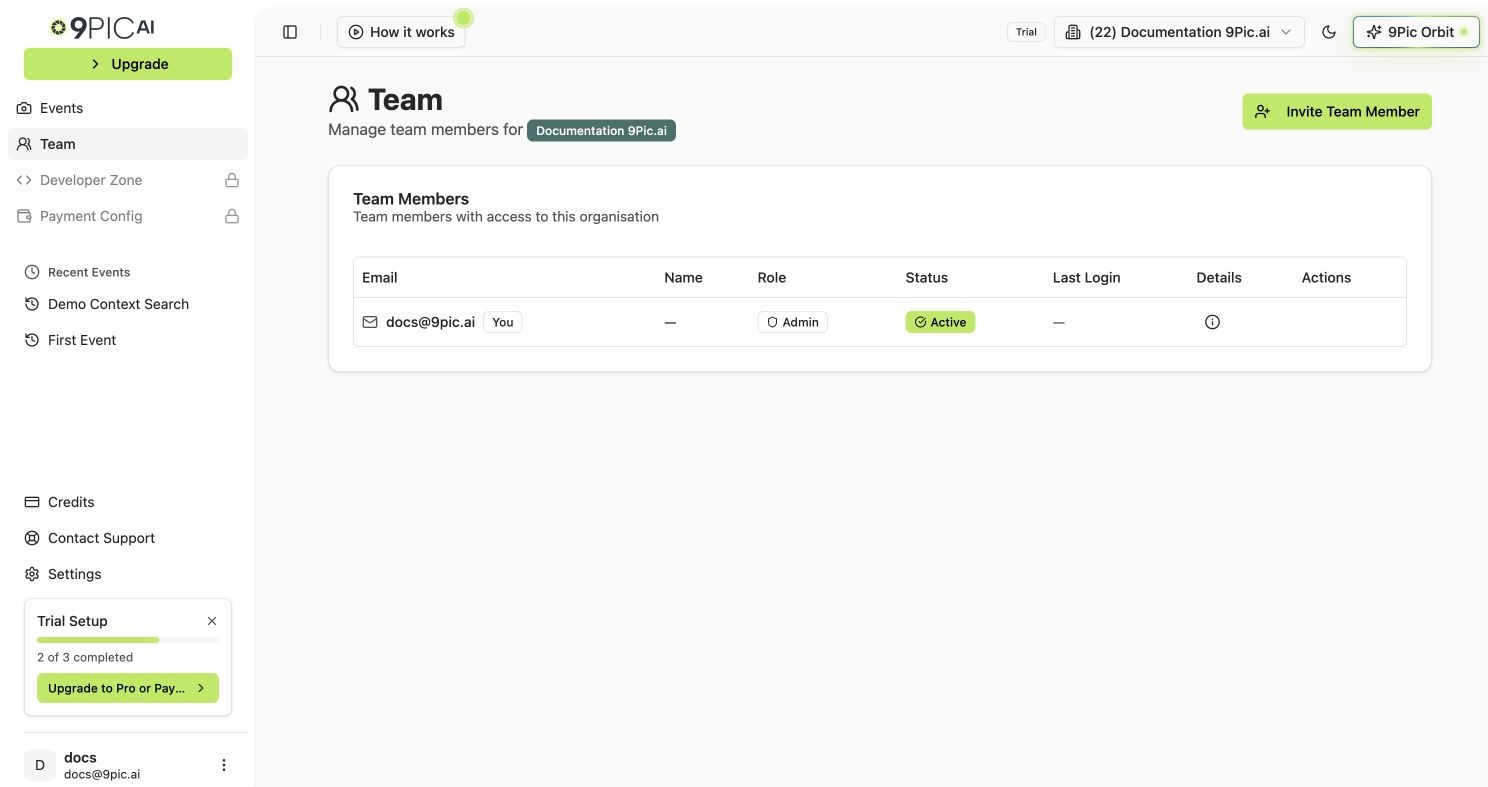
From the dashboard sidebar, click **Team**.
Click **Invite Team Member** in the top right.
 Type the teammate's email and press **Tab** or click outside the field. 9Pic will tell you whether they are new, already have a 9Pic account, or are already in this organisation.
Pick **Admin** if they should also be able to invite others or change settings. Pick **User** if they should only run events.
Click **Send Invitation**. New users get a setup email; existing 9Pic users get an invitation to join your organisation.
From the Team table, use **Copy Link** in the Actions column to send the invite URL directly. **Resend** is also available, up to **3 attempts** per invite.
Anyone you invite to the dashboard can see and run your trial event. Only invite people who should have that level of access.
## What Each Role Sees on the Trial
| Role | Can do during trial |
| --------- | -------------------------------------------------------------------------------------------------- |
| **Admin** | Invite more teammates, create and configure events, run processing, change settings, view credits. |
| **User** | Create and configure events, run processing, view their own profile. Cannot invite others. |
Both roles share the same trial credits — usage adds up across the whole organisation, not per user.
## Common Questions
No. Invites are free. Credits are only consumed when photos are processed.
Yes. There's no admin limit on the trial.
Yes. Each 9Pic user can belong to multiple organisations. Their role in your organisation is independent of any other.
Yes. From the Team table, click the remove button in the Actions column and confirm. They lose access immediately. See the [Team Guide](/dashboard-guide/team) for details.
No. Even a small number of unfamiliar IPs hitting the `trial.9pic.ai` domain triggers anti-abuse blocks. Keep it inside your organisation — once you upgrade, the domain moves to `app.9pic.ai` and you can share freely.
## Next Steps
Decide together which features your team needs to verify.
Have your teammate try selfie and BIB search.
Full reference for invitations, roles, and removals.
Once you've evaluated together, choose the right paid plan.
Type the teammate's email and press **Tab** or click outside the field. 9Pic will tell you whether they are new, already have a 9Pic account, or are already in this organisation.
Pick **Admin** if they should also be able to invite others or change settings. Pick **User** if they should only run events.
Click **Send Invitation**. New users get a setup email; existing 9Pic users get an invitation to join your organisation.
From the Team table, use **Copy Link** in the Actions column to send the invite URL directly. **Resend** is also available, up to **3 attempts** per invite.
Anyone you invite to the dashboard can see and run your trial event. Only invite people who should have that level of access.
## What Each Role Sees on the Trial
| Role | Can do during trial |
| --------- | -------------------------------------------------------------------------------------------------- |
| **Admin** | Invite more teammates, create and configure events, run processing, change settings, view credits. |
| **User** | Create and configure events, run processing, view their own profile. Cannot invite others. |
Both roles share the same trial credits — usage adds up across the whole organisation, not per user.
## Common Questions
No. Invites are free. Credits are only consumed when photos are processed.
Yes. There's no admin limit on the trial.
Yes. Each 9Pic user can belong to multiple organisations. Their role in your organisation is independent of any other.
Yes. From the Team table, click the remove button in the Actions column and confirm. They lose access immediately. See the [Team Guide](/dashboard-guide/team) for details.
No. Even a small number of unfamiliar IPs hitting the `trial.9pic.ai` domain triggers anti-abuse blocks. Keep it inside your organisation — once you upgrade, the domain moves to `app.9pic.ai` and you can share freely.
## Next Steps
Decide together which features your team needs to verify.
Have your teammate try selfie and BIB search.
Full reference for invitations, roles, and removals.
Once you've evaluated together, choose the right paid plan.