> ## Documentation Index
> Fetch the complete documentation index at: https://docs.9pic.ai/llms.txt
> Use this file to discover all available pages before exploring further.
# Team Setup
> Invite admins and operators with the right roles on Pro
## Why This Matters
A single-person 9Pic account is a single point of failure on event day. Pro doesn't fix that automatically — it lets you invite teammates so the right people can run sync, go live, and answer participant emails *while* the event lead is busy elsewhere. The two-minute Team setup is the highest-leverage operational fix you'll do all year.
## Before You Begin
* You're an **Admin** of the Pro organisation. (Only admins see the **Invite Team Member** button.)
* You have **email addresses** for the people you want to invite.
* You've decided what role each person needs (see the role table below).
## Roles
| Role | What they can do |
| --------- | -------------------------------------------------------------------------------------------------------------------------- |
| **Admin** | Invite team members, resend invites, copy invite links, remove members, manage team access — and everything a User can do. |
| **User** | Work in the organisation, view and manage events, run event workflows. **Cannot** manage team access. |
Pick **Admin** for ops leads, photography directors, or anyone you trust to also onboard others. Pick **User** for photographers, marketing, or anyone who only needs day-to-day event access.
At least **two Admins per organisation** is a healthy default. If the lone admin is unreachable on event day, no one can invite a backup operator without contacting support.
## Steps
Click **Team** from the dashboard sidebar (or click **Invite member** from the Setup Guide).
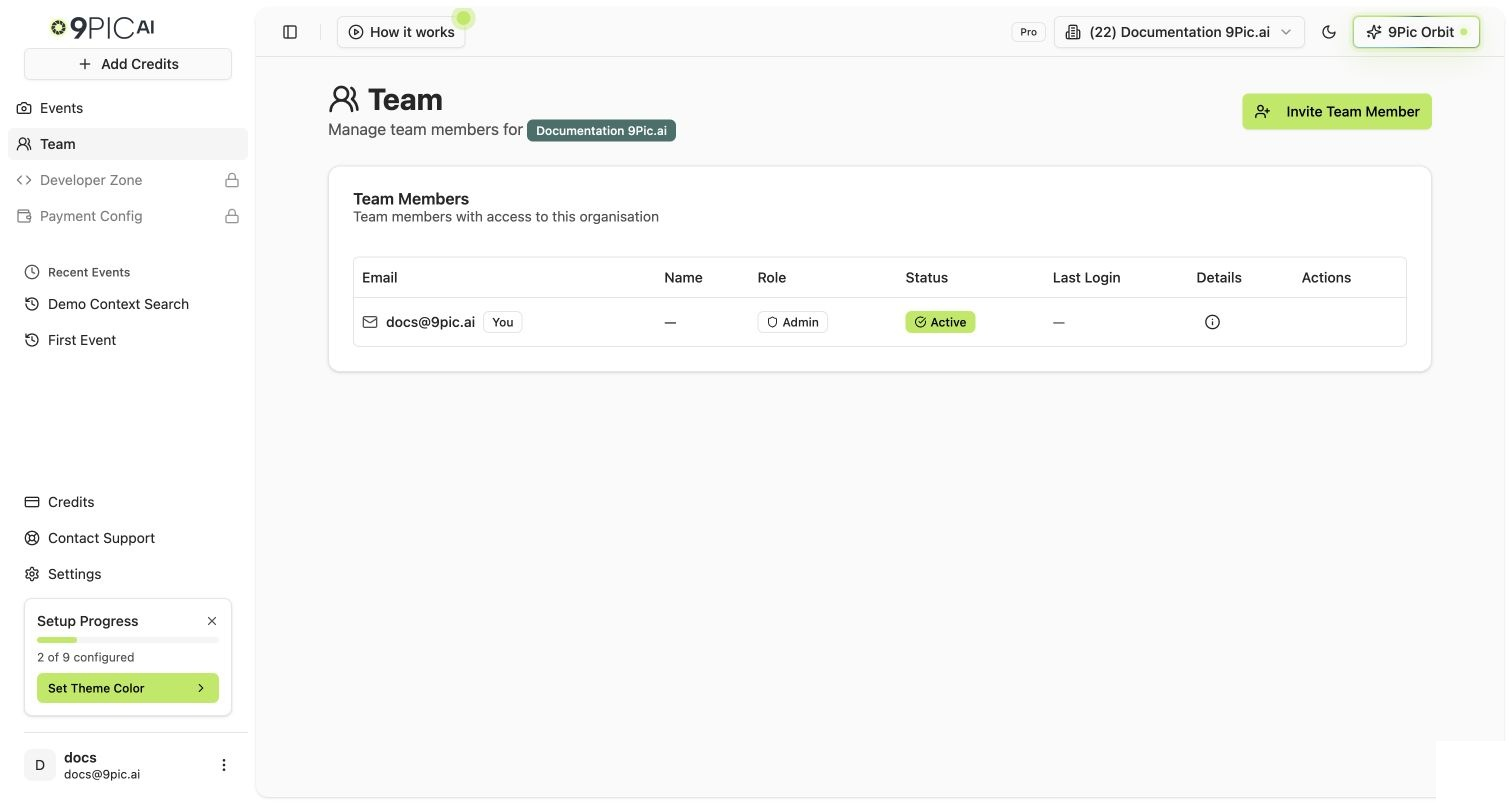 Click **Invite Team Member** in the top right of the Team page.
Type the email address. Press **Tab** or click outside the field — 9Pic checks whether the email already has a 9Pic account.
The dialog tells you what 9Pic found:
* **New user** — they'll create a 9Pic password during invitation acceptance.
* **Existing 9Pic user** — they already have an account; the invite simply links them to your organisation.
* **Already in your organisation** — no action needed.
* **Pending invite** — you've already invited them; resend or copy the link instead.
Pick **User** or **Admin** when the role field appears.
Click **Send Invitation** (or **Send invitation to join my organisation** for existing users).
The teammate gets an email with an invitation link. New users set their name and password before joining.
On the team list, find the pending invite row and click **Copy Link**. Send it via Slack / WhatsApp / SMS / your CRM. Same effect as the email.
## Recommended Team Structure for an Event-Run Organisation
| Role | Who | Responsibilities |
| --------------- | ---------------------------- | -------------------------------------------------------------------- |
| **Admin** (1–2) | Founder / ops director | Renewals, billing, plan changes, team access. |
| **Admin** (1) | Backup ops lead | Can pinch-hit on event day if primary admin is unreachable. |
| **User** | Photographers | Drop photos into Drive/Dropbox, run sync as needed. |
| **User** | Marketing / customer support | Respond to participant emails, monitor analytics, share event links. |
| **User** | Per-event coordinator | Configure each event, run Go Live. |
For larger organisations, the same pattern scales — just keep at least two Admins and put the rest in User roles unless they specifically need to manage team access.
## Common Operational Patterns
### Pattern: Photographer-driven sync
The photography team uploads to a linked Google Drive / Dropbox folder. A **User**-role coordinator runs Sync from the Photos tab. The event lead (Admin) does Go Live.
### Pattern: Marketing-driven launch
Marketing (User role) configures branding, copy, and the participant share link. The event lead (Admin) runs processing and Go Live. Team-access management stays with the founder (Admin).
### Pattern: External photographer invitations
You're inviting a paid third-party photographer for a specific event. Invite them as **User**. Once the event delivery is done, **Remove** them from the Team — see steps below.
## Removing a Team Member
Click **Team**, locate the member's row.
Click the **Remove** action on the member's row.
Read the confirmation dialog carefully. Removed users immediately lose access to your organisation but their personal 9Pic account is unaffected — they can still be re-invited later, including by themselves to a different organisation.
## Common Questions
Only Admins see the invite button and member-management actions. If you're a User in this organisation, ask an Admin to send invites or to upgrade your role.
Yes. A 9Pic user can be a member of multiple organisations with different roles in each. They switch between organisations from the sidebar.
Yes (assuming our system reported success). If the recipient says they didn't get it, click **Resend** on the team row, or use **Copy Link** and send the link directly via your preferred channel.
Not on Pro — the Pro role model is organisation-wide (Admin or User), not per-event. If event-level access control is critical, [talk to us about Enterprise](/pro-guide/talk-to-us).
Their past actions on events stay attributed to them in audit logs and event history. They simply lose access going forward.
## Next Steps
Use the team you just invited to split event-day work.
The team invite is the last Setup Wizard step — finish the wizard.
Field-level reference for the Team page in the Dashboard Guide.
Need per-event roles? See if Enterprise is justified.
Click **Invite Team Member** in the top right of the Team page.
Type the email address. Press **Tab** or click outside the field — 9Pic checks whether the email already has a 9Pic account.
The dialog tells you what 9Pic found:
* **New user** — they'll create a 9Pic password during invitation acceptance.
* **Existing 9Pic user** — they already have an account; the invite simply links them to your organisation.
* **Already in your organisation** — no action needed.
* **Pending invite** — you've already invited them; resend or copy the link instead.
Pick **User** or **Admin** when the role field appears.
Click **Send Invitation** (or **Send invitation to join my organisation** for existing users).
The teammate gets an email with an invitation link. New users set their name and password before joining.
On the team list, find the pending invite row and click **Copy Link**. Send it via Slack / WhatsApp / SMS / your CRM. Same effect as the email.
## Recommended Team Structure for an Event-Run Organisation
| Role | Who | Responsibilities |
| --------------- | ---------------------------- | -------------------------------------------------------------------- |
| **Admin** (1–2) | Founder / ops director | Renewals, billing, plan changes, team access. |
| **Admin** (1) | Backup ops lead | Can pinch-hit on event day if primary admin is unreachable. |
| **User** | Photographers | Drop photos into Drive/Dropbox, run sync as needed. |
| **User** | Marketing / customer support | Respond to participant emails, monitor analytics, share event links. |
| **User** | Per-event coordinator | Configure each event, run Go Live. |
For larger organisations, the same pattern scales — just keep at least two Admins and put the rest in User roles unless they specifically need to manage team access.
## Common Operational Patterns
### Pattern: Photographer-driven sync
The photography team uploads to a linked Google Drive / Dropbox folder. A **User**-role coordinator runs Sync from the Photos tab. The event lead (Admin) does Go Live.
### Pattern: Marketing-driven launch
Marketing (User role) configures branding, copy, and the participant share link. The event lead (Admin) runs processing and Go Live. Team-access management stays with the founder (Admin).
### Pattern: External photographer invitations
You're inviting a paid third-party photographer for a specific event. Invite them as **User**. Once the event delivery is done, **Remove** them from the Team — see steps below.
## Removing a Team Member
Click **Team**, locate the member's row.
Click the **Remove** action on the member's row.
Read the confirmation dialog carefully. Removed users immediately lose access to your organisation but their personal 9Pic account is unaffected — they can still be re-invited later, including by themselves to a different organisation.
## Common Questions
Only Admins see the invite button and member-management actions. If you're a User in this organisation, ask an Admin to send invites or to upgrade your role.
Yes. A 9Pic user can be a member of multiple organisations with different roles in each. They switch between organisations from the sidebar.
Yes (assuming our system reported success). If the recipient says they didn't get it, click **Resend** on the team row, or use **Copy Link** and send the link directly via your preferred channel.
Not on Pro — the Pro role model is organisation-wide (Admin or User), not per-event. If event-level access control is critical, [talk to us about Enterprise](/pro-guide/talk-to-us).
Their past actions on events stay attributed to them in audit logs and event history. They simply lose access going forward.
## Next Steps
Use the team you just invited to split event-day work.
The team invite is the last Setup Wizard step — finish the wizard.
Field-level reference for the Team page in the Dashboard Guide.
Need per-event roles? See if Enterprise is justified.