> ## Documentation Index
> Fetch the complete documentation index at: https://docs.9pic.ai/llms.txt
> Use this file to discover all available pages before exploring further.
# Run the Setup Wizard
> Configure your branded gallery site in one sitting
## Why This Matters
The Setup Wizard is the single highest-leverage thing you can do on day one of your Pro plan. It walks you through every website-customisation step in the right order, with the right Settings tab opened automatically. Skipping the wizard is the most common reason Pro customers feel like they're "missing" features that are actually waiting on a five-minute config.
## Before You Begin
* You're on the **Pro** or **Enterprise** plan. (On Trial or Pay As You Go, the Setup Guide shows *"The setup guide is available for Pro and Enterprise plans"* and is read-only.)
* You've decided on:
* A **brand color** (a hex code, e.g. `#2E6F40`).
* A **logo** (transparent PNG, ≤ 300 KB).
* A **favicon** (32×32 PNG, ≤ 100 KB).
* Your **social media** profile URLs.
* (Optional) A custom domain you want to connect — see [Domain](/pro-guide/domain).
Block out **30–45 minutes** the first time. Repeat the wizard later only if you want to dismiss it once everything is green.
## Steps
From the sidebar, click **Setup Guide**. On Pro, the page header reads **"Finish setting up your website"** with a progress bar showing how many of the website-customisation steps you've completed.
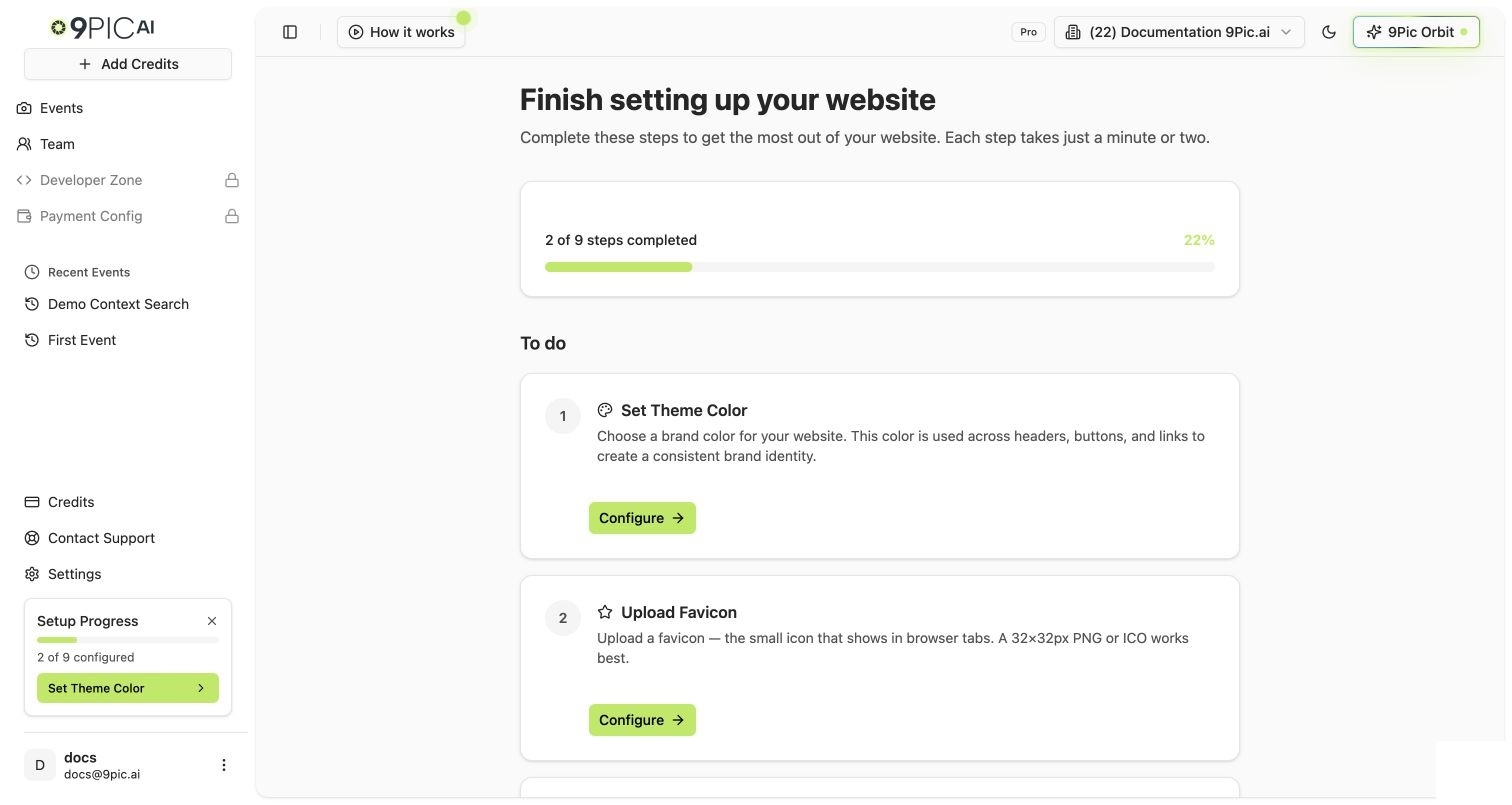 The Setup Guide groups steps into **To do** and **Completed**. Click **Configure** on any pending step — the wizard navigates you to the right Settings tab and pre-selects the matching field.
Recommended order (matches the order the wizard typically lists them in):
1. **Theme color** → Branding & Theme tab.
2. **Logo** → Branding & Theme tab.
3. **Favicon** → Branding & Theme tab.
4. **Header CTA** → Branding & Theme tab. (Optional but high-impact — see [Advanced Settings](/pro-guide/advanced-settings).)
5. **Footer text** → Footer & Social tab.
6. **Social media** → Footer & Social tab.
7. **Contact form** → Contact & About tab.
8. **Google Tag Manager** → Advanced tab. (Optional, has a tradeoff — read the warning below.)
9. **Invite team member** → Team page.
See [Branding & Theme](/pro-guide/branding), [Footer & Contact](/pro-guide/footer-contact), and [Advanced Settings](/pro-guide/advanced-settings) for the field-level reference.
Each Settings tab has its own **Save** button at the bottom of the page. Settings are **not** auto-saved across tabs — if you switch tabs with unsaved changes, the dashboard shows an **"Unsaved changes"** dialog so you don't lose your work.
Open the **Domain & Region** tab from Setup Guide or directly via Settings. You can either:
* Add a `yourname.9pic.ai` platform subdomain (instant).
* Connect a `photos.yourbrand.com` custom domain (requires a CNAME record at your DNS provider; SSL provisioning takes up to **48 hours**).
Full walkthrough: [Custom Domain](/pro-guide/domain) and the deep reference at [Domain & Region](/dashboard-guide/settings/domain).
From the Setup Guide, click **Invite member** on the **Invite team member** step. You'll be taken to the **Team** page where you can invite an admin or operator.
Why this is in the wizard: a single-person account is a single point of failure on event day. See [Team Setup](/pro-guide/team).
Once all steps show **Completed**, the wizard shows an **"All done!"** confirmation. Click **Dismiss setup guide** to hide the progress card from your sidebar. You can still change any setting from the Settings page anytime.
Dismissing is optional. Most Pro customers leave the wizard visible until they're confident they won't add a new social link or footer note in the next week.
## What Each Step Does
| Wizard step | Settings tab opened | What it controls |
| ---------------------- | ------------------- | ----------------------------------------------------------------------------------- |
| **Theme color** | Branding & Theme | Brand color used across buttons, links, and accents on your gallery. |
| **Logo** | Branding & Theme | Logo image shown in the website header. Transparent PNG works best. |
| **Favicon** | Branding & Theme | The small icon that shows in browser tabs. |
| **Header CTA** | Branding & Theme | Optional call-to-action button in the header (registration, donations, "Book Now"). |
| **Footer text** | Footer & Social | Footer copy on every page (copyright, tagline, legal). |
| **Social media** | Footer & Social | Links to your Facebook, Instagram, X, YouTube, etc. |
| **Contact form** | Contact & About | Embedded contact form so participants can reach you directly. |
| **Google Tag Manager** | Advanced | Your own GTM container (advanced — see the warning below). |
| **Invite team member** | Team | Add an admin or operator. |
**Google Tag Manager replaces 9Pic's built-in analytics.** If you turn on a custom GTM container, you stop seeing data in the 9Pic Analytics dashboards and you become responsible for setting up your own Google Analytics property, dashboards, and event tracking. Only enable this if you have the expertise to manage your own analytics. The full warning is shown inline in the wizard. Details: [Advanced Settings](/pro-guide/advanced-settings).
## Common Questions
The Setup Guide is gated to Pro and Enterprise plans. If your current organisation is on Trial or Pay As You Go, the page intentionally shows *"The setup guide is available for Pro and Enterprise plans."* Switch to a Pro organisation from the sidebar (or upgrade) to see the wizard.
The Setup Guide page itself is always available from the sidebar — dismissing only hides the progress *card*, not the page. Click **Setup Guide** in the sidebar to re-open the wizard at any time.
Yes. Wizard steps marked **Optional** can be left unconfigured. The "All done!" state still triggers when all required steps are complete.
Yes. Theme color, logo, favicon, footer, social, contact form, header CTA, and GTM all apply globally to your gallery website. Per-event overrides happen on the event's own settings tabs, not in the global Setup Wizard.
Open **Settings** in the sidebar and pick the tab you want. Edit any field, then click **Save** at the bottom of that tab. Your change goes live on the gallery within seconds.
## Next Steps
Logo, favicon, theme color, header style, and CTA button.
Connect a platform subdomain or your own apex domain.
Footer copy, social links, and embedded contact form.
Google Tag Manager and advanced toggles.
The Setup Guide groups steps into **To do** and **Completed**. Click **Configure** on any pending step — the wizard navigates you to the right Settings tab and pre-selects the matching field.
Recommended order (matches the order the wizard typically lists them in):
1. **Theme color** → Branding & Theme tab.
2. **Logo** → Branding & Theme tab.
3. **Favicon** → Branding & Theme tab.
4. **Header CTA** → Branding & Theme tab. (Optional but high-impact — see [Advanced Settings](/pro-guide/advanced-settings).)
5. **Footer text** → Footer & Social tab.
6. **Social media** → Footer & Social tab.
7. **Contact form** → Contact & About tab.
8. **Google Tag Manager** → Advanced tab. (Optional, has a tradeoff — read the warning below.)
9. **Invite team member** → Team page.
See [Branding & Theme](/pro-guide/branding), [Footer & Contact](/pro-guide/footer-contact), and [Advanced Settings](/pro-guide/advanced-settings) for the field-level reference.
Each Settings tab has its own **Save** button at the bottom of the page. Settings are **not** auto-saved across tabs — if you switch tabs with unsaved changes, the dashboard shows an **"Unsaved changes"** dialog so you don't lose your work.
Open the **Domain & Region** tab from Setup Guide or directly via Settings. You can either:
* Add a `yourname.9pic.ai` platform subdomain (instant).
* Connect a `photos.yourbrand.com` custom domain (requires a CNAME record at your DNS provider; SSL provisioning takes up to **48 hours**).
Full walkthrough: [Custom Domain](/pro-guide/domain) and the deep reference at [Domain & Region](/dashboard-guide/settings/domain).
From the Setup Guide, click **Invite member** on the **Invite team member** step. You'll be taken to the **Team** page where you can invite an admin or operator.
Why this is in the wizard: a single-person account is a single point of failure on event day. See [Team Setup](/pro-guide/team).
Once all steps show **Completed**, the wizard shows an **"All done!"** confirmation. Click **Dismiss setup guide** to hide the progress card from your sidebar. You can still change any setting from the Settings page anytime.
Dismissing is optional. Most Pro customers leave the wizard visible until they're confident they won't add a new social link or footer note in the next week.
## What Each Step Does
| Wizard step | Settings tab opened | What it controls |
| ---------------------- | ------------------- | ----------------------------------------------------------------------------------- |
| **Theme color** | Branding & Theme | Brand color used across buttons, links, and accents on your gallery. |
| **Logo** | Branding & Theme | Logo image shown in the website header. Transparent PNG works best. |
| **Favicon** | Branding & Theme | The small icon that shows in browser tabs. |
| **Header CTA** | Branding & Theme | Optional call-to-action button in the header (registration, donations, "Book Now"). |
| **Footer text** | Footer & Social | Footer copy on every page (copyright, tagline, legal). |
| **Social media** | Footer & Social | Links to your Facebook, Instagram, X, YouTube, etc. |
| **Contact form** | Contact & About | Embedded contact form so participants can reach you directly. |
| **Google Tag Manager** | Advanced | Your own GTM container (advanced — see the warning below). |
| **Invite team member** | Team | Add an admin or operator. |
**Google Tag Manager replaces 9Pic's built-in analytics.** If you turn on a custom GTM container, you stop seeing data in the 9Pic Analytics dashboards and you become responsible for setting up your own Google Analytics property, dashboards, and event tracking. Only enable this if you have the expertise to manage your own analytics. The full warning is shown inline in the wizard. Details: [Advanced Settings](/pro-guide/advanced-settings).
## Common Questions
The Setup Guide is gated to Pro and Enterprise plans. If your current organisation is on Trial or Pay As You Go, the page intentionally shows *"The setup guide is available for Pro and Enterprise plans."* Switch to a Pro organisation from the sidebar (or upgrade) to see the wizard.
The Setup Guide page itself is always available from the sidebar — dismissing only hides the progress *card*, not the page. Click **Setup Guide** in the sidebar to re-open the wizard at any time.
Yes. Wizard steps marked **Optional** can be left unconfigured. The "All done!" state still triggers when all required steps are complete.
Yes. Theme color, logo, favicon, footer, social, contact form, header CTA, and GTM all apply globally to your gallery website. Per-event overrides happen on the event's own settings tabs, not in the global Setup Wizard.
Open **Settings** in the sidebar and pick the tab you want. Edit any field, then click **Save** at the bottom of that tab. Your change goes live on the gallery within seconds.
## Next Steps
Logo, favicon, theme color, header style, and CTA button.
Connect a platform subdomain or your own apex domain.
Footer copy, social links, and embedded contact form.
Google Tag Manager and advanced toggles.