> ## Documentation Index
> Fetch the complete documentation index at: https://docs.9pic.ai/llms.txt
> Use this file to discover all available pages before exploring further.
# Run an Event on Pro
> End-to-end event flow with the full Pro toolkit
## Why This Matters
Pro is when 9Pic earns its keep. An event run on Pro looks different from a trial event in three ways: it's **public on your branded domain**, it can use **every creative tool** you've enabled, and your team is **invited as separate accounts** so setup isn't blocked on one person. This page is the operator's checklist for running a Pro-grade event from creation to share.
## Before You Begin
* You're on **Pro** with branding, domain, and team invites already done. If not, run the [Setup Wizard](/pro-guide/setup-wizard) first.
* You have:
* At least **1,000 credits** in your account (top up at **Credits → Purchase Credits**).
* Photos ready in **9Pic Storage** (uploaded via 9Pic Uplink), **Google Drive**, or **Dropbox**.
* A clear answer to: *Will participants find their photos via selfie (FaceFind) or BIB number (BibTrack)?*
Plan for **30–60 minutes** end-to-end the first time you do a real event on Pro. Repeat events are noticeably faster — you're configuring less, just adding sources and clicking process.
## Steps
From the dashboard sidebar, click **Events** → **Create New Event**.
Fill in:
* **Event Name** — public-facing, so use the real event title.
* **Event Date** — the actual event date.
* **Event Type** — pick the closest match. **Running events** unlock BIB-related options.
* **Platform Visibility** — on Pro you can set this to **Public** (events listed on the public 9Pic listing) or **Private** (link-only). Trial accounts are forced to Private; Pro accounts are not.
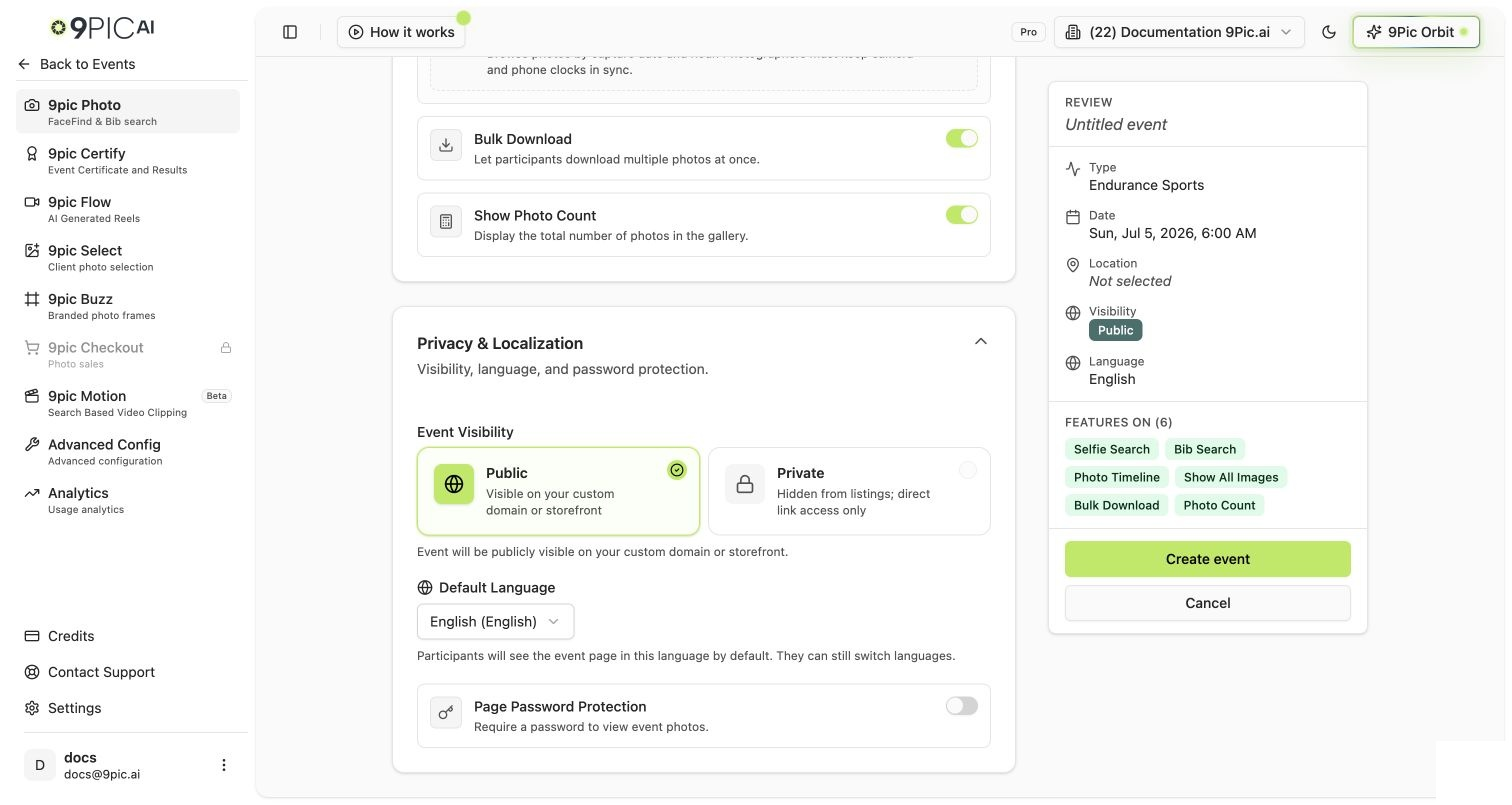 On the **Photo Memories** card:
* **Selfie Search** → **on** if you want **9Pic FaceFind** (recommended for any event with attendee photos).
* **BIB Search** → **on** if you have race numbers, jersey numbers, or any printed identifier.
* **Show All Images** → on if participants should browse the full gallery.
* **Bulk Download** → on if you want a "Download all my photos" button.
* **Store Original Memories** → on **only if** you specifically need original-resolution archives. Originals consume more credits.
Click **Create Event**.
From the Events list, click **Details** on your new event. The event workspace has a left sidebar with the products available on Pro: **Photos**, **Certify**, **Flow**, **Select**, **Buzz**, **Motion**, **Advanced**, and **Analytics**. Products you haven't asked us to enable will be hidden — see [What's Unlocked](/pro-guide/whats-unlocked).
On **Photos → Configuration → Image Sources**, click **Manage Sources**.
* Keep **9Pic Storage** if you want to upload via [9Pic Uplink](/dashboard-guide/photos/overview).
* Add **Google Drive** or **Dropbox** folders if your photos already live there. Paste the folder share link and grant 9Pic read access when prompted.
Repeat **Add Source** for each input you have.
Photographers can keep dropping photos into the same Google Drive / Dropbox folder during the event. Sync picks up new files on each run, so you can publish in waves rather than waiting for everything to be ready.
On the **Photos → Processing** tab, click **Sync Images** to pull from your sources, then run the processing pipeline. Each processed photo consumes **1 credit**. Re-running Sync on the same photo doesn't double-charge — only new photos count.
Watch credit usage on the event overview. If you're running close to your balance, top up before you start a large sync — see [Credits & Top-ups](/pro-guide/credits).
On **Photos → Branding**, set the per-event hero image, banner, and any event-specific copy. Your global branding (logo, theme color, header CTA) from [Branding & Theme](/pro-guide/branding) already applies — this tab adds event-specific decoration on top.
For the broader configuration tab tour, see the dashboard guide: [Photos overview](/dashboard-guide/photos/overview).
Pick the products that match your event:
* Want certificates of completion? → [Buzz, Certify, Select](/pro-guide/buzz-certify-select).
* Want short AI-generated highlight reels? → [Motion & Flow](/pro-guide/motion-flow).
* Want client-proofing albums for a paid photographer? → [Buzz, Certify, Select](/pro-guide/buzz-certify-select).
* Just photos and AI search? → Skip these tabs and ship.
On the event overview, click **Go Live** when you're ready to publish. Use **Open Link** in the event header to preview the participant view; use **Copy Link** to share.
Your event link uses your custom domain (`photos.yourbrand.com/events/...`) if you've configured one — see [Custom Domain](/pro-guide/domain).
Share the event link via email, social, registration confirmations, or a QR code on event-day signage. On **Analytics**, you'll see views, search queries, and download volumes in real time.
## Recommended Defaults for a Pro Event
| Setting | Recommended for first Pro event | Why |
| ------------------------ | ----------------------------------------------------- | ------------------------------------------------------------ |
| Platform Visibility | **Public** | One of the headline reasons to leave the trial. |
| Selfie Search (FaceFind) | **On** | Default for any event with people's faces. |
| BIB Search (BibTrack) | **On** for runs / triathlons / cycling; off otherwise | Saves processing time on non-numbered events. |
| Show All Images | On | Most participants want to browse, not just search. |
| Bulk Download | On | Improves participant experience dramatically. |
| Store Original Memories | **Off** | Only flip on for archival jobs — costs more credits. |
| Branding (per event) | Use the global theme by default | Per-event branding is for special launches, not every event. |
## Common Questions
No. Pro just *lets* you make events Public. Plenty of Pro events stay Private (link-only) — for example, internal corporate events or family weddings. The choice is on a per-event basis.
They're enabled by request on Pro. Email [support@9pic.ai](mailto:support@9pic.ai) and tell us which products you want turned on for your organisation. This is a one-time switch, not a per-event one.
Invite teammates as **Admins** or **Operators** from the [Team](/pro-guide/team) page. Photographers can drop photos into the linked Google Drive / Dropbox folder while the event lead runs Sync and Go Live. See [Team Setup](/pro-guide/team).
Yes. There's no per-organisation event limit on Pro. Each event is its own workspace with its own sources, processing run, and analytics.
Processing pauses on the affected event and the overview tab shows a credits-blocking notice. Top up at **Credits → Purchase Credits** (1,000-credit minimum) and resume processing. Credits already-processed photos are unaffected. Full reference: [Credits & Top-ups](/pro-guide/credits).
## Next Steps
Tune AI search for production-scale events.
Add short videos and AI reels to your gallery.
Frames, certificates, and client proofing.
Full Dashboard Guide reference for the Photos product.
On the **Photo Memories** card:
* **Selfie Search** → **on** if you want **9Pic FaceFind** (recommended for any event with attendee photos).
* **BIB Search** → **on** if you have race numbers, jersey numbers, or any printed identifier.
* **Show All Images** → on if participants should browse the full gallery.
* **Bulk Download** → on if you want a "Download all my photos" button.
* **Store Original Memories** → on **only if** you specifically need original-resolution archives. Originals consume more credits.
Click **Create Event**.
From the Events list, click **Details** on your new event. The event workspace has a left sidebar with the products available on Pro: **Photos**, **Certify**, **Flow**, **Select**, **Buzz**, **Motion**, **Advanced**, and **Analytics**. Products you haven't asked us to enable will be hidden — see [What's Unlocked](/pro-guide/whats-unlocked).
On **Photos → Configuration → Image Sources**, click **Manage Sources**.
* Keep **9Pic Storage** if you want to upload via [9Pic Uplink](/dashboard-guide/photos/overview).
* Add **Google Drive** or **Dropbox** folders if your photos already live there. Paste the folder share link and grant 9Pic read access when prompted.
Repeat **Add Source** for each input you have.
Photographers can keep dropping photos into the same Google Drive / Dropbox folder during the event. Sync picks up new files on each run, so you can publish in waves rather than waiting for everything to be ready.
On the **Photos → Processing** tab, click **Sync Images** to pull from your sources, then run the processing pipeline. Each processed photo consumes **1 credit**. Re-running Sync on the same photo doesn't double-charge — only new photos count.
Watch credit usage on the event overview. If you're running close to your balance, top up before you start a large sync — see [Credits & Top-ups](/pro-guide/credits).
On **Photos → Branding**, set the per-event hero image, banner, and any event-specific copy. Your global branding (logo, theme color, header CTA) from [Branding & Theme](/pro-guide/branding) already applies — this tab adds event-specific decoration on top.
For the broader configuration tab tour, see the dashboard guide: [Photos overview](/dashboard-guide/photos/overview).
Pick the products that match your event:
* Want certificates of completion? → [Buzz, Certify, Select](/pro-guide/buzz-certify-select).
* Want short AI-generated highlight reels? → [Motion & Flow](/pro-guide/motion-flow).
* Want client-proofing albums for a paid photographer? → [Buzz, Certify, Select](/pro-guide/buzz-certify-select).
* Just photos and AI search? → Skip these tabs and ship.
On the event overview, click **Go Live** when you're ready to publish. Use **Open Link** in the event header to preview the participant view; use **Copy Link** to share.
Your event link uses your custom domain (`photos.yourbrand.com/events/...`) if you've configured one — see [Custom Domain](/pro-guide/domain).
Share the event link via email, social, registration confirmations, or a QR code on event-day signage. On **Analytics**, you'll see views, search queries, and download volumes in real time.
## Recommended Defaults for a Pro Event
| Setting | Recommended for first Pro event | Why |
| ------------------------ | ----------------------------------------------------- | ------------------------------------------------------------ |
| Platform Visibility | **Public** | One of the headline reasons to leave the trial. |
| Selfie Search (FaceFind) | **On** | Default for any event with people's faces. |
| BIB Search (BibTrack) | **On** for runs / triathlons / cycling; off otherwise | Saves processing time on non-numbered events. |
| Show All Images | On | Most participants want to browse, not just search. |
| Bulk Download | On | Improves participant experience dramatically. |
| Store Original Memories | **Off** | Only flip on for archival jobs — costs more credits. |
| Branding (per event) | Use the global theme by default | Per-event branding is for special launches, not every event. |
## Common Questions
No. Pro just *lets* you make events Public. Plenty of Pro events stay Private (link-only) — for example, internal corporate events or family weddings. The choice is on a per-event basis.
They're enabled by request on Pro. Email [support@9pic.ai](mailto:support@9pic.ai) and tell us which products you want turned on for your organisation. This is a one-time switch, not a per-event one.
Invite teammates as **Admins** or **Operators** from the [Team](/pro-guide/team) page. Photographers can drop photos into the linked Google Drive / Dropbox folder while the event lead runs Sync and Go Live. See [Team Setup](/pro-guide/team).
Yes. There's no per-organisation event limit on Pro. Each event is its own workspace with its own sources, processing run, and analytics.
Processing pauses on the affected event and the overview tab shows a credits-blocking notice. Top up at **Credits → Purchase Credits** (1,000-credit minimum) and resume processing. Credits already-processed photos are unaffected. Full reference: [Credits & Top-ups](/pro-guide/credits).
## Next Steps
Tune AI search for production-scale events.
Add short videos and AI reels to your gallery.
Frames, certificates, and client proofing.
Full Dashboard Guide reference for the Photos product.