> ## Documentation Index
> Fetch the complete documentation index at: https://docs.9pic.ai/llms.txt
> Use this file to discover all available pages before exploring further.
# FaceFind & BibTrack
> Run AI photo search at production scale on Pro
## Why This Matters
FaceFind and BibTrack are the two AI capabilities that make 9Pic galleries usable at scale. Participants don't browse 5,000 race photos linearly — they upload a selfie or punch in a BIB number and get just *their* photos in seconds. On Pro you get production-grade accuracy on both, so the operator's job is mostly about **turning them on at event creation** and knowing how to debug when something looks wrong.
## Before You Begin
* You're on **Pro** and have at least one event created.
* For **FaceFind**: every photo needs a recognisable face crop. Wide-angle crowd shots still work, but the closer the face, the better the match score.
* For **BibTrack**: every BIB number needs to be readable in the photo. If your event uses non-standard BIBs (very small, on the back only, partial obstruction), test with 50 sample photos before processing the full set.
## How They're Configured
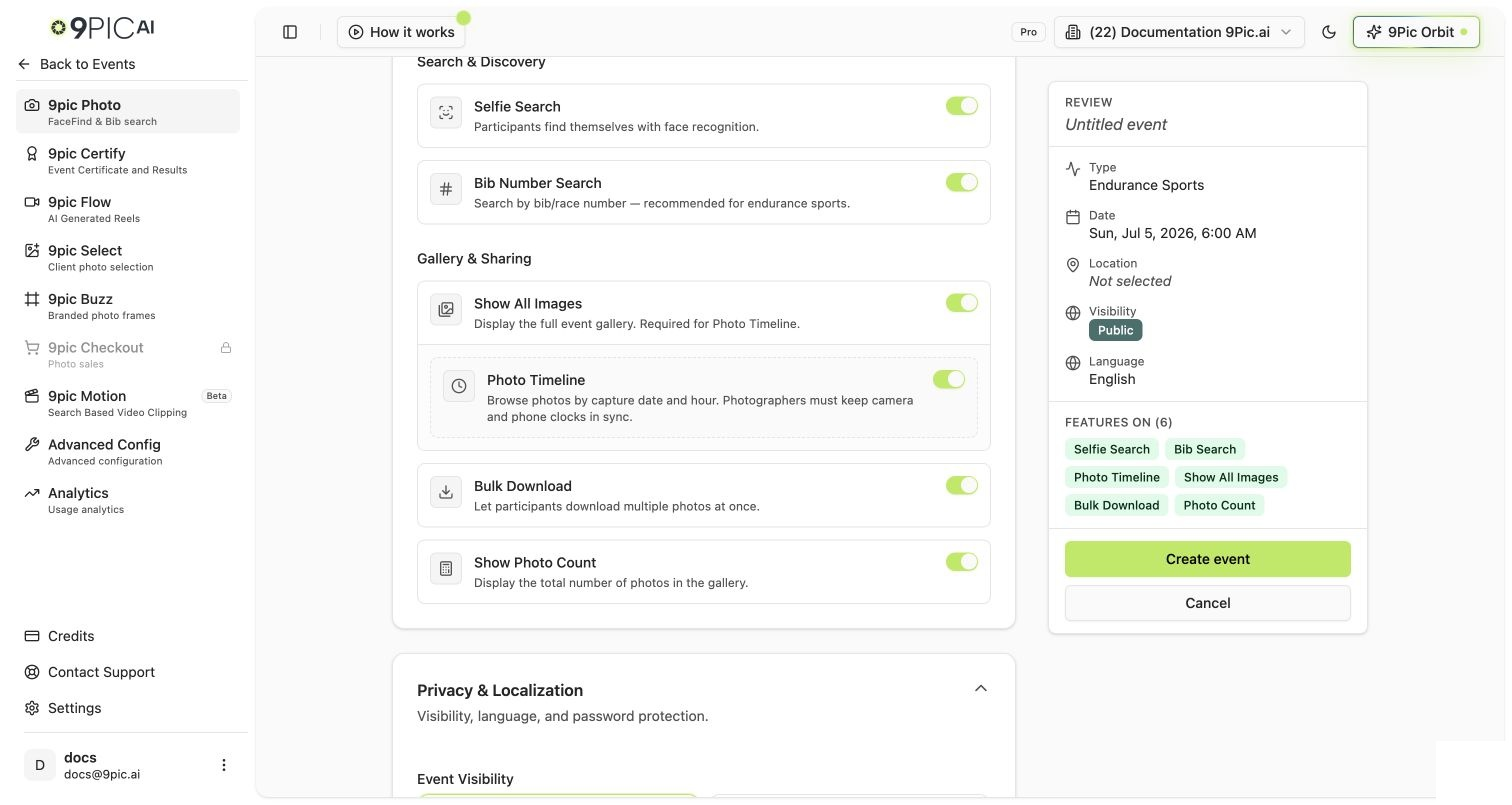
Both features are **per-event toggles**, set when you create the event (and editable later from the event's Configuration tab):
| Toggle | Where | What it does |
| ----------------- | ------------------------------------------------------------ | ----------------------------------------------------------------------------- |
| **Selfie Search** | Create New Event → Photo Memories card | Turns on **FaceFind**. Each processed photo runs face detection and indexing. |
| **BIB Search** | Create New Event → Photo Memories card (Running event types) | Turns on **BibTrack**. Each processed photo runs BIB OCR. |
You can flip both on, both off, or just one — and you can change your mind later from the Configuration tab. Toggling a feature on after some photos are already processed will queue those photos for re-processing.
For the underlying pipeline reference, see [AI Analysis](/dashboard-guide/photos/ai-analysis).
## Recommended Settings by Event Type
| Event type | FaceFind | BibTrack | Notes |
| -------------------------------- | :------: | :------: | ------------------------------------------------------------------------------------------ |
| Marathon / half marathon / 10K | On | On | Default. Selfie + BIB covers virtually every participant. |
| Triathlon / cycling event | On | On | BIBs may be on the front of the bike — confirm photographer angles cover that. |
| Trail run / ultra | On | Optional | BIB visibility is hit-or-miss in trail conditions; selfie search alone often works better. |
| Wedding / private event | On | Off | No BIBs at weddings (we hope). |
| School sports day / college fest | On | Optional | Toggle BIB on if you have visible jersey numbers. |
| Corporate event / conference | On | Off | Selfie search only — IDs and lanyards rarely have a clear printable identifier. |
| Photo booth / product launch | On | Off | Selfie search nails this. |
## Steps to Tune for an Event
On **Create New Event → Photo Memories**, flip on the searches you need. You can change these later — they're not one-way switches.
 Add **30–50 sample photos** to the event's image source and click **Sync Images**. Once processing finishes, search by:
* A teammate's selfie (FaceFind).
* A known BIB number from one of the test photos (BibTrack).
If both return the right photos, scale up to the full set.
Add the remaining photos to the source folder and click **Sync Images** again. Only the new photos consume credits — already-processed photos are skipped automatically.
For events over 10,000 photos, sync in waves of \~2,000–3,000 so you can spot-check results between batches. If something looks off in batch 1, you can fix it before paying for batch 2.
Open the public event page (use **Open Link** from the event header) and run a search as a participant would:
* Upload a selfie → confirm a clean set of matching photos comes back.
* Type a BIB number → confirm the right photos surface.
If results are off, see the troubleshooting section below.
## When Search Results Look Wrong
| Symptom | Likely cause | What to do |
| --------------------------------------------------------------------- | -------------------------------------------- | -------------------------------------------------------------------------------------------------------------------------------------------------------------------------------- |
| Selfie search returns "no results" for someone clearly in the gallery | Face too small / blurry / partially obscured | Ask participant to use a clearer selfie; the photographer's angle may simply not include a clean face crop. |
| Selfie search returns matches with the wrong face | Lighting / angle confused the model | Try a different selfie. False positives are rare on Pro but happen at scale. |
| BIB search returns the wrong BIB | OCR misread digits (`1` vs `7`, `0` vs `8`) | Confirm the printed BIB is readable in the source photo. Bib font and print quality matter more than you'd think. |
| BIB search misses a participant's BIB | Number too small in frame, or hidden | This is usually a photography-side fix — ask photographers to capture identifiable BIB shots. |
| Search is empty for a whole batch | Processing didn't actually run | Check the **Processing** tab on the event. If credits ran out or sync failed, status is shown there. See [Troubleshooting](/dashboard-guide/troubleshooting/search-not-working). |
For full search-debugging walkthroughs, the dashboard guide has dedicated pages: [Search not working](/dashboard-guide/troubleshooting/search-not-working).
## Production-Scale Tips
* **Standardise photographer briefs.** Photographers who shoot for 9Pic galleries get noticeably better results when they're told: "wide enough to capture the BIB or face clearly, but not so wide the face is \< 100 px."
* **Batch your processing per source.** If you have three photographers dropping into three different folders, process each source separately so you can spot-check per-source quality.
* **Never re-process for "fun."** Re-processing already-processed photos doesn't consume new credits, but it does add load. Only re-process when you're toggling FaceFind or BibTrack on for an event that previously didn't have it.
* **Watch credit consumption mid-event.** If you're at 80% of your credit balance, top up *before* the next sync. Processing pauses partway through is the most common operator pain point. See [Credits & Top-ups](/pro-guide/credits).
## Common Questions
Yes. The model and the indexing pipeline are identical across all paid plans. Pro and Enterprise differ on platform features (Checkout, custom gateways, SLAs), not on AI quality.
No. **1 processed photo = 1 credit**, regardless of how many AI indexes are applied. Toggling both searches on does not double-charge.
Yes. The dashboard will queue the existing photos for BIB indexing on the next Sync. No extra credits are charged for re-indexing photos already processed for the photo pipeline.
Yes — they're independent search modes. The participant gallery shows both options when both are enabled on the event.
Selfies uploaded for search are used only to compute a temporary face embedding for the search query and are not retained as gallery photos. For specifics, see the [API Reference: Face Search](/api-reference/face-search).
## Next Steps
Layer short videos and AI reels on top of FaceFind / BibTrack.
Deep reference for the AI indexing pipeline.
Specific debugging steps when search misbehaves.
Stack creative tools on top of search.
Add **30–50 sample photos** to the event's image source and click **Sync Images**. Once processing finishes, search by:
* A teammate's selfie (FaceFind).
* A known BIB number from one of the test photos (BibTrack).
If both return the right photos, scale up to the full set.
Add the remaining photos to the source folder and click **Sync Images** again. Only the new photos consume credits — already-processed photos are skipped automatically.
For events over 10,000 photos, sync in waves of \~2,000–3,000 so you can spot-check results between batches. If something looks off in batch 1, you can fix it before paying for batch 2.
Open the public event page (use **Open Link** from the event header) and run a search as a participant would:
* Upload a selfie → confirm a clean set of matching photos comes back.
* Type a BIB number → confirm the right photos surface.
If results are off, see the troubleshooting section below.
## When Search Results Look Wrong
| Symptom | Likely cause | What to do |
| --------------------------------------------------------------------- | -------------------------------------------- | -------------------------------------------------------------------------------------------------------------------------------------------------------------------------------- |
| Selfie search returns "no results" for someone clearly in the gallery | Face too small / blurry / partially obscured | Ask participant to use a clearer selfie; the photographer's angle may simply not include a clean face crop. |
| Selfie search returns matches with the wrong face | Lighting / angle confused the model | Try a different selfie. False positives are rare on Pro but happen at scale. |
| BIB search returns the wrong BIB | OCR misread digits (`1` vs `7`, `0` vs `8`) | Confirm the printed BIB is readable in the source photo. Bib font and print quality matter more than you'd think. |
| BIB search misses a participant's BIB | Number too small in frame, or hidden | This is usually a photography-side fix — ask photographers to capture identifiable BIB shots. |
| Search is empty for a whole batch | Processing didn't actually run | Check the **Processing** tab on the event. If credits ran out or sync failed, status is shown there. See [Troubleshooting](/dashboard-guide/troubleshooting/search-not-working). |
For full search-debugging walkthroughs, the dashboard guide has dedicated pages: [Search not working](/dashboard-guide/troubleshooting/search-not-working).
## Production-Scale Tips
* **Standardise photographer briefs.** Photographers who shoot for 9Pic galleries get noticeably better results when they're told: "wide enough to capture the BIB or face clearly, but not so wide the face is \< 100 px."
* **Batch your processing per source.** If you have three photographers dropping into three different folders, process each source separately so you can spot-check per-source quality.
* **Never re-process for "fun."** Re-processing already-processed photos doesn't consume new credits, but it does add load. Only re-process when you're toggling FaceFind or BibTrack on for an event that previously didn't have it.
* **Watch credit consumption mid-event.** If you're at 80% of your credit balance, top up *before* the next sync. Processing pauses partway through is the most common operator pain point. See [Credits & Top-ups](/pro-guide/credits).
## Common Questions
Yes. The model and the indexing pipeline are identical across all paid plans. Pro and Enterprise differ on platform features (Checkout, custom gateways, SLAs), not on AI quality.
No. **1 processed photo = 1 credit**, regardless of how many AI indexes are applied. Toggling both searches on does not double-charge.
Yes. The dashboard will queue the existing photos for BIB indexing on the next Sync. No extra credits are charged for re-indexing photos already processed for the photo pipeline.
Yes — they're independent search modes. The participant gallery shows both options when both are enabled on the event.
Selfies uploaded for search are used only to compute a temporary face embedding for the search query and are not retained as gallery photos. For specifics, see the [API Reference: Face Search](/api-reference/face-search).
## Next Steps
Layer short videos and AI reels on top of FaceFind / BibTrack.
Deep reference for the AI indexing pipeline.
Specific debugging steps when search misbehaves.
Stack creative tools on top of search.