> ## Documentation Index
> Fetch the complete documentation index at: https://docs.9pic.ai/llms.txt
> Use this file to discover all available pages before exploring further.
# Credits & Top-ups
> How Pro credits work and when to add more before you need them
## Why This Matters
Pro is **not** a flat all-you-can-eat plan. Your \$200/year subscription unlocks the Pro feature set, but **photo processing is billed per credit** at \$0.02/credit. Knowing how to budget credits — and how to top up *before* you run out, not during a sync — is the single most important operator skill on Pro.
## How Credits Work on Pro
| Concept | Pro behaviour |
| ----------------------------- | ------------------------------------------------------------------------------------------ |
| **Pro subscription price** | \$200 USD / ₹10,000 INR per year (verify current price in **Credits → Purchase Credits**). |
| **Included credits with Pro** | **0 by default**. Pro is subscription-only — credits are purchased separately. |
| **Cost per credit** | \$0.02 USD / ₹1.5 INR per processed photo. |
| **Minimum credit purchase** | **1,000 credits** per top-up. |
| **What 1 credit pays for** | 1 processed photo (upload, AI search indexing, watermark applied via 9Pic Stamp). |
| **Re-syncing the same photo** | Free. Only **new** photos consume credits. |
| **Originals** | Optional **Store Original Memories** consumes more credits. Off by default. |
| **GST (INR only)** | All INR credit purchases add **18% GST**. Non-INR purchases have zero GST. |
Pricing and the **included credits** policy are the source-of-truth in [`backend/payments/CREDIT_PURCHASE.md`](https://github.com/). If you see a contradiction anywhere, that document wins. Existing organisers whose `pro.included_credits` was explicitly set to non-zero in the past keep their stored value — only the **default** changed to 0.
## What Pro Customers See on Purchase Credits
Because you're already a Pro subscriber, the **Purchase Credits** page only shows two purchase options:
| Option | When to use it |
| ------------------ | ---------------------------------------------------------------------------------------------------------------------------------------------------- |
| **Add Credits** | Routine top-ups during the year. Minimum 1,000 credits per purchase. |
| **Custom Payment** | Recording a payment that does **not** add credits (e.g. a one-off service fee, a custom invoice). Asks for an amount and a remark, no credits added. |
The **Pro Subscription** option that trial users see is intentionally hidden once you're on Pro — the dashboard returns 400 if you try to buy Pro again. Renewal happens at expiry; see [Renewal](/pro-guide/renewal).
## Steps to Top Up Credits
Click **Credits** in the sidebar. The Credits dashboard shows your current balance and recent transactions.
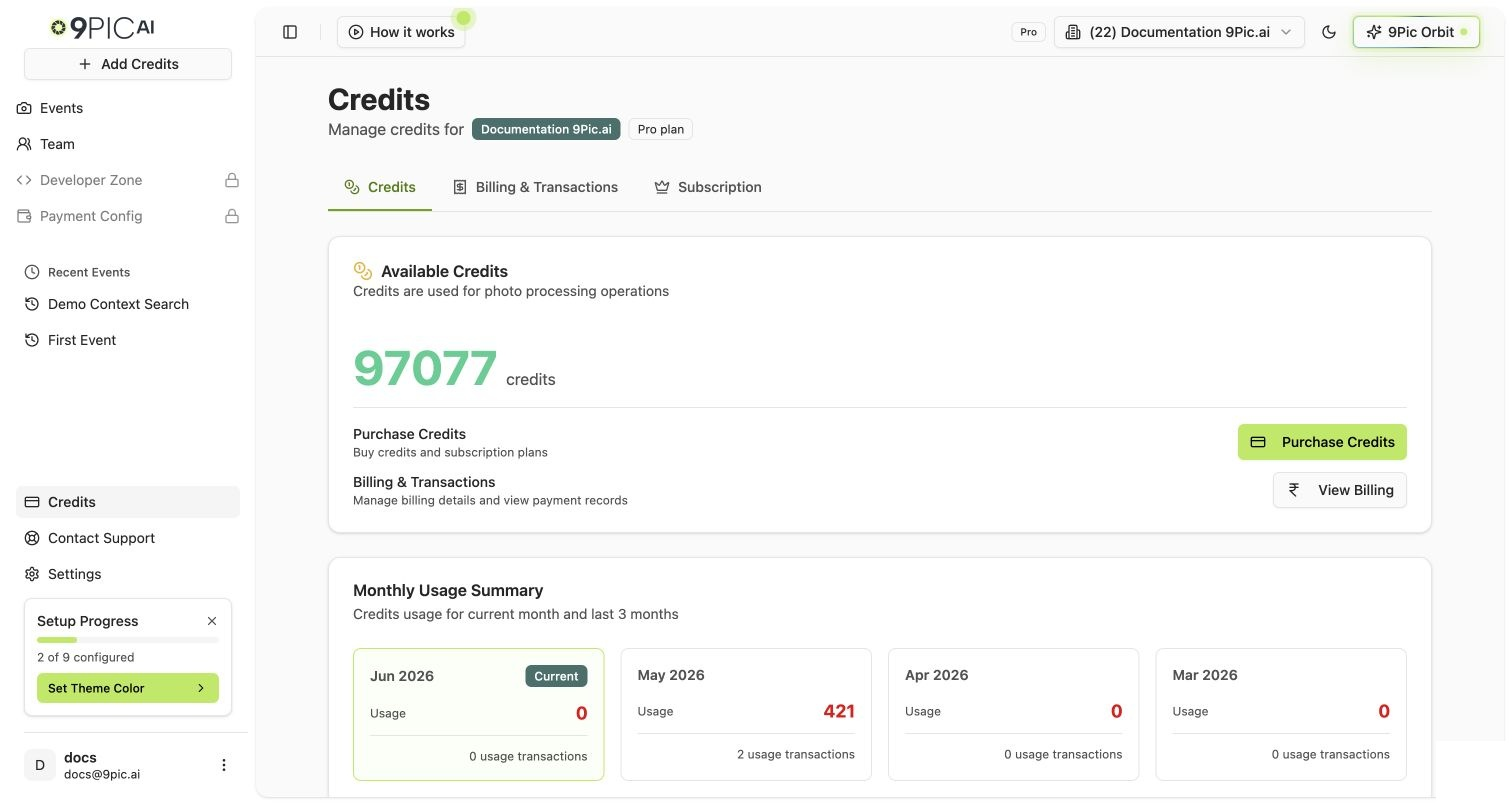 Click **Purchase Credits** (or **Add Credits** if you're already on the purchase wizard).
On the **Plan** step, select **Add Credits**. (The Pro Subscription card is hidden because you're already subscribed.) Click **Next**.
Minimum **1,000 credits**. The dashboard updates the order summary live as you change the number.
If you're running a 5,000-photo event and your balance is at 1,200, top up **before** starting Sync. Processing pauses partway through is preventable.
The Order Summary step shows credits, cost per credit, and (if INR) an 18% GST line with the GSTIN and business name. Confirm the totals.
Tick the **Refund Policy** acknowledgement, then click **Pay with Razorpay** (INR) or **Pay with PayGlocal** (other currencies). Complete the gateway flow.
On success, your balance updates immediately. On a stuck/uncertain status, the dashboard sends you to **Transactions** with a **Recheck** button — see [Transactions](/pro-guide/transactions).
## When to Top Up
| Situation | Recommended action |
| ----------------------------------------------------- | -------------------------------------------------------------------------------------------------------------------------------- |
| Balance ≥ 2× your next event's expected photo count | Don't bother. |
| Balance = 1.5× your next event's expected photo count | Top up to \~3× before starting Sync. |
| Balance \< your next event's expected photo count | **Top up now.** Don't start Sync. |
| Credits ran out mid-event | Top up at **Credits → Purchase Credits**, then resume processing on the affected event. Already-processed photos are unaffected. |
## Custom Payment (No Credits Added)
The **Custom Payment** option records a payment **without adding credits**. It exists for cases where you owe us a one-off amount that isn't a credit top-up — e.g. a service fee, an out-of-policy item, a manual reconciliation.
| Field | Required | Notes |
| -------------- | -------- | ------------------------------------------------------------------ |
| Amount | Yes | In your account currency. |
| Remark | Yes | Free-text reason for the payment. Stored for audit. Max 500 chars. |
| GST (INR only) | Auto | 18% added on top, with GSTIN line on the invoice. |
**Custom Payment does not add credits.** If you accidentally pick Custom Payment when you meant Add Credits, your account balance will not change. Use Custom Payment only for explicit payment-record-only flows.
## Common Questions
Once your account is `plan_type = pro`, the Pro Subscription option is intentionally hidden — the backend rejects re-purchasing Pro while a Pro plan is active. To renew, see [Renewal](/pro-guide/renewal).
No. Pro renewal is **manual** — you re-purchase Pro after your existing subscription expires. The dashboard surfaces "Expires in N days" warnings on **Credits → Subscription Details** when expiry is within 30 days. See [Renewal](/pro-guide/renewal).
Credits are not tied to the subscription cycle — your `available_credits` balance carries through renewal. They don't expire when your Pro term ends.
Refund eligibility is governed by 9Pic's [Refund Policy](https://9pic.ai/refund-policy/), which you accept at every purchase. For specific situations, email [support@9pic.ai](mailto:support@9pic.ai) — we'll help case by case.
Per-purchase processing overhead (gateway fees, GST handling, accounting) makes very small purchases unproductive. 1,000 credits (\$20) is the minimum the dashboard accepts; lower is rejected by the API.
Open **Credits → Transactions** and click **Recheck** on the pending row. The dashboard re-queries the gateway and finalises or marks failed accordingly. See [Transactions](/pro-guide/transactions).
## Next Steps
What happens at the 365-day mark and how to renew on time.
Find invoices, recheck pending payments, audit billing.
Full Dashboard Guide reference for the Credits dashboard.
Pro vs Enterprise — when does the math change?
Click **Purchase Credits** (or **Add Credits** if you're already on the purchase wizard).
On the **Plan** step, select **Add Credits**. (The Pro Subscription card is hidden because you're already subscribed.) Click **Next**.
Minimum **1,000 credits**. The dashboard updates the order summary live as you change the number.
If you're running a 5,000-photo event and your balance is at 1,200, top up **before** starting Sync. Processing pauses partway through is preventable.
The Order Summary step shows credits, cost per credit, and (if INR) an 18% GST line with the GSTIN and business name. Confirm the totals.
Tick the **Refund Policy** acknowledgement, then click **Pay with Razorpay** (INR) or **Pay with PayGlocal** (other currencies). Complete the gateway flow.
On success, your balance updates immediately. On a stuck/uncertain status, the dashboard sends you to **Transactions** with a **Recheck** button — see [Transactions](/pro-guide/transactions).
## When to Top Up
| Situation | Recommended action |
| ----------------------------------------------------- | -------------------------------------------------------------------------------------------------------------------------------- |
| Balance ≥ 2× your next event's expected photo count | Don't bother. |
| Balance = 1.5× your next event's expected photo count | Top up to \~3× before starting Sync. |
| Balance \< your next event's expected photo count | **Top up now.** Don't start Sync. |
| Credits ran out mid-event | Top up at **Credits → Purchase Credits**, then resume processing on the affected event. Already-processed photos are unaffected. |
## Custom Payment (No Credits Added)
The **Custom Payment** option records a payment **without adding credits**. It exists for cases where you owe us a one-off amount that isn't a credit top-up — e.g. a service fee, an out-of-policy item, a manual reconciliation.
| Field | Required | Notes |
| -------------- | -------- | ------------------------------------------------------------------ |
| Amount | Yes | In your account currency. |
| Remark | Yes | Free-text reason for the payment. Stored for audit. Max 500 chars. |
| GST (INR only) | Auto | 18% added on top, with GSTIN line on the invoice. |
**Custom Payment does not add credits.** If you accidentally pick Custom Payment when you meant Add Credits, your account balance will not change. Use Custom Payment only for explicit payment-record-only flows.
## Common Questions
Once your account is `plan_type = pro`, the Pro Subscription option is intentionally hidden — the backend rejects re-purchasing Pro while a Pro plan is active. To renew, see [Renewal](/pro-guide/renewal).
No. Pro renewal is **manual** — you re-purchase Pro after your existing subscription expires. The dashboard surfaces "Expires in N days" warnings on **Credits → Subscription Details** when expiry is within 30 days. See [Renewal](/pro-guide/renewal).
Credits are not tied to the subscription cycle — your `available_credits` balance carries through renewal. They don't expire when your Pro term ends.
Refund eligibility is governed by 9Pic's [Refund Policy](https://9pic.ai/refund-policy/), which you accept at every purchase. For specific situations, email [support@9pic.ai](mailto:support@9pic.ai) — we'll help case by case.
Per-purchase processing overhead (gateway fees, GST handling, accounting) makes very small purchases unproductive. 1,000 credits (\$20) is the minimum the dashboard accepts; lower is rejected by the API.
Open **Credits → Transactions** and click **Recheck** on the pending row. The dashboard re-queries the gateway and finalises or marks failed accordingly. See [Transactions](/pro-guide/transactions).
## Next Steps
What happens at the 365-day mark and how to renew on time.
Find invoices, recheck pending payments, audit billing.
Full Dashboard Guide reference for the Credits dashboard.
Pro vs Enterprise — when does the math change?