> ## Documentation Index
> Fetch the complete documentation index at: https://docs.9pic.ai/llms.txt
> Use this file to discover all available pages before exploring further.
# Upgrade to Pro
> The exact dashboard flow for moving from Pay As You Go to the Pro subscription
## Why This Matters
Once you've decided Pro is right (see [When to Upgrade](/pay-as-you-go-guide/when-to-upgrade)), the upgrade itself takes a few minutes through the dashboard. This page walks through what to expect at every step so there are no surprises at payment.
## Before You Begin
* You're an **admin** of the organisation (only admins can purchase).
* You have a credit / debit card or your team's payment method ready.
* You've decided whether to top up extra credits in the same transaction (you can — see Step 2).
* You know that **Pro is a 365-day subscription** with **manual renewal**. Your credit balance and existing events carry over unchanged.
Your existing event data, team members, settings, public links, and credit balance all carry over. Upgrading does not reset anything.
## Open the Upgrade Flow
There are two ways to get to the same place:
The sidebar shows a highlighted **Upgrade** button on Pay As You Go accounts. Clicking it opens the Purchase Credits flow.
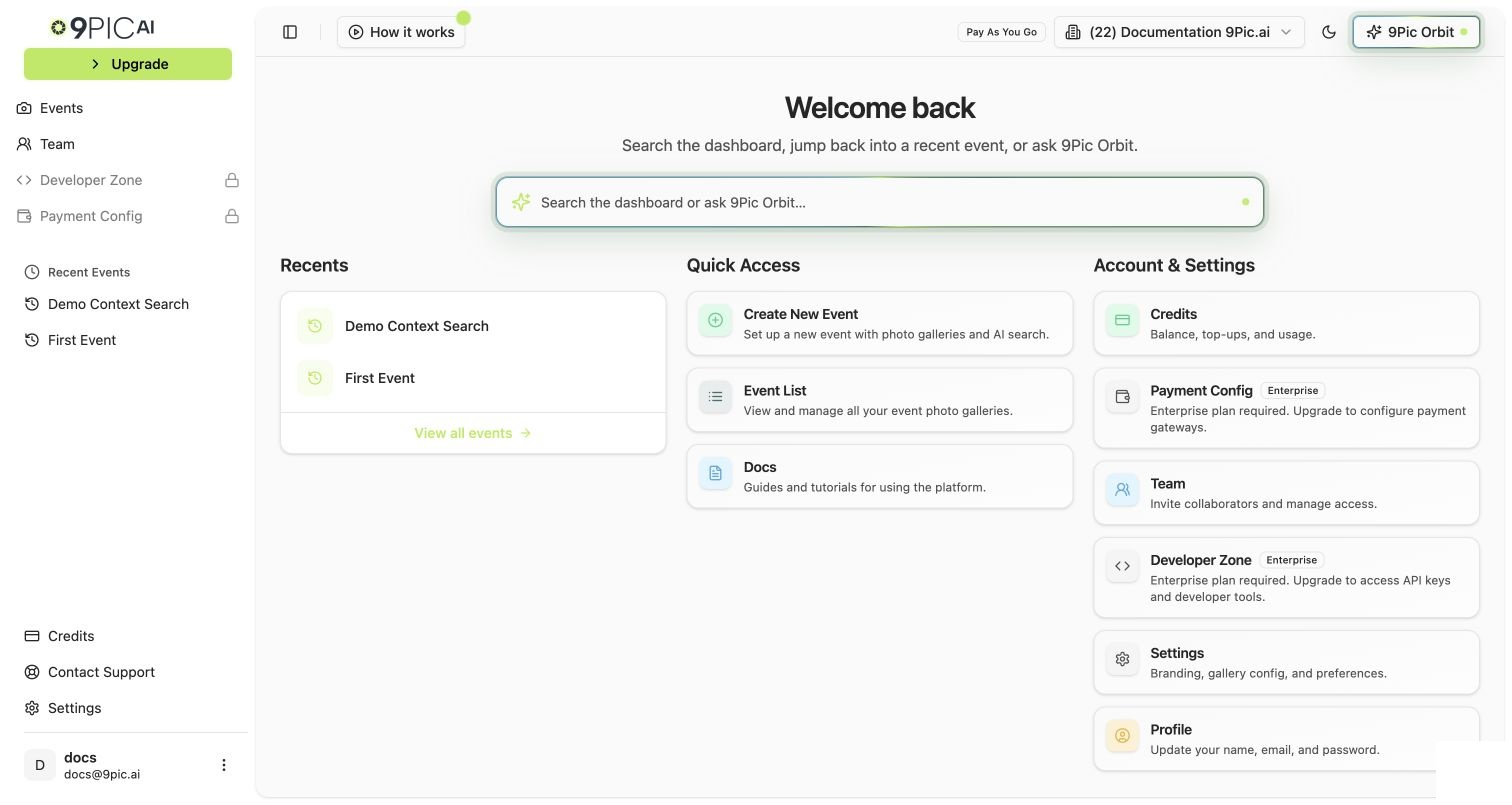 Sidebar → **Credits** → **Purchase Credits** button on the balance card. Same destination.
The flow has four steps: **Plan → Credits → Review → Payment.**
## Step 1 — Plan
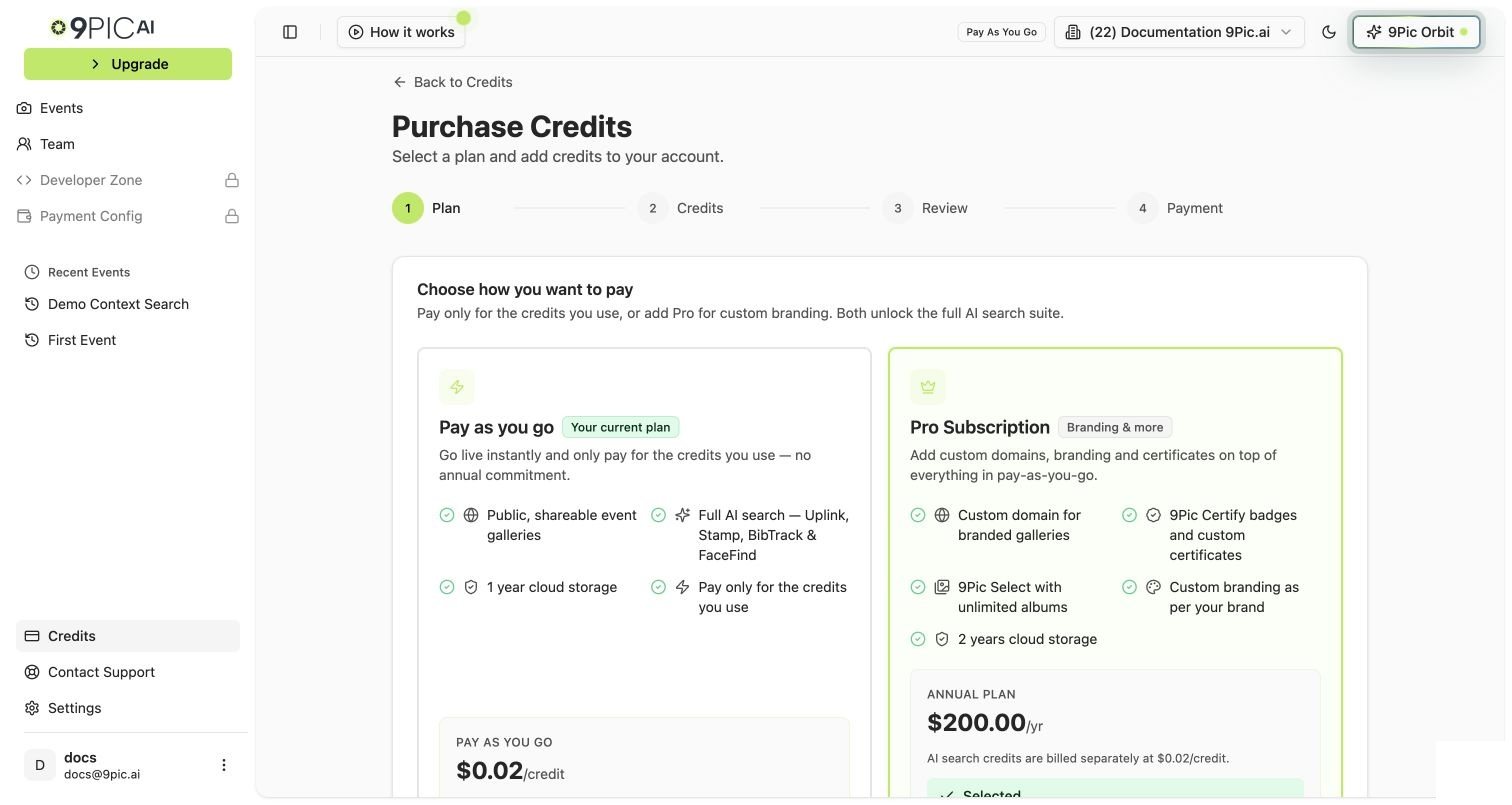
You'll see four options. **Pick Pro Subscription.**
| Option | What it does | Pick it for the upgrade? |
| -------------------- | --------------------------------------------------------------------------------------- | --------------------------------------------------------------------------------------------- |
| **Pro Subscription** | Annual subscription at \$200/year. Unlocks creative tools, custom domain, Setup Wizard. | **Yes — this is the upgrade.** |
| **Pay as you go** | Top up credits without changing plans. Stays on Pay As You Go. | No (that's a routine top-up — see [Buy More Credits](/pay-as-you-go-guide/buy-more-credits)). |
| **Custom Payment** | Records a payment without adding credits. | No. |
| **Enterprise** | Disabled — opens [9pic.ai/contact](https://9pic.ai/contact/). | Only if you've decided you need Enterprise instead of Pro. |
Click **Pro Subscription**, then **Next**.
Sidebar → **Credits** → **Purchase Credits** button on the balance card. Same destination.
The flow has four steps: **Plan → Credits → Review → Payment.**
## Step 1 — Plan
You'll see four options. **Pick Pro Subscription.**
| Option | What it does | Pick it for the upgrade? |
| -------------------- | --------------------------------------------------------------------------------------- | --------------------------------------------------------------------------------------------- |
| **Pro Subscription** | Annual subscription at \$200/year. Unlocks creative tools, custom domain, Setup Wizard. | **Yes — this is the upgrade.** |
| **Pay as you go** | Top up credits without changing plans. Stays on Pay As You Go. | No (that's a routine top-up — see [Buy More Credits](/pay-as-you-go-guide/buy-more-credits)). |
| **Custom Payment** | Records a payment without adding credits. | No. |
| **Enterprise** | Disabled — opens [9pic.ai/contact](https://9pic.ai/contact/). | Only if you've decided you need Enterprise instead of Pro. |
Click **Pro Subscription**, then **Next**.
 ## Step 2 — Credits
After picking Pro Subscription, you can also add credits in the same transaction. The order summary shows:
* **Pro Subscription base price** (verify the current price displayed in the dashboard).
* **Extra credits** (optional) — any quantity above the included amount.
* **Total credits** that will be in your balance after the purchase.
| What you should buy | Why |
| ---------------------------------- | ----------------------------------------------------------------------------------------------------------- |
| **Pro only** (no extra credits) | If your existing PAYG balance already covers your next event. |
| **Pro + your usual top-up amount** | If your existing balance is low and you're due for a top-up anyway. Combining saves a separate transaction. |
Don't over-buy on the upgrade. Pro doesn't expire on credits (only on the subscription term), so you can top up later as needed at the same per-credit cost.
Click **Next**.
## Step 3 — Review
Review the order summary:
* **Plan**: Pro Subscription.
* **Credits**: any quantity you added.
* **Currency**: based on your billing region.
* **Taxes**: shown automatically based on your billing region.
* **Grand total** to be charged.
Tick the **Refund Policy** acceptance box. This is required for every purchase.
The Pro subscription portion is for a **365-day term** with **manual renewal**. After 365 days, you'll need to re-purchase Pro to keep the creative tools and custom domain active.
Click **Next**.
## Step 4 — Payment
The label depends on your billing currency and region — for example **Pay with Razorpay** or **Pay with PayGlocal**. Click it.
Enter card details. 9Pic does not see or store your card details — the gateway handles them directly.
9Pic verifies the payment with the gateway. This usually takes a few seconds.
The success page confirms your new plan is **Pro** and any credits added. The sidebar plan badge updates to **Pro** immediately.
## What Changes Right After You Upgrade
| Change | When it takes effect |
| ---------------------------------------------------------------------------------- | --------------------------------------------------- |
| Sidebar plan badge flips from **Pay As You Go** to **Pro** | Immediately. |
| **Setup Guide / Setup Wizard** appears in the sidebar (website customisation) | Immediately. |
| **Creative tools** appear in event navigation: Certify, Flow, Select, Buzz, Motion | Immediately, on every event in the organisation. |
| **Custom Domain** option becomes available in **Settings → Domain & Region** | Immediately. |
| **Sidebar Upgrade button** is replaced by other elements (you're already at Pro) | Immediately. |
| Credit balance | Includes any credits added in the same transaction. |
| Existing events | No changes — everything keeps working. |
## What Doesn't Change
* Existing events, photo galleries, team members, settings, and public links are all untouched.
* Your credit balance carries over.
* Your default domain stays `app.9pic.ai` until you connect a custom domain in **Settings → Domain & Region**.
* Per-credit cost stays the same.
* Support response time stays the same.
## If Payment Fails
| Symptom | What to do |
| ------------------------------ | ---------------------------------------------------------------------------------------------------------------------------------------------------------------------------------------------- |
| Card declined | Try a different card. The order is not retried automatically. |
| Window closed before paying | Order is marked **Abandoned**. Just start the flow again — no charge. |
| Charged but plan didn't update | Open **Credits → Billing & Transactions**, find the row, click **Recheck**. If still stuck, take a screenshot of the gateway confirmation and email [support@9pic.ai](mailto:support@9pic.ai). |
## Common Questions
No. All your existing credits stay in your balance and combine with any extra credits you bought in the upgrade transaction.
The creative tools (Certify, Flow, Select, Buzz, Motion) become **available** on every existing event immediately. They aren't auto-applied — you choose when to use them per event.
Run the **Setup Wizard** that appears in the sidebar. It walks through theme color, logo, footer, social links, contact form, header CTA, and team invite — your branded site setup is the highest-leverage thing to do first. See [Pro Guide → Setup Wizard](/pro-guide/setup-wizard).
Pro renewal is **manual** — you re-purchase Pro from the same Purchase Credits flow. The dashboard surfaces "Expires in N days" warnings on **Credits → Subscription** when expiry is within 30 days. If the term ends without renewal, the creative tools and custom domain become unavailable on new events; the account effectively returns to a Pay-As-You-Go-style state.
Refund eligibility is governed by 9Pic's [Refund Policy](https://9pic.ai/refund-policy/). For specific situations, email [support@9pic.ai](mailto:support@9pic.ai).
Existing teammates don't receive a special notification, but they'll see the new plan badge and the creative tools when they next open the dashboard.
## Next Steps
The full operator playbook for the Pro plan.
Run this once after upgrading.
Move your events to `photos.yourbrand.com`.
Considering Enterprise instead? Get in touch.
## Step 2 — Credits
After picking Pro Subscription, you can also add credits in the same transaction. The order summary shows:
* **Pro Subscription base price** (verify the current price displayed in the dashboard).
* **Extra credits** (optional) — any quantity above the included amount.
* **Total credits** that will be in your balance after the purchase.
| What you should buy | Why |
| ---------------------------------- | ----------------------------------------------------------------------------------------------------------- |
| **Pro only** (no extra credits) | If your existing PAYG balance already covers your next event. |
| **Pro + your usual top-up amount** | If your existing balance is low and you're due for a top-up anyway. Combining saves a separate transaction. |
Don't over-buy on the upgrade. Pro doesn't expire on credits (only on the subscription term), so you can top up later as needed at the same per-credit cost.
Click **Next**.
## Step 3 — Review
Review the order summary:
* **Plan**: Pro Subscription.
* **Credits**: any quantity you added.
* **Currency**: based on your billing region.
* **Taxes**: shown automatically based on your billing region.
* **Grand total** to be charged.
Tick the **Refund Policy** acceptance box. This is required for every purchase.
The Pro subscription portion is for a **365-day term** with **manual renewal**. After 365 days, you'll need to re-purchase Pro to keep the creative tools and custom domain active.
Click **Next**.
## Step 4 — Payment
The label depends on your billing currency and region — for example **Pay with Razorpay** or **Pay with PayGlocal**. Click it.
Enter card details. 9Pic does not see or store your card details — the gateway handles them directly.
9Pic verifies the payment with the gateway. This usually takes a few seconds.
The success page confirms your new plan is **Pro** and any credits added. The sidebar plan badge updates to **Pro** immediately.
## What Changes Right After You Upgrade
| Change | When it takes effect |
| ---------------------------------------------------------------------------------- | --------------------------------------------------- |
| Sidebar plan badge flips from **Pay As You Go** to **Pro** | Immediately. |
| **Setup Guide / Setup Wizard** appears in the sidebar (website customisation) | Immediately. |
| **Creative tools** appear in event navigation: Certify, Flow, Select, Buzz, Motion | Immediately, on every event in the organisation. |
| **Custom Domain** option becomes available in **Settings → Domain & Region** | Immediately. |
| **Sidebar Upgrade button** is replaced by other elements (you're already at Pro) | Immediately. |
| Credit balance | Includes any credits added in the same transaction. |
| Existing events | No changes — everything keeps working. |
## What Doesn't Change
* Existing events, photo galleries, team members, settings, and public links are all untouched.
* Your credit balance carries over.
* Your default domain stays `app.9pic.ai` until you connect a custom domain in **Settings → Domain & Region**.
* Per-credit cost stays the same.
* Support response time stays the same.
## If Payment Fails
| Symptom | What to do |
| ------------------------------ | ---------------------------------------------------------------------------------------------------------------------------------------------------------------------------------------------- |
| Card declined | Try a different card. The order is not retried automatically. |
| Window closed before paying | Order is marked **Abandoned**. Just start the flow again — no charge. |
| Charged but plan didn't update | Open **Credits → Billing & Transactions**, find the row, click **Recheck**. If still stuck, take a screenshot of the gateway confirmation and email [support@9pic.ai](mailto:support@9pic.ai). |
## Common Questions
No. All your existing credits stay in your balance and combine with any extra credits you bought in the upgrade transaction.
The creative tools (Certify, Flow, Select, Buzz, Motion) become **available** on every existing event immediately. They aren't auto-applied — you choose when to use them per event.
Run the **Setup Wizard** that appears in the sidebar. It walks through theme color, logo, footer, social links, contact form, header CTA, and team invite — your branded site setup is the highest-leverage thing to do first. See [Pro Guide → Setup Wizard](/pro-guide/setup-wizard).
Pro renewal is **manual** — you re-purchase Pro from the same Purchase Credits flow. The dashboard surfaces "Expires in N days" warnings on **Credits → Subscription** when expiry is within 30 days. If the term ends without renewal, the creative tools and custom domain become unavailable on new events; the account effectively returns to a Pay-As-You-Go-style state.
Refund eligibility is governed by 9Pic's [Refund Policy](https://9pic.ai/refund-policy/). For specific situations, email [support@9pic.ai](mailto:support@9pic.ai).
Existing teammates don't receive a special notification, but they'll see the new plan badge and the creative tools when they next open the dashboard.
## Next Steps
The full operator playbook for the Pro plan.
Run this once after upgrading.
Move your events to `photos.yourbrand.com`.
Considering Enterprise instead? Get in touch.