> ## Documentation Index
> Fetch the complete documentation index at: https://docs.9pic.ai/llms.txt
> Use this file to discover all available pages before exploring further.
# Pay As You Go Guide
> Run real events on credits, manage your balance, and decide when Pro is worth it
## Welcome to Pay As You Go
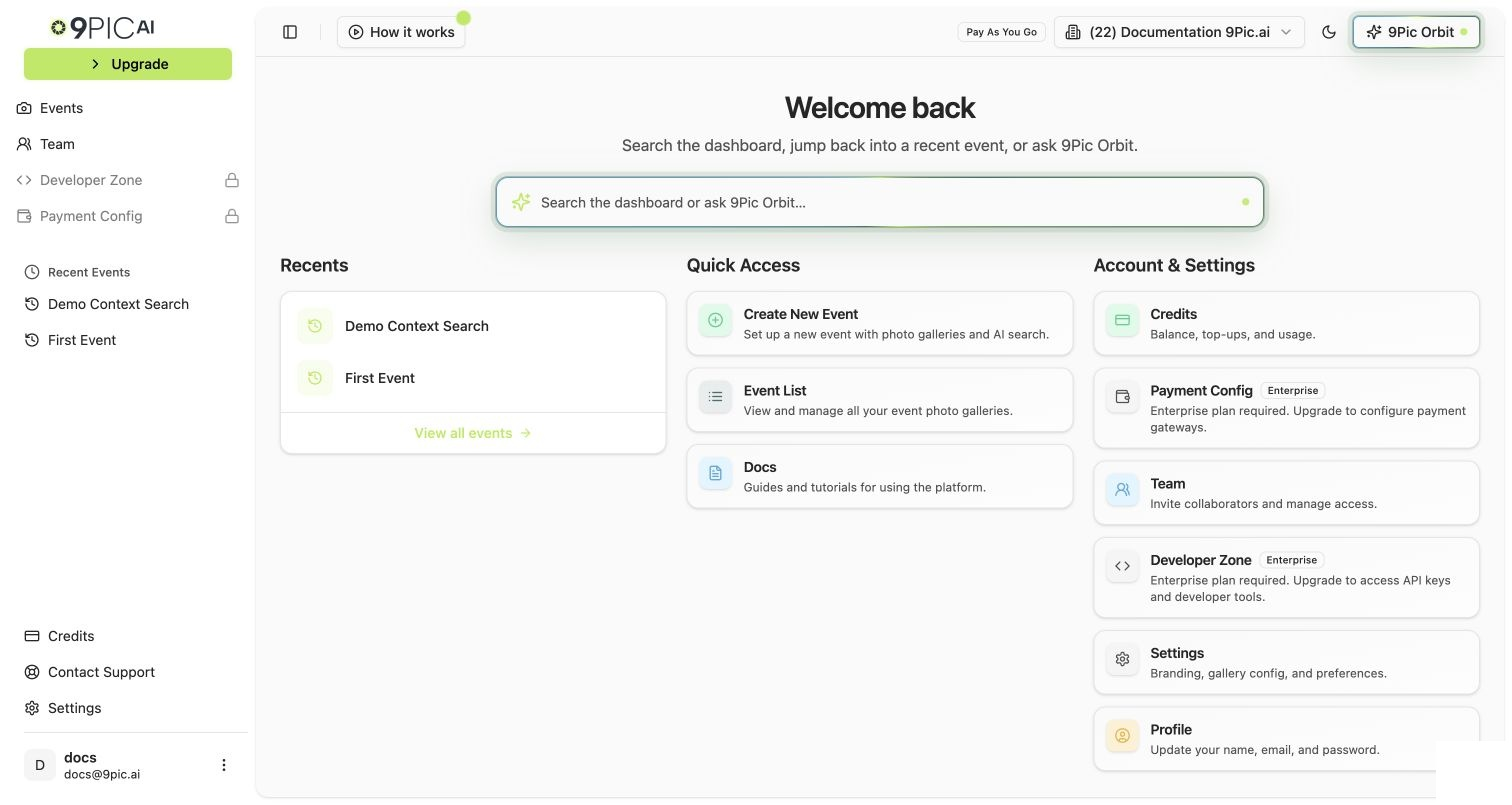
You're on the **9Pic Pay As You Go** plan. You're not on an annual subscription — you bought a credit pack and you'll buy more whenever you need them. This guide is the playbook for running real customer-facing events on credits, watching your balance, and getting clear on whether Pro is worth it for your volume.
The journey has four short stages:
What changed when you topped up, and what's now in your account.
The end-to-end event flow with credit costs called out at every step.
Watch your balance, top up before events, and download invoices.
When the math actually flips in favour of the Pro subscription.
 ## What to Do First
**First time on Pay As You Go after the trial?** Skim [What's Included](/pay-as-you-go-guide/whats-included) first. PAYG and the trial cover the same product — the only difference is that you're now paying per credit instead of using free trial credits.
If you only have 15 minutes today, do these three things in order:
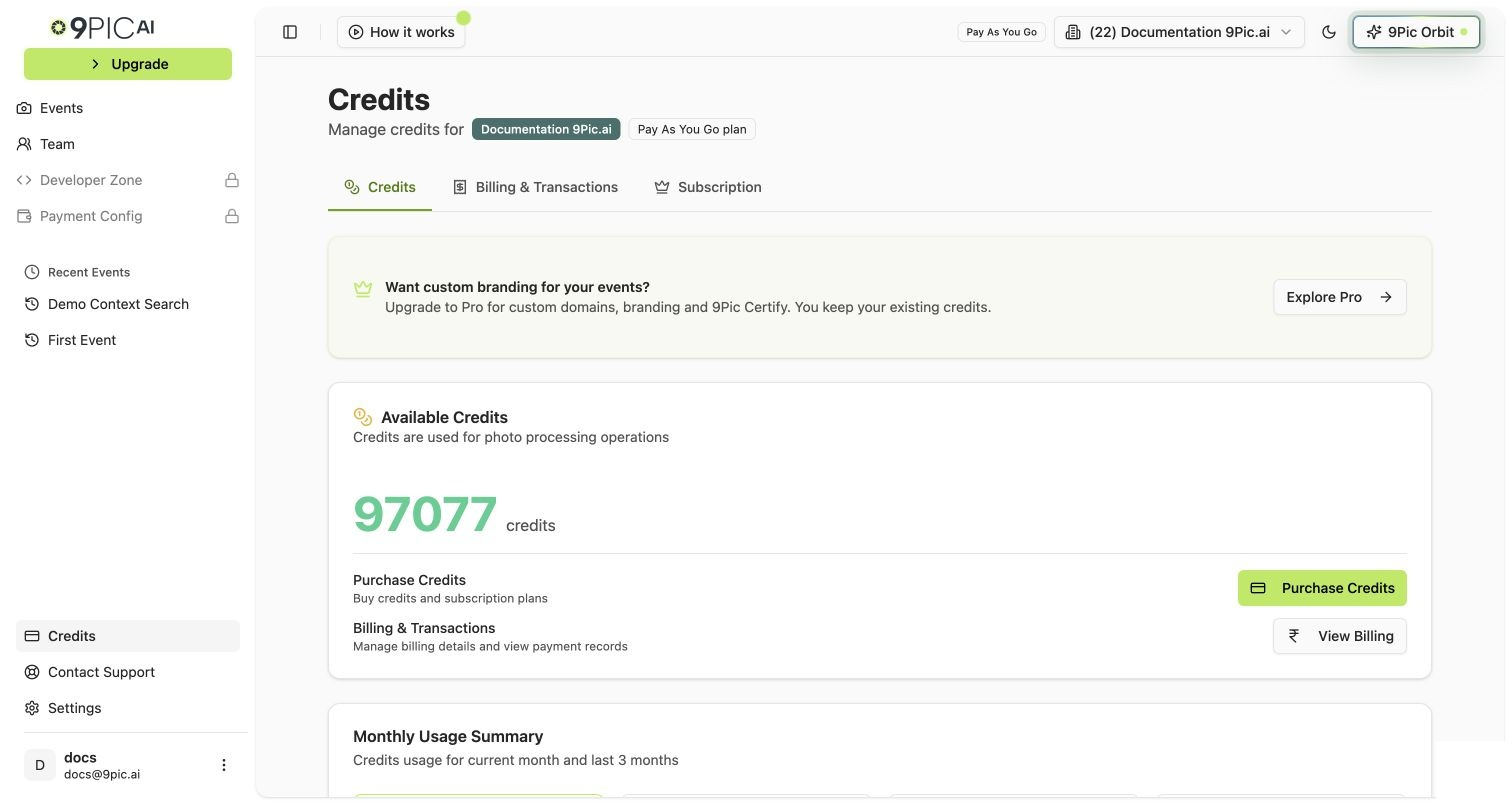
Click **Credits** in the sidebar. The big number at the top is your **Available Credits**. That's how many photos you can process before processing pauses.
Open [Photo Processing Costs](/pay-as-you-go-guide/photo-processing-costs). Two minutes here saves you from burning credits on the wrong settings.
Open [Run an Event](/pay-as-you-go-guide/run-an-event) and use the credit estimator at the top to plan your top-up before you start syncing.
## The Full Pay As You Go Journey
The exact products you get on Pay As You Go (and the ones you don't).
End-to-end event flow with credit costs at every step.
What 1 credit pays for, and the settings that change the math.
The five mistakes that burn the most credits the fastest.
The Credits page, monthly usage, and transaction history.
The top-up walkthrough, step by step.
Find a past payment, download an invoice, recheck a stuck status.
The honest math — when Pay As You Go is enough, and when Pro pays back.
The exact dashboard flow for moving from PAYG to Pro.
When to reach out for Enterprise, beta features, or a custom quote.
## Already Familiar with 9Pic?
If you've used 9Pic before, you can skip ahead:
Plan-agnostic reference for every dashboard page.
What you'd unlock if you moved to the Pro subscription.
Need help? Email [support@9pic.ai](mailto:support@9pic.ai). Pay As You Go customers get the same support response as Pro and Enterprise.
## What to Do First
**First time on Pay As You Go after the trial?** Skim [What's Included](/pay-as-you-go-guide/whats-included) first. PAYG and the trial cover the same product — the only difference is that you're now paying per credit instead of using free trial credits.
If you only have 15 minutes today, do these three things in order:
Click **Credits** in the sidebar. The big number at the top is your **Available Credits**. That's how many photos you can process before processing pauses.
Open [Photo Processing Costs](/pay-as-you-go-guide/photo-processing-costs). Two minutes here saves you from burning credits on the wrong settings.
Open [Run an Event](/pay-as-you-go-guide/run-an-event) and use the credit estimator at the top to plan your top-up before you start syncing.
## The Full Pay As You Go Journey
The exact products you get on Pay As You Go (and the ones you don't).
End-to-end event flow with credit costs at every step.
What 1 credit pays for, and the settings that change the math.
The five mistakes that burn the most credits the fastest.
The Credits page, monthly usage, and transaction history.
The top-up walkthrough, step by step.
Find a past payment, download an invoice, recheck a stuck status.
The honest math — when Pay As You Go is enough, and when Pro pays back.
The exact dashboard flow for moving from PAYG to Pro.
When to reach out for Enterprise, beta features, or a custom quote.
## Already Familiar with 9Pic?
If you've used 9Pic before, you can skip ahead:
Plan-agnostic reference for every dashboard page.
What you'd unlock if you moved to the Pro subscription.
Need help? Email [support@9pic.ai](mailto:support@9pic.ai). Pay As You Go customers get the same support response as Pro and Enterprise.