> ## Documentation Index
> Fetch the complete documentation index at: https://docs.9pic.ai/llms.txt
> Use this file to discover all available pages before exploring further.
# Contact & About
> Embed an external contact form and write your About Us page content.
## Overview
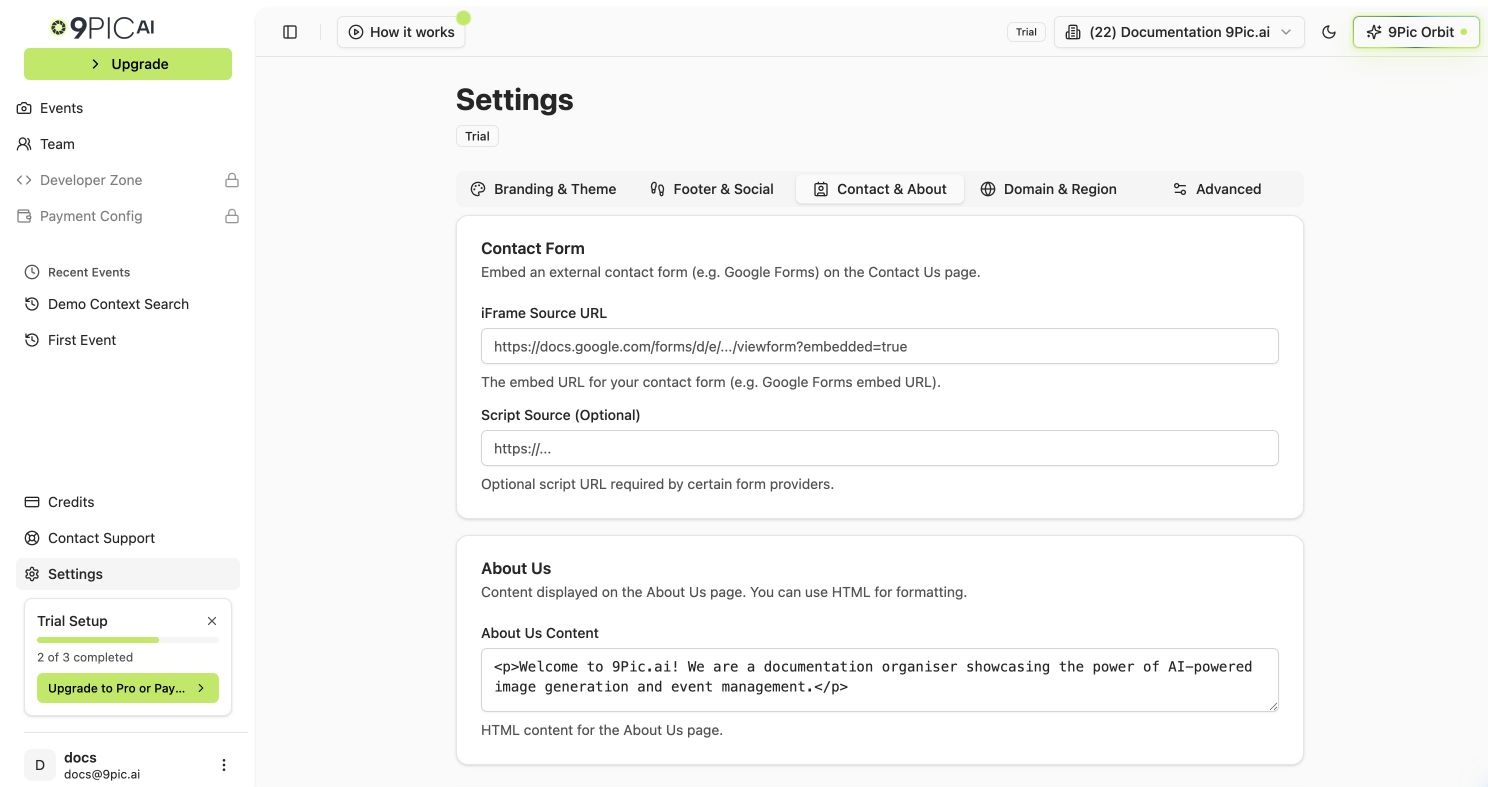
The **Contact & About** tab has two sections:
1. **Contact Form** — embed an external form (Google Forms, Typeform, or any iframe-based provider) on your gallery website's Contact Us page.
2. **About Us** — write the HTML content that appears on your gallery website's About Us page.
**Plan availability:** Contact & About is editable on **all plans** — there's no plan gate on this tab in the dashboard.
## How to Open
Click **Settings** in the sidebar.
Click the **Contact & About** tab.
You can also open it directly at `/settings?tab=contact`.
***
## Contact Form
Embed an external form so visitors can reach you directly from the Contact page on your gallery website.
### Set Up With Google Forms (Recommended)
Go to [Google Forms](https://forms.google.com) and create a contact form with the fields you want (Name, Email, Message).
In Google Forms, click **Send** at the top right, then click the **\< >** (Embed) tab.
Copy the value of the `src` attribute from the embed snippet. It ends with `?embedded=true` and looks like `https://docs.google.com/forms/d/e/XXXX/viewform?embedded=true`.
In the **Contact Form** card, paste the URL into the **iFrame Source URL** field.
Click **Save Contact Changes** at the bottom of the page.
### Script Source (Optional)
The **Script Source (Optional)** field is only needed for certain advanced form providers that require an additional JavaScript file to load alongside the iframe. Leave it blank for Google Forms, Typeform, and most other providers.
If your embed comes from a provider you don't recognise, ask them whether the iframe URL alone is enough or whether you also need a script tag. If you only have the iframe URL, the script field stays empty.
***
## About Us
Write the content that appears on the About Us page of your gallery website. The textarea accepts raw HTML, so you can use simple tags for headings, paragraphs, and basic formatting.
In the **About Us** card, type or paste your content into the **About Us Content** textarea. You can use tags such as `
Click **Save Contact Changes** at the bottom of the page.
Keep your About Us short and concrete. Include who you are, the kinds of events you cover, and how participants can get in touch.
The field stores raw HTML — there is no rich-text editor in this tab. If you are not comfortable writing HTML, paste plain text and surround paragraphs with `
...
`.
***
## Troubleshooting
* **Contact form does not show on the website.** Confirm the iFrame URL ends with `?embedded=true`. Without that parameter, Google Forms refuses to load inside an iframe.
* **Form shows an error page or blank box.** Make sure you copied the embed URL from the **\< >** Embed tab, not the regular form URL from your browser's address bar.
* **About Us content looks like raw HTML.** Wrap text in tags such as `
...
` or `
...
` — plain text without tags renders without spacing.
## Common Questions
Yes — any service that gives you an iframe embed URL works. Paste the embed URL into the **iFrame Source URL** field. If the service also requires a script, paste it into **Script Source (Optional)**.
The field supports raw HTML, so you can embed images with `` tags pointing to publicly accessible URLs. Keep image sizes reasonable so the page loads quickly.
Yes — saving the fields makes the Contact and About Us pages live on your gallery website. There are no separate toggles to publish them.
The Contact page either hides the form or shows fallback contact information from your organisation profile. To show your own form, fill in at least the **iFrame Source URL** field.
## Next Steps
Set your country or connect a custom domain.
Match the form page to your brand colour and header.
 ## How to Open