> ## Documentation Index
> Fetch the complete documentation index at: https://docs.9pic.ai/llms.txt
> Use this file to discover all available pages before exploring further.
# Settings Overview
> Customise your organisation's website branding, footer, contact form, domain, and analytics.
## Overview
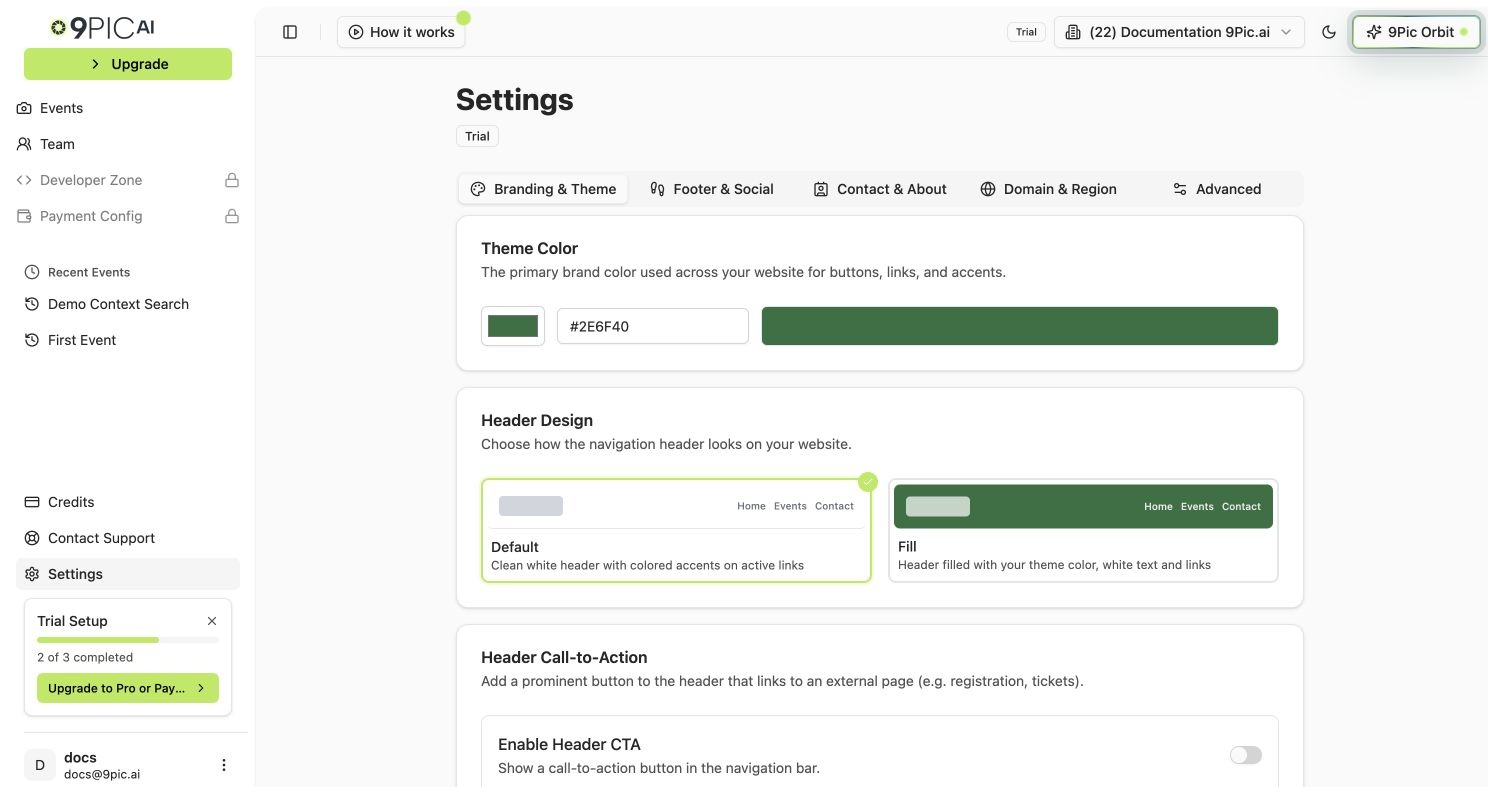
The **Settings** page is where organisations configure how their public event gallery website looks and behaves. Settings are **per-organisation** — if you manage more than one organisation, make sure the correct one is selected in the sidebar before making changes.
**Plan availability:** The Settings page is available to **every** organisation. Branding, Footer, Contact & About, Region, and the Advanced (Google Tag Manager) tab are editable on **all plans**. The only plan-gated capability is **custom domain & platform subdomain management**, which requires **Pro** or **Enterprise** — other plans see a read-only domain summary instead.
The top of the Settings page shows a plan badge (e.g. **Trial**, **Pro**, **Enterprise**). It's informational — it does not lock the branding, footer, contact, region, or analytics fields.
 ## The Five Settings Tabs
Theme colour, header design, header call-to-action button, organisation name, logo, and favicon.
Footer text and social media icons that appear at the bottom of every page.
Embed a contact form (Google Forms or similar) and write your About Us page.
Set your country, choose a 9Pic subdomain, or connect a custom domain with DNS.
Bring your own Google Tag Manager container for analytics tracking.
## Plan Availability by Tab
| Settings tab | Trial | Pay As You Go | Pro | Enterprise |
| :------------------------------------------ | :-------- | :------------ | :-------- | :--------- |
| Branding & Theme | Available | Available | Available | Available |
| Footer & Social | Available | Available | Available | Available |
| Contact & About | Available | Available | Available | Available |
| Domain & Region — Region | Available | Available | Available | Available |
| Domain & Region — Custom domain / subdomain | Read-only | Read-only | Available | Available |
| Advanced — Google Tag Manager | Available | Available | Available | Available |
Only **custom domain / platform subdomain** management is plan-gated. On Trial and Pay As You Go the Domain card is read-only (you still see your assigned `trial.9pic.ai` / `app.9pic.ai` address). Upgrade to Pro from [Credits](/dashboard-guide/credits) or contact 9Pic for Enterprise to connect your own domain.
## How Saving Works
Each tab has its own **Save** button at the bottom of the page. Saving one tab does **not** save changes in the other tabs.
| Tab | Save button label |
| :--------------- | :------------------------ |
| Branding & Theme | **Save Branding Changes** |
| Footer & Social | **Save Footer Changes** |
| Contact & About | **Save Contact Changes** |
| Domain & Region | **Save Domain Changes** |
| Advanced | **Save Advanced Changes** |
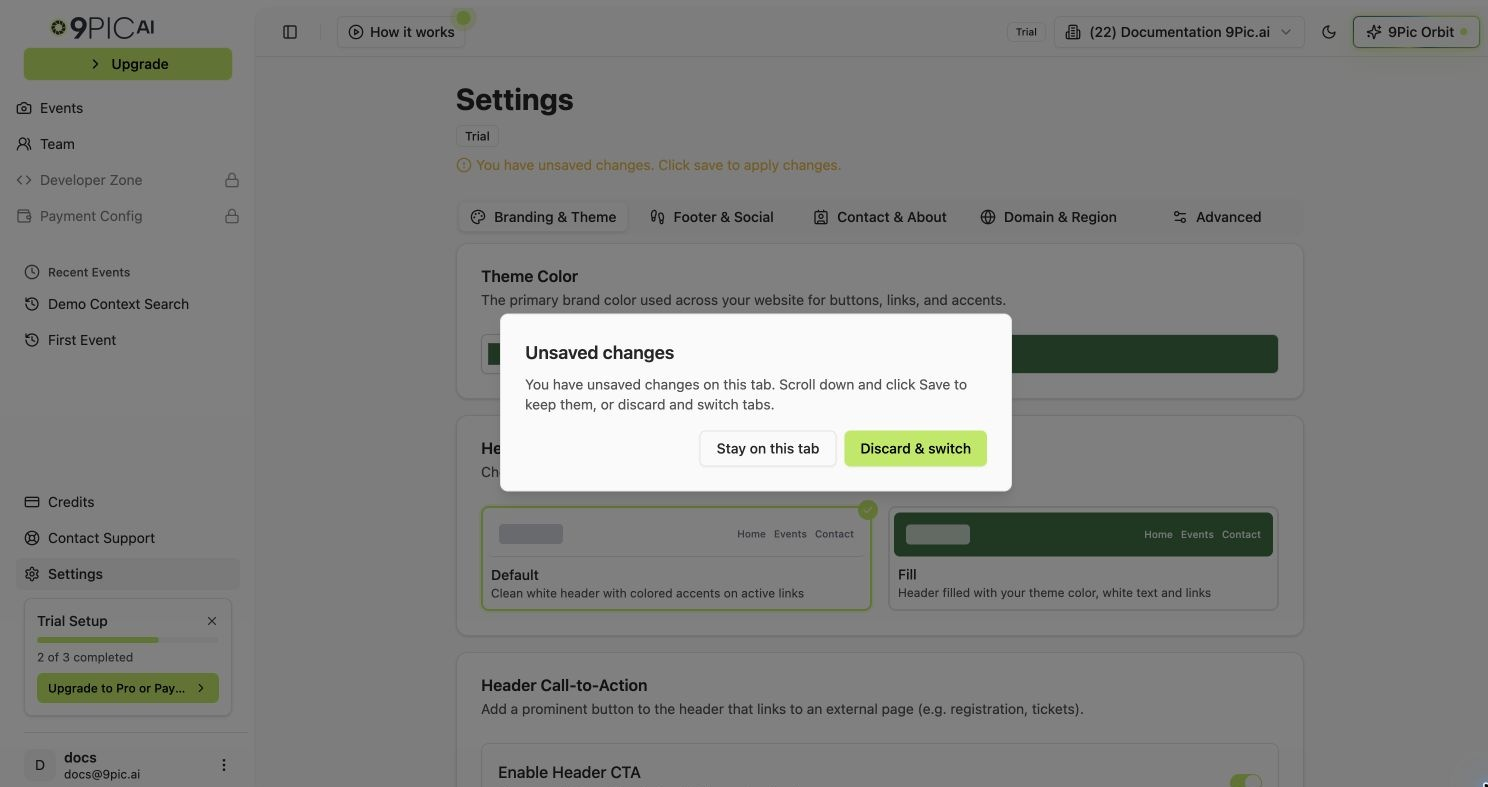
When you have unsaved edits, the Settings header shows a yellow **You have unsaved changes** notice. The Save button stays disabled until the form is valid and there is at least one change to save.
If you leave the Settings page or switch browser tabs without saving, you will be asked whether to stay or discard. Always click the Save button for the tab you are working in before moving on.
## Switching Tabs With Unsaved Changes
If you have unsaved changes in one tab and click another tab, an **Unsaved changes** dialog appears with two options:
* **Stay on this tab** — keep your edits so you can save them.
* **Discard & switch** — throw away the edits and open the other tab.
The same dialog appears if you click the browser back button or any link that leaves the Settings page.
## The Five Settings Tabs
Theme colour, header design, header call-to-action button, organisation name, logo, and favicon.
Footer text and social media icons that appear at the bottom of every page.
Embed a contact form (Google Forms or similar) and write your About Us page.
Set your country, choose a 9Pic subdomain, or connect a custom domain with DNS.
Bring your own Google Tag Manager container for analytics tracking.
## Plan Availability by Tab
| Settings tab | Trial | Pay As You Go | Pro | Enterprise |
| :------------------------------------------ | :-------- | :------------ | :-------- | :--------- |
| Branding & Theme | Available | Available | Available | Available |
| Footer & Social | Available | Available | Available | Available |
| Contact & About | Available | Available | Available | Available |
| Domain & Region — Region | Available | Available | Available | Available |
| Domain & Region — Custom domain / subdomain | Read-only | Read-only | Available | Available |
| Advanced — Google Tag Manager | Available | Available | Available | Available |
Only **custom domain / platform subdomain** management is plan-gated. On Trial and Pay As You Go the Domain card is read-only (you still see your assigned `trial.9pic.ai` / `app.9pic.ai` address). Upgrade to Pro from [Credits](/dashboard-guide/credits) or contact 9Pic for Enterprise to connect your own domain.
## How Saving Works
Each tab has its own **Save** button at the bottom of the page. Saving one tab does **not** save changes in the other tabs.
| Tab | Save button label |
| :--------------- | :------------------------ |
| Branding & Theme | **Save Branding Changes** |
| Footer & Social | **Save Footer Changes** |
| Contact & About | **Save Contact Changes** |
| Domain & Region | **Save Domain Changes** |
| Advanced | **Save Advanced Changes** |
When you have unsaved edits, the Settings header shows a yellow **You have unsaved changes** notice. The Save button stays disabled until the form is valid and there is at least one change to save.
If you leave the Settings page or switch browser tabs without saving, you will be asked whether to stay or discard. Always click the Save button for the tab you are working in before moving on.
## Switching Tabs With Unsaved Changes
If you have unsaved changes in one tab and click another tab, an **Unsaved changes** dialog appears with two options:
* **Stay on this tab** — keep your edits so you can save them.
* **Discard & switch** — throw away the edits and open the other tab.
The same dialog appears if you click the browser back button or any link that leaves the Settings page.
 ## Direct Links to a Specific Tab
Each settings tab can be opened directly using the URL. The Settings page reads a `?tab=` search parameter and opens the matching tab.
| URL | Opens |
| :----------------------- | :--------------- |
| `/settings?tab=branding` | Branding & Theme |
| `/settings?tab=footer` | Footer & Social |
| `/settings?tab=contact` | Contact & About |
| `/settings?tab=domain` | Domain & Region |
| `/settings?tab=advanced` | Advanced |
If no tab is in the URL, the page opens on **Branding & Theme** by default.
## Next Steps
Upgrade your plan if Settings shows the Trial or Pay As You Go badge.
Get help with branding, domain DNS, or plan changes.
## Direct Links to a Specific Tab
Each settings tab can be opened directly using the URL. The Settings page reads a `?tab=` search parameter and opens the matching tab.
| URL | Opens |
| :----------------------- | :--------------- |
| `/settings?tab=branding` | Branding & Theme |
| `/settings?tab=footer` | Footer & Social |
| `/settings?tab=contact` | Contact & About |
| `/settings?tab=domain` | Domain & Region |
| `/settings?tab=advanced` | Advanced |
If no tab is in the URL, the page opens on **Branding & Theme** by default.
## Next Steps
Upgrade your plan if Settings shows the Trial or Pay As You Go badge.
Get help with branding, domain DNS, or plan changes.