> ## Documentation Index
> Fetch the complete documentation index at: https://docs.9pic.ai/llms.txt
> Use this file to discover all available pages before exploring further.
# 9Pic Select
> Let clients and teammates review and select the best photos from an event.
9Pic Select is a **Pro plan** feature (available on Pro and Enterprise). On Trial and Pay-as-you-go plans it shows a lock in the event product nav. If it stays locked after upgrading, email [support@9pic.ai](mailto:support@9pic.ai) to switch it on for your organisation.
## Overview
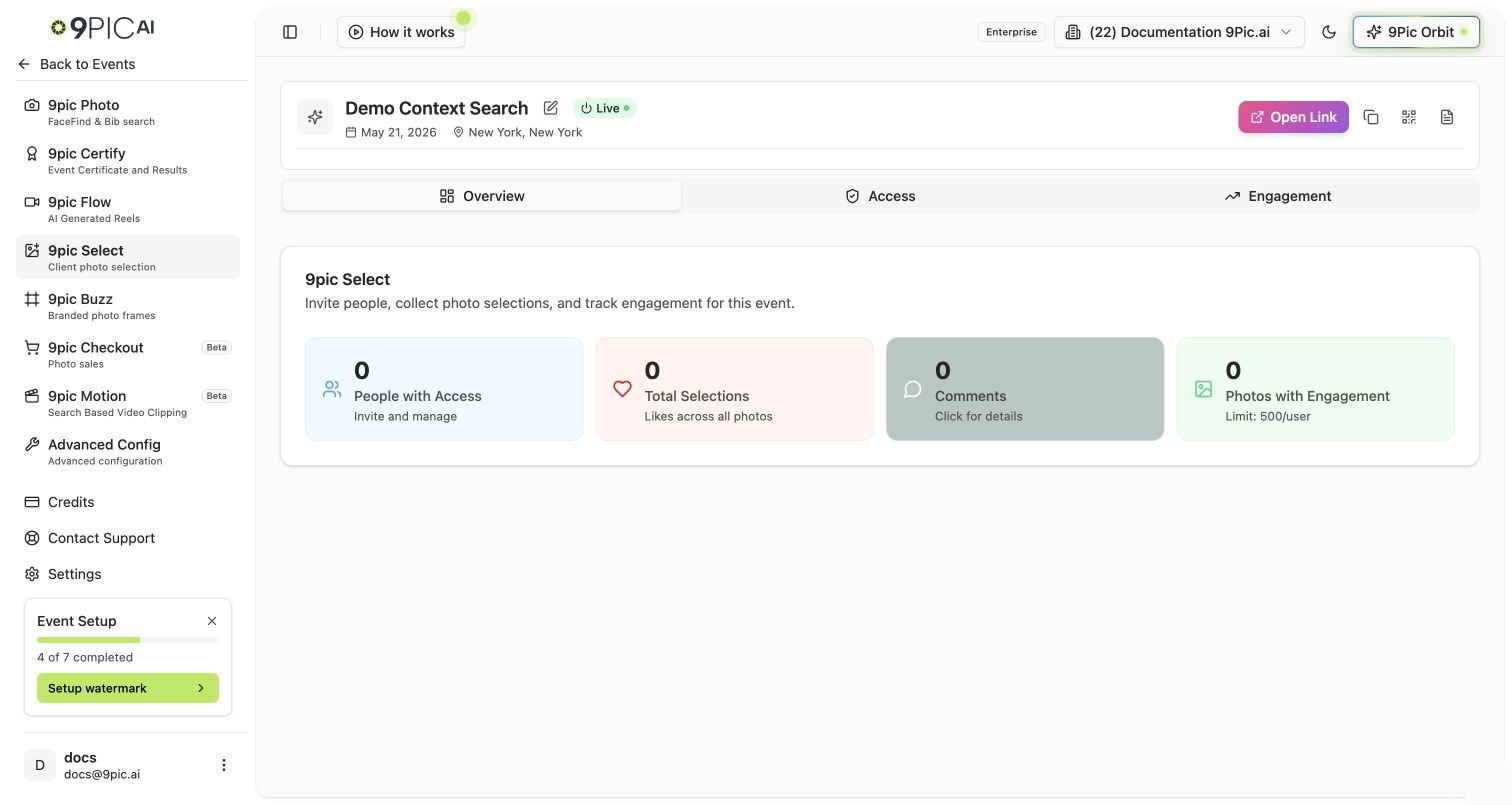
9Pic Select is a photo-culling workflow: clients or teammates review the gallery and mark which photos to keep, so only the best images are processed or delivered. Select has three tabs:
| Tab | What it's for |
| -------------- | ------------------------------------------------------------------ |
| **Overview** | Selection status and entry point |
| **Access** | Manage which users can review and select photos |
| **Engagement** | Activity metrics — how many photos have been reviewed and selected |
Open it from an event's product navigation: **9pic Select**.
 ## Manage Access
The **Access** tab controls who can use the selection tool for this event. Enable the specific clients or teammates who should review photos; everyone else can't open the selection workflow.
## Track Selection Activity
The **Engagement** tab shows real-time activity: how many photos have been reviewed, how many selected, and remaining workload. Use it to see when a client has finished selecting.
## Getting Started
Select needs the Pro plan or above. Upgrade from [Credits](/dashboard-guide/credits) if it's locked.
On the **Access** tab, turn on access for the people who will review photos.
Reviewers select photos; watch progress on the **Engagement** tab.
Use Select before full processing to cut down on processing volume — fewer photos processed can mean lower credit usage.
## Next Steps
Process and publish the photos you keep.
Understand how processing volume affects credits.
## Manage Access
The **Access** tab controls who can use the selection tool for this event. Enable the specific clients or teammates who should review photos; everyone else can't open the selection workflow.
## Track Selection Activity
The **Engagement** tab shows real-time activity: how many photos have been reviewed, how many selected, and remaining workload. Use it to see when a client has finished selecting.
## Getting Started
Select needs the Pro plan or above. Upgrade from [Credits](/dashboard-guide/credits) if it's locked.
On the **Access** tab, turn on access for the people who will review photos.
Reviewers select photos; watch progress on the **Engagement** tab.
Use Select before full processing to cut down on processing volume — fewer photos processed can mean lower credit usage.
## Next Steps
Process and publish the photos you keep.
Understand how processing volume affects credits.