> ## Documentation Index
> Fetch the complete documentation index at: https://docs.9pic.ai/llms.txt
> Use this file to discover all available pages before exploring further.
# Account
> Open your account menu, manage your profile, and sign out safely.
## Overview
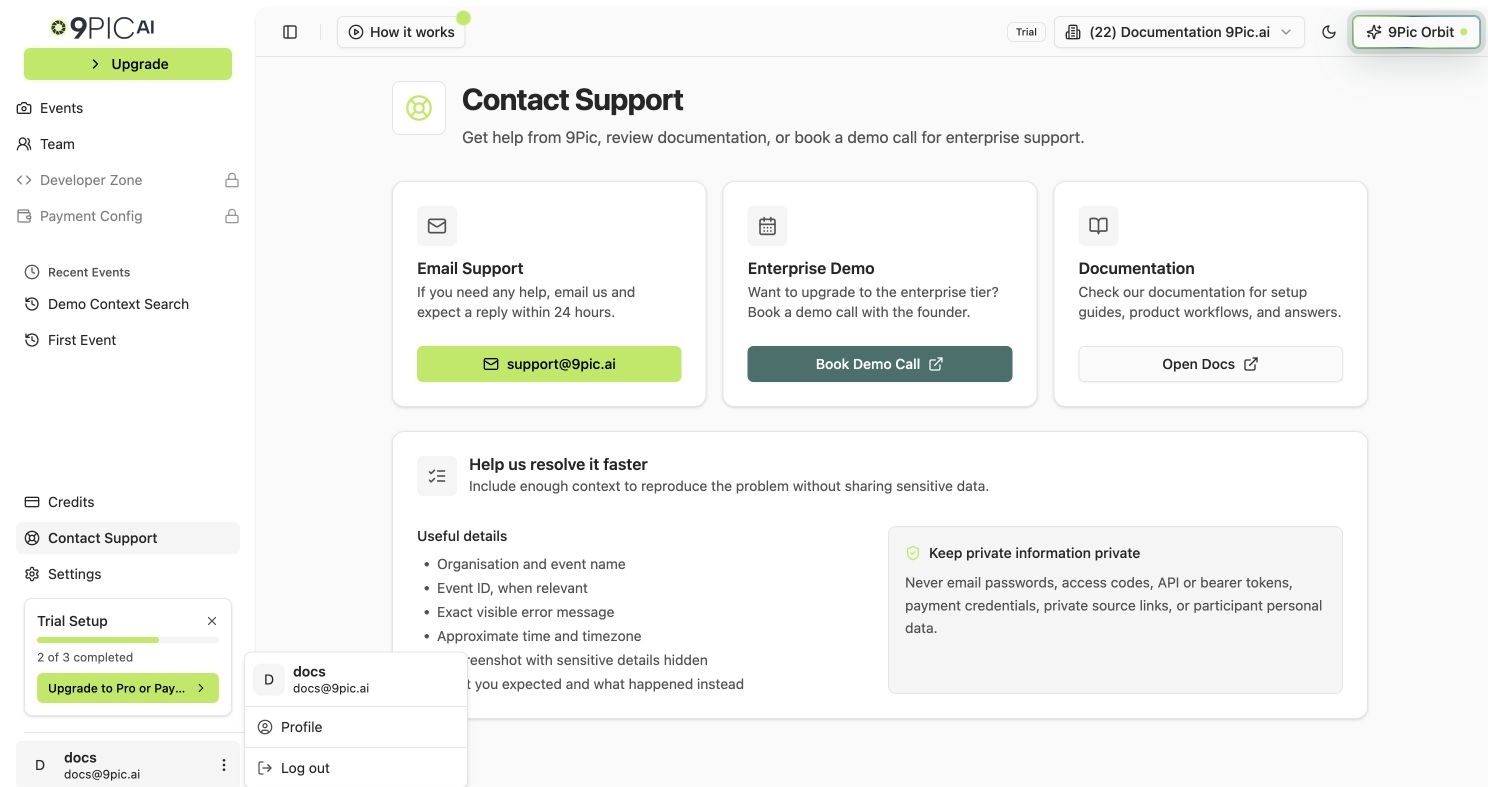
Your 9Pic account is opened from two places in the dashboard:
* The **account menu** at the bottom of the sidebar (your avatar, name, and email).
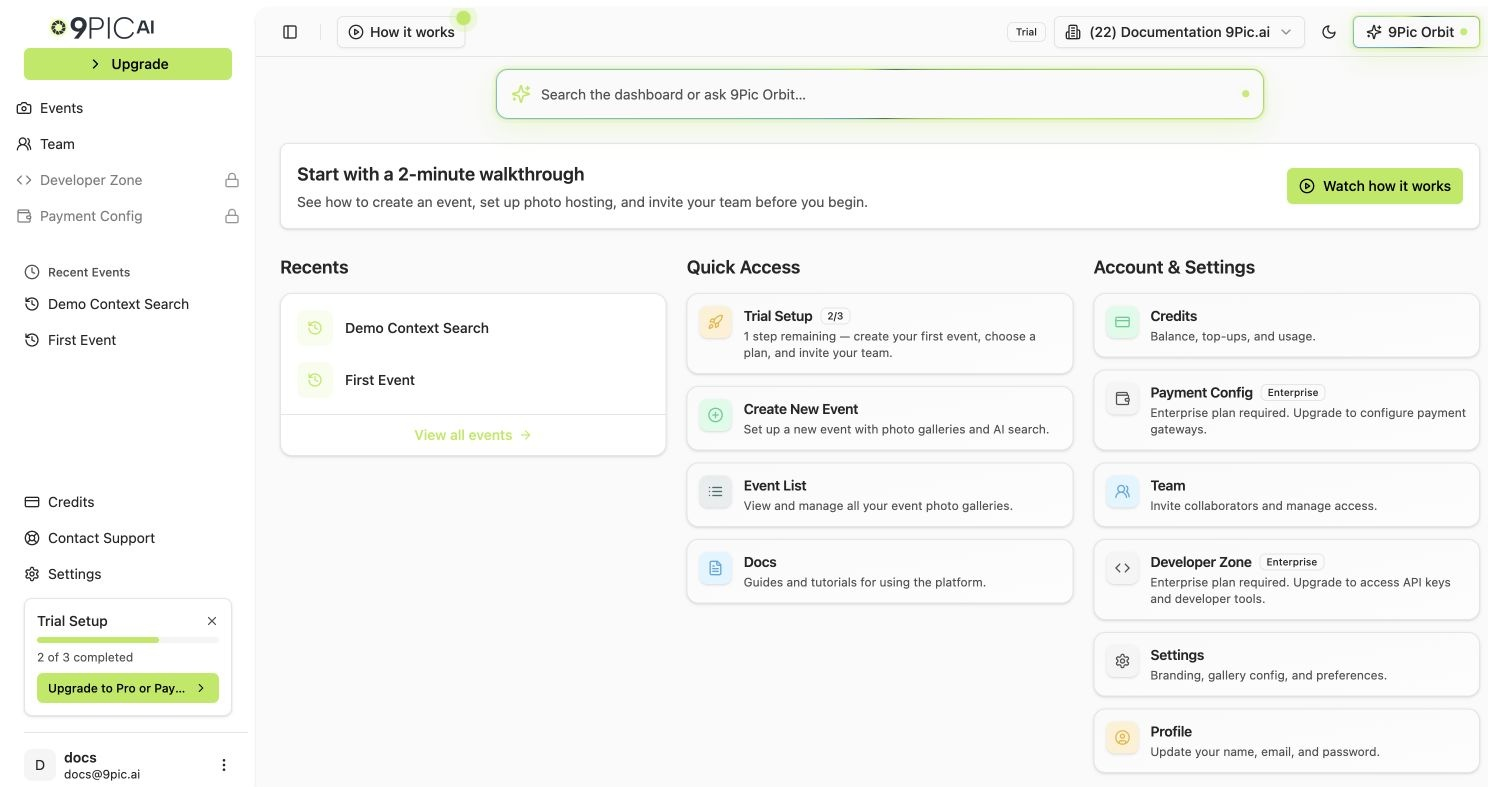
* The **Profile** card on the dashboard home page, which opens the same profile window.
Clicking **Profile** in either place opens a secure profile window on top of the dashboard. That window is managed by the sign-in system 9Pic uses, so the exact fields available depend on how your account was set up.
 ## Open Your Profile
Log in to [admin.9pic.ai](https://admin.9pic.ai).
Look at the bottom of the sidebar for your avatar, name, or email.
Click your account area to open the dropdown menu.
Click **Profile**. A profile window opens on top of the dashboard.
You can also open **Profile** from the dashboard home page. The home page shows an account card titled **Profile** with the description "Update your name, email, and password." Click the card and the same profile window opens.
## Open Your Profile
Log in to [admin.9pic.ai](https://admin.9pic.ai).
Look at the bottom of the sidebar for your avatar, name, or email.
Click your account area to open the dropdown menu.
Click **Profile**. A profile window opens on top of the dashboard.
You can also open **Profile** from the dashboard home page. The home page shows an account card titled **Profile** with the description "Update your name, email, and password." Click the card and the same profile window opens.
 ## What the Profile Window Shows
The profile window is the secure account view from the sign-in system 9Pic uses. Common things you can do there:
* Review your name and email.
* Update your password.
* Manage connected sign-in methods if your account has them.
The exact set of options depends on how your account was created and the sign-in methods enabled for it.
The profile window is **not** a normal dashboard page. It opens as a window on top of the dashboard. Close it to return to the page you were on.
## Sign Out
Click your avatar, name, or email at the bottom of the sidebar.
Click **Log out**. The dashboard signs you out of your 9Pic session.
Sign out when you are using a shared laptop or a device at an event venue.
## Email and Password Help
If you cannot access your account:
* Use the recovery option on the login page if you forgot your password.
* Ask an admin in your organisation to confirm that your team invite is still active.
* Contact 9Pic support if your email address needs to be changed.
Your login email identifies your 9Pic account. If your email needs to change, contact [support@9pic.ai](mailto:support@9pic.ai) so the team can help avoid duplicate access issues.
## Common Questions
Profile opens from the account menu at the bottom of the sidebar, or from the **Profile** card on the dashboard home page. It appears as a secure profile window rather than a normal dashboard page.
No. Invite each teammate from the [Team](/dashboard-guide/team) page instead. Separate logins are safer and make it easier to manage access.
If a display name is not set on your account, the dashboard shows the first part of your email address as the name. You can set or update a display name from the profile window.
Refresh the page and try again. If it still does not log you out, clear your browser cookies for `admin.9pic.ai` and reload.
## Next Steps
Invite teammates and manage organisation access.
Get help with login, email, or account access issues.
## What the Profile Window Shows
The profile window is the secure account view from the sign-in system 9Pic uses. Common things you can do there:
* Review your name and email.
* Update your password.
* Manage connected sign-in methods if your account has them.
The exact set of options depends on how your account was created and the sign-in methods enabled for it.
The profile window is **not** a normal dashboard page. It opens as a window on top of the dashboard. Close it to return to the page you were on.
## Sign Out
Click your avatar, name, or email at the bottom of the sidebar.
Click **Log out**. The dashboard signs you out of your 9Pic session.
Sign out when you are using a shared laptop or a device at an event venue.
## Email and Password Help
If you cannot access your account:
* Use the recovery option on the login page if you forgot your password.
* Ask an admin in your organisation to confirm that your team invite is still active.
* Contact 9Pic support if your email address needs to be changed.
Your login email identifies your 9Pic account. If your email needs to change, contact [support@9pic.ai](mailto:support@9pic.ai) so the team can help avoid duplicate access issues.
## Common Questions
Profile opens from the account menu at the bottom of the sidebar, or from the **Profile** card on the dashboard home page. It appears as a secure profile window rather than a normal dashboard page.
No. Invite each teammate from the [Team](/dashboard-guide/team) page instead. Separate logins are safer and make it easier to manage access.
If a display name is not set on your account, the dashboard shows the first part of your email address as the name. You can set or update a display name from the profile window.
Refresh the page and try again. If it still does not log you out, clear your browser cookies for `admin.9pic.ai` and reload.
## Next Steps
Invite teammates and manage organisation access.
Get help with login, email, or account access issues.