> ## Documentation Index
> Fetch the complete documentation index at: https://docs.9pic.ai/llms.txt
> Use this file to discover all available pages before exploring further.
# Download & Delete
> Download original photos and permanently remove photos from an event.
## Overview
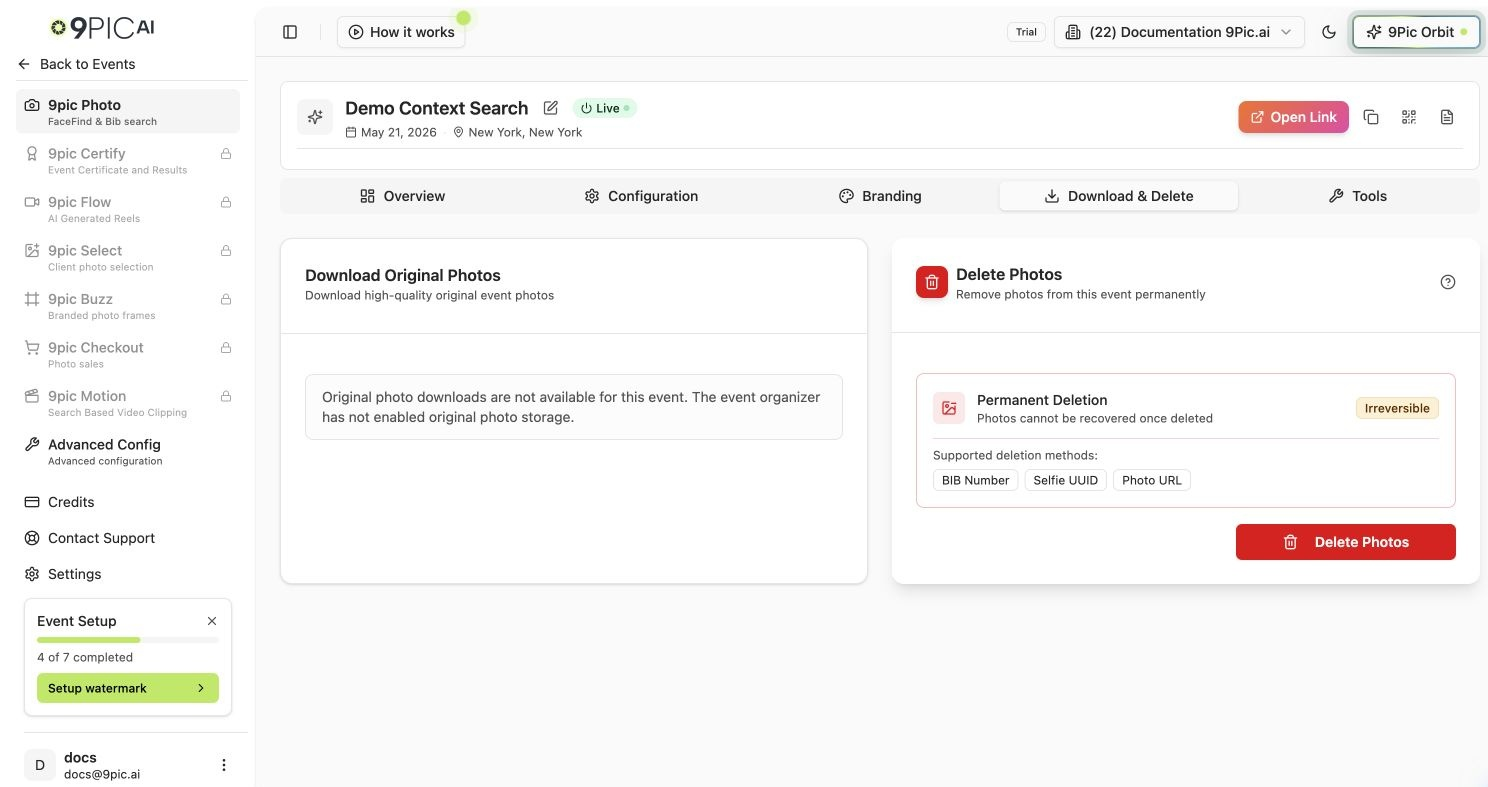
The **Download & Delete** tab holds two high-impact tools side by side: **Download Original Photos** and **Delete Photos**. Use them carefully — deletion is permanent.
 ## Download Original Photos
This tool downloads the **high-quality original** files for a participant as a ZIP.
Original downloads only work when **Store Original Memories** is enabled for the event. If it isn't, the card shows a message that the organiser has not enabled original photo storage. Store Original Memories is an Enterprise option — see [Create an event](/dashboard-guide/events/create).
Choose **Download by BIB Number** or **Download by Selfie UUID**.
Type the bib number (for example, `123`) or the selfie UUID from the gallery.
Click **Download Original Photos**. 9Pic fetches the photo URLs, downloads them (three at a time for speed), and packages them into a `{''}.zip` file.
Only large, original-quality photos are included in the ZIP. The progress bar shows fetching, downloading, and zipping stages while the download runs.
## Delete Photos
The **Delete Photos** tool permanently removes photos from the event and 9Pic's servers.
| Deletion method | Use it when |
| --------------- | ------------------------------------------------------------------ |
| **BIB Number** | You want to remove every photo tagged with a bib number |
| **Selfie UUID** | You want to remove photos matched to a specific selfie search UUID |
| **Photo URL** | You have direct links to the exact photos to remove |
Click the **Delete Photos** button on the card.
Pick **BIB Number**, **Selfie UUID**, or **Photo URL**, then enter the value(s). Double-check before continuing.
Confirm the warning to delete. The photos are removed immediately.
Deleting photos is **irreversible** — removed photos cannot be recovered. Always re-check your identifiers before confirming.
## Common Questions
The event doesn't have **Store Original Memories** enabled. It's an Enterprise option set when creating or editing the event; enabling it later may require re-processing.
Confirm the bib exists for this event and is typed exactly as tagged. For deletion, you can also switch to the Photo URL method and paste exact links.
No. Deletion is permanent. If you're unsure, download the originals first (when available) before deleting.
## Next Steps
Sources, sync, processing, and publishing.
Fix bibs the pipeline missed and add context tags.
## Download Original Photos
This tool downloads the **high-quality original** files for a participant as a ZIP.
Original downloads only work when **Store Original Memories** is enabled for the event. If it isn't, the card shows a message that the organiser has not enabled original photo storage. Store Original Memories is an Enterprise option — see [Create an event](/dashboard-guide/events/create).
Choose **Download by BIB Number** or **Download by Selfie UUID**.
Type the bib number (for example, `123`) or the selfie UUID from the gallery.
Click **Download Original Photos**. 9Pic fetches the photo URLs, downloads them (three at a time for speed), and packages them into a `{''}.zip` file.
Only large, original-quality photos are included in the ZIP. The progress bar shows fetching, downloading, and zipping stages while the download runs.
## Delete Photos
The **Delete Photos** tool permanently removes photos from the event and 9Pic's servers.
| Deletion method | Use it when |
| --------------- | ------------------------------------------------------------------ |
| **BIB Number** | You want to remove every photo tagged with a bib number |
| **Selfie UUID** | You want to remove photos matched to a specific selfie search UUID |
| **Photo URL** | You have direct links to the exact photos to remove |
Click the **Delete Photos** button on the card.
Pick **BIB Number**, **Selfie UUID**, or **Photo URL**, then enter the value(s). Double-check before continuing.
Confirm the warning to delete. The photos are removed immediately.
Deleting photos is **irreversible** — removed photos cannot be recovered. Always re-check your identifiers before confirming.
## Common Questions
The event doesn't have **Store Original Memories** enabled. It's an Enterprise option set when creating or editing the event; enabling it later may require re-processing.
Confirm the bib exists for this event and is typed exactly as tagged. For deletion, you can also switch to the Photo URL method and paste exact links.
No. Deletion is permanent. If you're unsure, download the originals first (when available) before deleting.
## Next Steps
Sources, sync, processing, and publishing.
Fix bibs the pipeline missed and add context tags.