> ## Documentation Index
> Fetch the complete documentation index at: https://docs.9pic.ai/llms.txt
> Use this file to discover all available pages before exploring further.
# AI Image Analysis
> Review and fix photos flagged for rotation correction during publish.
## Overview
**AI Image Analysis** finds photos that were captured at the wrong orientation and lets you correct them with AI. Rotated images are detected automatically during the **Publish** step, and this tool is where you review and fix them.
You reach it from **9Pic Photo → Tools → AI Image Analysis**.
 ## How It Works
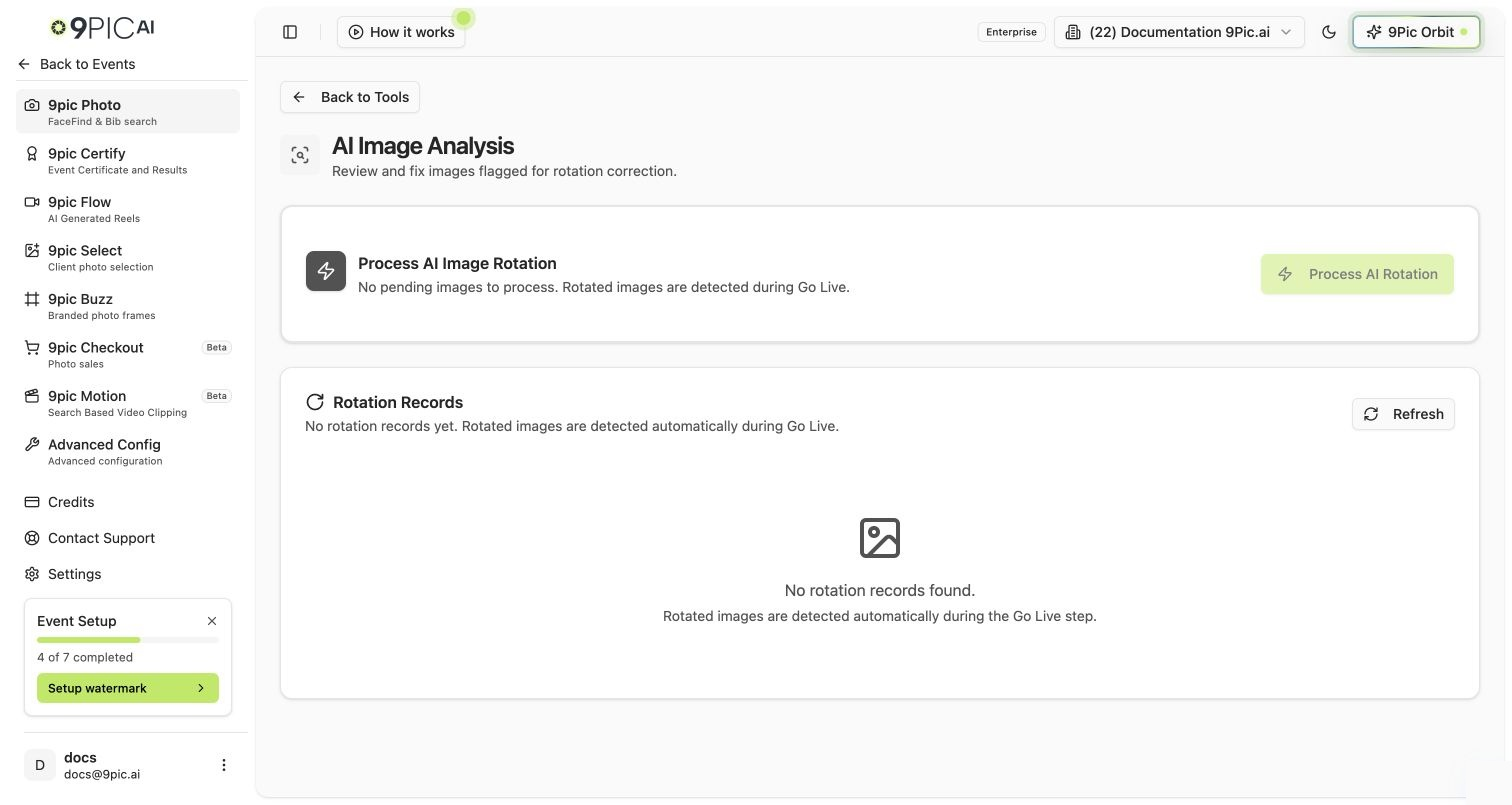
The page has three parts:
* A **Process AI Rotation** hero card with the main action button.
* A **Rotation Records** grid grouped into **Pending**, **Processing**, and **Skipped**.
* A **Processed Results** card grouped into **Completed** and **Failed**, shown once any image has been processed.
Rotated images are only detected after the **Publish** step has run (processed or failed). Until then there are no records to review.
Browse the **Pending** images. You can **Skip Selected** images you don't want corrected, and **Restore to Pending** anything you skipped earlier.
Click **Process AI Rotation**, choose **Process All Pending** or a **Custom Count**, and confirm. Corrected images are rotated and re-uploaded to replace the originals.
Watch the **Completed** and **Failed** sections for the outcome. Retry failures if needed.
## Credits & Gating
Each rotated image processed consumes **1 credit**, and the correction **cannot be undone** (the rotated file replaces the original). The confirm dialog shows your available credit balance and how many records you're about to process.
| Rule | Detail |
| ---------------------- | -------------------------------------------------------------------------------------------- |
| **Publish required** | The **Process AI Rotation** button is disabled until the Publish step is processed or failed |
| **Custom count limit** | A custom run accepts between 1 and 100,000 records |
| **Credit check** | You can't start a run that would exceed your available credits |
## Skip and Publish Anyway
If the Publish step failed *because* of rotated images, you don't have to fix them first. From the [Photo Overview](/dashboard-guide/photos/overview) Publish card you can choose **Skip AI Analysis** to publish despite the flagged records, or **Open AI Analysis** to come here and correct them.
## Common Questions
The Publish step must be processed or failed first. Run Publish from the [Overview](/dashboard-guide/photos/overview) tab, then return here.
It replaces the displayed image with a correctly oriented version and re-uploads it. The source file in your storage is unchanged.
Skipped images are set aside and excluded from processing. Select them and click **Restore to Pending** to bring them back.
Either no rotated images were detected, or the Publish step hasn't run yet. Rotated images are detected during Publish.
## Next Steps
Publish the event and trigger rotation detection.
The other Tools entries — bib and context tagging.
Check your balance before running AI rotation.
Troubleshoot photos that look sideways.
## How It Works
The page has three parts:
* A **Process AI Rotation** hero card with the main action button.
* A **Rotation Records** grid grouped into **Pending**, **Processing**, and **Skipped**.
* A **Processed Results** card grouped into **Completed** and **Failed**, shown once any image has been processed.
Rotated images are only detected after the **Publish** step has run (processed or failed). Until then there are no records to review.
Browse the **Pending** images. You can **Skip Selected** images you don't want corrected, and **Restore to Pending** anything you skipped earlier.
Click **Process AI Rotation**, choose **Process All Pending** or a **Custom Count**, and confirm. Corrected images are rotated and re-uploaded to replace the originals.
Watch the **Completed** and **Failed** sections for the outcome. Retry failures if needed.
## Credits & Gating
Each rotated image processed consumes **1 credit**, and the correction **cannot be undone** (the rotated file replaces the original). The confirm dialog shows your available credit balance and how many records you're about to process.
| Rule | Detail |
| ---------------------- | -------------------------------------------------------------------------------------------- |
| **Publish required** | The **Process AI Rotation** button is disabled until the Publish step is processed or failed |
| **Custom count limit** | A custom run accepts between 1 and 100,000 records |
| **Credit check** | You can't start a run that would exceed your available credits |
## Skip and Publish Anyway
If the Publish step failed *because* of rotated images, you don't have to fix them first. From the [Photo Overview](/dashboard-guide/photos/overview) Publish card you can choose **Skip AI Analysis** to publish despite the flagged records, or **Open AI Analysis** to come here and correct them.
## Common Questions
The Publish step must be processed or failed first. Run Publish from the [Overview](/dashboard-guide/photos/overview) tab, then return here.
It replaces the displayed image with a correctly oriented version and re-uploads it. The source file in your storage is unchanged.
Skipped images are set aside and excluded from processing. Select them and click **Restore to Pending** to bring them back.
Either no rotated images were detected, or the Publish step hasn't run yet. Rotated images are detected during Publish.
## Next Steps
Publish the event and trigger rotation detection.
The other Tools entries — bib and context tagging.
Check your balance before running AI rotation.
Troubleshoot photos that look sideways.