> ## Documentation Index
> Fetch the complete documentation index at: https://docs.9pic.ai/llms.txt
> Use this file to discover all available pages before exploring further.
# Dashboard Tour
> A two-minute tour of the home page, sidebar, and Setup Wizard widget.
## Overview
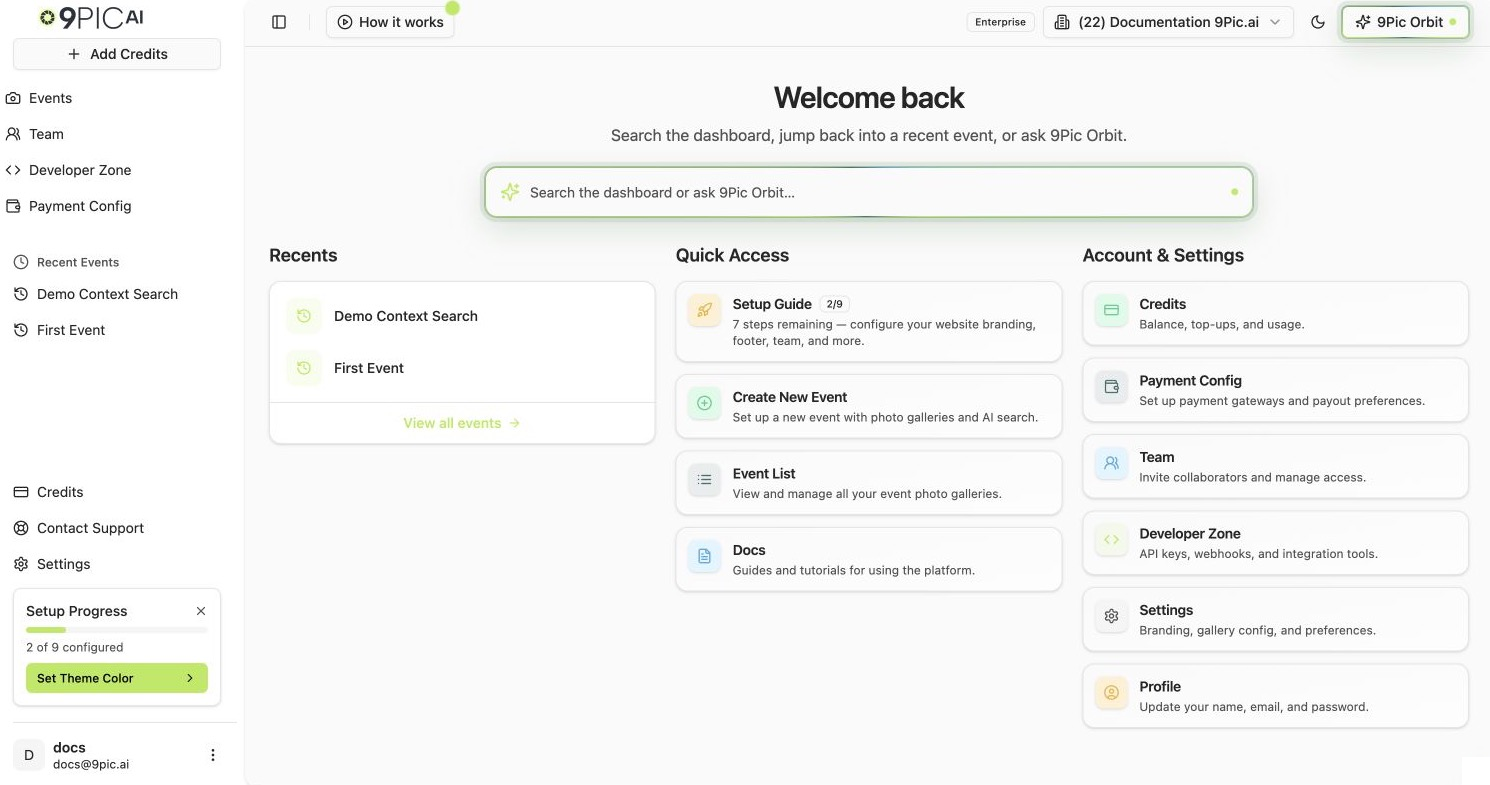
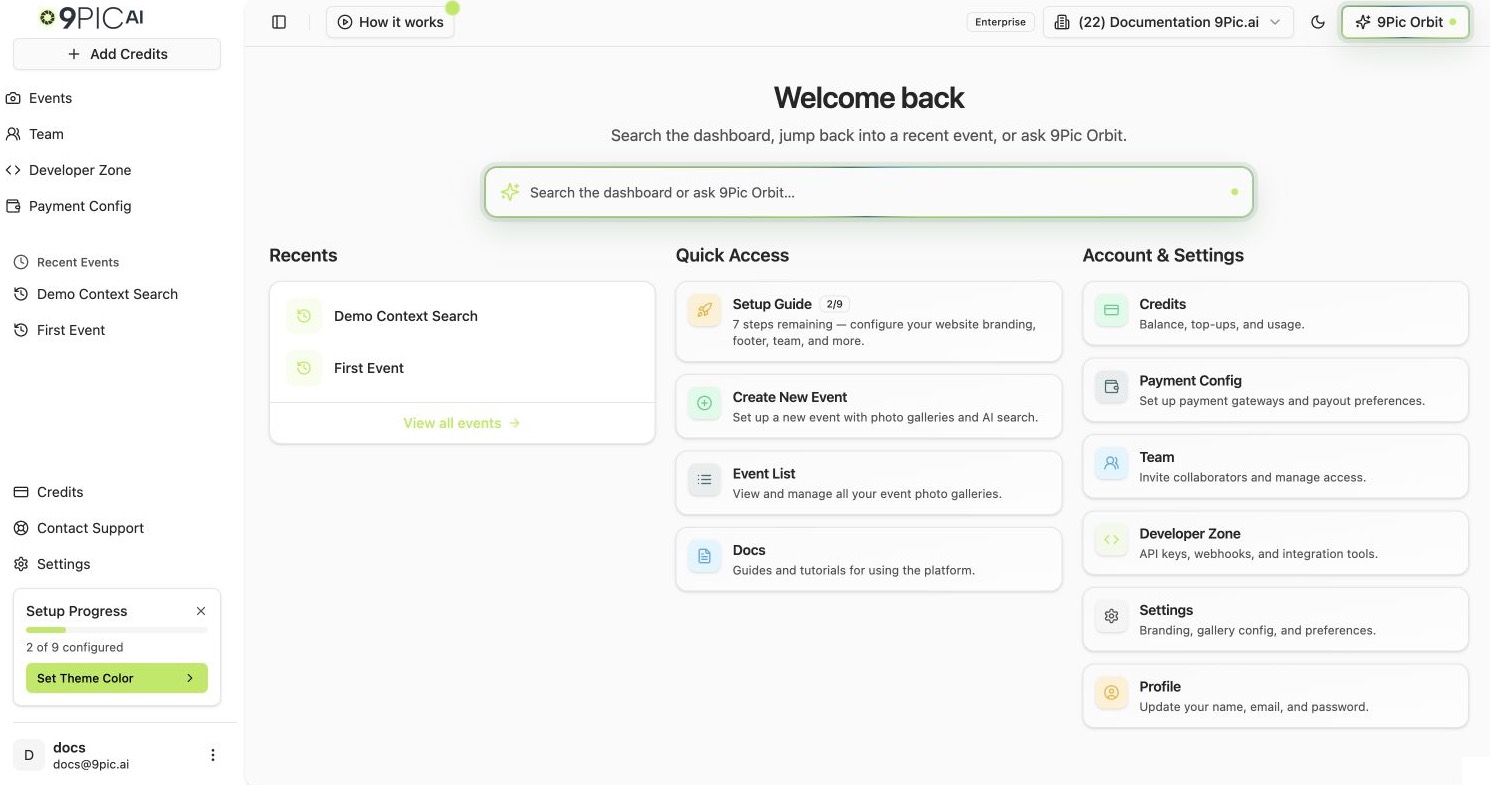
Once you sign in, you land on the dashboard home. This page exists to point you at the next useful action — usually creating an event, finishing setup, or jumping to an event you opened recently. Spend two minutes here before you start clicking around.
 ## The Three Areas You Will Use Most
| Area | Where it is | What it does |
| -------------- | ------------------------------ | --------------------------------------------------------------------------------------------------- |
| Sidebar (left) | Fixed on the left, collapsible | Primary navigation: Events, Team, Credits, Settings, plus Recent Events and the Setup Wizard widget |
| Top bar | Top of every page | Organisation switcher, plan status, **Upgrade** / **Add Credits** button |
| Main area | Centre of the page | Quick Access cards, Account & Settings cards, and the body of whichever page you open |
## The Sidebar
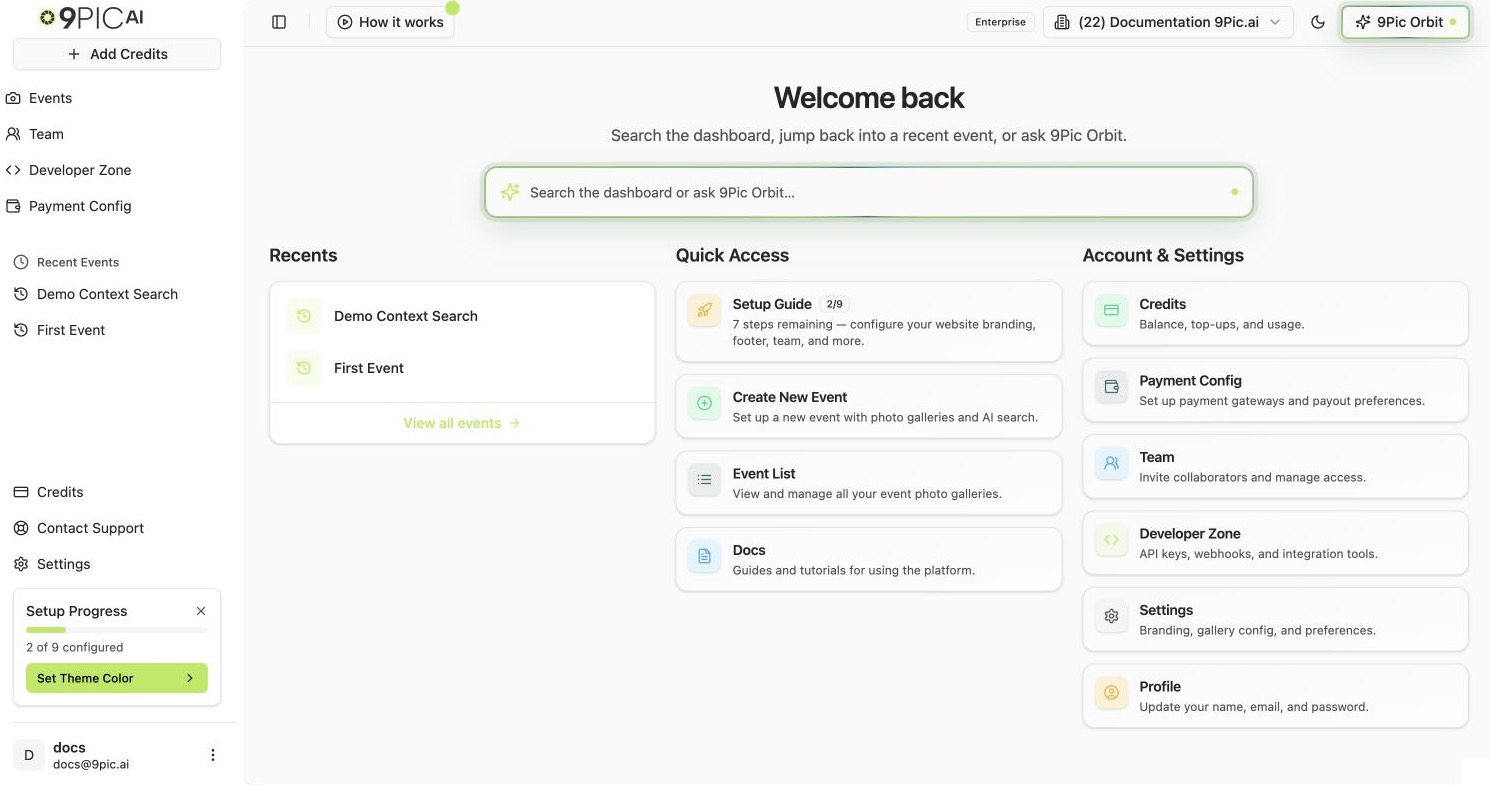
The sidebar has three different modes depending on where you are:
* **Main mode** (default): primary navigation for the dashboard.
* **Event mode**: when you are inside an event, the sidebar swaps to that event's product navigation (Photo, Certify, Flow, and so on). See [Event details](/dashboard-guide/events/details).
* **Staff mode** (staff users only): swaps to staff-only utilities.
In **main mode**, the sidebar shows:
| Item | What it opens |
| -------------------------------- | --------------------------------------------------------------------- |
| **Events** | Your list of events, with search, pagination, and a **Create** button |
| **Race Chronicles** (staff only) | Race story builder |
| **Team** | Invite collaborators, manage roles |
| **Developer Zone** | API keys and webhooks (Enterprise plan) |
| **Payment Config** | Payment gateway and payout setup (Enterprise plan) |
| **Credits** | Credit balance, purchase history, transactions |
| **Contact Support** | Help and feedback form |
| **Settings** | Branding, footer, contact, domain, advanced |
**Developer Zone** and **Payment Config** are visible to every plan but only open for Enterprise organisations. On other plans, clicking them shows an upgrade prompt.
## The Three Areas You Will Use Most
| Area | Where it is | What it does |
| -------------- | ------------------------------ | --------------------------------------------------------------------------------------------------- |
| Sidebar (left) | Fixed on the left, collapsible | Primary navigation: Events, Team, Credits, Settings, plus Recent Events and the Setup Wizard widget |
| Top bar | Top of every page | Organisation switcher, plan status, **Upgrade** / **Add Credits** button |
| Main area | Centre of the page | Quick Access cards, Account & Settings cards, and the body of whichever page you open |
## The Sidebar
The sidebar has three different modes depending on where you are:
* **Main mode** (default): primary navigation for the dashboard.
* **Event mode**: when you are inside an event, the sidebar swaps to that event's product navigation (Photo, Certify, Flow, and so on). See [Event details](/dashboard-guide/events/details).
* **Staff mode** (staff users only): swaps to staff-only utilities.
In **main mode**, the sidebar shows:
| Item | What it opens |
| -------------------------------- | --------------------------------------------------------------------- |
| **Events** | Your list of events, with search, pagination, and a **Create** button |
| **Race Chronicles** (staff only) | Race story builder |
| **Team** | Invite collaborators, manage roles |
| **Developer Zone** | API keys and webhooks (Enterprise plan) |
| **Payment Config** | Payment gateway and payout setup (Enterprise plan) |
| **Credits** | Credit balance, purchase history, transactions |
| **Contact Support** | Help and feedback form |
| **Settings** | Branding, footer, contact, domain, advanced |
**Developer Zone** and **Payment Config** are visible to every plan but only open for Enterprise organisations. On other plans, clicking them shows an upgrade prompt.
 ### Recent Events
Below the primary nav, the sidebar lists events you opened recently. Clicking a Recent Event takes you straight back to its details page. The list is per-browser and updates as you open more events.
### Setup Wizard Progress Widget
If your organisation has not finished setup yet, a **Setup Progress** card appears at the bottom of the sidebar (above your name and avatar). It shows:
* A progress bar with `X of Y configured` (or `completed` on trial).
* The next step to complete, as a single clickable button. Clicking it takes you to the exact settings tab or page you need.
* A small **X** to dismiss the widget once your setup looks good — it disappears for everyone in your organisation.
Trial accounts see this widget keyed to **Trial Setup** (create first event, choose a plan, invite a teammate). Paid accounts see **Setup Progress** keyed to branding, footer, contact, and domain.
### Recent Events
Below the primary nav, the sidebar lists events you opened recently. Clicking a Recent Event takes you straight back to its details page. The list is per-browser and updates as you open more events.
### Setup Wizard Progress Widget
If your organisation has not finished setup yet, a **Setup Progress** card appears at the bottom of the sidebar (above your name and avatar). It shows:
* A progress bar with `X of Y configured` (or `completed` on trial).
* The next step to complete, as a single clickable button. Clicking it takes you to the exact settings tab or page you need.
* A small **X** to dismiss the widget once your setup looks good — it disappears for everyone in your organisation.
Trial accounts see this widget keyed to **Trial Setup** (create first event, choose a plan, invite a teammate). Paid accounts see **Setup Progress** keyed to branding, footer, contact, and domain.
 ## The Top Bar
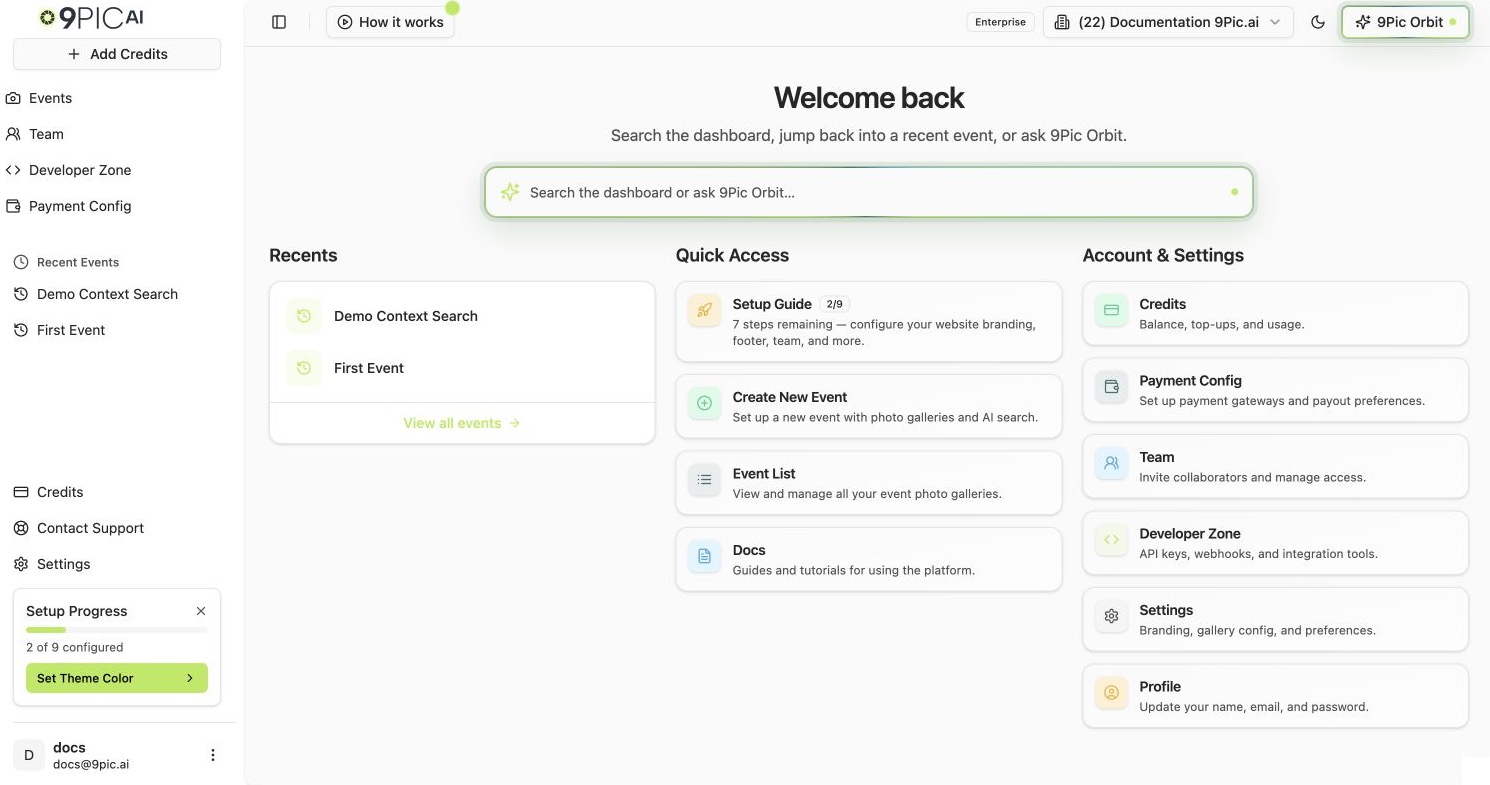
The top bar is always visible at the top of every page. It contains:
* **Logo** — clicking it returns you to dashboard home.
* **Organisation switcher** — shows your current organisation as `(123) My Organisation Name`. Click it to search and switch organisations. See [Sign in](/dashboard-guide/getting-started/sign-in).
* **Plan status** — a small badge that reflects your plan (Trial, Pay As You Go, Pro, Enterprise) and any expiry warnings.
* **Add Credits / Upgrade** — a button that takes you straight to credit purchase. On Trial and Pay As You Go plans it reads **Upgrade**; on other plans it reads **Add Credits**.
## The Top Bar
The top bar is always visible at the top of every page. It contains:
* **Logo** — clicking it returns you to dashboard home.
* **Organisation switcher** — shows your current organisation as `(123) My Organisation Name`. Click it to search and switch organisations. See [Sign in](/dashboard-guide/getting-started/sign-in).
* **Plan status** — a small badge that reflects your plan (Trial, Pay As You Go, Pro, Enterprise) and any expiry warnings.
* **Add Credits / Upgrade** — a button that takes you straight to credit purchase. On Trial and Pay As You Go plans it reads **Upgrade**; on other plans it reads **Add Credits**.
 ## The Home Page (Quick Access & Account & Settings)
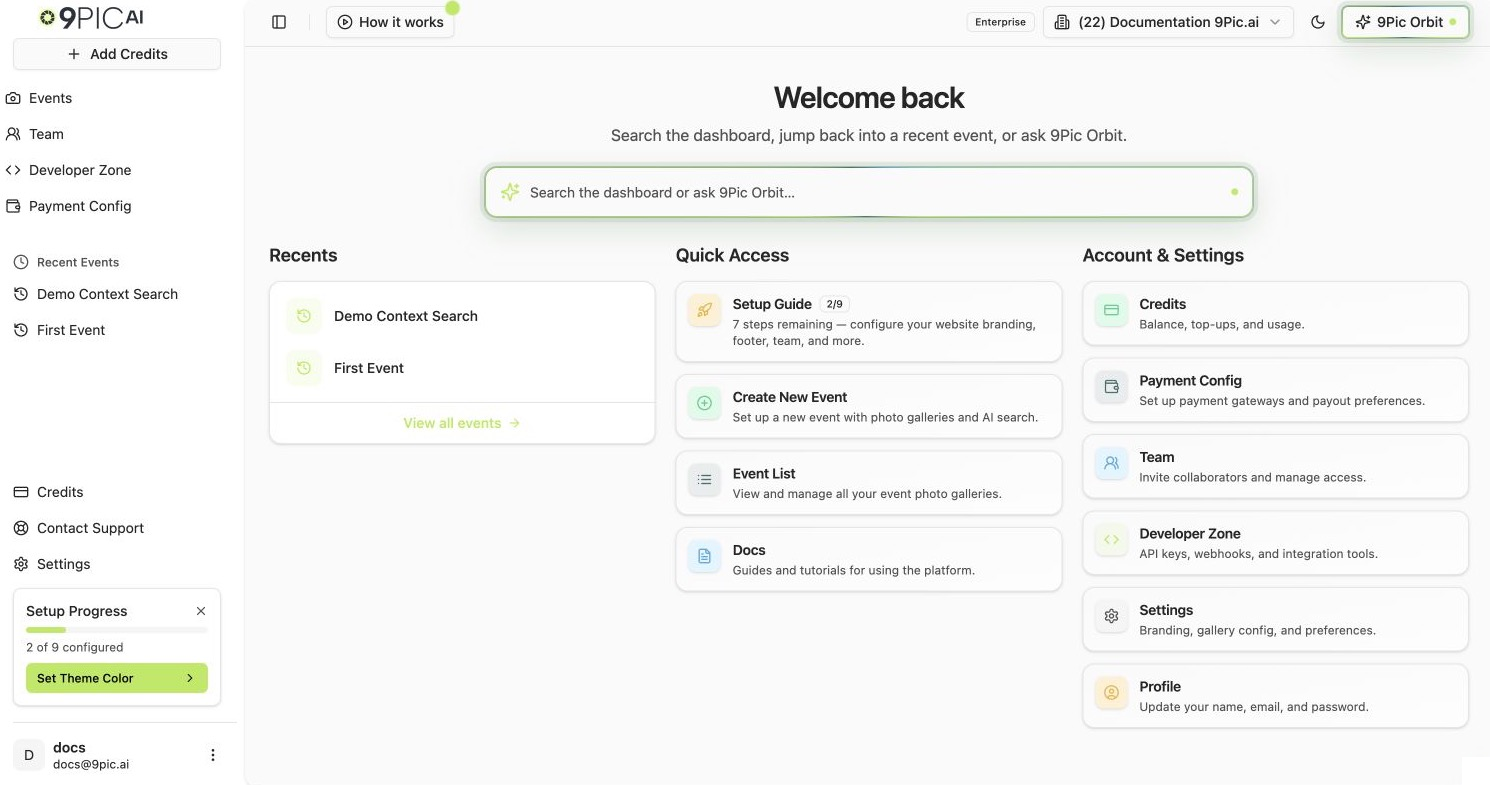
The home page is just two grids of cards.
### Quick Access
| Card | What it does |
| ----------------------------------------------- | ------------------------------------------------------- |
| **Setup Guide** *(only if setup is unfinished)* | Opens the full setup wizard with all steps in one place |
| **Create New Event** | Opens the new event form |
| **Event List** | Opens your events list |
| **Docs** | Opens [docs.9pic.ai](https://docs.9pic.ai) in a new tab |
### Account & Settings
| Card | What it does |
| ------------------ | ----------------------------------------------------------------------------- |
| **Credits** | Credit balance and purchase history |
| **Payment Config** | Payment gateways and payouts (Enterprise only — others see an upgrade prompt) |
| **Team** | Invite people and manage roles |
| **Developer Zone** | API keys and webhooks (Enterprise only) |
| **Settings** | Organisation branding, gallery config, preferences |
| **Profile** | Opens the Clerk profile dialog to update your name, email, or password |
Trial accounts see a banner above Quick Access with **Watch how it works** — a short walkthrough video. It auto-plays the first time you land here and won't reappear once dismissed.
## The Home Page (Quick Access & Account & Settings)
The home page is just two grids of cards.
### Quick Access
| Card | What it does |
| ----------------------------------------------- | ------------------------------------------------------- |
| **Setup Guide** *(only if setup is unfinished)* | Opens the full setup wizard with all steps in one place |
| **Create New Event** | Opens the new event form |
| **Event List** | Opens your events list |
| **Docs** | Opens [docs.9pic.ai](https://docs.9pic.ai) in a new tab |
### Account & Settings
| Card | What it does |
| ------------------ | ----------------------------------------------------------------------------- |
| **Credits** | Credit balance and purchase history |
| **Payment Config** | Payment gateways and payouts (Enterprise only — others see an upgrade prompt) |
| **Team** | Invite people and manage roles |
| **Developer Zone** | API keys and webhooks (Enterprise only) |
| **Settings** | Organisation branding, gallery config, preferences |
| **Profile** | Opens the Clerk profile dialog to update your name, email, or password |
Trial accounts see a banner above Quick Access with **Watch how it works** — a short walkthrough video. It auto-plays the first time you land here and won't reappear once dismissed.
 ## Common Questions
Yes. Click the small **X** in its top-right corner and confirm. It hides for everyone in your organisation. You can still reach individual settings from the Settings page anytime.
You're signed in as a 9Pic staff member. Regular organiser accounts do not see this section. If you see it by accident, contact support — your account may have the wrong role.
You're inside an event. The sidebar enters **event mode** and shows the nine products (Photo, Certify, Flow, and so on). Click **Back to Events** at the top to return to the main sidebar.
## Next Steps
Move on to the 90-second happy path that takes you from a fresh dashboard to processed photos.
Deep reference for the events table, search, and pagination.
## Common Questions
Yes. Click the small **X** in its top-right corner and confirm. It hides for everyone in your organisation. You can still reach individual settings from the Settings page anytime.
You're signed in as a 9Pic staff member. Regular organiser accounts do not see this section. If you see it by accident, contact support — your account may have the wrong role.
You're inside an event. The sidebar enters **event mode** and shows the nine products (Photo, Certify, Flow, and so on). Click **Back to Events** at the top to return to the main sidebar.
## Next Steps
Move on to the 90-second happy path that takes you from a fresh dashboard to processed photos.
Deep reference for the events table, search, and pagination.