> ## Documentation Index
> Fetch the complete documentation index at: https://docs.9pic.ai/llms.txt
> Use this file to discover all available pages before exploring further.
# Events List
> Browse, create, and open events from one screen.
## Overview
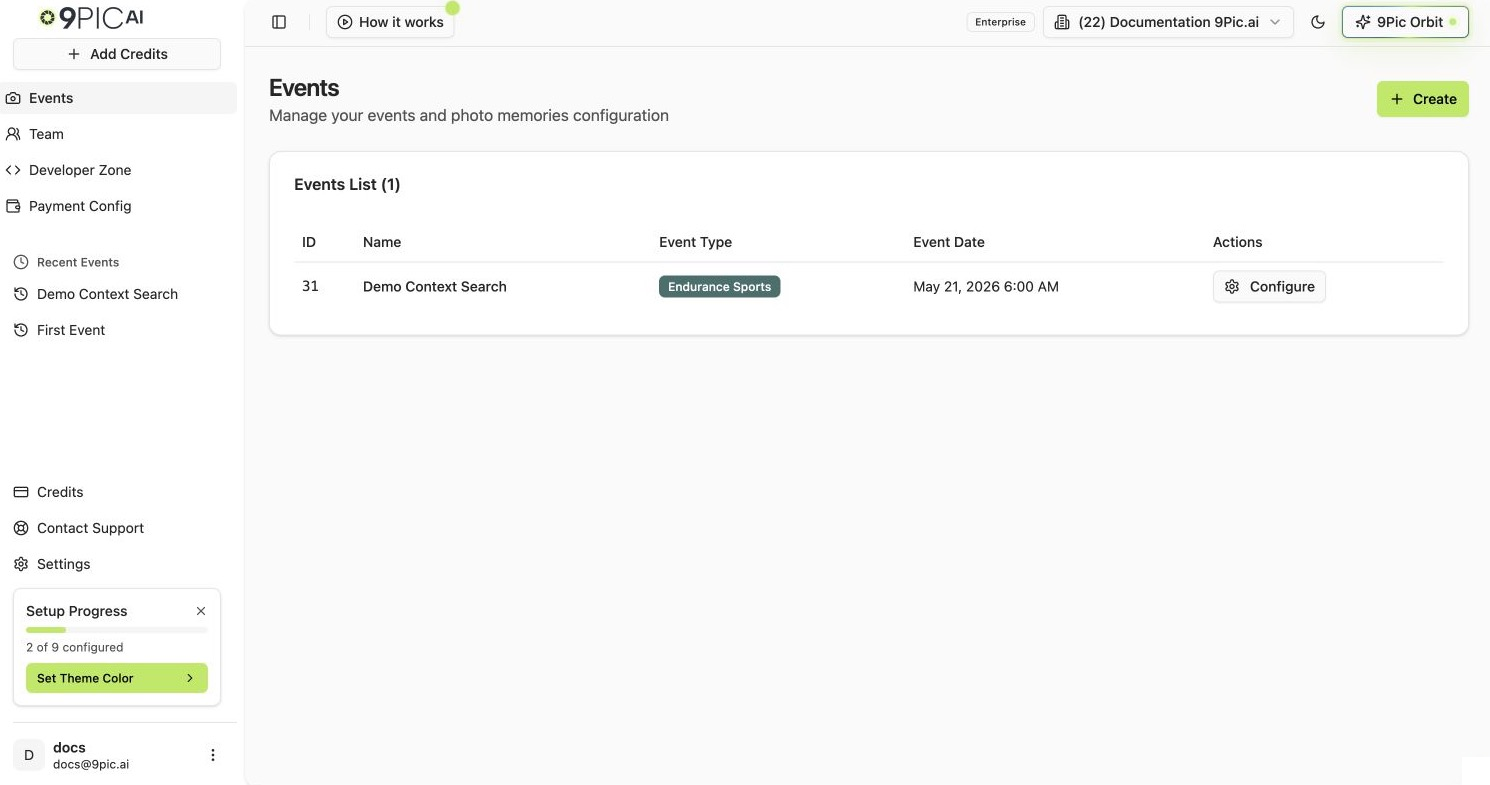
The Events list is your home base once you have at least one event. It opens whenever you click **Events** in the sidebar or **Event List** from the dashboard home. It shows every event for the currently selected organisation, with pagination, click-to-open rows, and a **Create** button in the top-right.
 ## How to Open the Events List
Click **Events** in the dashboard sidebar (camera icon). You can also click the **Event List** card from dashboard home.
The list is scoped to the organisation in the top bar. Switch organisations if you do not see the events you expect.
## What Each Column Means
| Column | What it shows |
| -------------- | -------------------------------------------------------------------------------------------------- |
| **ID** | The numeric event ID. Useful for support requests and API calls |
| **Name** | The event name you entered when creating the event |
| **Event Type** | A badge showing one of: **Endurance Sports**, **Social Events**, **Conference**, **General** |
| **Event Date** | The start date and time of the event, in your local timezone (formatted as `Jan 12, 2026 6:00 AM`) |
| **Actions** | A **Configure** button that opens the event's details page |
Clicking anywhere on a row opens the event details, not only the **Configure** button. The whole row is clickable.
## Pagination
The list loads 30 events per page, sorted by the API (latest activity first). When you have more than 30 events:
* **Previous** / **Next** buttons appear at the bottom-right.
* A counter on the bottom-left reads `Showing 1 to 30 of 87 events`.
* The page number sits between the two buttons (`Page 1 of 3`).
Pagination resets if you switch organisations or refresh the page.
## Create a New Event From This Screen
The primary entry point for creating an event sits in the top-right of the Events list:
The blue **Create** button (with a `+` icon) opens the new event form.
See [Create an event](/dashboard-guide/events/create) for the full field-by-field reference.
After creating, you land back on the Events list with your new event at (or near) the top.
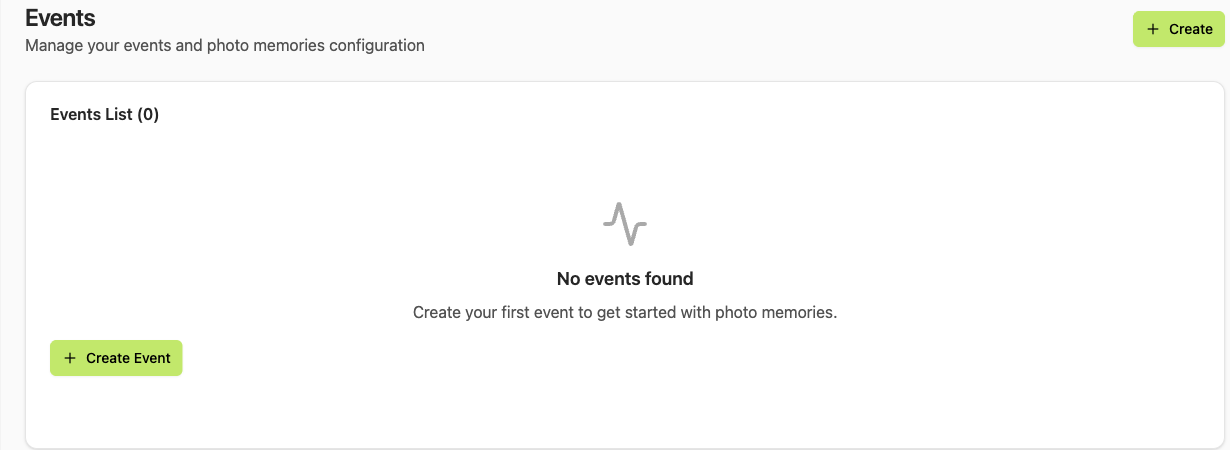
If you have no events yet, an empty state takes over the table area: a calendar icon, the message *No events found*, and a centred **Create Event** button. Use it the same way as the top-right **Create** button.
## How to Open the Events List
Click **Events** in the dashboard sidebar (camera icon). You can also click the **Event List** card from dashboard home.
The list is scoped to the organisation in the top bar. Switch organisations if you do not see the events you expect.
## What Each Column Means
| Column | What it shows |
| -------------- | -------------------------------------------------------------------------------------------------- |
| **ID** | The numeric event ID. Useful for support requests and API calls |
| **Name** | The event name you entered when creating the event |
| **Event Type** | A badge showing one of: **Endurance Sports**, **Social Events**, **Conference**, **General** |
| **Event Date** | The start date and time of the event, in your local timezone (formatted as `Jan 12, 2026 6:00 AM`) |
| **Actions** | A **Configure** button that opens the event's details page |
Clicking anywhere on a row opens the event details, not only the **Configure** button. The whole row is clickable.
## Pagination
The list loads 30 events per page, sorted by the API (latest activity first). When you have more than 30 events:
* **Previous** / **Next** buttons appear at the bottom-right.
* A counter on the bottom-left reads `Showing 1 to 30 of 87 events`.
* The page number sits between the two buttons (`Page 1 of 3`).
Pagination resets if you switch organisations or refresh the page.
## Create a New Event From This Screen
The primary entry point for creating an event sits in the top-right of the Events list:
The blue **Create** button (with a `+` icon) opens the new event form.
See [Create an event](/dashboard-guide/events/create) for the full field-by-field reference.
After creating, you land back on the Events list with your new event at (or near) the top.
If you have no events yet, an empty state takes over the table area: a calendar icon, the message *No events found*, and a centred **Create Event** button. Use it the same way as the top-right **Create** button.
 ## Open an Event for Editing
Click anywhere on the event row (or the **Configure** button on the right) to open the event details page. You land on the **9pic Photo** product, **Overview** tab — see [Event details](/dashboard-guide/events/details) for the full layout.
## Common Questions
The list is scoped to the selected organisation. If you created the event under a different organisation, switch organisations from the top bar.
The current list does not have a search or filter field. Page through with **Previous** / **Next**, or jump straight to an event from **Recent Events** in the sidebar. For very large organisations, use the [API](/api-reference/list-events) to query events programmatically.
Sort options are not exposed in the UI yet. Events are returned in the order the backend provides (latest activity first).
The numeric event ID. You'll need it when contacting support, when calling the [API](/api-reference/event-details), and as a stable reference if the event name changes.
## Next Steps
Full field-by-field reference for the new event form.
The nine-product navigation and the tab pattern inside each event.
## Open an Event for Editing
Click anywhere on the event row (or the **Configure** button on the right) to open the event details page. You land on the **9pic Photo** product, **Overview** tab — see [Event details](/dashboard-guide/events/details) for the full layout.
## Common Questions
The list is scoped to the selected organisation. If you created the event under a different organisation, switch organisations from the top bar.
The current list does not have a search or filter field. Page through with **Previous** / **Next**, or jump straight to an event from **Recent Events** in the sidebar. For very large organisations, use the [API](/api-reference/list-events) to query events programmatically.
Sort options are not exposed in the UI yet. Events are returned in the order the backend provides (latest activity first).
The numeric event ID. You'll need it when contacting support, when calling the [API](/api-reference/event-details), and as a stable reference if the event name changes.
## Next Steps
Full field-by-field reference for the new event form.
The nine-product navigation and the tab pattern inside each event.