> ## Documentation Index
> Fetch the complete documentation index at: https://docs.9pic.ai/llms.txt
> Use this file to discover all available pages before exploring further.
# Event Details
> The product navigation and tab pattern inside every event.
## Overview
Event details is the workhorse screen for every event. It hosts **nine products** behind a secondary navigation, and each product exposes its own set of **tabs**. This page explains the layout, the navigation pattern, the plan-gating, and the URL conventions. Deep references for each product land in later sections (9Pic Photo, Creative Tools, Sales & Revenue, Advanced Configuration).
 ## Opening an Event
Click any row, or the **Configure** button on the right of a row. See [Events list](/dashboard-guide/events/list).
Click any **Recent Events** entry in the dashboard sidebar.
Bookmark or share `https://admin.9pic.ai/event-memories/{''}/details`.
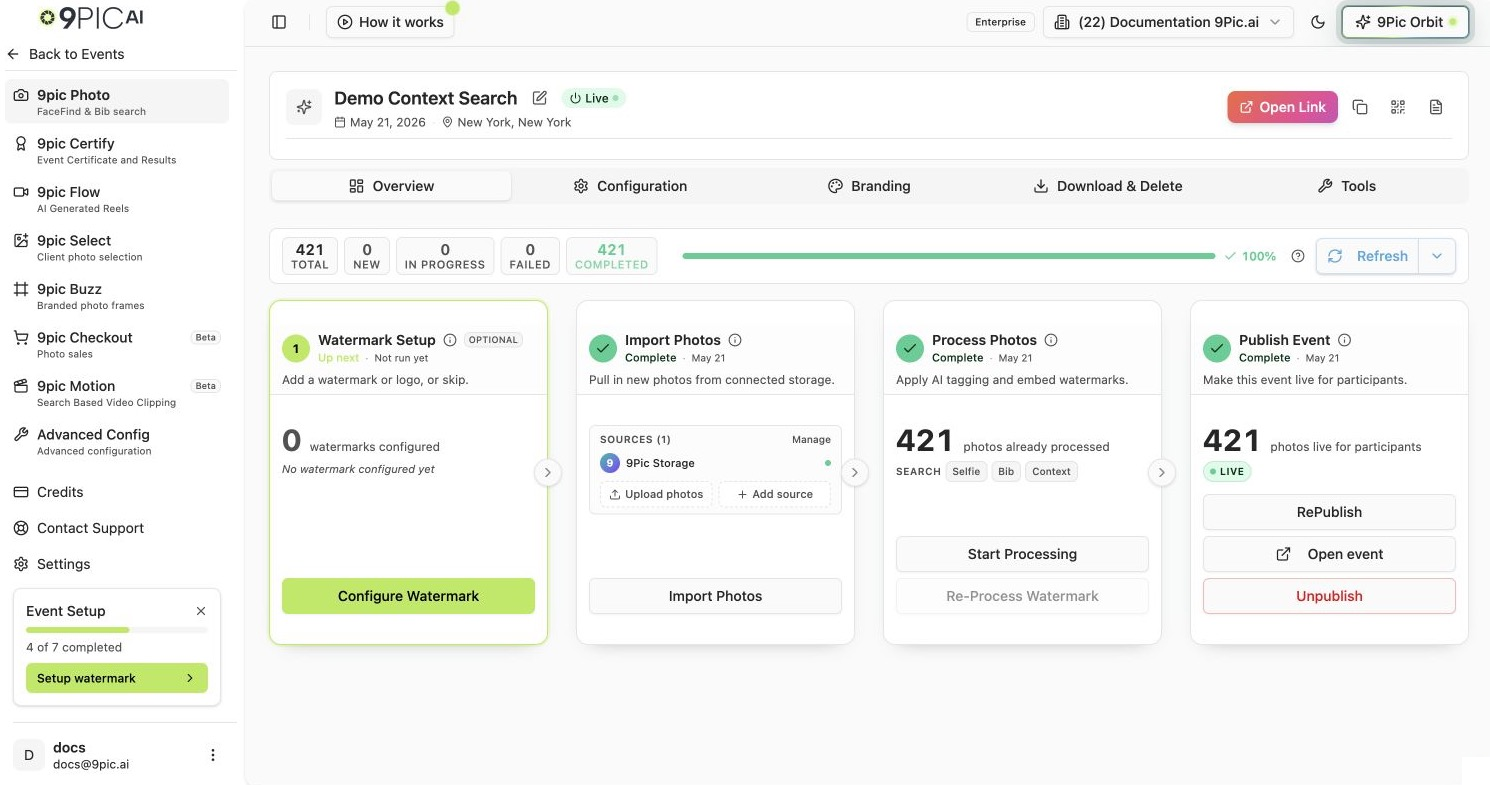
When you land, you start on the **9pic Photo** product, **Overview** tab — that is the default for every event.
## Layout
Event details has four regions:
| Region | What it does |
| ------------------------ | ------------------------------------------------------------------------------------------------------------------------------------------------------------------------------------------------ |
| **Sidebar (event mode)** | The dashboard sidebar swaps to show the nine products as a vertical list. A **Back to Events** link sits at the top. On mobile the products move into a horizontal scroll above the page content |
| **Event header** | Event name, key status, and action buttons (**Open Link**, **Copy Link**, **Edit Event Info**, optional **Customise QR** under Advanced) |
| **Tab bar** | Tabs scoped to the currently selected product. Each product has a different tab set |
| **Tab content** | The body of the selected tab |
## The Nine Products
Every event exposes the same nine products in the secondary navigation. Availability depends on your plan; products you cannot use on your current plan show a small **Lock** icon. Clicking a locked product tells you which plan to upgrade to.
| Product | Description | Available on |
| ------------------- | -------------------------------------------------------------------------------------------------------------------------- | ------------------ |
| **9pic Photo** | FaceFind & Bib search (the core product). Sub-products: **FaceFind** (selfie search) and **Bib Track** (bib number search) | All plans |
| **9pic Certify** | Event certificates and results | Pro and Enterprise |
| **9pic Flow** | AI-generated reels | Pro and Enterprise |
| **9pic Select** | Client photo selection | Pro and Enterprise |
| **9pic Buzz** | Branded photo frames | Pro and Enterprise |
| **9pic Checkout** | Photo sales — **Beta** | Enterprise |
| **9pic Motion** | Search-based video clipping — **Beta** | Pro and Enterprise |
| **Advanced Config** | Visibility, password, CTA, cache, and event QR | All plans |
| **Analytics** | Per-event usage analytics | All plans |
**Beta** products (Checkout and Motion) are stable enough to use but may still change. You'll see a **Beta** badge next to their name in the sidebar and on the mobile product pills.
The creative tools (Certify, Flow, Select, Buzz, Motion) unlock on the **Pro** plan, and Checkout unlocks on **Enterprise**. If a product you expect is still locked after upgrading, email [support@9pic.ai](mailto:support@9pic.ai) to have it switched on for your organisation.
**Locked products** appear faded with a small lock icon. Clicking one shows a toast telling you which plan unlocks it. Locked products do not navigate — you stay on your current page.
## Opening an Event
Click any row, or the **Configure** button on the right of a row. See [Events list](/dashboard-guide/events/list).
Click any **Recent Events** entry in the dashboard sidebar.
Bookmark or share `https://admin.9pic.ai/event-memories/{''}/details`.
When you land, you start on the **9pic Photo** product, **Overview** tab — that is the default for every event.
## Layout
Event details has four regions:
| Region | What it does |
| ------------------------ | ------------------------------------------------------------------------------------------------------------------------------------------------------------------------------------------------ |
| **Sidebar (event mode)** | The dashboard sidebar swaps to show the nine products as a vertical list. A **Back to Events** link sits at the top. On mobile the products move into a horizontal scroll above the page content |
| **Event header** | Event name, key status, and action buttons (**Open Link**, **Copy Link**, **Edit Event Info**, optional **Customise QR** under Advanced) |
| **Tab bar** | Tabs scoped to the currently selected product. Each product has a different tab set |
| **Tab content** | The body of the selected tab |
## The Nine Products
Every event exposes the same nine products in the secondary navigation. Availability depends on your plan; products you cannot use on your current plan show a small **Lock** icon. Clicking a locked product tells you which plan to upgrade to.
| Product | Description | Available on |
| ------------------- | -------------------------------------------------------------------------------------------------------------------------- | ------------------ |
| **9pic Photo** | FaceFind & Bib search (the core product). Sub-products: **FaceFind** (selfie search) and **Bib Track** (bib number search) | All plans |
| **9pic Certify** | Event certificates and results | Pro and Enterprise |
| **9pic Flow** | AI-generated reels | Pro and Enterprise |
| **9pic Select** | Client photo selection | Pro and Enterprise |
| **9pic Buzz** | Branded photo frames | Pro and Enterprise |
| **9pic Checkout** | Photo sales — **Beta** | Enterprise |
| **9pic Motion** | Search-based video clipping — **Beta** | Pro and Enterprise |
| **Advanced Config** | Visibility, password, CTA, cache, and event QR | All plans |
| **Analytics** | Per-event usage analytics | All plans |
**Beta** products (Checkout and Motion) are stable enough to use but may still change. You'll see a **Beta** badge next to their name in the sidebar and on the mobile product pills.
The creative tools (Certify, Flow, Select, Buzz, Motion) unlock on the **Pro** plan, and Checkout unlocks on **Enterprise**. If a product you expect is still locked after upgrading, email [support@9pic.ai](mailto:support@9pic.ai) to have it switched on for your organisation.
**Locked products** appear faded with a small lock icon. Clicking one shows a toast telling you which plan unlocks it. Locked products do not navigate — you stay on your current page.
 ## How Tabs Work Per Product
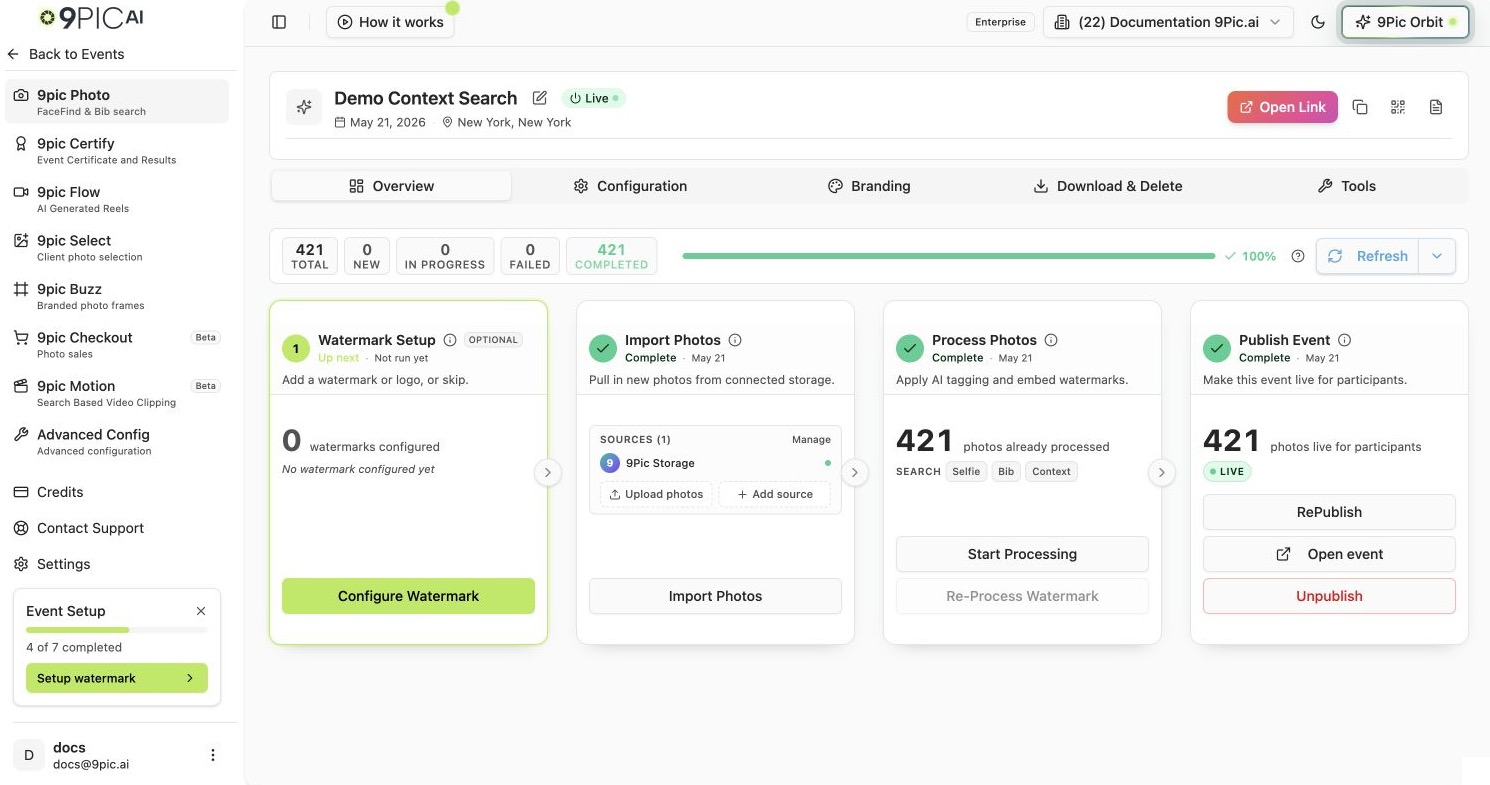
Each product has its own tab set. Switching products takes you to that product's default tab automatically — usually **Overview**.
| Product | Tabs (in order) |
| ------------------- | ----------------------------------------------------------- |
| **9pic Photo** | Overview, Configuration, Branding, Download & Delete, Tools |
| **9pic Certify** | Overview, Setup, Certificate, Records, Publish |
| **9pic Flow** | Overview, Configuration |
| **9pic Select** | Overview, Access, Analytics |
| **9pic Buzz** | Overview, Branding |
| **9pic Checkout** | Overview, Configuration, Transactions |
| **9pic Motion** | Overview, Configuration |
| **Advanced Config** | Overview, Event QR |
| **Analytics** | Overview, Analytics |
The Photo product's **Tools** tab is a launcher for two AI tools — **Manual Tagging** and **AI Image Analysis** — each on its own page.
Switching tabs updates the URL but does not change which product is selected. Switching products picks the product's default tab.
## URL Patterns You Can Share
Event details exposes its product and tab state in the URL search params. You can bookmark a deep link straight to any product/tab combination.
| URL pattern | What it opens |
| ------------------------------------------------------------------------------ | --------------------------------------------------------------------- |
| `/event-memories/123/details` | Event 123, Photo product, Overview tab (default) |
| `/event-memories/123/details?product=certify&tab=overview` | Event 123, Certify product, Overview tab |
| `/event-memories/123/details?product=photo&tab=branding` | Event 123, Photo Branding tab |
| `/event-memories/123/details?product=advanced&tab=event-qr&modal=qr-customize` | Event 123, Advanced Event QR with the Customise QR modal already open |
If you share a deep link that contains an unsupported tab for the current product, the dashboard quietly redirects you to that product's default tab. Your bookmark still works.
## The Event Header
The header sits above the tab bar and stays the same as you switch tabs. It exposes the actions you most often need from any tab:
| Button | What it does |
| ------------------------------------- | ------------------------------------------------------------------------------------------------ |
| **Open Link** | Opens the live participant URL in a new tab. Visible once the event is live |
| **Copy Link** | Copies the participant URL to your clipboard. Visible once the event is live |
| **Edit Event Info** | Opens a modal to change event name, date, and location after creation |
| **Customise QR** *(Advanced product)* | Available under the **Advanced Config → Event QR** tab. Opens a modal to brand the event QR code |
## Common Questions
You're inside an event. The dashboard sidebar enters **event mode** and shows the nine products. Click **Back to Events** at the top of the sidebar to return to the main dashboard sidebar.
Those products are not available on your current plan. Click one to see a toast telling you which plan unlocks it. Visit **Credits** in the sidebar to upgrade.
Yes — Beta products are usable in production, but expect occasional UI changes or feature tweaks. If a Beta product breaks an event, email [support@9pic.ai](mailto:support@9pic.ai).
The creative tools (Certify, Flow, Select, Buzz, Motion) unlock on **Pro**, and Checkout on **Enterprise**. If one is still locked after your plan changes, email [support@9pic.ai](mailto:support@9pic.ai) to have it switched on for your organisation.
Click **Edit Event Info** in the event header. A modal opens with the same name, date, and location fields you used when creating the event.
## Next Steps
Deep dive into sources, sync, and processing for the core Photo product.
Certify, Flow, Select, Buzz, and Motion — what each one does.
Back to the list of all your events.
Field-by-field reference for the new event form.
## How Tabs Work Per Product
Each product has its own tab set. Switching products takes you to that product's default tab automatically — usually **Overview**.
| Product | Tabs (in order) |
| ------------------- | ----------------------------------------------------------- |
| **9pic Photo** | Overview, Configuration, Branding, Download & Delete, Tools |
| **9pic Certify** | Overview, Setup, Certificate, Records, Publish |
| **9pic Flow** | Overview, Configuration |
| **9pic Select** | Overview, Access, Analytics |
| **9pic Buzz** | Overview, Branding |
| **9pic Checkout** | Overview, Configuration, Transactions |
| **9pic Motion** | Overview, Configuration |
| **Advanced Config** | Overview, Event QR |
| **Analytics** | Overview, Analytics |
The Photo product's **Tools** tab is a launcher for two AI tools — **Manual Tagging** and **AI Image Analysis** — each on its own page.
Switching tabs updates the URL but does not change which product is selected. Switching products picks the product's default tab.
## URL Patterns You Can Share
Event details exposes its product and tab state in the URL search params. You can bookmark a deep link straight to any product/tab combination.
| URL pattern | What it opens |
| ------------------------------------------------------------------------------ | --------------------------------------------------------------------- |
| `/event-memories/123/details` | Event 123, Photo product, Overview tab (default) |
| `/event-memories/123/details?product=certify&tab=overview` | Event 123, Certify product, Overview tab |
| `/event-memories/123/details?product=photo&tab=branding` | Event 123, Photo Branding tab |
| `/event-memories/123/details?product=advanced&tab=event-qr&modal=qr-customize` | Event 123, Advanced Event QR with the Customise QR modal already open |
If you share a deep link that contains an unsupported tab for the current product, the dashboard quietly redirects you to that product's default tab. Your bookmark still works.
## The Event Header
The header sits above the tab bar and stays the same as you switch tabs. It exposes the actions you most often need from any tab:
| Button | What it does |
| ------------------------------------- | ------------------------------------------------------------------------------------------------ |
| **Open Link** | Opens the live participant URL in a new tab. Visible once the event is live |
| **Copy Link** | Copies the participant URL to your clipboard. Visible once the event is live |
| **Edit Event Info** | Opens a modal to change event name, date, and location after creation |
| **Customise QR** *(Advanced product)* | Available under the **Advanced Config → Event QR** tab. Opens a modal to brand the event QR code |
## Common Questions
You're inside an event. The dashboard sidebar enters **event mode** and shows the nine products. Click **Back to Events** at the top of the sidebar to return to the main dashboard sidebar.
Those products are not available on your current plan. Click one to see a toast telling you which plan unlocks it. Visit **Credits** in the sidebar to upgrade.
Yes — Beta products are usable in production, but expect occasional UI changes or feature tweaks. If a Beta product breaks an event, email [support@9pic.ai](mailto:support@9pic.ai).
The creative tools (Certify, Flow, Select, Buzz, Motion) unlock on **Pro**, and Checkout on **Enterprise**. If one is still locked after your plan changes, email [support@9pic.ai](mailto:support@9pic.ai) to have it switched on for your organisation.
Click **Edit Event Info** in the event header. A modal opens with the same name, date, and location fields you used when creating the event.
## Next Steps
Deep dive into sources, sync, and processing for the core Photo product.
Certify, Flow, Select, Buzz, and Motion — what each one does.
Back to the list of all your events.
Field-by-field reference for the new event form.