> ## Documentation Index
> Fetch the complete documentation index at: https://docs.9pic.ai/llms.txt
> Use this file to discover all available pages before exploring further.
# Create an Event
> Field-by-field reference for the new event form.
## Overview
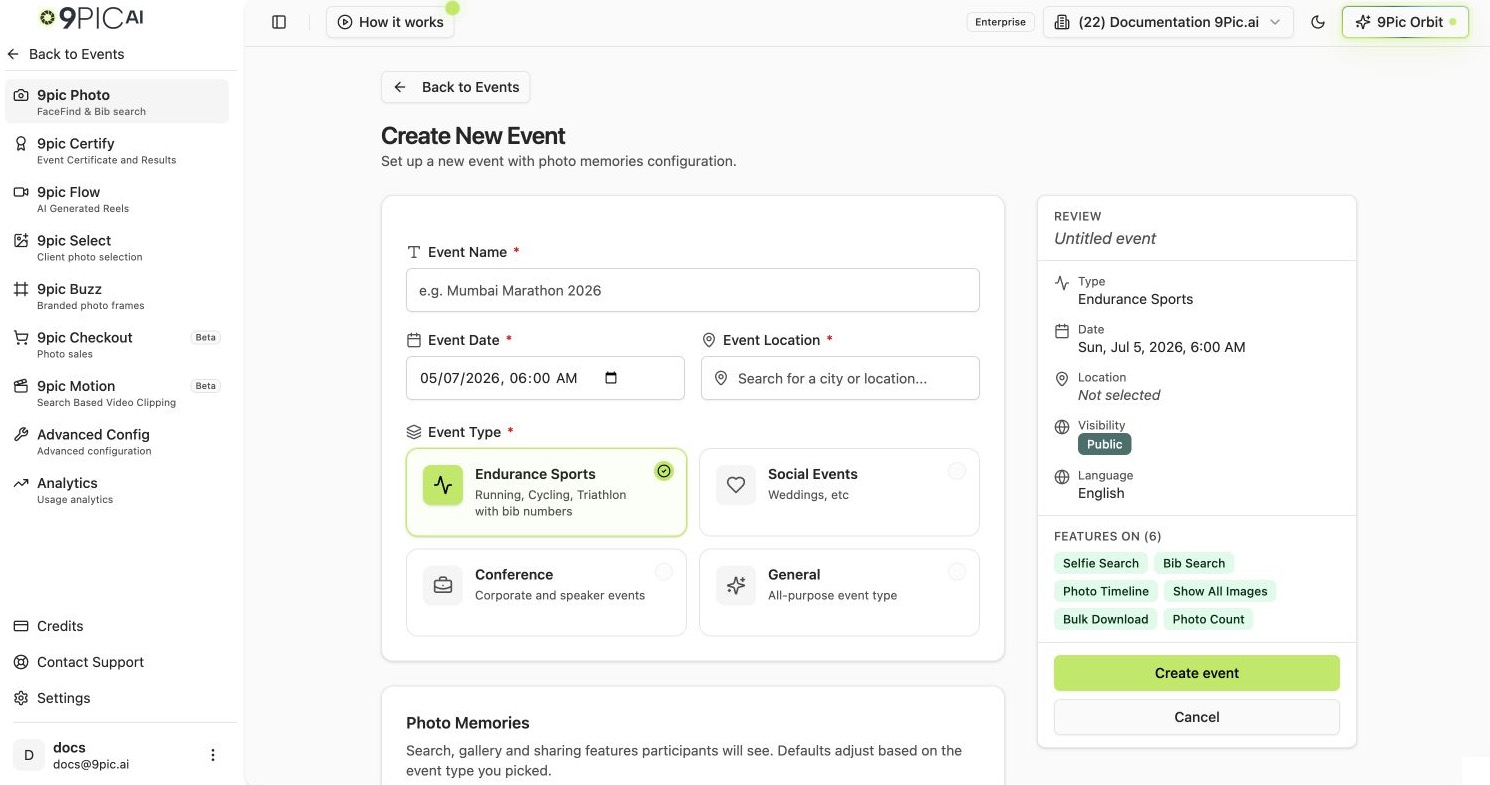
The new event form lives at **Events → Create**. It is one page with **Event Details**, **Photo Memories**, collapsible **Privacy & Localization**, and **Storage** sections, plus a live review panel on the right. The form uses real-time validation, so the **Create Event** button stays disabled until required fields are valid.
For the fastest possible flow, see [Create your first event](/dashboard-guide/getting-started/first-event). This page is the deep reference.
 ## How to Open the Form
Click **Create New Event** in **Quick Access**, or click **Events** in the sidebar and then **Create** in the top-right.
The event is created under the organisation currently selected in the top bar. Switch organisations first if needed.
## Event Details (Required)
The first card collects the basics. Every field is required.
| Field | What it does |
| ------------------ | ---------------------------------------------------------------------------------------------- |
| **Event Name** | The public name participants will see. Maximum 1000 characters |
| **Event Date** | Start date and time, picked with a datetime picker. Defaults to today at 6 AM in your timezone |
| **Event Location** | A Google Places autocomplete. Type a city, venue, or address and pick from the suggestions |
| **Event Type** | One of four cards — see the next section. Picking this unlocks the rest of the form |
**Event Location** must come from the autocomplete suggestions. Typing free text without selecting a result is rejected on submit.
### Event Type
Click one of the four event type cards to set the event defaults and update the review panel:
| Card | When to choose | What it unlocks |
| -------------------- | ----------------------------------------------------- | ------------------------------------------- |
| **Endurance Sports** | Running, cycling, triathlon — events with bib numbers | Bib Number Search and Name Search (via CSV) |
| **Social Events** | Weddings and similar | Standard photo features only |
| **Conference** | Corporate and speaker events | Standard photo features only |
| **General** | Anything else | Standard photo features only |
## How to Open the Form
Click **Create New Event** in **Quick Access**, or click **Events** in the sidebar and then **Create** in the top-right.
The event is created under the organisation currently selected in the top bar. Switch organisations first if needed.
## Event Details (Required)
The first card collects the basics. Every field is required.
| Field | What it does |
| ------------------ | ---------------------------------------------------------------------------------------------- |
| **Event Name** | The public name participants will see. Maximum 1000 characters |
| **Event Date** | Start date and time, picked with a datetime picker. Defaults to today at 6 AM in your timezone |
| **Event Location** | A Google Places autocomplete. Type a city, venue, or address and pick from the suggestions |
| **Event Type** | One of four cards — see the next section. Picking this unlocks the rest of the form |
**Event Location** must come from the autocomplete suggestions. Typing free text without selecting a result is rejected on submit.
### Event Type
Click one of the four event type cards to set the event defaults and update the review panel:
| Card | When to choose | What it unlocks |
| -------------------- | ----------------------------------------------------- | ------------------------------------------- |
| **Endurance Sports** | Running, cycling, triathlon — events with bib numbers | Bib Number Search and Name Search (via CSV) |
| **Social Events** | Weddings and similar | Standard photo features only |
| **Conference** | Corporate and speaker events | Standard photo features only |
| **General** | Anything else | Standard photo features only |
 ## Photo Memories Configuration
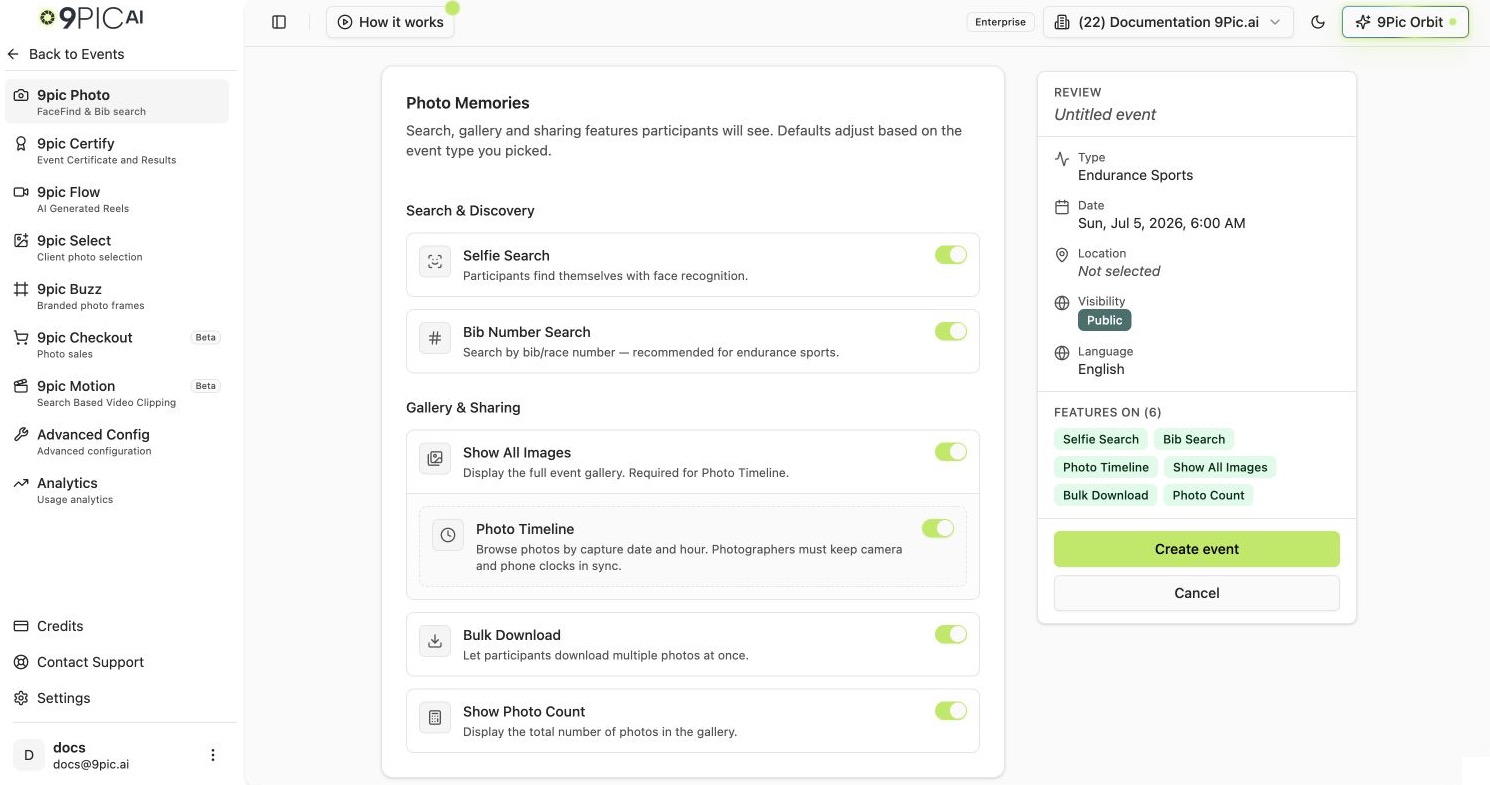
This card sits below Event Details and updates after you pick an Event Type. It has Search & Discovery and Gallery & Sharing subsections.
### Search Features
| Toggle | Default | What it does |
| --------------------- | ------------------------------------------- | --------------------------------------------------- |
| **Bib Number Search** | On for Endurance Sports, otherwise disabled | Lets participants search by their bib number |
| **Selfie Search** | On | Lets participants find photos with face recognition |
When **Bib Number Search** is on for an endurance event, an info note reminds you that **Name Search** is enabled later by uploading a CSV mapping participant names to bib numbers — that upload lives in the Configuration tab after the event is created.
### Display & Download
| Toggle | Default | What it does |
| -------------------- | ------- | ------------------------------------------------------------------ |
| **Show All Images** | On | Lets participants see the full gallery, not only their own matches |
| **Bulk Download** | On | Lets participants download multiple photos at once |
| **Show Photo Count** | On | Displays the total number of photos on the public event page |
### Storage (Enterprise plan only)
Storage is now a separate collapsible section below Privacy & Localization.
| Toggle | Default | What it does |
| --------------------------- | ------- | --------------------------------------------------------------------------------------------------------------- |
| **Store Original Memories** | Off | Keeps original files alongside watermarked versions so participants can buy or receive watermark-free downloads |
Enabling **Store Original Memories** shows a confirmation dialog: *This might incur additional charges if not purchased in your base plan.* You must click **I Understand, Continue** to turn it on.
**Store Original Memories** can increase your storage cost depending on your plan. Enable it only when your delivery model needs originals.
## Photo Memories Configuration
This card sits below Event Details and updates after you pick an Event Type. It has Search & Discovery and Gallery & Sharing subsections.
### Search Features
| Toggle | Default | What it does |
| --------------------- | ------------------------------------------- | --------------------------------------------------- |
| **Bib Number Search** | On for Endurance Sports, otherwise disabled | Lets participants search by their bib number |
| **Selfie Search** | On | Lets participants find photos with face recognition |
When **Bib Number Search** is on for an endurance event, an info note reminds you that **Name Search** is enabled later by uploading a CSV mapping participant names to bib numbers — that upload lives in the Configuration tab after the event is created.
### Display & Download
| Toggle | Default | What it does |
| -------------------- | ------- | ------------------------------------------------------------------ |
| **Show All Images** | On | Lets participants see the full gallery, not only their own matches |
| **Bulk Download** | On | Lets participants download multiple photos at once |
| **Show Photo Count** | On | Displays the total number of photos on the public event page |
### Storage (Enterprise plan only)
Storage is now a separate collapsible section below Privacy & Localization.
| Toggle | Default | What it does |
| --------------------------- | ------- | --------------------------------------------------------------------------------------------------------------- |
| **Store Original Memories** | Off | Keeps original files alongside watermarked versions so participants can buy or receive watermark-free downloads |
Enabling **Store Original Memories** shows a confirmation dialog: *This might incur additional charges if not purchased in your base plan.* You must click **I Understand, Continue** to turn it on.
**Store Original Memories** can increase your storage cost depending on your plan. Enable it only when your delivery model needs originals.
 ## Privacy & Localization (Collapsible)
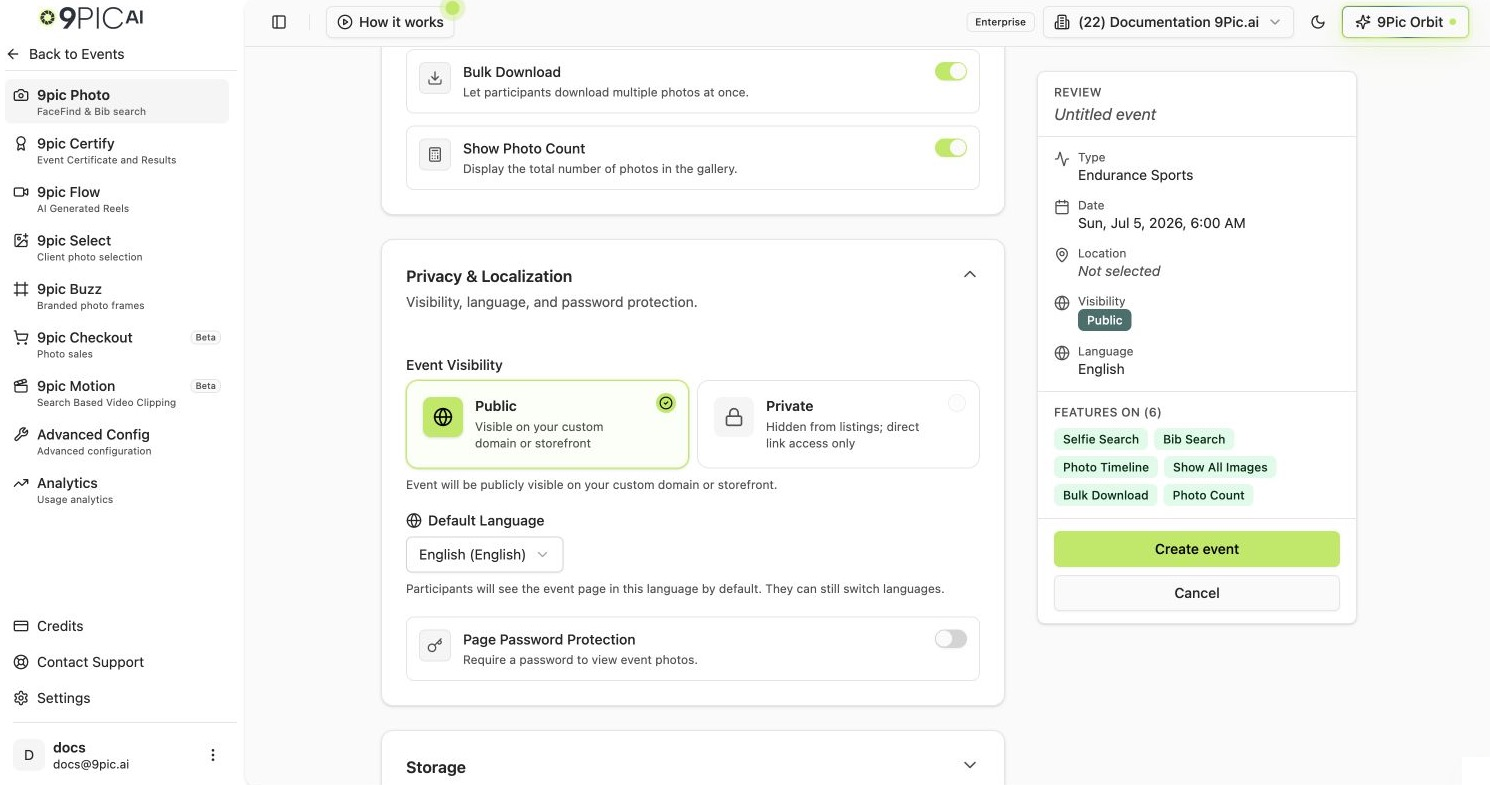
The **Privacy & Localization** card is collapsed by default. Click anywhere on its header to expand. It contains visibility, default language, and page password controls.
### Default Language
A dropdown of languages participants will see by default on the event page. They can still switch language on the public page. Options:
| Code | Label |
| ---- | ----------------------------- |
| `en` | English |
| `es` | Spanish (Español) |
| `pt` | Portuguese (Português) |
| `de` | German (Deutsch) |
| `fr` | French (Français) |
| `ja` | Japanese (日本語) |
| `it` | Italian (Italiano) |
| `id` | Indonesian (Bahasa Indonesia) |
| `vi` | Vietnamese (Tiếng Việt) |
### Event Visibility
Controls whether the event is publicly listed and where it appears.
| Option | What it does |
| ----------- | ------------------------------------------------------------------------------- |
| **Public** | The event is visible on your custom domain or storefront |
| **Private** | The event is hidden from listings. Only people with the direct link can find it |
On the **Trial** plan, Platform Visibility is locked to **Private**. Upgrade to a paid plan to change this.
### Page Password Protection
| Toggle | Default | What it does |
| ---------------------------- | --------- | ---------------------------------------------------------------------------- |
| **Page Password Protection** | Off | Adds a password prompt before participants can view event photos |
| **Page Password** | *(empty)* | The password participants must enter. Becomes required once protection is on |
If you turn off **Page Password Protection**, the password value is cleared automatically.
## Privacy & Localization (Collapsible)
The **Privacy & Localization** card is collapsed by default. Click anywhere on its header to expand. It contains visibility, default language, and page password controls.
### Default Language
A dropdown of languages participants will see by default on the event page. They can still switch language on the public page. Options:
| Code | Label |
| ---- | ----------------------------- |
| `en` | English |
| `es` | Spanish (Español) |
| `pt` | Portuguese (Português) |
| `de` | German (Deutsch) |
| `fr` | French (Français) |
| `ja` | Japanese (日本語) |
| `it` | Italian (Italiano) |
| `id` | Indonesian (Bahasa Indonesia) |
| `vi` | Vietnamese (Tiếng Việt) |
### Event Visibility
Controls whether the event is publicly listed and where it appears.
| Option | What it does |
| ----------- | ------------------------------------------------------------------------------- |
| **Public** | The event is visible on your custom domain or storefront |
| **Private** | The event is hidden from listings. Only people with the direct link can find it |
On the **Trial** plan, Platform Visibility is locked to **Private**. Upgrade to a paid plan to change this.
### Page Password Protection
| Toggle | Default | What it does |
| ---------------------------- | --------- | ---------------------------------------------------------------------------- |
| **Page Password Protection** | Off | Adds a password prompt before participants can view event photos |
| **Page Password** | *(empty)* | The password participants must enter. Becomes required once protection is on |
If you turn off **Page Password Protection**, the password value is cleared automatically.
 ## Creating the Event
When every required field is filled and **Event Location** is selected from the suggestions:
The primary button at the bottom right of the form. **Cancel** sits next to it and returns you to the Events list without saving.
The button changes to **Creating...** while the request is in flight. It takes a second or two.
On success, you are redirected back to **Events** with the new event in the list. Click into it to start adding sources and processing.
## Validation Errors You May Hit
The **Event Name** field is empty. Add a name (anything from 1 to 1000 characters).
None of the four Event Type cards is selected. Click one before the form will submit.
You typed in the location field but did not pick a Google Places suggestion. Re-type and click one of the suggestions.
**Page Password Protection** is on but **Page Password** is empty. Either fill in the password or turn protection off.
## Common Questions
Yes. Every option here is editable later from the event's **Configuration** tab inside event details. Some changes (like enabling **Store Original Memories**) may require re-running processing.
It's only available when the **Event Type** is **Endurance Sports**. Switch event types if you need it.
Inside the event's Configuration tab. Upload a CSV that maps participant names to bib numbers and Name Search becomes available on the public event page.
## Next Steps
The nine-product navigation and the tab pattern inside an event.
Back to the list of all your events.
Source management, sync, and processing for the core photo product.
Usage limits referenced by Store Original Memories and other paid options.
## Creating the Event
When every required field is filled and **Event Location** is selected from the suggestions:
The primary button at the bottom right of the form. **Cancel** sits next to it and returns you to the Events list without saving.
The button changes to **Creating...** while the request is in flight. It takes a second or two.
On success, you are redirected back to **Events** with the new event in the list. Click into it to start adding sources and processing.
## Validation Errors You May Hit
The **Event Name** field is empty. Add a name (anything from 1 to 1000 characters).
None of the four Event Type cards is selected. Click one before the form will submit.
You typed in the location field but did not pick a Google Places suggestion. Re-type and click one of the suggestions.
**Page Password Protection** is on but **Page Password** is empty. Either fill in the password or turn protection off.
## Common Questions
Yes. Every option here is editable later from the event's **Configuration** tab inside event details. Some changes (like enabling **Store Original Memories**) may require re-running processing.
It's only available when the **Event Type** is **Endurance Sports**. Switch event types if you need it.
Inside the event's Configuration tab. Upload a CSV that maps participant names to bib numbers and Name Search becomes available on the public event page.
## Next Steps
The nine-product navigation and the tab pattern inside an event.
Back to the list of all your events.
Source management, sync, and processing for the core photo product.
Usage limits referenced by Store Original Memories and other paid options.