> ## Documentation Index
> Fetch the complete documentation index at: https://docs.9pic.ai/llms.txt
> Use this file to discover all available pages before exploring further.
# Certify Setup
> The first-time wizard that connects a data source, designs a template, and adds records.
9Pic Certify is a **Pro plan** feature (Pro and Enterprise). If it's locked, upgrade or email [support@9pic.ai](mailto:support@9pic.ai).
## Overview
The **Setup** tab is a guided wizard that appears the first time you use Certify for an event. It walks you through the three things Certify needs before it can publish: a **data source**, a **certificate template**, and at least one participant **record**.
Once all three exist, the Setup tab disappears and is replaced by the **Certificate**, **Records**, and **Publish** tabs.
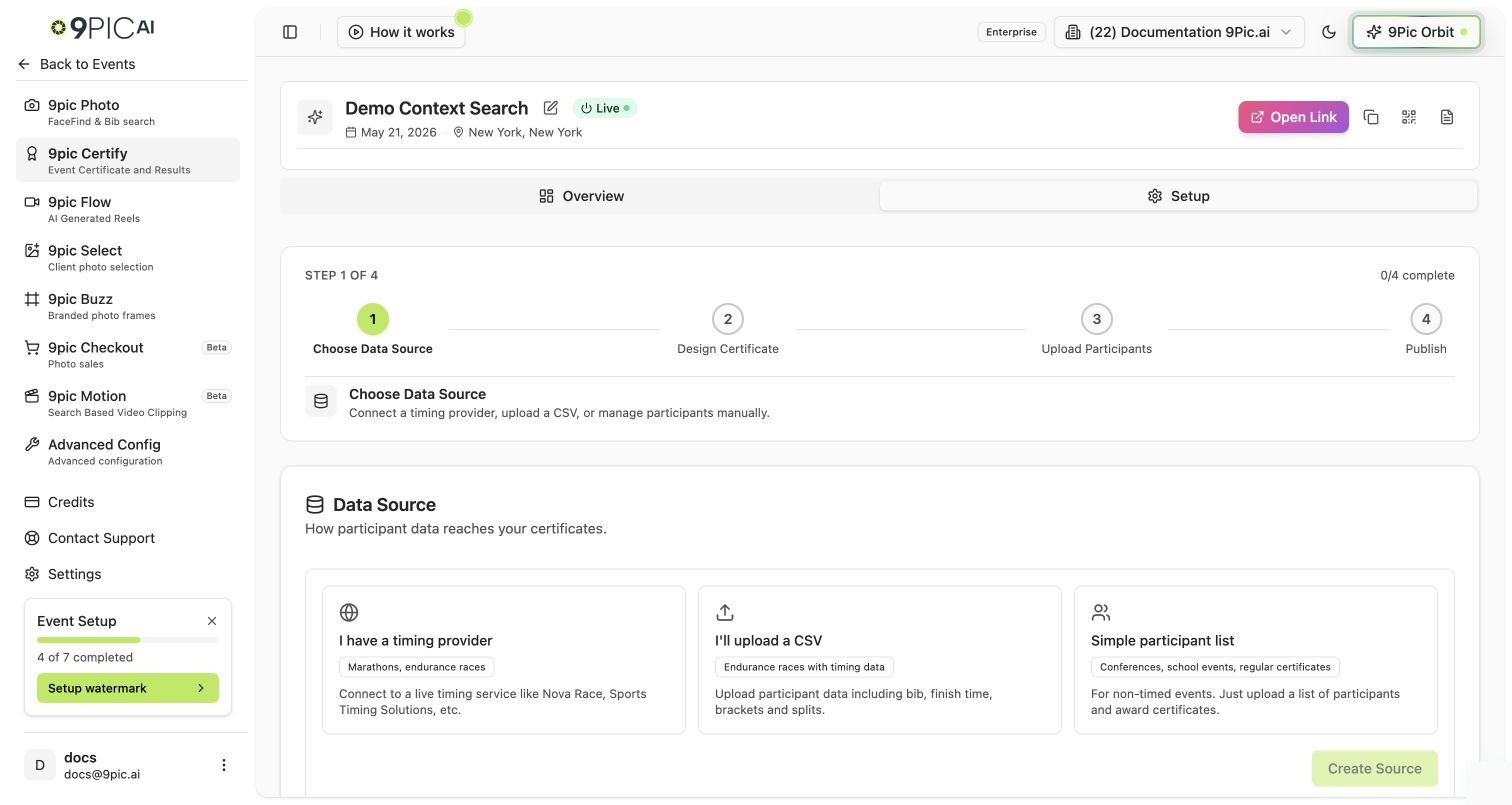 ## The Wizard Steps
Add the source that holds your participant or result data. Depending on the source type you can pull data automatically or upload it yourself (CSV).
Create a template: choose a background, place dynamic fields (name, event, category, time), and style the text. You can create more than one template for different categories.
Add the records the certificates are generated for. For self-managed or proxy sources, you upload a results CSV; otherwise records sync from the connected source.
The wizard is considered complete once you have at least one source, one template, and one record. After that, manage each piece from its dedicated tab.
## Common Questions
That's expected. Once you have a source, a template, and a record, Setup is replaced by **Certificate**, **Records**, and **Publish**. Use those to make changes.
Yes. Open the **Certificate** tab to add or edit templates at any time.
## Next Steps
Data sources and certificate templates.
Participant records and result CSV uploads.
## The Wizard Steps
Add the source that holds your participant or result data. Depending on the source type you can pull data automatically or upload it yourself (CSV).
Create a template: choose a background, place dynamic fields (name, event, category, time), and style the text. You can create more than one template for different categories.
Add the records the certificates are generated for. For self-managed or proxy sources, you upload a results CSV; otherwise records sync from the connected source.
The wizard is considered complete once you have at least one source, one template, and one record. After that, manage each piece from its dedicated tab.
## Common Questions
That's expected. Once you have a source, a template, and a record, Setup is replaced by **Certificate**, **Records**, and **Publish**. Use those to make changes.
Yes. Open the **Certificate** tab to add or edit templates at any time.
## Next Steps
Data sources and certificate templates.
Participant records and result CSV uploads.